Absolute vs Relative References in Google Sheets
Learn the difference between absolute and relative cell references in Google Sheets. Covers the $ sign, mixed references, the F4 shortcut, and when to use each type.
Sheets Bootcamp
March 31, 2026
An absolute reference in Google Sheets is a cell reference that stays fixed when you copy a formula to other cells. A relative reference shifts automatically. The difference comes down to the dollar sign ($) in front of the column letter, the row number, or both.
Understanding when to use each type prevents a common problem: you write a formula that works in one cell, copy it down a column, and get wrong results in every other row. This guide covers relative, absolute, and mixed references with real examples so you can see exactly how each behaves.
In This Guide
- How Relative References Work
- The Problem: When Relative References Break
- How Absolute References Work ($ Sign)
- Mixed References
- The F4 Shortcut
- Common Mistakes and Fixes
- Tips and Best Practices
- Related Google Sheets Tutorials
- FAQ
How Relative References Work
Every cell reference in Google Sheets is relative by default. When you write =D2*C2 in a cell and copy it one row down, Google Sheets adjusts both references by one row. The formula becomes =D3*C3.
This is usually what you want. If each row holds its own data, the formula should reference its own row.
Here is a table with items, quantities, prices, and discounts. The formula in E2 multiplies the discount by the price for that row:
=D2*C2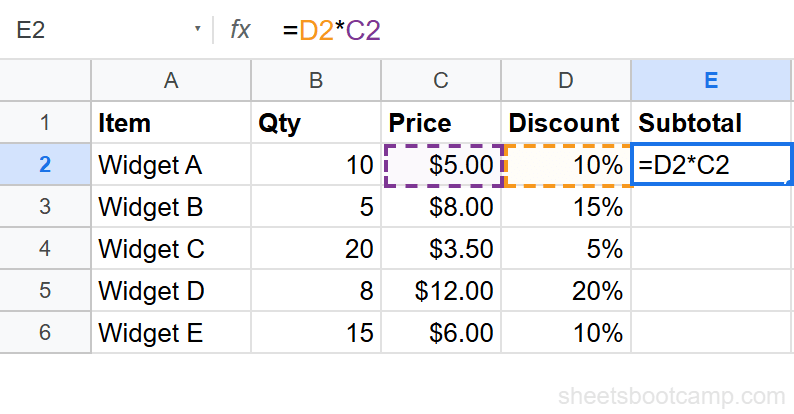
Copy that formula down to E3:E6 and each row calculates its own subtotal. Click E4 and the formula bar shows =D4*C4. The references shifted down by two rows, matching the row the formula is in.
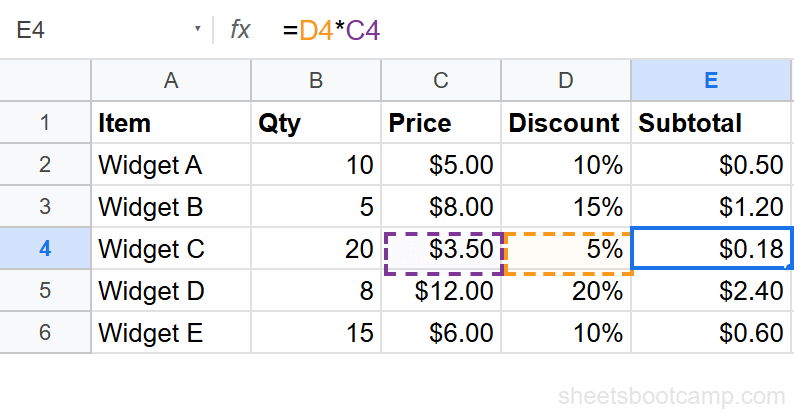
Relative references work any time every row should reference its own data. Summing columns, multiplying values in the same row, or referencing adjacent cells are all cases where relative references do the right thing.
The Problem: When Relative References Break
Relative references stop working when a formula needs to reference a fixed cell, like a tax rate, exchange rate, or markup percentage stored in one place.
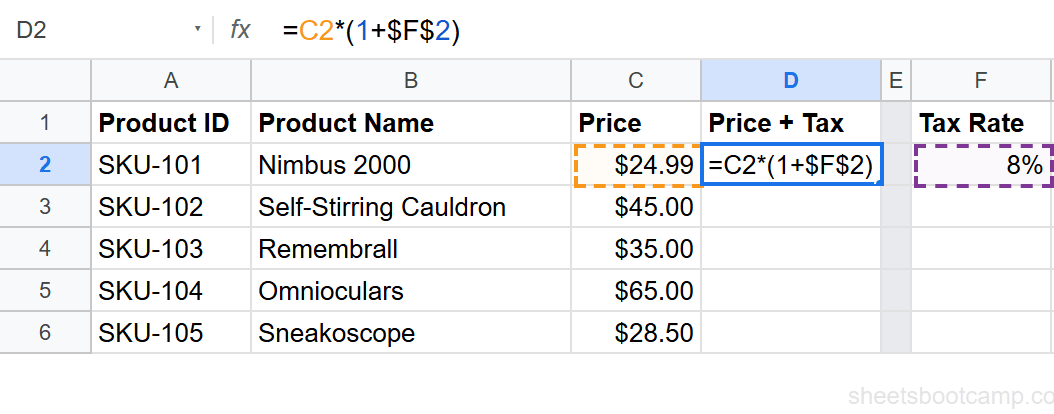
Here is a product list with prices in column C. The tax rate (8%) sits in cell F2. The formula in D2 calculates the price plus tax:
=C2*(1+F2)D2 returns the correct result: $26.99. But when you copy this formula down, D3 through D6 all return $0.00.
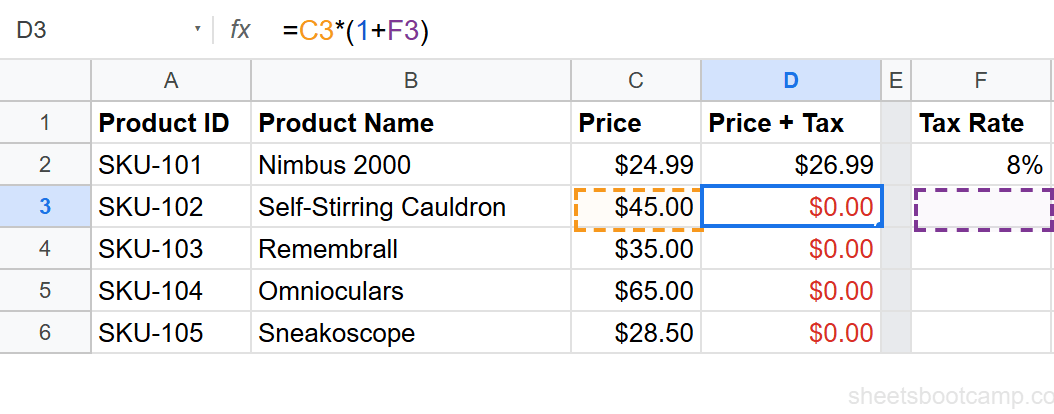
The problem is the F2 reference. When the formula copies to D3, F2 becomes F3. Cell F3 is empty, so the calculation multiplies by zero. D4 references F4 (also empty), and so on.
The fix is to lock the tax rate reference so it always points to F2, no matter where you copy the formula.
How Absolute References Work ($ Sign)
An absolute reference uses the dollar sign ($) to lock a cell reference. $F$2 means “always column F, always row 2.” When you copy the formula, that part stays fixed.
Here is how to use it:
Enter your product data in columns A through C. In cell F2, enter the tax rate: 8%. Column D will hold the calculated price plus tax.
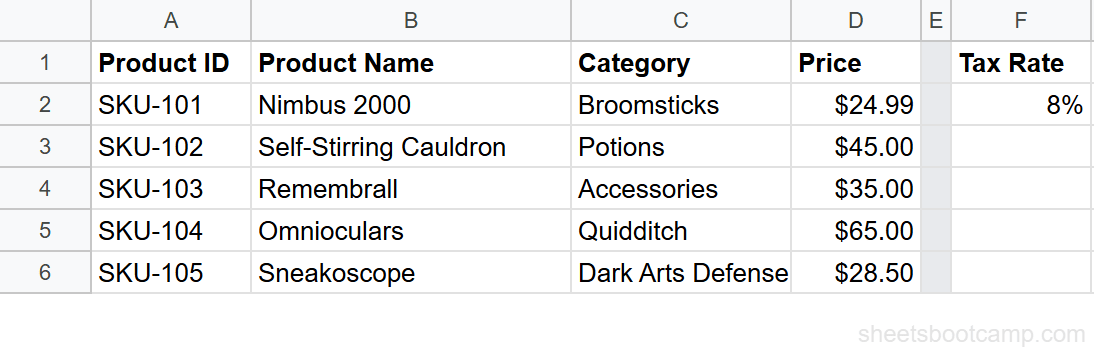
In cell D2, enter:
=C2*(1+$F$2)The $ before F locks the column. The $ before 2 locks the row. Together, $F$2 always points to the tax rate cell. C2 has no dollar signs, so it shifts normally when copied.
Select D2 and drag the fill handle down to D6. Every row now calculates the correct price plus 8% tax. Click D4 and the formula bar shows =C4*(1+$F$2). The price reference shifted to C4, but the tax rate stayed locked on $F$2.
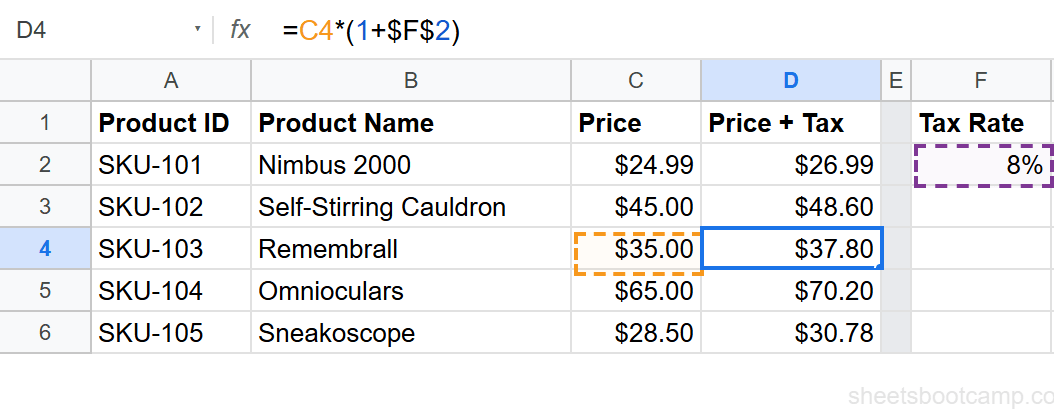
The dollar signs go inside the formula, not in the cell value. You type $F$2 in the formula bar. The cell still displays the calculated number.
Mixed References
An absolute reference locks both the column and the row. A mixed reference locks one but not the other.
| Reference | Column | Row | Behavior |
|---|---|---|---|
A1 | Shifts | Shifts | Fully relative |
$A$1 | Locked | Locked | Fully absolute |
$A1 | Locked | Shifts | Column locked, row shifts |
A$1 | Locked | Shifts | Row locked, column shifts |
When to use $A1 (lock the column): You want the formula to always pull from column A, but the row should shift as you copy down. This is common in lookup ranges where the lookup column stays fixed.
When to use A$1 (lock the row): You want the formula to always pull from row 1 (like a header or rate row), but the column should shift as you copy across. This is common in multiplication tables or cross-reference grids.
Mixed references shine in formulas you copy both down AND across. If you only copy in one direction, a full absolute reference ($A$1) works fine and is easier to read.
The F4 Shortcut
You do not need to type dollar signs manually. Place your cursor on any cell reference in the formula bar and press F4. Each press cycles through the four reference types:
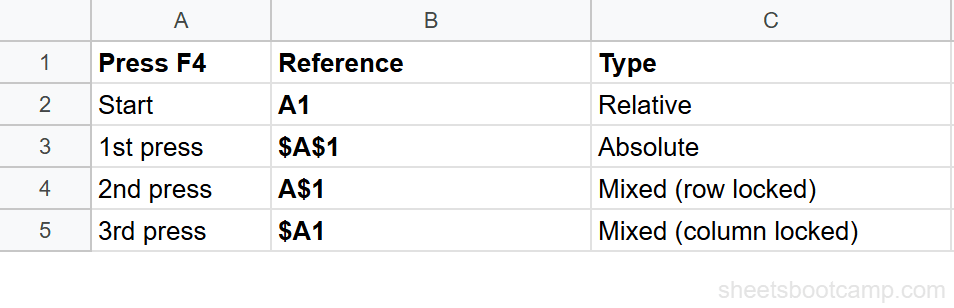
| Press | Reference | Type |
|---|---|---|
| Start | A1 | Relative |
| 1st F4 | $A$1 | Absolute (column and row locked) |
| 2nd F4 | A$1 | Mixed (row locked) |
| 3rd F4 | $A1 | Mixed (column locked) |
| 4th F4 | A1 | Back to relative |
On a Mac, you may need to press Fn+F4 if your function keys are mapped to system controls (brightness, volume, etc.). Check System Preferences > Keyboard if F4 does not cycle references.
Common Mistakes and Fixes
Copied formula returns wrong values
This is the most common issue. You copy a formula down and rows below the first one return wrong numbers, zeros, or errors. Check the formula bar for cell references that should be locked. Add $ signs to any reference that should not shift.
Accidentally locking a reference that should shift
If every row returns the same value instead of referencing its own data, you may have an absolute reference where you need a relative one. Remove the $ signs from the reference, or press F4 to cycle back to the relative form.
#REF! error after moving cells
Moving a cell that other formulas reference with absolute references can create #REF! errors. Google Sheets tries to update references when you move cells, but cutting and pasting to a different sheet or workbook can break them. If you see #REF!, check that the locked reference still points to a valid cell.
Tips and Best Practices
-
Use F4 instead of typing dollar signs. It is faster and avoids typos. Click the reference in the formula bar, press F4, and the dollar signs appear automatically.
-
Start with the question: should this reference shift? If every row needs its own value (same-row multiplication, totals), leave it relative. If every row needs the same cell (a rate, a threshold, a header), make it absolute.
-
Named ranges can replace absolute references. Instead of
$F$2, you can name cell F2 asTaxRateand write=C2*(1+TaxRate). Named ranges never shift and are easier to read in long formulas. Go to Data > Named ranges to set them up. -
Test by copying one row. After writing a formula, copy it one row down and check the formula bar. If the references shifted correctly, copy the rest. Catching the issue in one row saves time.
-
Absolute references are common in VLOOKUP and INDEX MATCH formulas. When you lock the table_array or lookup range with
$signs, the range stays fixed as you copy the formula across multiple cells.
Related Google Sheets Tutorials
- VLOOKUP: The Complete Guide - Lookup formulas frequently need absolute references for the table range
- INDEX MATCH: The Complete Guide - Locking the lookup and return arrays when copying across rows
- ARRAYFORMULA Complete Guide - One formula that covers the entire column without copying
- IF Function: The Complete Guide - Combining absolute references with conditional logic
FAQ
What does the dollar sign ($) mean in a Google Sheets formula?
The dollar sign locks part of a cell reference so it does not change when you copy the formula. $A$1 locks both the column and the row. $A1 locks the column only. A$1 locks the row only.
How do I lock a cell reference in Google Sheets?
Place your cursor on the cell reference in the formula bar and press F4. This adds dollar signs to lock the reference. Press F4 again to cycle through the four reference types: relative, absolute, row-locked, and column-locked.
What is the difference between $A$1 and A1?
$A$1 is an absolute reference. It stays fixed on cell A1 no matter where you copy the formula. A1 is a relative reference. It shifts based on where you paste the formula. If you copy one row down, A1 becomes A2.
What is a mixed reference in Google Sheets?
A mixed reference locks either the column or the row, but not both. $A1 keeps the column locked on A but lets the row shift. A$1 keeps the row locked on 1 but lets the column shift. Mixed references are useful for building multiplication tables or cross-reference grids.
When should I use absolute vs relative references?
Use relative references (no $ sign) when each row should reference its own data, like totaling columns in the same row. Use absolute references ($ sign) when every row needs the same fixed value, like a tax rate, exchange rate, or markup percentage stored in a single cell.
Does the F4 shortcut work in Google Sheets?
Yes. Press F4 while your cursor is on a cell reference in the formula bar. It cycles through four modes: A1 (relative), $A$1 (absolute), A$1 (row locked), $A1 (column locked). On Mac, use Fn+F4 if function keys are mapped to system controls.