Highlight Duplicates in Google Sheets (Easy Guide)
Learn to highlight duplicate values in Google Sheets with conditional formatting and COUNTIF. Find duplicates, flag second occurrences, and color rows.
Sheets Bootcamp
March 6, 2026
Highlighting duplicates in Google Sheets uses conditional formatting with a COUNTIF-based custom formula. COUNTIF counts how many times a value appears in a range — when the count exceeds 1, the value is a duplicate. This guide walks through the formula step by step, shows how to flag only the second occurrence, and covers highlighting entire rows that contain duplicates.
In This Guide
- The COUNTIF Formula for Duplicates
- Step-by-Step: Highlight Duplicate Products
- Highlight Duplicates in the Salesperson Column
- Highlight Only the Second Occurrence
- Highlight Entire Rows with Duplicates
- Common Mistakes
- Tips
- Related Google Sheets Tutorials
- FAQ
The COUNTIF Formula for Duplicates
The core pattern for duplicate detection:
=COUNTIF($D$2:$D$11, D2)>1Here is what each part does:
COUNTIF($D$2:$D$11, D2)— counts how many times the value in D2 appears in the range D2:D11>1— returns TRUE when the count exceeds 1, meaning the value is a duplicate$D$2:$D$11— absolute references lock the count range so it stays fixed for every cellD2— relative reference shifts for each row (D3, D4, etc.)
If a value appears exactly once, COUNTIF returns 1 and the formula returns FALSE. If it appears twice or more, the formula returns TRUE and the cell gets formatted.
COUNTIF text comparisons are case-insensitive. “Extendable Ears” and “extendable ears” are treated as the same value. If you need case-sensitive duplicate detection, use EXACT inside a SUMPRODUCT formula instead.
Step-by-Step: Highlight Duplicate Products
We’ll use a sales records table with 10 transactions. The Product column (D) has one duplicate: “Extendable Ears” appears in rows 2 and 8. All other product names are unique.
Sample Data
| A | B | C | D | E | F | G | |
|---|---|---|---|---|---|---|---|
| 1 | Date | Salesperson | Region | Product | Units | Revenue | Commission |
| 2 | 1/5/2026 | Fred Weasley | Diagon Alley | Extendable Ears | 12 | $239.88 | $24.00 |
| 3 | 1/7/2026 | Ginny Weasley | Hogsmeade | Self-Stirring Cauldron | 8 | $360.00 | $36.00 |
| 4 | 1/8/2026 | Lee Jordan | Diagon Alley | Remembrall | 15 | $525.00 | $52.50 |
| 5 | 1/10/2026 | Fred Weasley | Diagon Alley | Omnioculars | 5 | $325.00 | $32.50 |
| 6 | 1/12/2026 | George Weasley | Hogsmeade | Sneakoscope | 20 | $570.00 | $57.00 |
| 7 | 1/14/2026 | Ginny Weasley | Hogwarts | Nimbus 2000 | 25 | $624.75 | $62.50 |
| 8 | 1/15/2026 | Lee Jordan | Hogsmeade | Extendable Ears | 10 | $199.90 | $20.00 |
| 9 | 1/18/2026 | Fred Weasley | Diagon Alley | Invisibility Cloak | 3 | $269.97 | $27.00 |
| 10 | 1/20/2026 | George Weasley | Hogwarts | Firebolt | 8 | $336.00 | $33.60 |
| 11 | 1/22/2026 | Ginny Weasley | Hogsmeade | Deluminator | 6 | $330.00 | $33.00 |
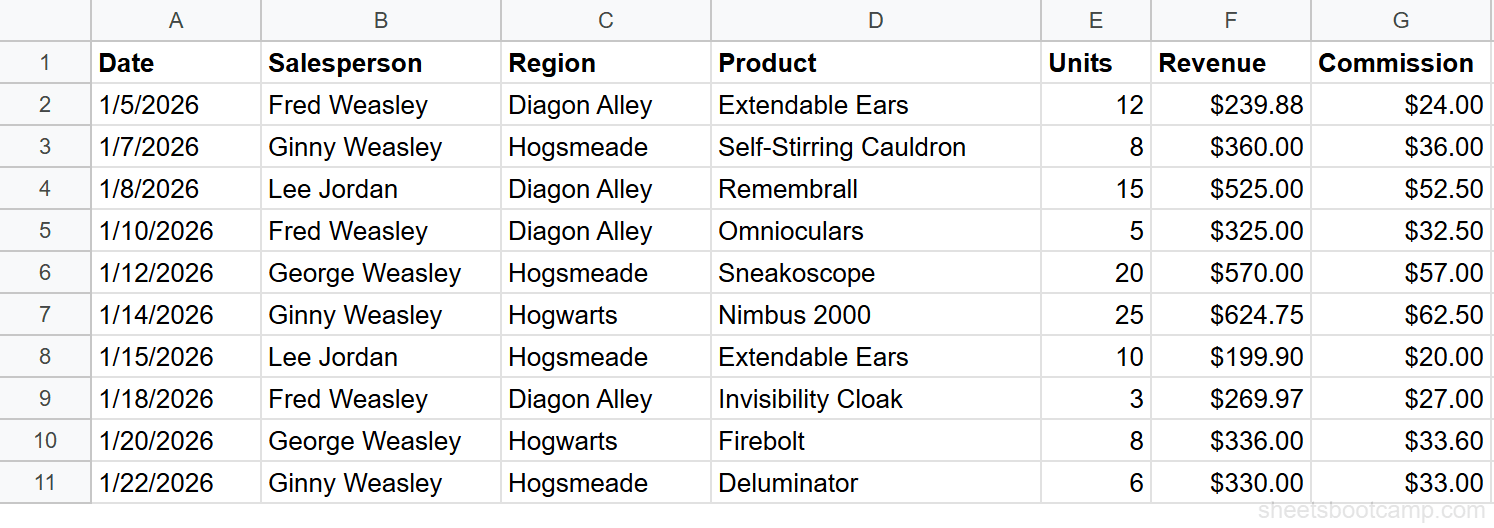
Select the Product column
Highlight cells D2 through D11.
Open conditional formatting
Go to Format > Conditional formatting. Verify the “Apply to range” shows D2:D11.
Enter the COUNTIF formula
Select Custom formula is from the dropdown and enter:
=COUNTIF($D$2:$D$11, D2)>1Set the highlight color and apply
Choose an orange fill color and click Done.
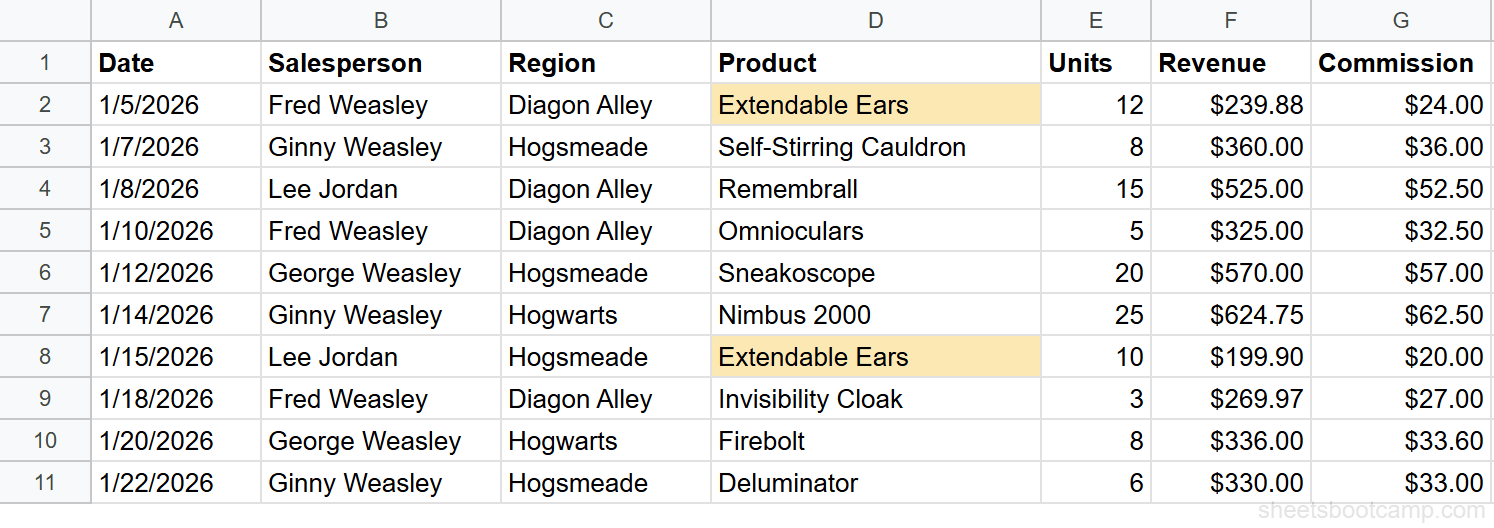
Two cells are highlighted: “Extendable Ears” in row 2 and “Extendable Ears” in row 8. Every other product name appears only once, so COUNTIF returns 1 and the formula returns FALSE for those cells.
Highlight Duplicates in the Salesperson Column
Apply the same pattern to B2:B11:
=COUNTIF($B$2:$B$11, B2)>1In this dataset, every salesperson appears multiple times — Fred Weasley (rows 2, 5, 9), Ginny Weasley (rows 3, 7, 11), Lee Jordan (rows 4, 8), and George Weasley (rows 6, 10). Every cell is highlighted because no salesperson name is unique.
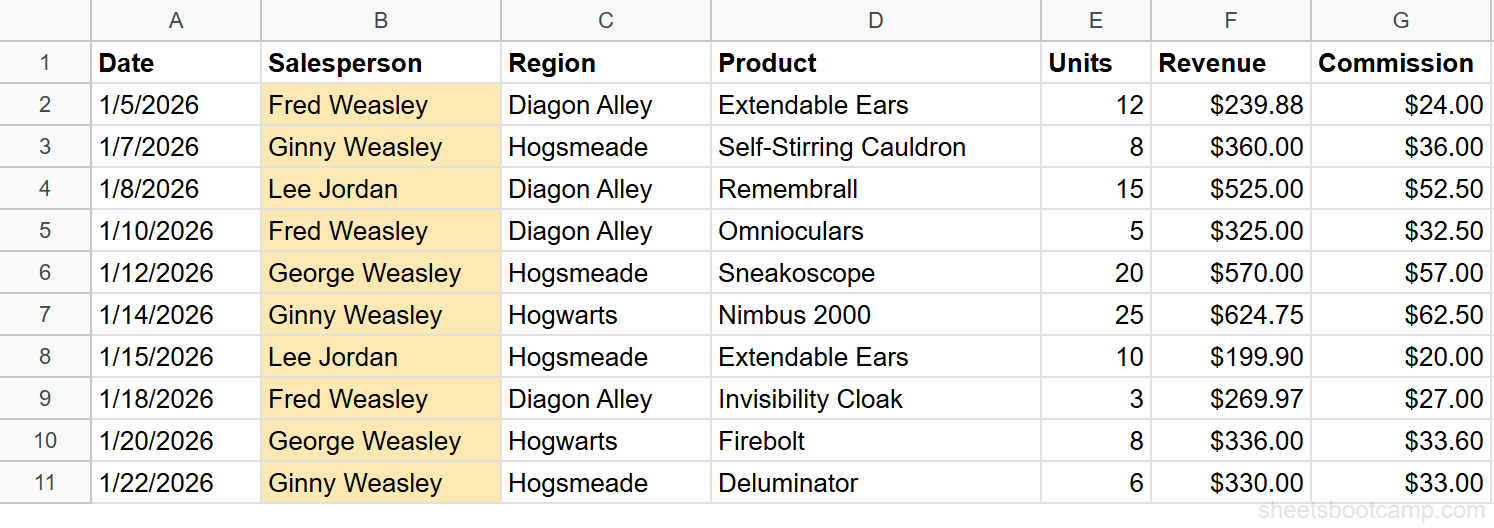
This demonstrates an important point: the formula highlights all occurrences of a duplicate, not the “extra” ones. If a name appears three times, all three cells are highlighted.
If every cell lights up, the column likely has no unique values. This is normal for category-like columns (regions, salesperson names, departments). Duplicate detection is most useful on columns where values should be unique — like order IDs, email addresses, or product SKUs.
Highlight Only the Second Occurrence
Sometimes you want to keep the first occurrence and flag only the repeat entries. Use a growing range:
=COUNTIF($D$2:D2, D2)>1The difference is subtle but important. The range $D$2:D2 starts at D2 and ends at the current row. As the formula moves down:
| Row | Range Evaluated | ”Extendable Ears” Count | Highlighted? |
|---|---|---|---|
| 2 | D2:D2 | 1 | No |
| 3 | D2:D3 | 0 | No |
| 8 | D2:D8 | 2 | Yes |
For row 2, the range is D2:D2 — “Extendable Ears” appears once, so the count is 1 (not >1). For row 8, the range is D2:D8 — “Extendable Ears” has already appeared in row 2, so the count is 2 (>1). Only the second occurrence gets highlighted.
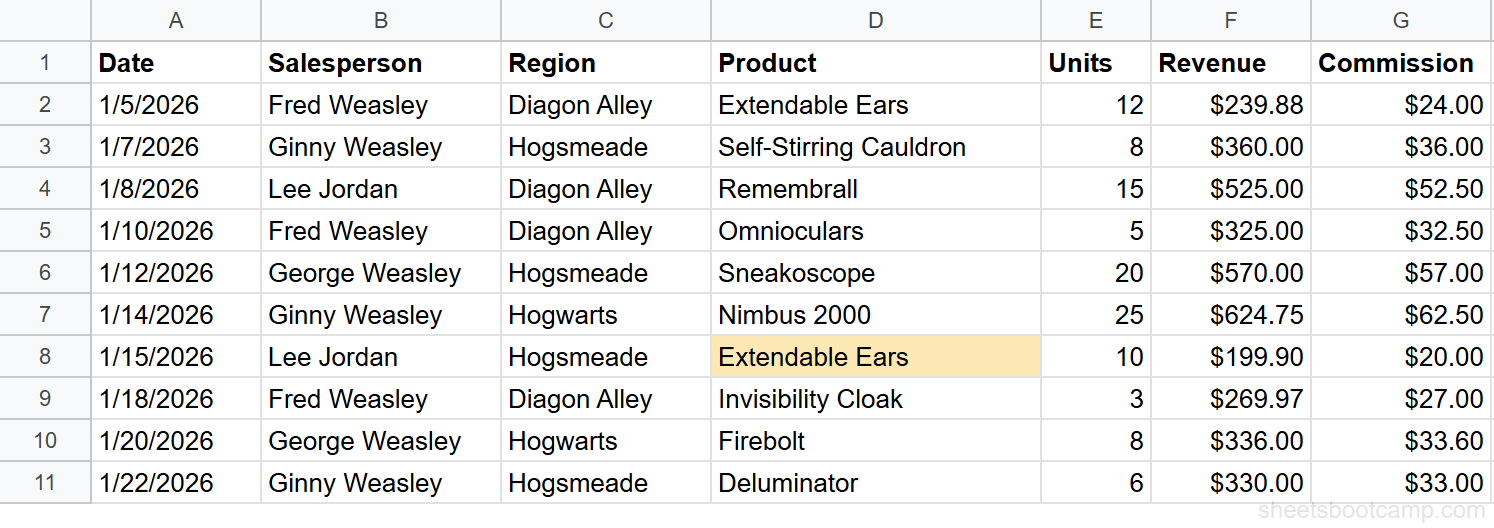
The growing range technique ($D$2:D2) only works when the end of the range is relative. If you accidentally write $D$2:$D$2, the range never grows and no duplicates are found.
Highlight Entire Rows with Duplicates
To color the entire row when a duplicate exists in the Product column, apply the rule to A2:G11 and lock the column reference:
=COUNTIF($D$2:$D$11, $D2)>1Note the extra $ on $D2 — this locks the column to D so that every cell in the row checks the same Product value. Without it, cell A2 would check D2 (correct), but cell E2 would check H2 (wrong).
Rows 2 and 8 are highlighted across all seven columns because both contain “Extendable Ears.”
For a detailed walkthrough of the entire-row technique, see conditional formatting entire row.
Common Mistakes
Forgetting absolute references on the COUNTIF range
If you write =COUNTIF(D2:D11, D2)>1, the range shifts as the formula moves down. For row 5, it evaluates D5:D14 — three rows past your data. Always lock the range: $D$2:$D$11.
Using =1 instead of >1
=COUNTIF($D$2:$D$11, D2)=1 highlights unique values, not duplicates. A value that appears once returns a count of 1 (TRUE). A value that appears twice returns 2 (FALSE). Use >1 to catch duplicates.
Applying to the wrong column
If you select B2:B11 (Salesperson) but the formula references column D (Product), the formula checks products but the formatting appears on salesperson names. Make sure the formula column matches the selected range, or use the $ technique for formatting based on another cell.
COUNTIF counts cells that match, including the cell itself. A value that appears exactly twice has a COUNTIF result of 2 in both cells. There is no built-in way to highlight “only the duplicate” without also highlighting the original — use the growing range technique for that.
Tips
Combine with Remove Duplicates. After identifying duplicates with conditional formatting, use Data > Data cleanup > Remove duplicates to delete the extra rows. Conditional formatting helps you verify which rows will be affected before removing them.
Check for near-duplicates. COUNTIF matches exact values only. “Extendable Ears” and “Extendable Ears ” (trailing space) are different. Use TRIM on your data first if extra spaces might cause mismatches.
Use COUNTIFS for multi-column duplicates. To find rows where both Salesperson AND Product match, use =COUNTIFS($B$2:$B$11, $B2, $D$2:$D$11, $D2)>1. This checks two columns at once and only highlights rows where the combination is duplicated.
Related Google Sheets Tutorials
- Conditional Formatting: Complete Guide — all rule types, color scales, and managing multiple rules
- Custom Formula in Conditional Formatting — write advanced rules with any formula that returns TRUE or FALSE
- Conditional Formatting Entire Row — highlight all columns in a row based on one cell’s value
- COUNTIF and COUNTIFS — the full COUNTIF function reference with counting patterns beyond duplicates
Frequently Asked Questions
How do I highlight duplicate values in Google Sheets?
Select the column, go to Format > Conditional formatting, choose “Custom formula is,” and enter =COUNTIF($D$2:$D$11, D2)>1. This highlights every cell whose value appears more than once in the range. Both the original and the duplicate get highlighted.
What formula finds duplicates in Google Sheets?
COUNTIF counts how many times a value appears in a range. The formula =COUNTIF($D$2:$D$11, D2)>1 returns TRUE when the value in D2 appears more than once. Use this inside a conditional formatting custom formula rule to visually flag duplicates in a column.
Can I highlight only the second occurrence of a duplicate?
Yes. Use =COUNTIF($D$2:D2, D2)>1 with a growing range. The range starts at $D$2 and expands to the current row. The first time a value appears, the count is 1 (not highlighted). The second time, the count is 2 (highlighted). This leaves the first occurrence unmarked.
How do I highlight entire rows that contain duplicates?
Select the full data range (A2:G11) and use =COUNTIF($D$2:$D$11, $D2)>1. The extra dollar sign on $D2 locks the column so every cell in the row checks the same Product value. The entire row lights up for rows containing duplicate products.