Checkboxes in Google Sheets: Complete Guide
Learn how to insert a checkbox in Google Sheets and use it in formulas. Count, filter, and format rows based on checkbox values. Step-by-step guide.
Sheets Bootcamp
March 9, 2026
A checkbox in Google Sheets is a data validation control that stores TRUE when checked and FALSE when unchecked. You insert checkboxes through the same Data validation menu that handles dropdowns, date rules, and number restrictions. This guide covers how to add checkboxes, use them in formulas, apply conditional formatting based on checkbox state, and set custom checkbox values.
In This Guide
- How to Insert Checkboxes
- Checkboxes Store TRUE and FALSE
- Checkbox Formulas
- Conditional Formatting with Checkboxes
- Custom Checkbox Values
- Common Mistakes
- Tips
- Related Google Sheets Tutorials
- Frequently Asked Questions
How to Insert Checkboxes
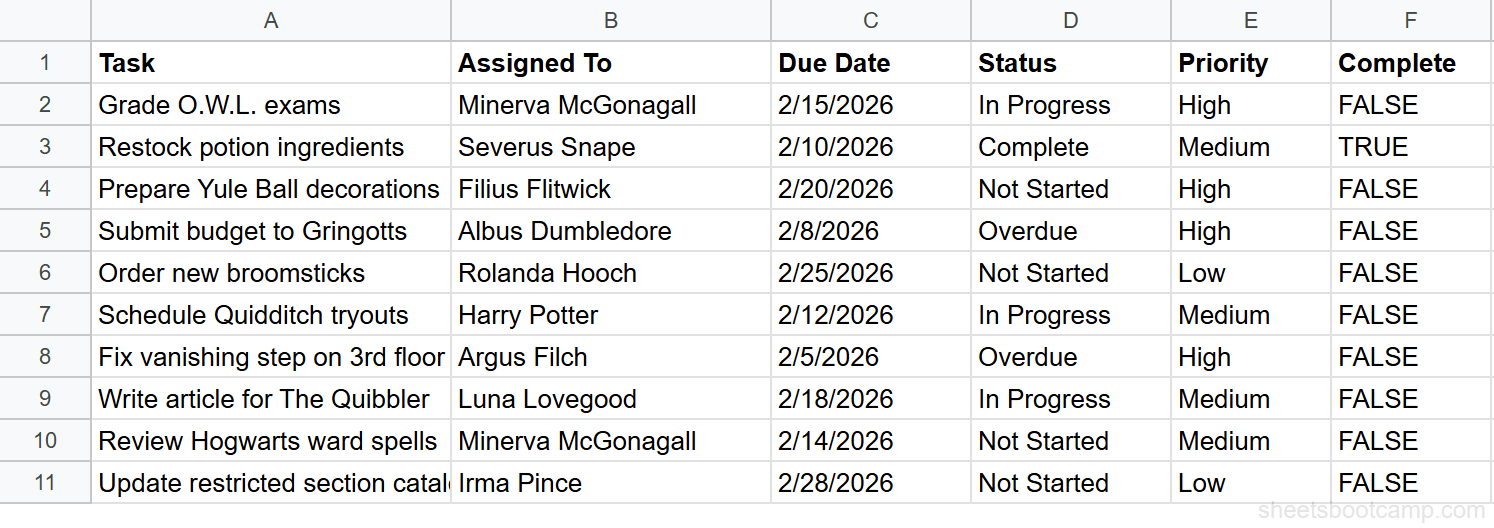
The task tracker below has a Complete column (F) with raw TRUE and FALSE text. We’ll convert that column to checkboxes.
Select the checkbox range
Select F2:F11 — the cells where you want checkboxes. You can select an entire column or any range.
Open Data validation
Go to Data > Data validation. The rules panel opens on the right. Select Add rule.
Choose Checkbox and click Done
Under Criteria, choose Checkbox from the dropdown. Click Done. Checkboxes appear immediately. Any cell that already held the text TRUE becomes a checked box.
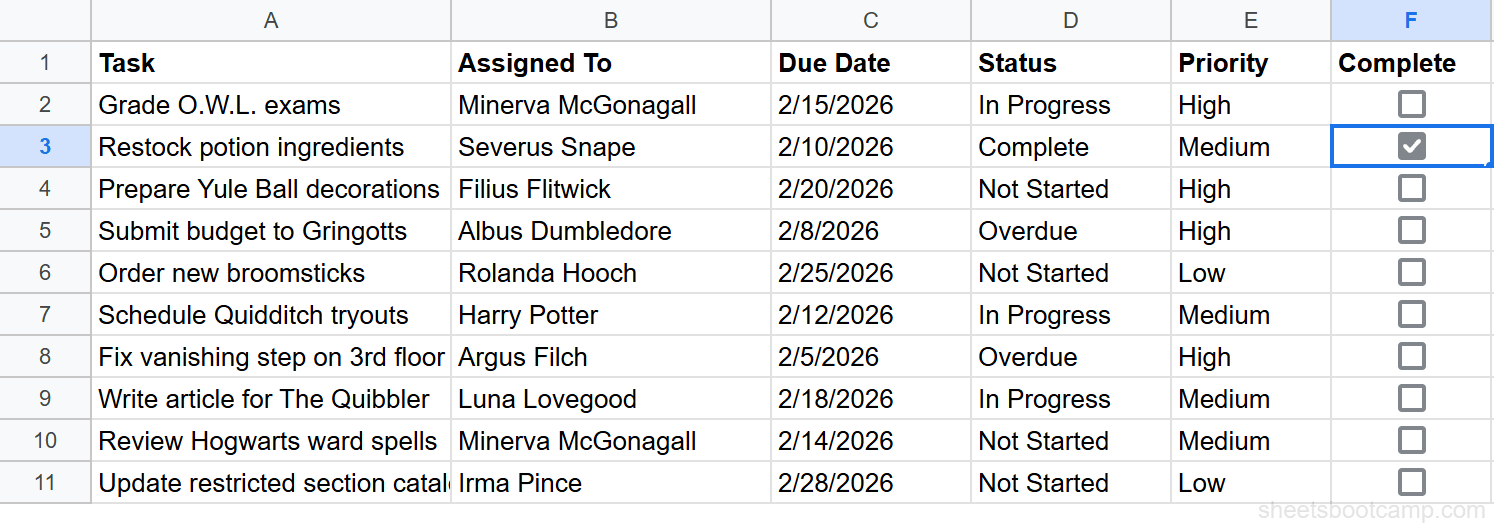
Press the Space bar to toggle a selected checkbox without clicking it. Select a range of checkboxes and press Space to toggle all of them at once.
Checkboxes Store TRUE and FALSE
This is why checkboxes work in formulas. A checked box stores the boolean TRUE. An unchecked box stores FALSE. These are not text strings — they are the same logical values that IF, COUNTIF, and SUMPRODUCT recognize natively.
Select a checkbox cell and look at the formula bar. You will see TRUE or FALSE displayed there. That value is what your formulas read.
If a checkbox shows “TRUE” or “FALSE” as visible text inside the cell, the data validation rule has been removed. The cell is displaying a text string, not a boolean. Re-apply Data validation > Checkbox to restore it.
Checkbox Formulas
Because checkboxes return real boolean values, they work directly in standard Google Sheets formulas.
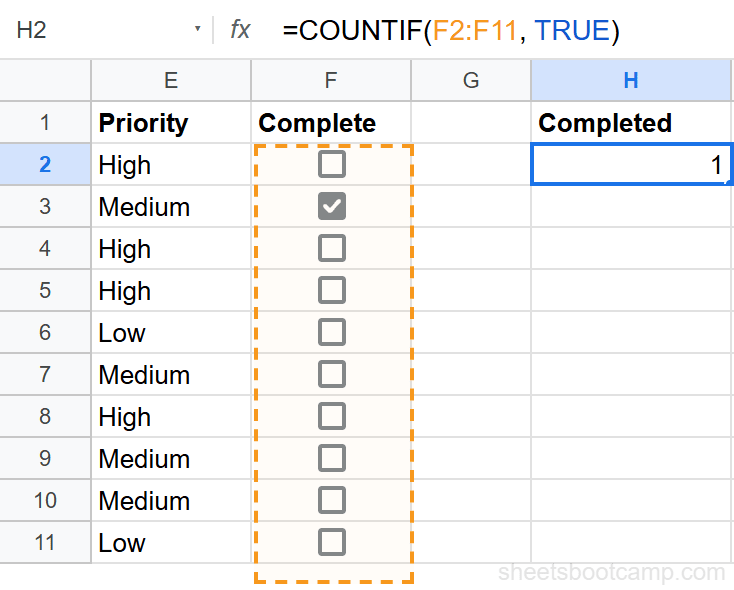
Count completed tasks
=COUNTIF(F2:F11, TRUE)COUNTIF counts every cell in F2:F11 that equals TRUE — meaning every checked box. In our task tracker, only Snape’s task is complete, so this returns 1.
Count remaining tasks
=COUNTIF(F2:F11, FALSE)Swap TRUE for FALSE to count unchecked boxes instead. This returns 9, the number of incomplete tasks.
Count incomplete high-priority tasks
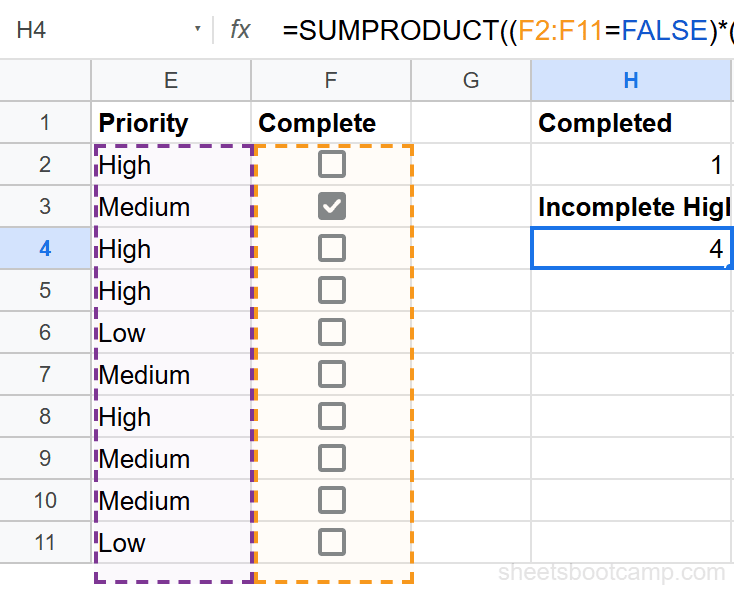
=SUMPRODUCT((F2:F11=FALSE)*(E2:E11="High"))SUMPRODUCT multiplies two arrays together. The first array checks whether each row is incomplete (FALSE). The second checks whether each row is High priority. When both conditions are TRUE, the row contributes 1 to the total. In this tracker, McGonagall’s exam grading, Flitwick’s Yule Ball, Dumbledore’s budget, and Filch’s staircase repair are all incomplete and High priority — so the result is 4.
Display a label based on checkbox state
=IF(F2, "Done", "Pending")IF reads the checkbox cell directly. When F2 is TRUE (checked), the formula returns “Done”. When F2 is FALSE (unchecked), it returns “Pending”. You can use this pattern anywhere you need to convert a checkbox value into display text.
For more on combining conditions with COUNTIF, see the IF statements guide.
Conditional Formatting with Checkboxes
You can use a checkbox value to trigger a formatting rule on the entire row. A common pattern for task trackers is to gray out and strike through completed rows when the checkbox is checked.
Steps:
- Select the full data range: A2:F11.
- Go to Format > Conditional formatting.
- Under Format rules, choose Custom formula is.
- Enter the formula:
=$F2=TRUE - Set the formatting style — a gray fill and gray text creates a “completed” look.
- Click Done.
The $F2 reference locks the column to F but lets the row vary. Every cell in a row checks the same checkbox. When F3 is TRUE (Snape’s row), the entire row A3:F3 receives the formatting.
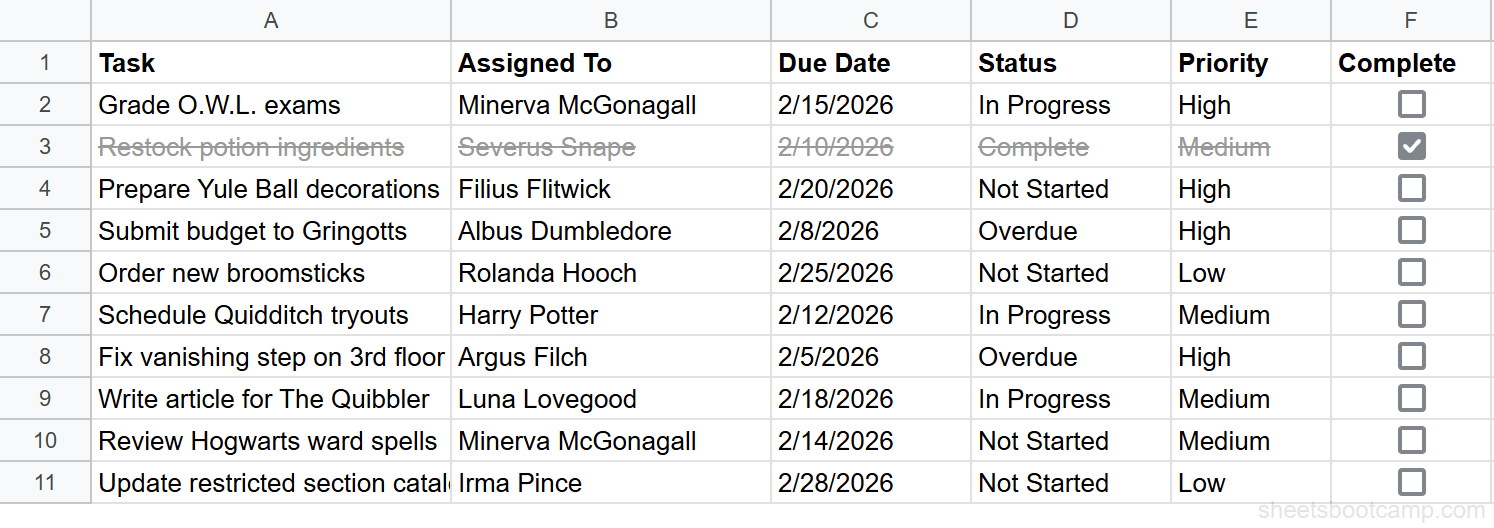
For more on writing custom conditional formatting formulas, see Conditional Formatting in Google Sheets.
Custom Checkbox Values
By default, checkboxes store TRUE when checked and FALSE when unchecked. You can replace those values with anything you want.
In the Data validation panel, after selecting Checkbox, enable the Use custom cell values toggle. Two fields appear:
- Checked: enter the value to store when the box is checked (e.g., “Yes”, “1”, “Complete”)
- Unchecked: enter the value to store when the box is unchecked (e.g., “No”, “0”, “Pending”)
When would you use this? If you have existing formulas that compare against “Yes” or “No” strings, or if you need the raw value to feed into a system that expects 1 or 0 rather than TRUE or FALSE.
Custom checkbox values are stored as text strings even if you enter numbers. The value “1” and the number 1 behave differently in formulas. If your formulas use numeric comparisons, keep the default TRUE/FALSE behavior.
Common Mistakes
Checkbox displays text instead of a tick box
The cell contains the text “TRUE” or “FALSE” but shows no checkbox. This happens when data validation was removed — by deleting the cell and re-entering it, or pasting over it with Paste special > Values only. Re-apply Data validation > Checkbox to the range.
”TRUE” text does not work in COUNTIF
A formula like =COUNTIF(F2:F11, TRUE) returns 0 even though column F appears to have TRUE values. The issue is that the cells contain the text string “TRUE”, not the boolean TRUE. Text “TRUE” and boolean TRUE are different. Fix the cells by re-applying checkbox validation, which converts the stored values back to proper booleans.
Deleting a checkbox versus unchecking it
Pressing Delete on a checkbox cell removes the checkbox entirely. The cell returns to a plain empty cell. If you want to uncheck a box without removing it, select it and press Space, or select it and press Delete once (this unchecks it in some versions). To be safe, use the Data menu checkbox toggle rather than keyboard Delete if you are unsure.
Checkbox does not toggle when selected
The cell may be protected, or there may be a conflicting data validation rule applied over the checkbox rule. Check Data > Protected sheets and ranges to see if the cell is locked. If you see a different validation rule on the cell (a dropdown or number rule), remove that rule first, then re-apply the Checkbox rule.
Tips
-
Select an entire column for bulk insertion. Select the full column F before opening Data validation. Every cell in the column gets a checkbox, including future rows you add below.
-
Use with filter views to hide completed tasks. Apply a filter, then filter column F to show only FALSE. Your completed rows disappear from view without being deleted.
-
COUNTIF(range, TRUE) is the fastest completion tracker. Put this formula at the top or bottom of your sheet for an always-current task count without any extra setup.
-
Combine checkboxes with conditional formatting for visual task management. The
=$F2=TRUErule on the full data range turns your plain table into a visual checklist where completed work fades out automatically. -
You can reference checkbox cells in SPARKLINE and chart series. A column of TRUE/FALSE values works as a 1/0 data series. This lets you build progress visualizations directly from your checklist.
Related Google Sheets Tutorials
- Data Validation in Google Sheets — The complete guide to validation rules including dropdowns, date restrictions, and number constraints
- Dropdown Lists in Google Sheets — Create dropdown menus from typed values or cell ranges with color-coded options
- Conditional Formatting in Google Sheets — Apply formatting rules automatically based on cell values, formulas, and conditions
- COUNTIF and COUNTIFS in Google Sheets — Count cells that match criteria, including TRUE/FALSE checkbox values
- IF Statements in Google Sheets — Use IF with checkbox values to display labels, trigger calculations, or route data
Frequently Asked Questions
How do I insert a checkbox in Google Sheets?
Select the cells where you want checkboxes, go to Data > Data validation, and choose Checkbox from the criteria dropdown. Click Done. Checkboxes appear immediately and store TRUE when checked, FALSE when unchecked.
What does a checkbox return in Google Sheets?
A checked checkbox returns the boolean value TRUE. An unchecked checkbox returns FALSE. These are real boolean values, not text strings, so you can use them directly in formulas like COUNTIF, IF, and SUMPRODUCT.
How do I count checked checkboxes in Google Sheets?
Use =COUNTIF(F2:F11, TRUE) to count all checked boxes in the range F2:F11. For unchecked boxes, use =COUNTIF(F2:F11, FALSE). Both formulas update automatically whenever you check or uncheck a box.
Can I use a checkbox value in a formula?
Yes. Because checkboxes store TRUE or FALSE, you can reference the cell directly in any formula. For example, =IF(F2, "Done", "Pending") reads the checkbox in F2 and returns the appropriate label.