Date Validation in Google Sheets (Restrict Date Entry)
Learn how to restrict date entry in Google Sheets with data validation. Prevent past dates, set date ranges, and use custom formulas for date rules.
Sheets Bootcamp
June 4, 2026
Date data validation in Google Sheets restricts cells to accept only valid dates, dates within a range, or dates that meet specific conditions. This prevents typos like “Februray 30”, past dates in a scheduling column, or entries outside a project timeline. Combined with the TODAY function, date rules can update dynamically so validation always reflects the current date.
In This Guide
- Built-In Date Validation Options
- Step-by-Step: Restrict to Valid Dates Only
- Block Past Dates with TODAY()
- Allow Only Dates Within a Range
- Validate Weekdays Only (No Weekends)
- Ensure End Date Is After Start Date
- Common Mistakes
- Tips
- Related Google Sheets Tutorials
- FAQ
Built-In Date Validation Options
Google Sheets offers a dedicated Date criteria in the Data validation panel. Select any of these conditions:
| Condition | What It Allows |
|---|---|
| Is a valid date | Any value Sheets recognizes as a date |
| Is before | Dates before a specific date |
| Is after | Dates after a specific date |
| Is on or before | The specified date and anything earlier |
| Is on or after | The specified date and anything later |
| Is between | Dates within a start and end range |
| Is not between | Dates outside a start and end range |
| Is equal to | Only one specific date |
These built-in options use fixed dates. For dynamic rules that change daily (like “no past dates”), you need a custom formula.
The built-in Date criteria validates that the entry is a date, but it doesn’t prevent text entries in all cases. If someone types “TBD” instead of a date, Sheets may show a warning rather than rejecting it outright. For strict enforcement, pair the Date criteria with Reject input, or use a custom formula.
Step-by-Step: Restrict to Valid Dates Only
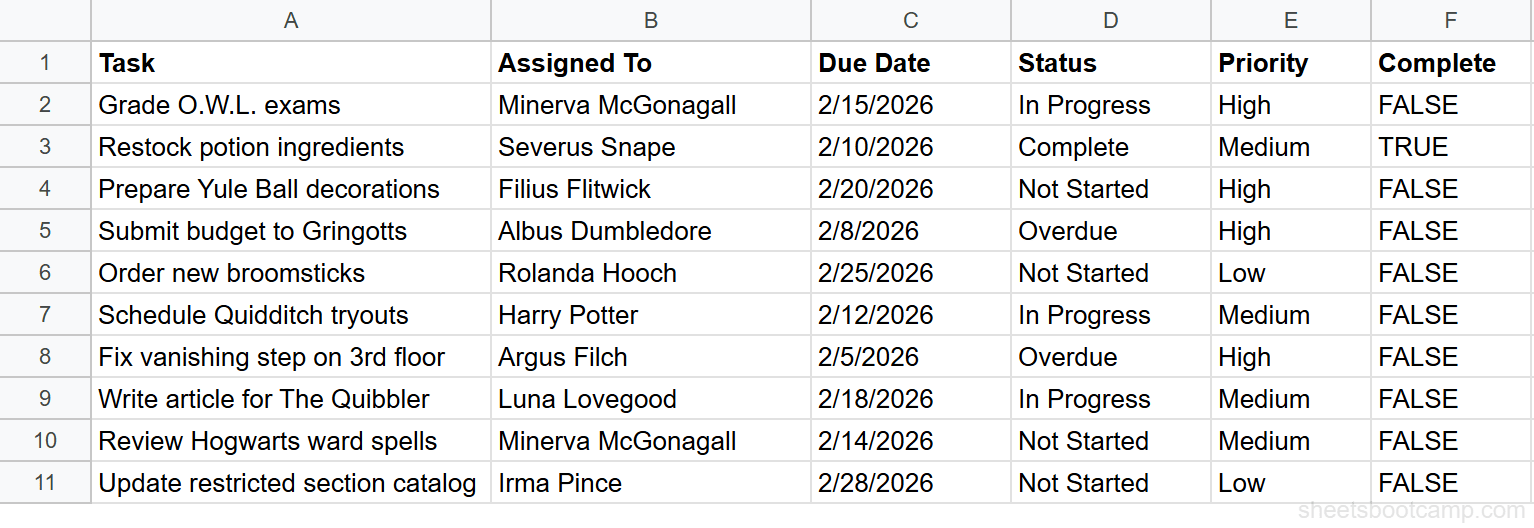
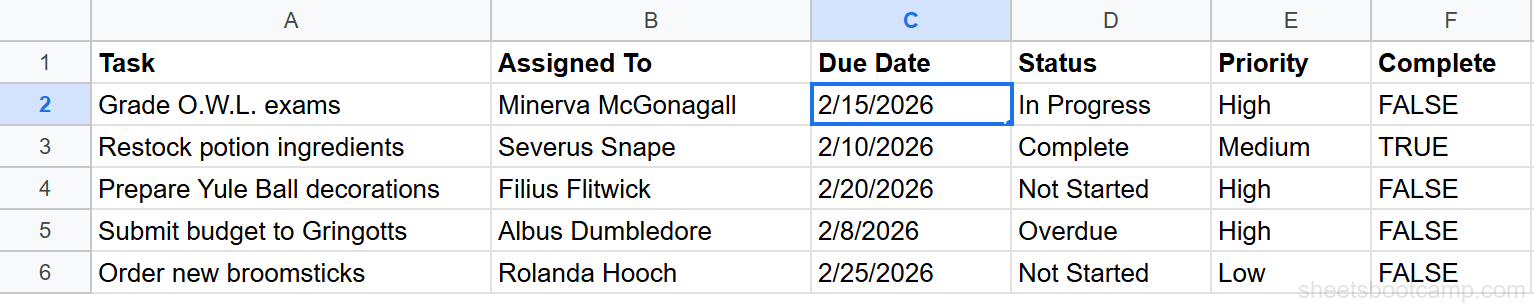
We’ll use the task tracker to ensure the Due Date column only accepts real dates.
Step 1: Select the Date Cells and Open Data Validation
Highlight C2:C12 — the Due Date column in the task tracker, excluding the header.
Go to Data > Data validation.
Step 2: Choose Date Criteria and Set the Condition
In the Data validation panel, click Add rule. Under Criteria, select Date from the dropdown.
Choose is a valid date. This is the simplest date rule: it accepts any value Google Sheets recognizes as a date and rejects everything else.
Step 3: Set Rejection Behavior and Click Done
Under If the data is invalid, select Reject input. Click Done.
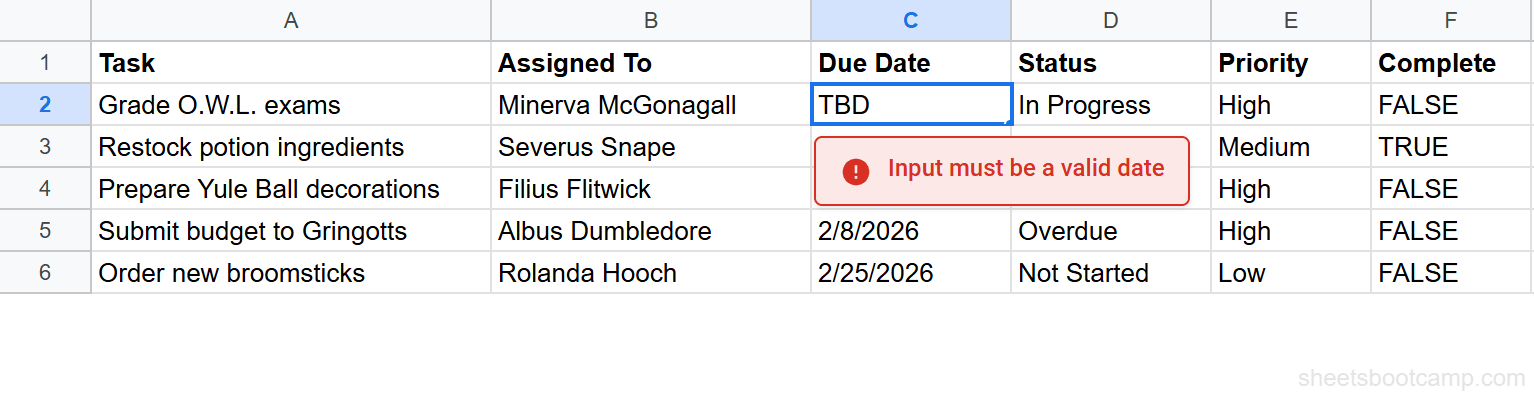
Now try typing “TBD” or “next week” in a Due Date cell. Sheets rejects the entry because it’s not a date.
Block Past Dates with TODAY()
The built-in Date criteria uses fixed dates, so “is on or after January 15, 2026” stays static. To block any date before today and have the rule update daily, use a custom formula.
Select C2:C12 and open Data validation. Choose Custom formula is and enter:
=C2>=TODAY()This checks whether the date in C2 is today or later. The TODAY function recalculates every time the spreadsheet opens, so yesterday’s valid date becomes invalid tomorrow. Set to Reject input and click Done.
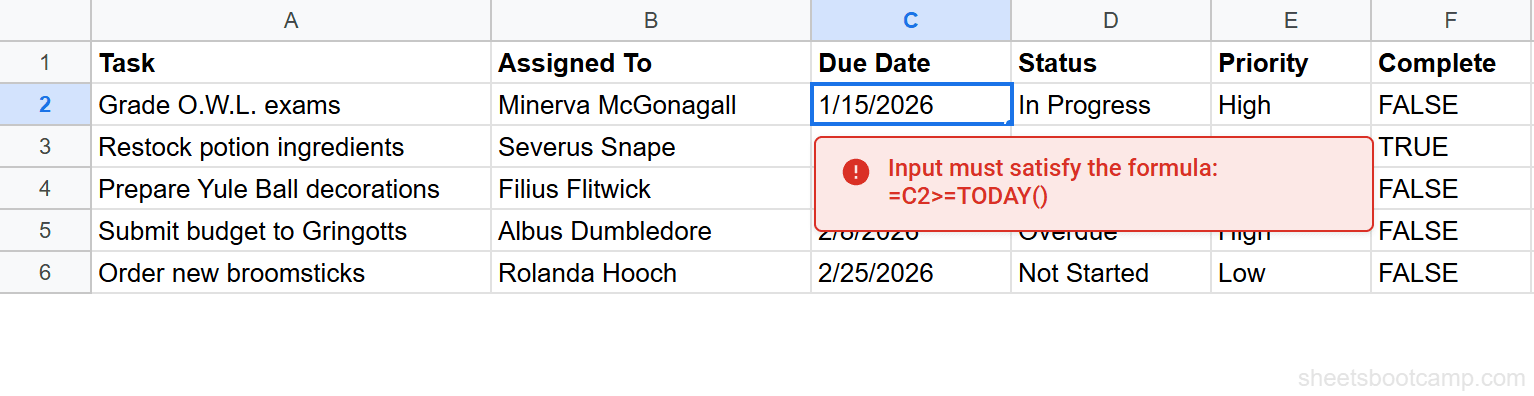
Using =C2>=TODAY() invalidates existing dates as they pass. If your Due Date column already has past dates (for completed tasks), the validation rule will flag them if anyone edits those cells. Consider applying the rule only to new entries, or use Show warning instead of Reject input.
Allow Only Dates Within a Range
Restrict entries to a specific time window. This is useful for project timelines, event registration periods, or fiscal quarters.
Using Built-In Date Criteria
Select the date range, open Data validation, choose Date, and select is between. Enter the start and end dates (e.g., 6/1/2026 and 8/31/2026). Only dates within that window are accepted.
Using a Custom Formula for Dynamic Ranges
For a rolling window like “the next 90 days”:
=AND(C2>=TODAY(), C2<=TODAY()+90)The AND function requires both conditions to be true: the date is on or after today, and the date is within 90 days. This window moves forward each day.
For a rolling window anchored to the start of the current month:
=AND(C2>=EOMONTH(TODAY(),-1)+1, C2<=EOMONTH(TODAY(),0))This restricts to dates within the current calendar month. EOMONTH returns the last day of a month, so EOMONTH(TODAY(),-1)+1 gives the first day of the current month.
Validate Weekdays Only (No Weekends)
For business scheduling, block Saturday and Sunday entries:
=WEEKDAY(C2, 2)<=5The WEEKDAY function with type 2 returns 1 for Monday through 7 for Sunday. If the result is 5 or less, the date is a weekday. Saturdays (6) and Sundays (7) return FALSE and get rejected.
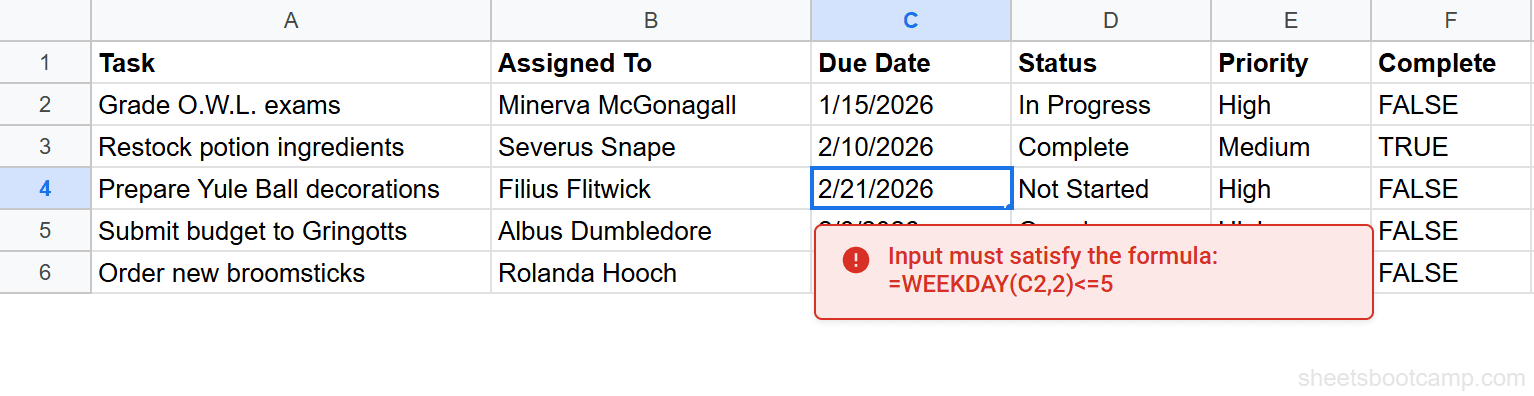
Combine weekday validation with the past-date check for a scheduling column that only accepts future business days: =AND(C2>=TODAY(), WEEKDAY(C2,2)<=5).
Ensure End Date Is After Start Date
When your sheet has paired date columns (Start Date in B, End Date in C), validate that the end date is always later than the start.
Apply this custom formula to the End Date column (C2:C12):
=C2>B2This compares the end date to the start date in the same row. If someone enters an end date that’s the same as or before the start date, the entry is rejected. The row reference shifts automatically for each row.
For cases where the end date can equal the start date (same-day events):
=C2>=B2Common Mistakes
Fixed Dates That Become Stale
Using the built-in “Date is on or after 3/1/2026” works today but becomes meaningless months later. If the rule should always block past dates, use a custom formula with TODAY() instead.
Text Values Bypass Date Rules
The built-in Date criteria checks whether the input is a valid date. But if someone pastes text or types a non-date string, the behavior depends on the rejection setting. With Reject input, most non-date entries are blocked. With Show warning, the entry is allowed with a flag. For strict date-only enforcement, add a second layer with a custom formula: =ISNUMBER(C2).
TODAY() Invalidates Existing Data
A rule like =C2>=TODAY() applies to all cells in the range, including cells with existing past dates. If someone edits an already-completed task, the old date gets rejected. Two solutions:
- Use Show warning instead of Reject input so past dates are flagged but not blocked
- Apply the rule only to the rows where new entries will be added
Date Format Confusion
Users entering dates in different formats (12/25/2026 vs 25/12/2026) may get unexpected results depending on the spreadsheet’s locale. Google Sheets uses the spreadsheet’s locale setting to interpret dates. Check File > Settings > Locale to confirm the date format your spreadsheet expects.
Tips
-
Use “is a valid date” as a baseline rule. Even if you don’t need a specific date range, this prevents non-date entries in date columns. Layer additional custom formula rules on top for more specific restrictions.
-
Combine date validation with conditional formatting. Validation prevents bad data entry. Conditional formatting highlights dates that need attention (overdue, upcoming, past due). Use both together.
-
Add custom error messages. In the Data validation panel, expand “Advanced options” and enter a help text message. Instead of the generic error, users see something like “Enter a future date in M/D/YYYY format.” Clear instructions reduce support questions.
-
Test dynamic rules at the boundaries. Enter today’s date, yesterday’s date, and tomorrow’s date to verify the rule behaves correctly at the edges. Off-by-one errors are common with date comparisons.
-
Consider time zones for TODAY(). The TODAY function returns the date based on the spreadsheet’s time zone (set in File > Settings), not the user’s local time zone. If collaborators are in different time zones, an entry that’s valid for one person might fail for another near midnight.
Related Google Sheets Tutorials
- Data Validation in Google Sheets - Full guide to all validation rule types
- Data Validation with Custom Formula - Write any formula-based validation rule
- TODAY and NOW Functions - How TODAY() works and when to use NOW instead
- Conditional Formatting with Dates - Highlight overdue and upcoming dates with color rules
- Google Sheets Date Functions - Complete reference for all date and time functions
Frequently Asked Questions
How do I restrict date entry in Google Sheets?
Select the cells, go to Data > Data validation, choose Date from the criteria dropdown, and set a condition like “is a valid date”, “is after”, or “is between”. Sheets will reject or warn on any entry that doesn’t match. You can use fixed dates or formulas like TODAY() for dynamic rules.
Can I prevent users from entering past dates in Google Sheets?
Yes. Use data validation with the Date criteria set to “is on or after” and enter today’s date. For a dynamic rule that updates daily, choose Custom formula is and enter =C2>=TODAY(). This blocks any date before the current day.
How do I set a valid date range in Google Sheets?
In the Data validation panel, choose Date as the criteria, then select “is between”. Enter the start and end dates. Only dates within that range are accepted. For a dynamic range, use Custom formula is with =AND(C2>=TODAY(), C2<=TODAY()+90) to allow the next 90 days.
Why does data validation allow non-date values in my date column?
The built-in Date criteria only triggers when someone enters a value that Sheets recognizes as a date. If someone types plain text like “TBD”, the Date rule may not catch it. To block all non-date values, use Custom formula is with =ISNUMBER(C2) which rejects anything Sheets doesn’t store as a date serial number.
Can I use TODAY() in date data validation?
Not directly in the built-in Date criteria. The Date “is on or after” field requires a fixed date. To use TODAY() for a dynamic rule, switch to Custom formula is and enter =C2>=TODAY(). The formula recalculates daily, so the validation always reflects the current date.