Dependent Drop-Down Lists in Google Sheets
Create dependent dropdown Google Sheets lists using INDIRECT and named ranges. Change one dropdown and the next updates automatically. Step-by-step.
Sheets Bootcamp
March 8, 2026
A dependent dropdown Google Sheets list changes its options based on what you selected in another dropdown. You’ll find this technique covered in the Google Sheets data validation guide as one of the more useful validation setups. If you haven’t built a basic dropdown yet, start with dropdown lists in Google Sheets before continuing here.
The technique connects two dropdowns using the INDIRECT function and named ranges. Select “Teaching” in the Department column and the Staff column shows only Teaching staff. Select “Administration” and the list updates automatically.
In This Guide
- What Are Dependent Dropdowns?
- Set Up the Source Data
- How to Create Dependent Dropdowns: Step-by-Step
- How INDIRECT Makes It Work
- Common Mistakes
- Tips
- Related Google Sheets Tutorials
- Frequently Asked Questions
What Are Dependent Dropdowns?
A dependent dropdown shows different options depending on what you chose in a previous dropdown. The second list is linked to the first.
Real-world uses include:
- Country / State: Select United States and see US states. Select Canada and see Canadian provinces.
- Department / Employee: Select a department and see only the staff in that department.
- Category / Subcategory: Select “Hardware” and see hardware subcategories. Select “Software” and see software subcategories.
The result is a cleaner, more accurate data entry experience. Users can only select combinations that make sense.
Set Up the Source Data
Before you add any validation rules, you need a reference area that lists each option group. This reference data is what Google Sheets will pull from when it builds each dropdown.
Here is the layout for a Hogwarts staff tracker:
- Column H: Department names (Teaching, Administration, Activities, Facilities)
- Column I: Teaching staff list
- Column J: Administration staff list
- Column K: Activities staff list
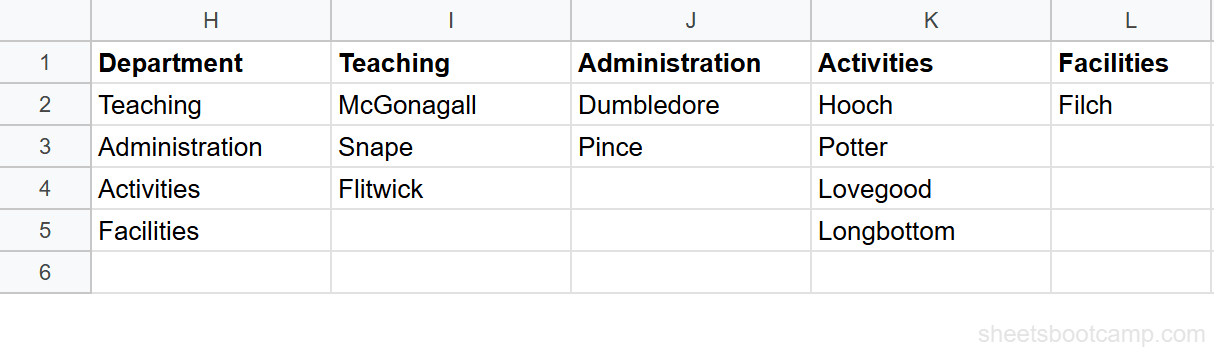
Each column holds the members for one department. You’ll turn each staff column into a named range in Step 3.
Keep your reference data on a dedicated sheet or in an out-of-the-way column. This keeps it separate from the data your team enters and reduces the chance someone accidentally overwrites a list.
How to Create Dependent Dropdowns: Step-by-Step
Step 1: Create the Department Dropdown
Select the cell where users will choose a department. In this example, that’s G2.
Go to Data > Data validation > Add rule. Under Criteria, select Dropdown (from a range). Point it to the department names in H2:H5, or choose List of items and type the names directly: Teaching, Administration, Activities, Facilities.

Click Done. You now have a working Department dropdown in G2. The Staff column is still empty. You’ll connect it in Step 3.
Step 2: Create a Named Range for Each Department
A named range gives a cell range a name you can reference by text. This is the key to how INDIRECT works.
Select the Teaching staff list, I2:I4. Go to Data > Named ranges. In the panel that opens, type Teaching as the name and confirm the range is I2:I4. Click Done.
Repeat for each department:
| Named Range | Range | Staff |
|---|---|---|
| Teaching | I2:I4 | McGonagall, Snape, Flitwick |
| Administration | J2:J3 | Dumbledore, Pince |
| Activities | K2:K5 | Hooch, Potter, Lovegood, Longbottom |
| Facilities | L2:L2 | Filch |
The named range name must match the dropdown value exactly, character for character. If your dropdown says “Teaching” and your named range is “teaching”, INDIRECT won’t find it. Named ranges are not case-sensitive, but spelling and spacing must match.
Step 3: Set the Staff Dropdown to Use INDIRECT
Select the Staff cell, H2. Go to Data > Data validation > Add rule. Under Criteria, select Dropdown (from a range). In the range field, enter:
=INDIRECT(G2)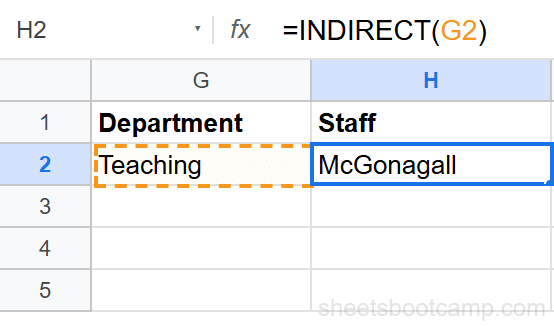
Click Done. Google Sheets reads whatever text is in G2, finds the named range with that name, and uses it as the list of options for H2.
The =INDIRECT(G2) syntax goes in the data validation range field, not in the cell itself. You won’t see a formula in H2. The INDIRECT call runs in the background whenever someone opens the H2 dropdown.
Step 4: Test the Dropdowns
Select G2 and choose Teaching from the Department dropdown. Then select H2 and open the Staff dropdown. You should see McGonagall, Snape, and Flitwick.
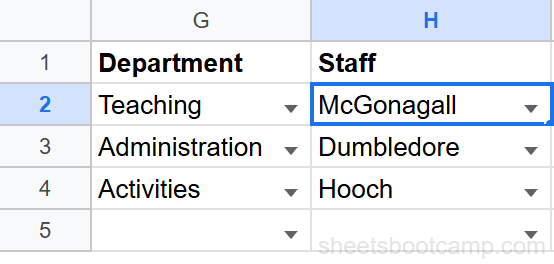
Now change G2 to Administration. Select H2 again and open the dropdown. The list now shows Dumbledore and Pince.
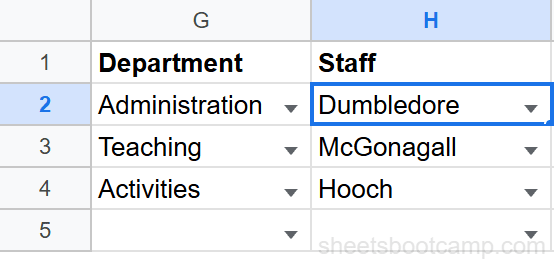
The Staff dropdown updates every time the Department selection changes. You don’t have to modify any validation rules.
How INDIRECT Makes It Work
INDIRECT converts a text string into a range reference. Google Sheets evaluates it at the moment the cell is used, not when you set up the formula.
When G2 contains “Teaching”, =INDIRECT(G2) is the same as =INDIRECT("Teaching"). Google Sheets looks for a named range called Teaching, finds I2:I4, and uses that range as the source for the dropdown.
When G2 changes to “Administration”, INDIRECT re-evaluates. It now resolves to J2:J3, the Administration named range.
=INDIRECT(G2)The formula never changes. What changes is the text value in G2, and that text controls which named range INDIRECT points to.
This is why the named range names must match the dropdown values exactly. INDIRECT is only as accurate as the text it receives.
Common Mistakes
Spaces in Department Names Break Named Ranges
Google Sheets named ranges cannot contain spaces. If your department is called “Customer Support”, you cannot create a named range named “Customer Support”. The name would be rejected.
You have two options:
- Use underscores in both the dropdown value and the named range name: “Customer_Support”
- Keep the readable label in the dropdown but use SUBSTITUTE in the INDIRECT formula to strip spaces:
=INDIRECT(SUBSTITUTE(G2," ","_"))This lets the dropdown show “Customer Support” while INDIRECT looks for the named range “Customer_Support”.
#REF! When the Named Range Does Not Exist
If G2 contains a value that has no matching named range, INDIRECT returns a #REF! error. The most common cause is a typo in either the dropdown value or the named range name.
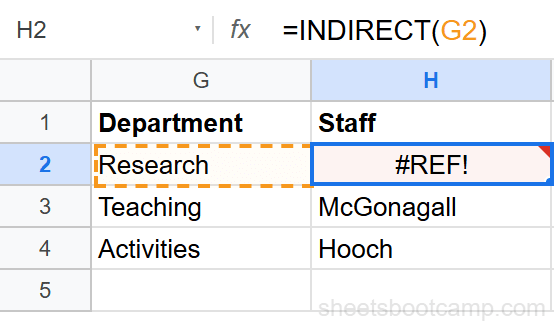
Check these three things:
- Open Data > Named ranges and confirm the range exists.
- Confirm the name matches the dropdown value exactly (spelling, no extra spaces).
- If the dropdown shows a blank value in G2, INDIRECT has nothing to work with and will show #REF!.
Forgetting to Create Named Ranges Before Adding Validation
INDIRECT looks for named ranges at the time the dropdown opens. If you set up the H2 validation before creating the named ranges, the dropdown will show errors until the ranges exist. Create all named ranges first, then set the validation.
Department Dropdown Value Is Blank After Copying Down
When you copy the Department dropdown from G2 down to G3, G4, and so on, any empty Department cell will cause the Staff dropdown in that row to show a #REF! error. This is expected behavior. The error resolves as soon as a user selects a Department value.
Tips
Apply validation to the entire column. Instead of selecting only H2, select H2:H100 when setting the INDIRECT validation. The same rule applies to every row. Each row’s Staff dropdown will reference its own G column cell automatically.
Use VLOOKUP alongside dependent dropdowns. After the user selects a Department and Staff member, you can use VLOOKUP to pull additional data about that staff member from a reference table. For example: =VLOOKUP(H2, staff_table, 2, FALSE) retrieves their email address.
Pull reference lists from another file with IMPORTRANGE. If your department and staff lists live in a shared HR spreadsheet, use IMPORTRANGE to bring them into your working file. Create named ranges from the imported data so INDIRECT can find them.
Build 3-level cascading dropdowns. Dependent dropdowns are not limited to two levels. You can chain them: Region > Department > Staff. Each level uses INDIRECT to reference a named range populated by the level above. The setup becomes more involved, but the logic stays the same.
Keep the reference area on a hidden sheet. Once your named ranges are set up, you can hide the reference sheet to keep the interface clean. Named ranges continue to work even when the source sheet is hidden.
Related Google Sheets Tutorials
- Data Validation in Google Sheets — The complete guide to validation rules including dropdowns, checkboxes, number rules, and custom formulas
- Dropdown Lists in Google Sheets — How to create a basic dropdown from a list or a range before adding dependencies
- Checkboxes in Google Sheets — Use checkboxes alongside dropdowns to track completion status in the same row
- VLOOKUP in Google Sheets — Pull data based on a selected dropdown value to populate related fields automatically
- IMPORTRANGE in Google Sheets — Bring reference data from a separate spreadsheet so your dropdown source lists stay in one place
Frequently Asked Questions
How do I create a dependent dropdown in Google Sheets?
Create named ranges for each list of options. Then set the second dropdown’s validation to =INDIRECT(A2), where A2 contains the value from your first dropdown. When the first dropdown changes, INDIRECT points to a different named range and the second list updates.
What does INDIRECT do in a dropdown formula?
INDIRECT converts a text string into a cell or range reference. When you enter =INDIRECT(G2) as the validation source, Google Sheets reads the text in G2, finds a named range with that name, and uses that range as the dropdown options.
Why does my dependent dropdown show a #REF! error?
The named range doesn’t exist or the name doesn’t match exactly. If G2 contains ‘Research’ but you have no named range called ‘Research’, INDIRECT has nothing to reference and the cell shows #REF!. Check that every value in your first dropdown has a corresponding named range.
Can dependent dropdowns work across multiple sheets in Google Sheets?
Yes. Create your named ranges from a reference sheet, then use INDIRECT in your data validation on any other sheet. The named ranges work across the entire spreadsheet file, so the location of the source data does not affect how INDIRECT finds them.