DATEVALUE Function in Google Sheets
Learn how to use the DATEVALUE function in Google Sheets to convert text to a date. Fix text dates from imports, CSVs, and pasted data with examples.
Sheets Bootcamp
April 21, 2026
DATEVALUE in Google Sheets converts a date stored as text into a real date value. When you import data from CSVs, copy dates from emails, or receive data from external systems, the dates often arrive as text strings that look like dates but cannot be used in formulas. DATEVALUE fixes this by turning text like “8/1/2018” into a date that works with date functions like YEAR, DATEDIF, and EDATE.
This guide covers the DATEVALUE syntax, how to detect text dates, step-by-step conversion examples, and formulas for handling mixed data.
In This Guide
- Syntax
- How to Detect and Fix Text Dates: Step-by-Step
- Accepted Date Formats
- Practical Examples
- Common Errors and How to Fix Them
- Tips and Best Practices
- Related Google Sheets Tutorials
- Frequently Asked Questions
Syntax
=DATEVALUE(date_string)Returns a date serial number from a text string that represents a date.
| Parameter | Description | Required |
|---|---|---|
| date_string | A text string in a recognized date format (e.g., “8/1/2018” or “August 1, 2018”) | Yes |
DATEVALUE returns a serial number, not a formatted date. Google Sheets stores dates as numbers internally (days since 12/30/1899). Format the result cell as Format > Number > Date to see a readable date.
How to Detect and Fix Text Dates: Step-by-Step
Text dates are one of the most common data problems in Google Sheets. They look identical to real dates but break every formula that tries to use them. Here is how to find and fix them.
How to Tell if a Date is Text
Real dates align to the right in a cell. Text dates align to the left. But the most reliable test is ISNUMBER:
=ISNUMBER(A2)If the result is TRUE, the cell contains a real date. If FALSE, the cell contains text.
Sample Data
For this walkthrough, we will use a small table with dates in different formats — some imported as text, some as real dates.
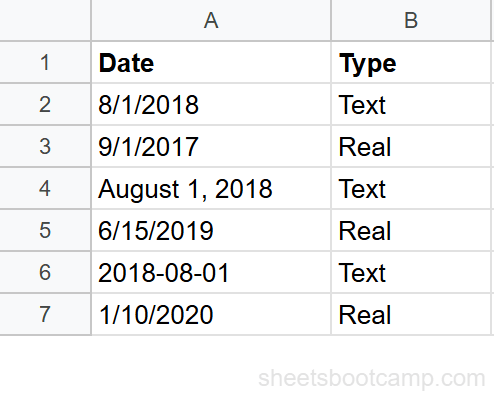
Identify text dates in your data
Open your spreadsheet. In column A, you have date values that may be real dates or text. Enter in cell B2:
=ISNUMBER(A2)Copy down the column. Cells with real dates return TRUE. Cells with text dates return FALSE. This is the fastest way to audit an imported dataset for date problems.
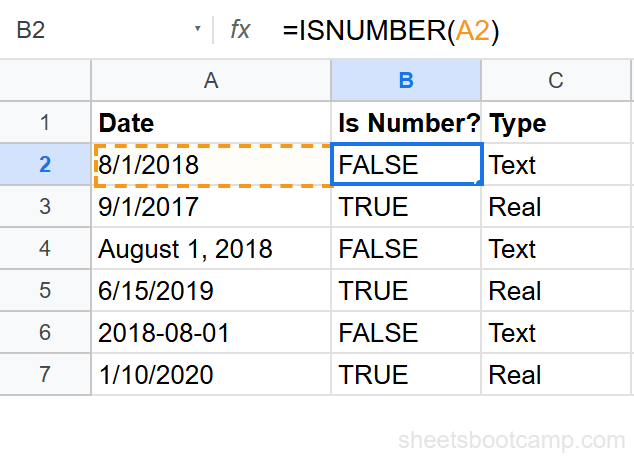
Convert text dates with DATEVALUE
Select cell C2 and enter:
=DATEVALUE(A2)For a text value of “8/1/2018”, DATEVALUE returns the serial number 43313. Format the cell as a date (Format > Number > Date) and it displays as 8/1/2018.
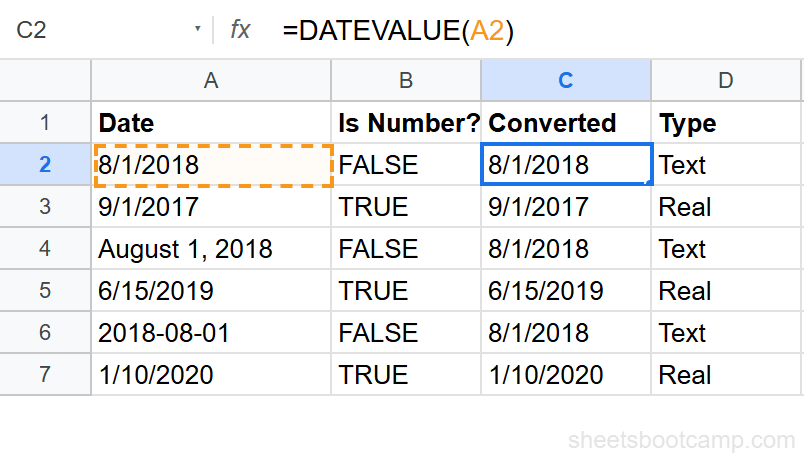
Copy the formula down. Each text date converts to a real date value.
Handle mixed data with ISNUMBER
When your column has a mix of real dates and text dates, use an IF wrapper to handle both:
=IF(ISNUMBER(A2), A2, DATEVALUE(A2))This checks whether A2 already contains a real date. If yes, it passes the value through unchanged. If no, it converts the text with DATEVALUE. This formula works safely on every row regardless of whether the date is real or text.
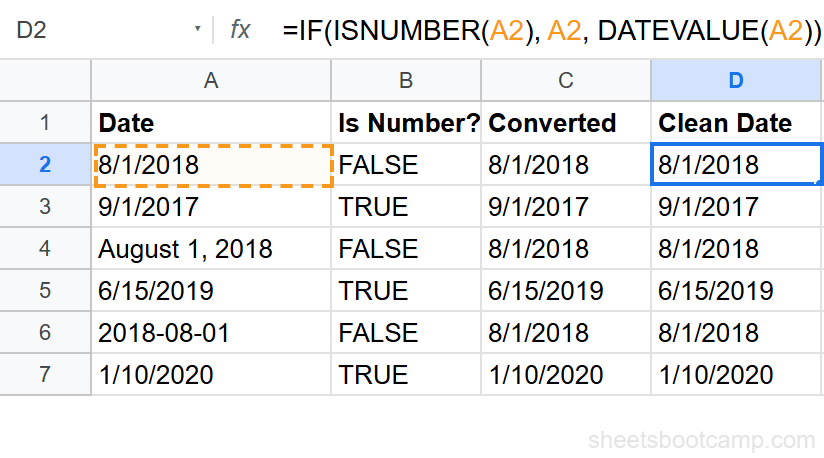
Verify the conversion works
Test the converted dates with a date function. Enter in cell E2:
=YEAR(C2)If the conversion succeeded, YEAR returns 2018. If C2 still contained text, YEAR would return a #VALUE! error. A successful YEAR result confirms the cell holds a real date.
Accepted Date Formats
DATEVALUE recognizes most common date formats. The function uses your spreadsheet’s locale setting to interpret ambiguous formats.
| Text Input | Result (US locale) |
|---|---|
| “8/1/2018” | 8/1/2018 |
| ”08/01/2018” | 8/1/2018 |
| ”August 1, 2018” | 8/1/2018 |
| ”1-Aug-2018” | 8/1/2018 |
| ”2018-08-01” | 8/1/2018 |
| ”Aug 1, 2018” | 8/1/2018 |
Ambiguous dates depend on your locale. In the US, “01/02/2018” means January 2. In the UK or EU, it means February 1. Check your locale at File > Settings > Locale if DATEVALUE returns unexpected results.
Practical Examples
Bulk Convert Imported Dates
When you import a CSV and all dates arrive as text, convert the entire column with ARRAYFORMULA:
=ARRAYFORMULA(DATEVALUE(A2:A9))This converts all 8 text dates at once. Place this in a single cell and it fills down automatically. Format the output cells as dates.
Clean Dates with Extra Spaces
Imported data sometimes has leading or trailing spaces. DATEVALUE fails on ” 8/1/2018” (note the space). Wrap with TRIM first:
=DATEVALUE(TRIM(A2))TRIM removes extra spaces, leaving clean text that DATEVALUE can parse.
Convert and Calculate in One Step
Skip the helper column by nesting DATEVALUE inside a date function. To calculate years since a text date:
=DATEDIF(DATEVALUE(A2), TODAY(), "Y")This converts the text date and calculates the year difference in a single formula. For “8/1/2018”, this returns the number of full years since that date.
Extract Year from a Text Date
YEAR cannot process text directly. Wrap with DATEVALUE:
=YEAR(DATEVALUE(A2))For “8/1/2018”, this returns 2018. Without DATEVALUE, YEAR would return a #VALUE! error.
Common Errors and How to Fix Them
#VALUE! Error
DATEVALUE returns #VALUE! when the text is not in a recognized date format.
Common causes:
- The text contains an unrecognized format like “2018.08.01”
- The cell has extra characters or hidden spaces
- The text includes a time component that confuses parsing
Fix: Check the cell content with =LEN(A2) to detect hidden characters. Use =TRIM(CLEAN(A2)) to remove invisible characters and spaces before passing to DATEVALUE.
Result is a Number, Not a Date
You enter =DATEVALUE(A2) and the cell shows 43313 instead of 8/1/2018.
Fix: The value is correct. Select the cell and go to Format > Number > Date. Google Sheets stores all dates as serial numbers — the cell format controls how they display.
DATEVALUE Applied to a Real Date
You enter =DATEVALUE(D2) where D2 already contains a real date, and you get a #VALUE! error.
Fix: DATEVALUE expects text, not a date. If D2 is already a real date, use it directly — no conversion needed. Use =ISNUMBER(D2) to confirm.
Tips and Best Practices
-
Always test with ISNUMBER first. Before building conversion formulas, check which cells actually need conversion.
=ISNUMBER(A2)is the definitive test for whether a value is a real date. -
Use paste as values to replace text dates permanently. After converting with DATEVALUE, copy the result column, paste as values over the original column (Ctrl+Shift+V), then delete the helper column. This replaces text dates with real dates in place.
-
Watch for locale mismatches. If your data was created in a different locale, the date format may be ambiguous. “01/02/2018” could be January 2 or February 1. Verify a few known dates after conversion.
-
Combine DATEVALUE with TRIM and CLEAN. Imported data often has invisible characters.
=DATEVALUE(TRIM(CLEAN(A2)))handles most text-cleaning scenarios in one formula. -
DATEVALUE ignores the time portion. If your text contains both date and time (e.g., “8/1/2018 2:30 PM”), DATEVALUE extracts only the date. Use TIMEVALUE for the time part.
Related Google Sheets Tutorials
- Google Sheets Date Functions: The Complete Guide — Full reference for DATEVALUE and all date functions
- How to Format Dates in Google Sheets — Control how converted dates display
- YEAR, MONTH, and DAY Functions — Extract date parts after converting text to dates
- Add or Subtract Days, Months, Years — Date arithmetic on converted dates
- TRIM and CLEAN Functions — Clean imported text before converting with DATEVALUE
Frequently Asked Questions
How do I convert text to a date in Google Sheets?
Use =DATEVALUE(A2) where A2 contains a date stored as text. DATEVALUE converts text like “8/1/2018” into a real date value that works with date functions and date math.
How do I know if a cell contains a date or text?
Use =ISNUMBER(A2). If the result is TRUE, the cell contains a real date. If FALSE, the value is text that looks like a date but cannot be used in date calculations without conversion.
What date formats does DATEVALUE accept?
DATEVALUE accepts most common formats including “8/1/2018”, “August 1, 2018”, “2018-08-01”, and “01-Aug-2018”. The function uses your spreadsheet locale to interpret the format. Ambiguous dates like “01/02/2018” depend on your locale — US interprets this as January 2, UK as February 1.
Why does DATEVALUE return a number instead of a date?
DATEVALUE returns a date serial number because Google Sheets stores all dates as numbers internally. Format the cell as a date (Format > Number > Date) and it displays as a readable date. The serial number 43313 displays as 8/1/2018.
Can DATEVALUE convert a date with a time component?
No. DATEVALUE only handles the date portion and ignores time. For text that includes both date and time like “8/1/2018 2:30 PM”, DATEVALUE extracts only the date. Use TIMEVALUE separately if you need the time component.