EDATE and EOMONTH Functions in Google Sheets
Learn how to use EDATE and EOMONTH in Google Sheets to add months to a date, find end-of-month dates, and build billing and review schedules.
Sheets Bootcamp
April 15, 2026
EDATE in Google Sheets adds or subtracts a specific number of months from a date, and EOMONTH returns the last day of a month offset by a given number of months. Both belong to the date functions family and solve problems that basic date arithmetic cannot: adding months correctly regardless of how many days each month has.
This guide covers the syntax for both functions, step-by-step examples using an employee database, and practical patterns for billing cycles, probation periods, and quarterly reporting.
In This Guide
- EDATE Syntax
- EOMONTH Syntax
- How to Use EDATE and EOMONTH: Step-by-Step
- Practical Examples
- Common Errors and How to Fix Them
- Tips and Best Practices
- Related Google Sheets Tutorials
- Frequently Asked Questions
EDATE Syntax
EDATE returns a date that is a specified number of months before or after a start date.
=EDATE(start_date, months)| Parameter | Description | Required |
|---|---|---|
| start_date | The date to start from | Yes |
| months | Number of months to add (positive) or subtract (negative) | Yes |
=EDATE(D2, 6) adds 6 months. =EDATE(D2, -3) subtracts 3 months.
EDATE preserves the day of the month when possible. If the target month has fewer days, EDATE returns the last day of that month. =EDATE("1/31/2026", 1) returns 2/28/2026, not March 3. It never overflows into the next month.
EOMONTH Syntax
EOMONTH returns the last day of a month that is a specified number of months before or after a start date.
=EOMONTH(start_date, months)| Parameter | Description | Required |
|---|---|---|
| start_date | The date to start from | Yes |
| months | Number of months to offset. Use 0 for the same month. | Yes |
=EOMONTH(D2, 0) returns the last day of the same month as the date in D2. =EOMONTH(D2, 1) returns the last day of the following month. The day of the start date does not matter — EOMONTH only considers the month and year.
How to Use EDATE and EOMONTH: Step-by-Step
We’ll use an employee database with 8 employees. The table has Name in column A, Employee ID in column B, Department in column C, Hire Date in column D, and Birthdate in column E.
Sample Data
The employee database includes Harry Potter (hired 8/1/2018), Hermione Granger (hired 9/1/2017), Ron Weasley (hired 8/1/2018), and 5 more employees across departments.
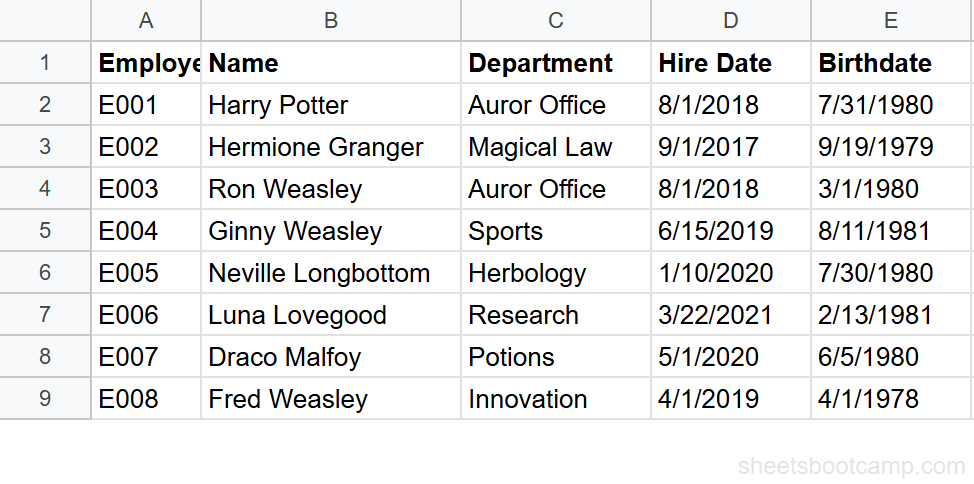
Review your employee data
Open the spreadsheet with employee records. Column D contains Hire Dates ranging from 9/1/2017 (Hermione Granger) to 3/22/2021 (Luna Lovegood). You’ll use these dates to calculate review dates, end-of-month dates, and quarterly deadlines.
Calculate a 6-month review date with EDATE
Select cell F2 and enter:
=EDATE(D2, 6)For Harry Potter’s hire date of 8/1/2018, this returns 2/1/2019 — exactly 6 months later, same day of the month. Copy the formula down to F9 to calculate review dates for all employees.
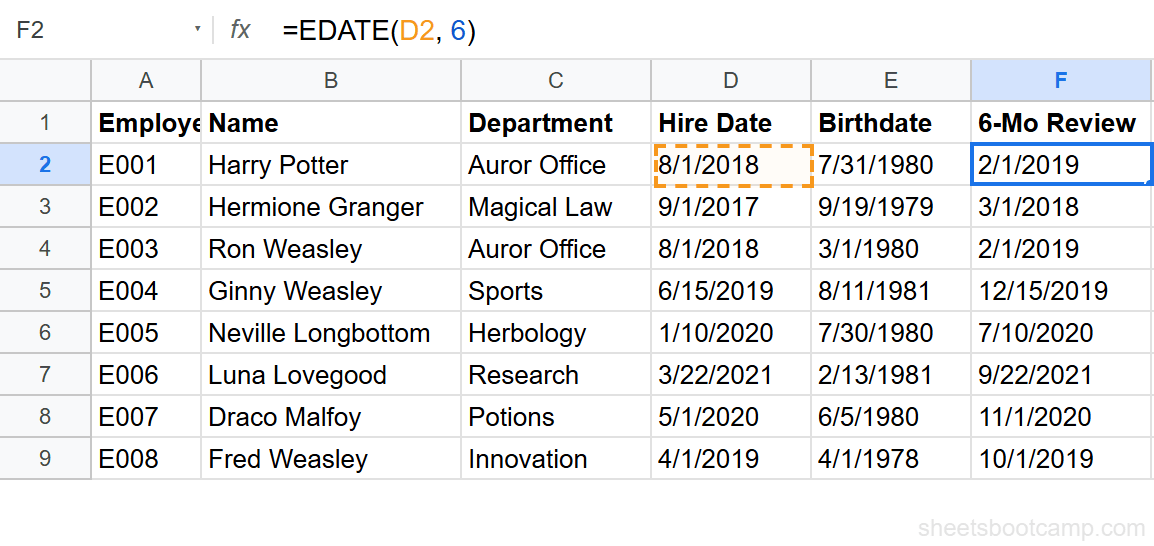
Spot-check the results:
- Hermione Granger — Hired 9/1/2017 — 6-month review: 3/1/2018
- Ginny Weasley — Hired 6/15/2019 — 6-month review: 12/15/2019
- Luna Lovegood — Hired 3/22/2021 — 6-month review: 9/22/2021
This is the same function covered in adding months to a date. The difference here: we go deeper into EDATE’s edge-case behavior and pair it with EOMONTH for end-of-month patterns.
Find the end of the hire month with EOMONTH
Select cell G2 and enter:
=EOMONTH(D2, 0)For Harry Potter’s hire date of 8/1/2018, this returns 8/31/2018 — the last day of August 2018. The 0 means “same month.” Copy down to G9.
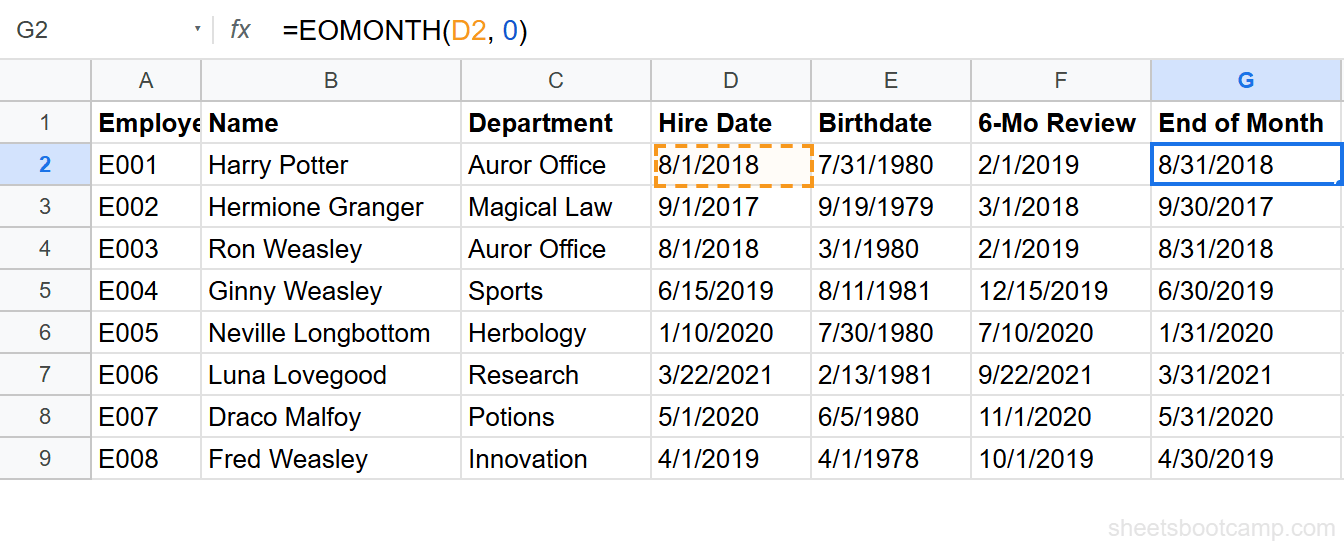
Results for selected employees:
- Hermione Granger — Hired 9/1/2017 — End of month: 9/30/2017
- Neville Longbottom — Hired 1/10/2020 — End of month: 1/31/2020
- Luna Lovegood — Hired 3/22/2021 — End of month: 3/31/2021
Calculate end-of-quarter dates
To find the last day of the quarter containing a hire date, combine EOMONTH with a month offset formula. Select cell H2 and enter:
=EOMONTH(D2, 3-MOD(MONTH(D2)-1, 3))For Harry Potter hired in August (month 8), MOD(8-1, 3) equals 1, so the formula calculates EOMONTH(D2, 3-1) which is EOMONTH(D2, 2) — returning 9/30/2018, the last day of Q3 2018.
Spot-check:
- Hermione Granger — Hired September (Q3) — End of quarter: 9/30/2017
- Neville Longbottom — Hired January (Q1) — End of quarter: 3/31/2020
- Fred Weasley — Hired April (Q2) — End of quarter: 6/30/2019
Practical Examples
Probation End Date (90 Days vs 3 Months)
Adding 90 days and adding 3 months produce different results. Use EDATE when the policy says “3 months”:
=EDATE(D2, 3)For Harry Potter (hired 8/1/2018), this returns 11/1/2018. Compare that to =D2+90, which returns 10/30/2018 — a 2-day difference. For an employee hired on January 31, the gap is wider: EDATE returns 4/30/2019 while +90 returns 5/1/2019.
Monthly Billing Cycle End Date
If a subscription starts on the date in column A, find when the first billing cycle ends:
=EOMONTH(A2, 0)This returns the last day of the start month. For a subscription starting on 3/15/2026, the billing cycle ends on 3/31/2026. For the next cycle’s end: =EOMONTH(A2, 1) returns 4/30/2026.
First Day of Next Month
EOMONTH returns the last day. Add 1 to get the first day of the next month:
=EOMONTH(D2, 0)+1For Harry Potter’s hire date of 8/1/2018, EOMONTH(D2, 0) returns 8/31/2018. Adding 1 gives 9/1/2018 — the first day of September. This is a clean way to get the first of any month without the DATE function.
Common Errors and How to Fix Them
#VALUE! Error
EDATE or EOMONTH returns #VALUE! when the start_date argument is not a valid date. This happens when the cell contains text that looks like a date but is not recognized by Google Sheets.
Fix: Check with =ISNUMBER(D2). If it returns FALSE, the value is text. Convert it with =DATEVALUE(D2) or re-enter it as a date.
Result Displays as a Number
You enter =EDATE(D2, 6) and see 43497 instead of a date. The formula is correct — the cell format is wrong.
Fix: Select the cell, go to Format > Number > Date. The serial number displays as a readable date.
#NUM! Error
EDATE returns #NUM! when the result would be a negative date (before 12/30/1899, the Google Sheets date epoch).
Fix: Check your months argument. A very large negative value can push the result before the epoch. Verify the start_date is correct.
EDATE and EOMONTH both accept negative months. =EDATE(D2, -6) moves the date 6 months backward. =EOMONTH(D2, -1) returns the last day of the previous month. This is useful for looking back at prior billing periods or review cycles.
Tips and Best Practices
-
Use EDATE when the policy says “months.” Adding 30 days is not the same as adding one month. EDATE handles February, 30-day months, and 31-day months correctly.
-
Use EOMONTH(date, 0) for end-of-month. This is the cleanest way to get the last day of any month. No need to calculate whether it’s 28, 29, 30, or 31.
-
Combine EOMONTH with +1 for first-of-month.
=EOMONTH(A2, 0)+1returns the first day of the next month.=EOMONTH(A2, -1)+1returns the first day of the current month. -
Pair with TODAY() for rolling deadlines.
=EDATE(TODAY(), 3)returns a date 3 months from now.=EOMONTH(TODAY(), 0)returns the end of the current month. Both update automatically. -
Use EOMONTH for quarterly reporting. The formula
=EOMONTH(A2, 3-MOD(MONTH(A2)-1, 3))finds the end of any quarter. Combine with EOMONTH(A2, -MOD(MONTH(A2)-1, 3)) + an offset to find the start.
Related Google Sheets Tutorials
- Google Sheets Date Functions: The Complete Guide — Full reference covering EDATE, EOMONTH, DATEDIF, TODAY, and more
- Add or Subtract Days, Months, Years — Date arithmetic fundamentals including EDATE basics
- TODAY and NOW Functions — Auto-updating dates for live deadlines and rolling calculations
- NETWORKDAYS Function — Count business days between two dates
- IF Function in Google Sheets — Build conditional logic around date thresholds
Frequently Asked Questions
What is the difference between EDATE and EOMONTH in Google Sheets?
EDATE returns the same day of the month, shifted by a number of months. EOMONTH returns the last day of the month, shifted by a number of months. =EDATE("1/15/2026", 3) returns 4/15/2026. =EOMONTH("1/15/2026", 3) returns 4/30/2026.
How do I add 6 months to a date in Google Sheets?
Use =EDATE(A2, 6) where A2 contains your date. EDATE moves the date forward by exactly 6 months, keeping the same day of the month. For Harry Potter’s hire date of 8/1/2018, this returns 2/1/2019.
What does EOMONTH return for months with different lengths?
EOMONTH always returns the last day of the target month. =EOMONTH("1/15/2026", 1) returns 2/28/2026. =EOMONTH("1/15/2026", 0) returns 1/31/2026. The day of the start date does not matter — EOMONTH only cares about the target month.
Can EDATE and EOMONTH subtract months?
Yes. Use a negative number for the months argument. =EDATE(A2, -3) moves the date 3 months backward. =EOMONTH(A2, -1) returns the last day of the previous month.
What happens when EDATE adds months to January 31?
EDATE adjusts to the last valid day of the target month. =EDATE("1/31/2026", 1) returns 2/28/2026 because February does not have 31 days. It never overflows into the next month.