Fix IMPORTRANGE Access Permission in Google Sheets
Fix the IMPORTRANGE access permission error in Google Sheets. Learn how to grant, manage, and troubleshoot the Allow access prompt between spreadsheets.
Sheets Bootcamp
March 10, 2026
IMPORTRANGE in Google Sheets requires a one-time access grant before it can pull data between spreadsheets. The first time you connect two files, the formula returns a #REF! error with a “You need to connect these sheets” message. Once you click Allow access, the permission sticks and the data flows through.
This article explains how the permission model works, walks through fixing the error step-by-step, and covers proactive access management for shared workbooks.
In This Guide
- How IMPORTRANGE Access Works
- Fix the Access Error: Step-by-Step
- Grant Access Before Sharing
- Revoke IMPORTRANGE Access
- Common Permission Problems
- Tips for Managing Permissions
- Related Google Sheets Tutorials
- Frequently Asked Questions
How IMPORTRANGE Access Works
IMPORTRANGE has a built-in permission model that controls which spreadsheets can read from each other. Here is how it works:
-
Source-destination pairs. Permissions are granted between two specific spreadsheets. Spreadsheet A can import from Spreadsheet B, but that does not mean Spreadsheet C can also import from B. Each pair needs its own grant.
-
View access required. You must have at least view access to the source spreadsheet. If you cannot open the source file in your browser, IMPORTRANGE cannot pull data from it either.
-
One-time grant. The first IMPORTRANGE formula between a new source-destination pair triggers a #REF! error with an “Allow access” button. After you click it once, every IMPORTRANGE formula between those two spreadsheets works without another prompt.
-
Permission persists. Deleting the IMPORTRANGE formula does not revoke access. The connection between the two spreadsheets stays active until someone explicitly removes it.
The person granting access must have edit access to the destination spreadsheet and view access to the source. View-only editors of the destination cannot grant the connection.
Fix the Access Error: Step-by-Step
We’ll connect two spreadsheets: a “Sales Tracking” source with 10 rows of sales data, and a “Monthly Report” destination where we want the data to appear.
Sample Source Data
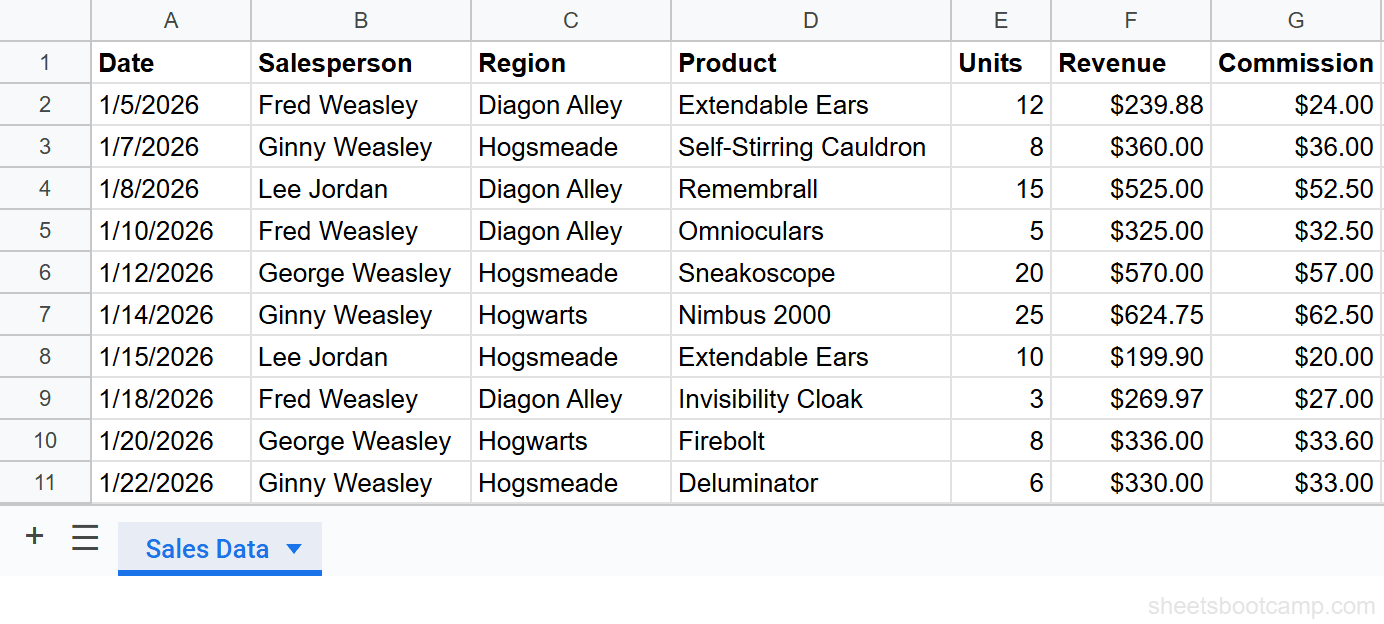
The source spreadsheet contains sales records with Date, Salesperson, Region, Product, Units, Revenue, and Commission:
Enter the IMPORTRANGE formula
In the destination spreadsheet, select cell A1 and enter:
=IMPORTRANGE("https://docs.google.com/spreadsheets/d/abc123/edit", "Sales Data!A1:G11")Replace abc123 with the actual spreadsheet ID from the source URL. Replace Sales Data with the exact tab name.
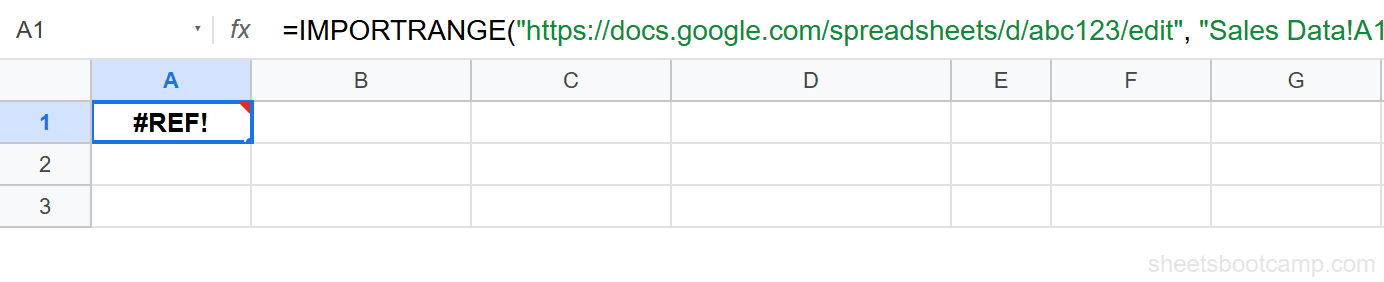
The cell immediately shows a #REF! error. This is expected — you have not granted access yet.
Hover over the #REF! cell
Move your cursor over the cell showing the #REF! error. A tooltip popup appears with the message: “You need to connect these sheets.” Below the message is an Allow access button.
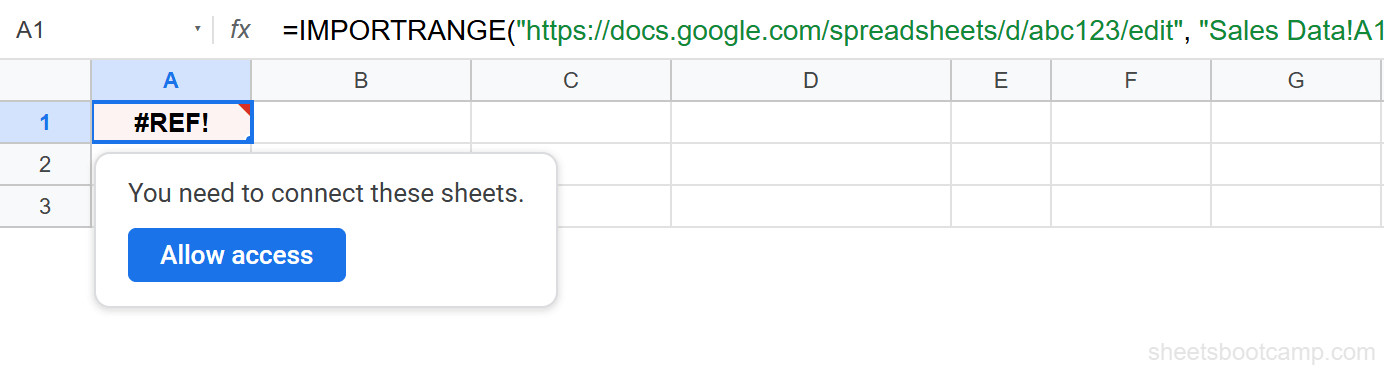
If the tooltip does not appear, click away from the cell and then hover over it again. On some browsers, the tooltip takes a moment to render. If it still does not appear, delete the formula, re-enter it, and press Enter.
Click Allow access
Click Allow access in the tooltip. This grants the destination spreadsheet permission to read data from the source.
The access grant applies to every IMPORTRANGE formula between this source-destination pair. You do not need to click it again for additional imports from the same source file.
Verify the imported data
After granting access, the cell briefly shows “Loading…” and then the imported data appears. All 10 rows from the source table, along with the header row, populate in the destination spreadsheet.
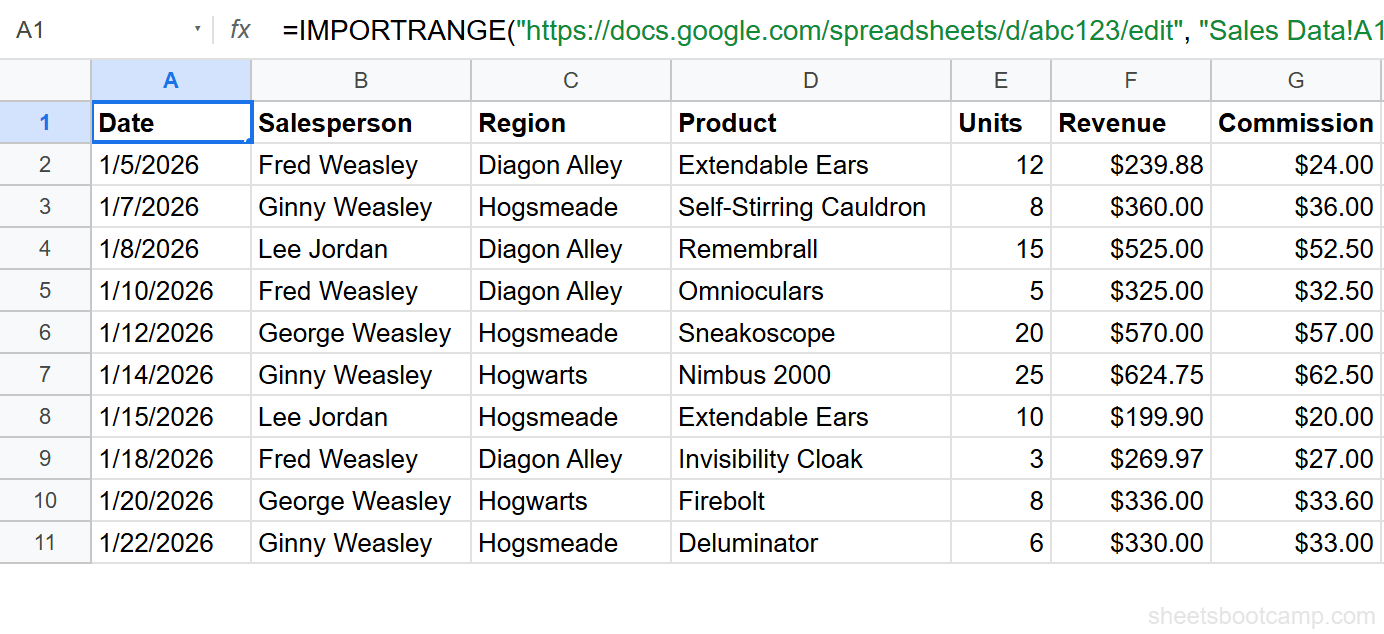
The imported cells are read-only. You cannot edit them directly in the destination. If the source data changes, the destination updates automatically.
Grant Access Before Sharing
If you are building a shared report, grant access yourself before sharing the destination spreadsheet with colleagues. Here is why:
When you share a destination spreadsheet that has an IMPORTRANGE formula but access has not been granted, your colleagues see the #REF! error. They may not understand the prompt, or they may not have the right permissions to grant access themselves.
The proactive approach:
- Enter the IMPORTRANGE formula in the destination spreadsheet.
- Click Allow access when the #REF! prompt appears.
- Verify the data loads correctly.
- Share the destination spreadsheet with your team.
Your colleagues see the imported data immediately. No prompts, no confusion.
Keep a hidden sheet or a cell note in the destination spreadsheet that lists every source URL and what data it provides. When the IMPORTRANGE breaks months later, you know where to look.
Revoke IMPORTRANGE Access
You can disconnect two spreadsheets to stop data sharing. This is useful when a project ends or when you need to control who can access the source data.
To revoke access:
- Open the source spreadsheet (the one being read from).
- Go to Data > Connected sheets (or Data > Data connectors).
- Find the destination spreadsheet in the list of connections.
- Click the Remove or Disconnect option.
After revoking, any IMPORTRANGE formula in the destination referencing this source reverts to a #REF! error. The destination user needs to click “Allow access” again to reconnect.
Revoking access in the source spreadsheet affects all IMPORTRANGE formulas between those two files, not individual formulas. It is an all-or-nothing disconnection.
Common Permission Problems
”Allow access” popup does not appear
This happens when:
- You hover too quickly — pause for a second over the error cell.
- Your browser is blocking popups or tooltips. Try a different browser.
- The formula has a syntax error. The #REF! from a bad range string looks the same but does not show the access prompt. Double-check the URL and range string.
Fix: Delete the formula, verify the URL and range string are correct, re-enter the formula, and hover over the cell again.
Error persists after granting access
The most common cause is a typo in the range string. The access grant went through, but the formula still breaks because:
- The sheet tab name is misspelled (tab names are case-sensitive).
- The range exceeds the source sheet dimensions.
- The source tab was renamed or deleted.
Fix: Open the source spreadsheet and copy the exact tab name. Update the range string in your formula.
Multiple users need access
Only one person needs to grant access per source-destination pair. After that, anyone who can open both spreadsheets sees the imported data. No additional access prompts appear.
If a colleague still sees a #REF! error after access was granted, they likely do not have view access to the source spreadsheet. Ask the source owner to share it with their Google account.
The “Allow access” permission is between spreadsheets, not between people. But each person still needs individual view access to the source file through Google’s standard sharing settings.
Tips for Managing Permissions
-
Grant access proactively. Before sharing a destination report, open it yourself and click “Allow access.” Your colleagues avoid the confusing #REF! prompt.
-
Use the spreadsheet ID instead of the full URL. The ID is the string between
/d/and/editin the URL. Shorter formulas are easier to maintain and less likely to break. -
Document your connections. Keep a list of which spreadsheets import from where. A simple table on a hidden sheet works: Source URL, Source Tab, What Data, Date Connected.
-
Audit connections quarterly. Old IMPORTRANGE connections persist even after the formula is deleted. Check Data > Connected sheets in your source spreadsheets and remove stale connections.
-
Combine with VLOOKUP or QUERY for targeted imports. Instead of importing an entire table, pull only the data you need. This reduces the surface area of shared data between spreadsheets.
Related Google Sheets Tutorials
- IMPORTRANGE: The Complete Guide — Full syntax, examples, and combining with other functions
- VLOOKUP with IMPORTRANGE — Look up values from an external spreadsheet
- VLOOKUP: The Complete Guide — Master VLOOKUP fundamentals before combining with IMPORTRANGE
- VLOOKUP from Another Sheet — Cross-tab VLOOKUP within the same spreadsheet
- QUERY Function Guide — Filter and aggregate imported data with QUERY
Frequently Asked Questions
Why does IMPORTRANGE show #REF?
The #REF! error means the destination spreadsheet does not have permission to read from the source. Hover over the error cell and click Allow access in the popup. You only need to do this once per source-destination pair.
Do all users need to click Allow access?
No. Only one person needs to grant access for a source-destination pair. After that, anyone with access to both spreadsheets can see the imported data without clicking the prompt.
Can I use IMPORTRANGE with a private spreadsheet?
You must have at least view access to the source spreadsheet. If the source is private and not shared with you, IMPORTRANGE returns a #REF! error. Ask the owner to share it with your Google account.
How do I revoke IMPORTRANGE access?
Open the source spreadsheet and go to Data > Connected sheets. Find the destination spreadsheet in the list and remove the connection. The destination spreadsheet can no longer import data from the source.
Does the Allow access prompt appear every time?
No. The prompt appears only the first time a destination spreadsheet connects to a new source. Once granted, the permission persists until someone revokes it from the source spreadsheet.