Fix Slow IMPORTRANGE in Google Sheets
Learn why IMPORTRANGE is slow in Google Sheets and how to speed it up. Practical fixes for loading delays, laggy recalculations, and oversized imports.
Sheets Bootcamp
September 28, 2026
IMPORTRANGE in Google Sheets fetches data from another spreadsheet over Google’s servers, and that network round-trip is why it can feel slow. A formula that pulls a few dozen cells might take two to five seconds. One that imports entire columns from a complex source sheet can sit on “Loading…” for a minute or longer, dragging the rest of your spreadsheet down with it.
This guide explains why IMPORTRANGE is slow in Google Sheets, walks through the most common causes, and gives you concrete fixes to speed things up.
In This Guide
- Why IMPORTRANGE Is Slow
- Common Causes of Slow IMPORTRANGE
- How to Speed Up IMPORTRANGE: Step-by-Step
- Advanced Performance Strategies
- When IMPORTRANGE Is Not the Right Tool
- Tips and Best Practices
- Related Google Sheets Tutorials
- Frequently Asked Questions
Why IMPORTRANGE Is Slow
Every IMPORTRANGE formula makes a network request. Google Sheets reads the source spreadsheet, evaluates any formulas in the requested range, packages the result, and sends it back to your destination sheet. That pipeline adds latency that local formulas never face.
Three factors control how long this takes:
- Range size. More cells means more data to read, compute, and transmit. Importing
A:Zacross a sheet with 10,000 rows means 260,000 cells, most of which are probably empty. - Source complexity. If the source spreadsheet has heavy formulas (QUERY, ARRAYFORMULA, or nested IFs across thousands of rows), those formulas must finish calculating before IMPORTRANGE can read the result.
- Recalculation frequency. IMPORTRANGE recalculates when you edit cells in the destination spreadsheet, when the source data changes, or when Google’s refresh cycle runs. Volatile functions in either spreadsheet can multiply these recalculations.
The latency is not a bug. It is the cost of pulling live data across spreadsheets. The goal is to reduce that cost.
Common Causes of Slow IMPORTRANGE
Importing Entire Columns
This is the number-one performance mistake:
=IMPORTRANGE("spreadsheet_url", "Sheet1!A:Z")That formula asks Google Sheets to scan every row in 26 columns, regardless of how many rows contain data. If your data lives in rows 1 through 200, you are importing 999,800 empty cells for no reason.
The fix is specific:
=IMPORTRANGE("spreadsheet_url", "Sheet1!A1:F201")Always specify an exact range. If your data grows over time, add a buffer (like 500 extra rows) instead of importing entire columns. A1:F700 is still far faster than A:F.
Too Many IMPORTRANGE Calls
Each IMPORTRANGE formula creates its own network request. Five formulas pulling from the same source means five separate round-trips. Ten formulas importing from three different spreadsheets means ten round-trips, possibly competing for the same server resources.
The symptoms:
- The spreadsheet takes 15-30 seconds to finish loading after opening.
- Editing a single cell triggers a cascade of “Loading…” indicators.
- The browser tab becomes sluggish or unresponsive.
Source Spreadsheet Is Complex
IMPORTRANGE does not read raw cell values. It reads computed values. If the source spreadsheet has:
- QUERY formulas processing thousands of rows
- ARRAYFORMULA applied across entire columns
- Nested IFS or VLOOKUP chains
- Multiple IMPORTRANGE formulas of its own (chained imports)
Then the source must finish all those calculations before your destination sheet receives anything. You are waiting for the source to think, not for the network.
Volatile Functions Triggering Recalculation
Volatile functions recalculate every time the spreadsheet changes, even if the change is in an unrelated cell. The main offenders are NOW(), TODAY(), RAND(), and RANDARRAY().
If you wrap IMPORTRANGE in a formula that references a volatile function, the import re-fires on every edit:
=IF(NOW()>0, IMPORTRANGE("url", "Sheet1!A1:D50"), "")That NOW() forces the entire IF expression (including the IMPORTRANGE inside it) to recalculate every time anything in the spreadsheet changes.
Wrapping IMPORTRANGE inside a formula that uses NOW(), TODAY(), RAND(), or RANDARRAY() causes the import to re-fire on every single edit. This can make your spreadsheet nearly unusable if the import is large.
Source Sheet Has Volatile Functions
Even if your destination sheet is clean, volatile functions in the source spreadsheet force recalculation there too. If the source has =NOW() in a cell and ARRAYFORMULA processing 5,000 rows, those 5,000 rows recalculate constantly, and IMPORTRANGE must wait for them to settle before reading the result.
How to Speed Up IMPORTRANGE: Step-by-Step
Step 1: Identify the Slow Formula
Open your destination spreadsheet and look for cells stuck on “Loading…” or cells that take more than a few seconds to populate after an edit. Select each IMPORTRANGE cell and check the formula bar for the range being imported.
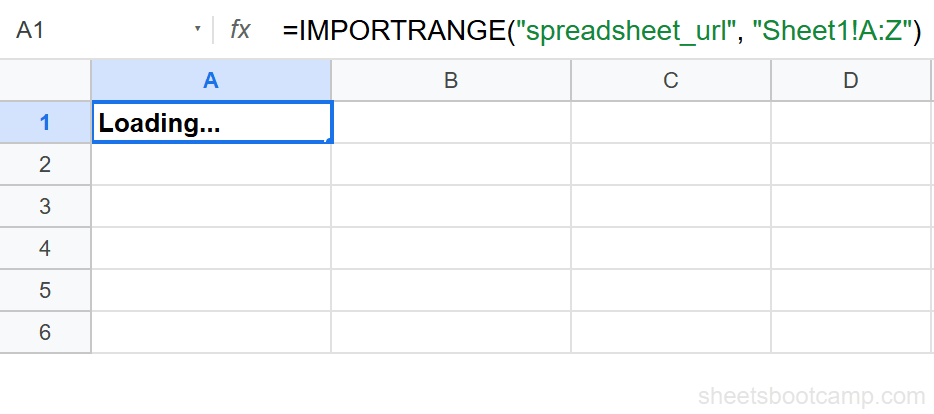
Write down which formulas import the largest ranges and which ones reference the most complex source sheets. These are your targets.
Step 2: Narrow Every Import Range
Replace any open-ended column references with exact ranges:
| Before (slow) | After (faster) |
|---|---|
"Sheet1!A:Z" | "Sheet1!A1:F201" |
"Data!A:D" | "Data!A1:D500" |
"Inventory!A:J" | "Inventory!A1:J100" |
If your data grows, add a reasonable buffer. Importing 500 rows when you have 200 is still orders of magnitude faster than importing the entire column.
Step 3: Consolidate Into a Hub Sheet
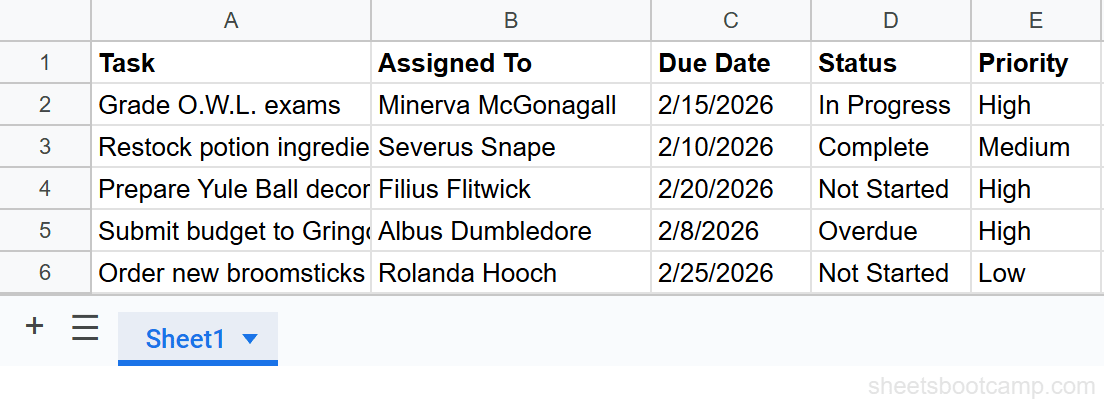
If you have three or more IMPORTRANGE calls pulling from the same source spreadsheet, create a single “Hub” tab:
=IMPORTRANGE("spreadsheet_url", "Sheet1!A1:F201")=FILTER(Hub!A:F, Hub!C:C="Active")This pattern replaces multiple network requests with one. Local references between tabs within the same spreadsheet are nearly instant.
Step 4: Remove Volatile Wrappers
Search your formulas for any IMPORTRANGE combined with volatile functions. Replace patterns like this:
=IF(NOW()>0, IMPORTRANGE("url", "range"), "")With a static reference:
=IMPORTRANGE("url", "range")If you need a timestamp, put =NOW() in its own cell and reference that cell. This way the volatile function does not sit inside the IMPORTRANGE expression.
Step 5: Optimize the Source
Open the source spreadsheet and look for:
- Entire-column ARRAYFORMULA ranges like
=ARRAYFORMULA(IF(A:A<>"", ...))that process thousands of empty rows. Limit them to the actual data range. NOW()orTODAY()cells that force constant recalculation. Move them to a single cell if possible.- Unused tabs with heavy formulas still running in the background. Delete or clear them.
The faster the source calculates, the faster IMPORTRANGE returns.
Advanced Performance Strategies
Use QUERY to Filter at Import Time
Wrapping IMPORTRANGE in QUERY lets you filter rows and select specific columns before the data lands in your sheet:
=QUERY(IMPORTRANGE("spreadsheet_url", "Sheet1!A1:F201"), "SELECT Col1, Col2, Col5 WHERE Col3 = 'Active'")This does not make the initial import faster (IMPORTRANGE still reads the full range), but it reduces the data your destination sheet stores and recalculates. Over time, smaller result sets mean less overhead on every refresh.
When using QUERY with IMPORTRANGE, column references use Col1, Col2, Col3 syntax instead of A, B, C. The column numbers match the order of columns in the imported range.
Schedule Imports with Apps Script
For data that does not need to be real-time, a Google Apps Script time-driven trigger can copy data between spreadsheets on a schedule. The script reads from the source, writes the values to the destination, and the destination sheet has no live IMPORTRANGE formulas at all.
This trades real-time updates for speed. If your dashboard refreshes once an hour or once a day, Apps Script avoids the recalculation overhead entirely.
Split Across Multiple Spreadsheets
If one destination spreadsheet is pulling from five different sources and struggling, consider splitting it. Two spreadsheets with three imports each will perform better than one spreadsheet with six, because each sheet has fewer concurrent network requests competing for resources.
When IMPORTRANGE Is Not the Right Tool
IMPORTRANGE works best for moderate data volumes with a small number of cross-spreadsheet connections. It starts breaking down when:
- You have more than 10 IMPORTRANGE formulas in a single spreadsheet.
- You are importing more than 50,000 cells total across all imports.
- You need data from more than 3-4 different source spreadsheets.
- Your data must update within seconds, not the 1-5 minute recalculation window.
In these cases, consider:
- Apps Script for scheduled batch copies between spreadsheets.
- BigQuery Connected Sheets for large datasets that exceed spreadsheet limits.
- Consolidating your data into a single spreadsheet and eliminating cross-file imports entirely.
The fastest IMPORTRANGE is the one you do not need.
Tips and Best Practices
-
Audit your imports quarterly. Open each spreadsheet and count the IMPORTRANGE formulas. If the number has crept above 10, consolidate using a hub sheet.
-
Use named ranges in the source. Named ranges like
"ProductData"are easier to maintain than"Sheet1!A1:F201"and update automatically when you insert rows in the source. -
Check IMPORTRANGE permissions proactively. A formula stuck on #REF! waiting for access approval looks like a loading issue. Granting access upfront removes that ambiguity.
-
Avoid chaining IMPORTRANGE. If Sheet B imports from Sheet A, and Sheet C imports from Sheet B, Sheet C waits for both imports to resolve sequentially. Import directly from Sheet A when possible.
-
Test with a stopwatch. After making changes, reload the spreadsheet and time how long each import takes to move from “Loading…” to data. If any formula takes longer than 10 seconds, it is a candidate for further optimization.
Related Google Sheets Tutorials
- IMPORTRANGE in Google Sheets: Complete Guide - Full syntax, examples, and setup for cross-spreadsheet imports
- IMPORTRANGE with VLOOKUP - Look up values across spreadsheets by combining IMPORTRANGE with VLOOKUP
- IMPORTRANGE with FILTER - Import only the rows you need by wrapping IMPORTRANGE in FILTER
- Fix IMPORTRANGE Access Permission - Troubleshoot and resolve the #REF! access permission error
- QUERY Function in Google Sheets - Filter, sort, and aggregate data using SQL-like syntax
Frequently Asked Questions
Why does IMPORTRANGE keep showing Loading in Google Sheets?
IMPORTRANGE shows “Loading…” while it fetches data from the source spreadsheet over Google’s servers. If it stays in that state for more than 30 seconds, the source spreadsheet may be very large, contain many formulas that need to calculate first, or Google’s servers may be under heavy load. Reduce the import range size and check that the source sheet is not overloaded with volatile functions.
How many IMPORTRANGE formulas can one spreadsheet handle?
There is no official limit, but performance degrades noticeably after 10-15 IMPORTRANGE calls in one spreadsheet. Each call creates a separate network request. Consolidate imports by pulling larger blocks once into a hub sheet, then reference that sheet locally.
Does IMPORTRANGE slow down the source spreadsheet?
Not directly. IMPORTRANGE reads from the source but does not write to it or trigger extra calculations. However, if the source spreadsheet has many formulas that must finish calculating before IMPORTRANGE can read the results, the delay originates in the source, not the import itself.
Is QUERY IMPORTRANGE faster than plain IMPORTRANGE?
Not inherently. =QUERY(IMPORTRANGE(...)) still imports the full range first, then filters client-side. The speed advantage comes from importing a smaller range to begin with. Use QUERY to reduce the columns and rows that land in your destination sheet, which makes subsequent recalculations faster.
Can Apps Script replace IMPORTRANGE for better performance?
Yes. A time-driven Apps Script trigger can copy data between spreadsheets on a schedule, bypassing the live recalculation overhead. The trade-off is that the data is not real-time. For dashboards that refresh hourly or daily, Apps Script is often faster and more reliable than dozens of IMPORTRANGE calls.