QUERY WHERE Clause in Google Sheets
Learn how to use the QUERY WHERE clause in Google Sheets to filter rows by text, numbers, dates, and multiple conditions. Examples and common mistakes.
Sheets Bootcamp
February 28, 2026
The QUERY WHERE clause in Google Sheets filters rows based on conditions you define inside the query string. It works like a row-level filter built into the QUERY function — you set the rules, and WHERE returns only the rows that match. We’ll cover text filters, numeric comparisons, date handling, multiple conditions with AND/OR, and text matching with contains.
In This Guide
- WHERE Clause Syntax
- How to Filter Rows with WHERE: Step-by-Step
- Filter by Text Value
- Filter by Number
- Combine Conditions with AND / OR
- Filter with Contains, Starts With, Ends With
- Filter by Date
- Common WHERE Mistakes
- Tips
- Related Google Sheets Tutorials
- FAQ
WHERE Clause Syntax
WHERE goes inside the query string, after SELECT:
=QUERY(data, "SELECT columns WHERE condition")The condition compares a column to a value using an operator:
| Operator | Meaning | Example |
|---|---|---|
= | Equals | WHERE C = 'Hogsmeade' |
!= | Not equal | WHERE C != 'Hogwarts' |
> | Greater than | WHERE F > 400 |
< | Less than | WHERE E < 10 |
>= | Greater than or equal | WHERE F >= 500 |
<= | Less than or equal | WHERE E <= 15 |
Text values in WHERE must be wrapped in single quotes: WHERE C = 'Hogsmeade'. Numbers and dates do not use quotes. Missing single quotes around text is the most common WHERE error.
How to Filter Rows with WHERE: Step-by-Step
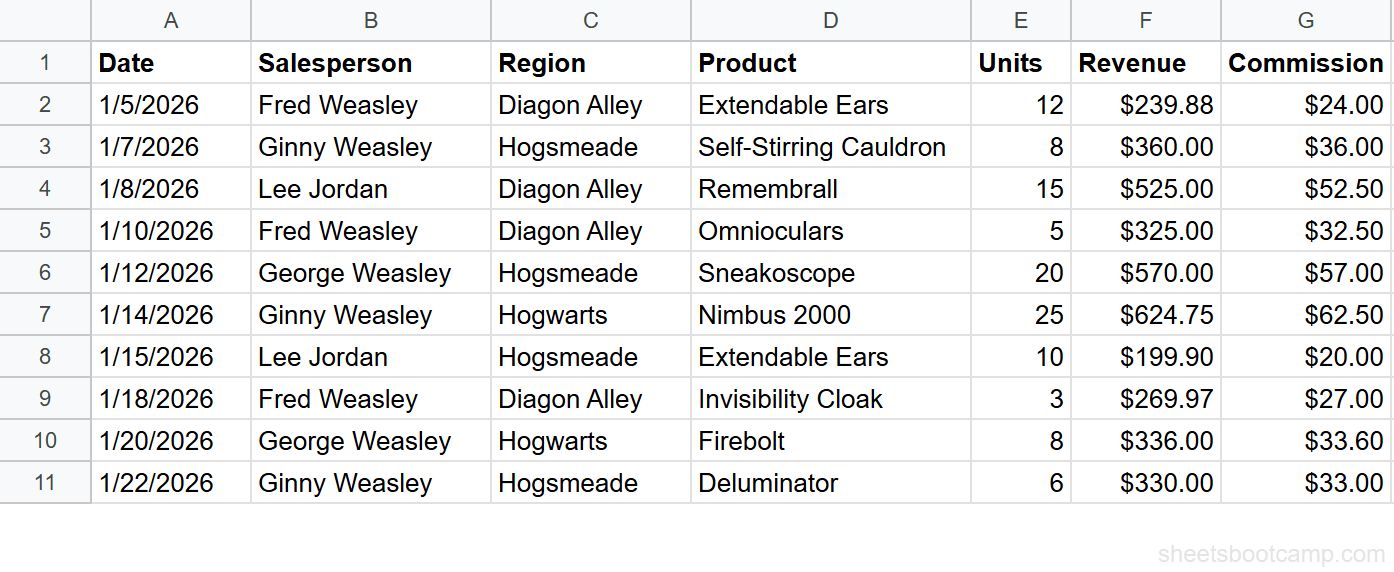
We’ll use the same sales records table from the QUERY pillar guide. The data is in A1:G11 with 10 transactions.
Sample Data
| A | B | C | D | E | F | G | |
|---|---|---|---|---|---|---|---|
| 1 | Date | Salesperson | Region | Product | Units | Revenue | Commission |
| 2 | 1/5/2026 | Fred Weasley | Diagon Alley | Extendable Ears | 12 | $239.88 | $24.00 |
| 3 | 1/7/2026 | Ginny Weasley | Hogsmeade | Self-Stirring Cauldron | 8 | $360.00 | $36.00 |
| 4 | 1/8/2026 | Lee Jordan | Diagon Alley | Remembrall | 15 | $525.00 | $52.50 |
| 5 | 1/10/2026 | Fred Weasley | Diagon Alley | Omnioculars | 5 | $325.00 | $32.50 |
| 6 | 1/12/2026 | George Weasley | Hogsmeade | Sneakoscope | 20 | $570.00 | $57.00 |
| 7 | 1/14/2026 | Ginny Weasley | Hogwarts | Nimbus 2000 | 25 | $624.75 | $62.50 |
| 8 | 1/15/2026 | Lee Jordan | Hogsmeade | Extendable Ears | 10 | $199.90 | $20.00 |
| 9 | 1/18/2026 | Fred Weasley | Diagon Alley | Invisibility Cloak | 3 | $269.97 | $27.00 |
| 10 | 1/20/2026 | George Weasley | Hogwarts | Firebolt | 8 | $336.00 | $33.60 |
| 11 | 1/22/2026 | Ginny Weasley | Hogsmeade | Deluminator | 6 | $330.00 | $33.00 |
Review your data range
Your data lives in A1:G11. Row 1 is the header. Columns are Date (A), Salesperson (B), Region (C), Product (D), Units (E), Revenue (F), and Commission (G).
Write a WHERE clause with a text condition
Select an empty cell and enter:
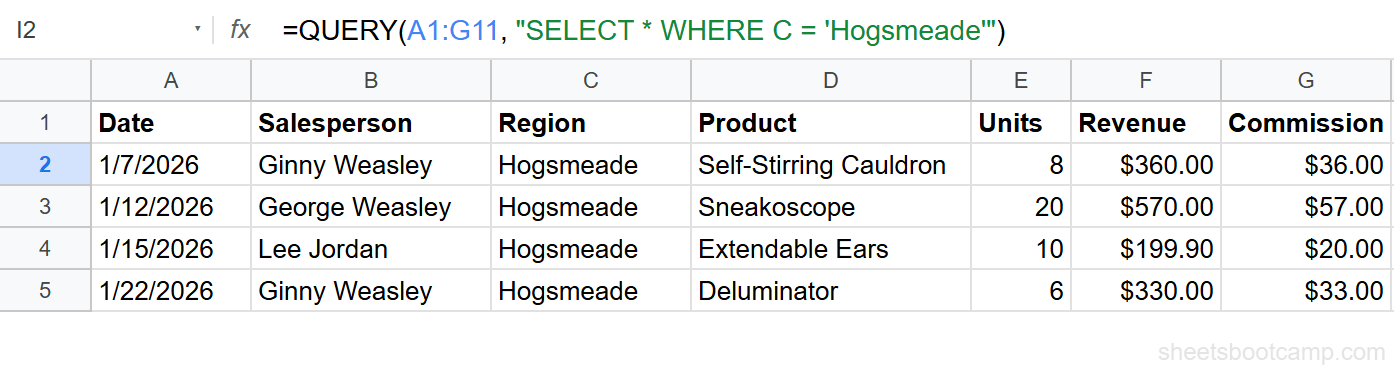
=QUERY(A1:G11, "SELECT * WHERE C = 'Hogsmeade'")This returns all seven columns, but only rows where Region (column C) equals “Hogsmeade”. The result is 4 rows: Ginny Weasley’s Self-Stirring Cauldron, George Weasley’s Sneakoscope, Lee Jordan’s Extendable Ears, and Ginny Weasley’s Deluminator.
Write a WHERE clause with a numeric condition
Enter a new formula:
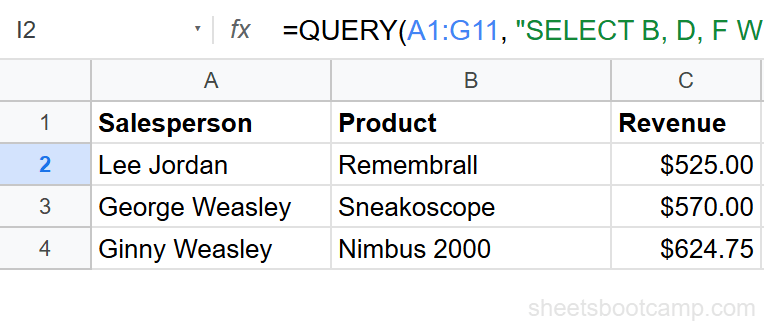
=QUERY(A1:G11, "SELECT B, D, F WHERE F > 400")This returns rows where Revenue exceeds $400, showing only the Salesperson, Product, and Revenue columns. Three rows qualify: Lee Jordan’s Remembrall ($525.00), George Weasley’s Sneakoscope ($570.00), and Ginny Weasley’s Nimbus 2000 ($624.75).
Combine multiple conditions with AND
Enter:
=QUERY(A1:G11, "SELECT B, D, F WHERE C = 'Diagon Alley' AND F > 300")This returns rows where the region is Diagon Alley AND revenue exceeds $300. Two rows match: Lee Jordan’s Remembrall ($525.00) and Fred Weasley’s Omnioculars ($325.00).
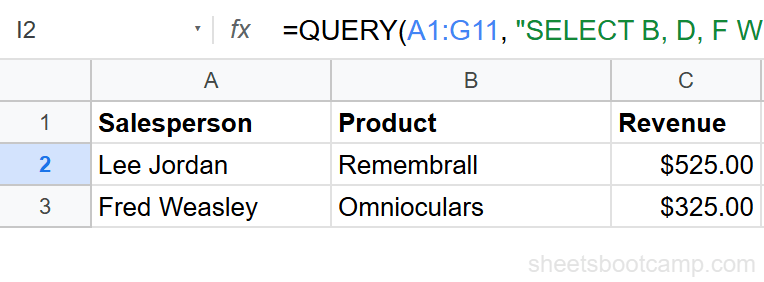
QUERY results spill into adjacent cells. Make sure the cells below and to the right of your formula are empty, or you get a #REF! error.
Filter by Text Value
Exact text matches use the = operator with single quotes:
=QUERY(A1:G11, "SELECT B, D, F WHERE B = 'Fred Weasley'")This returns Fred Weasley’s 4 transactions from the 10-row dataset. The text match is case-sensitive — 'fred weasley' returns nothing.
To exclude a specific value, use !=:
=QUERY(A1:G11, "SELECT * WHERE C != 'Hogwarts'")This returns all rows except the two Hogwarts transactions.
QUERY WHERE is case-sensitive for text comparisons. If your data has inconsistent casing, use the lower() function inside the query: WHERE lower(B) = 'fred weasley'. This converts column B values to lowercase before comparing.
Filter by Number
Numeric comparisons do not use quotes around the value:
=QUERY(A1:G11, "SELECT B, D, E WHERE E >= 15")This returns rows where Units (column E) is 15 or more. Four rows qualify: Lee Jordan’s 15 Remembralls, George Weasley’s 20 Sneakoscopes, Ginny Weasley’s 25 Nimbus 2000s, and Fred Weasley’s 30 Quaffles.
To filter a range of values, combine two conditions:
=QUERY(A1:G11, "SELECT B, D, F WHERE F >= 300 AND F <= 500")This returns transactions between $300 and $500 in revenue.
Combine Conditions with AND / OR
AND (all conditions must be true)
=QUERY(A1:G11, "SELECT B, D, F WHERE C = 'Hogsmeade' AND F > 400")Returns Hogsmeade transactions with revenue over $400. One row matches: George Weasley’s Sneakoscope ($570.00).
OR (any condition can be true)
=QUERY(A1:G11, "SELECT B, C, F WHERE C = 'Hogwarts' OR C = 'Hogsmeade'")Returns all transactions from either Hogwarts or Hogsmeade. Six rows match.
Combining AND and OR
Use parentheses to group conditions:
=QUERY(A1:G11, "SELECT B, C, F WHERE (C = 'Diagon Alley' OR C = 'Hogsmeade') AND F > 400")This returns rows from Diagon Alley or Hogsmeade where revenue exceeds $400. Two rows match: Lee Jordan’s Remembrall ($525.00) from Diagon Alley and George Weasley’s Sneakoscope ($570.00) from Hogsmeade.
The logic follows the same patterns as IF with AND and OR — AND narrows results, OR broadens them.
Without parentheses, AND takes precedence over OR. WHERE C = 'Diagon Alley' OR C = 'Hogsmeade' AND F > 400 is interpreted as WHERE C = 'Diagon Alley' OR (C = 'Hogsmeade' AND F > 400), which is not the same thing. Always use parentheses when mixing AND and OR.
Filter with Contains, Starts With, Ends With
QUERY WHERE supports partial text matching with three keywords:
| Keyword | Meaning | Example |
|---|---|---|
contains | Text includes the value anywhere | WHERE B contains 'Weasley' |
starts with | Text begins with the value | WHERE D starts with 'E' |
ends with | Text ends with the value | WHERE D ends with 's' |
Contains Example
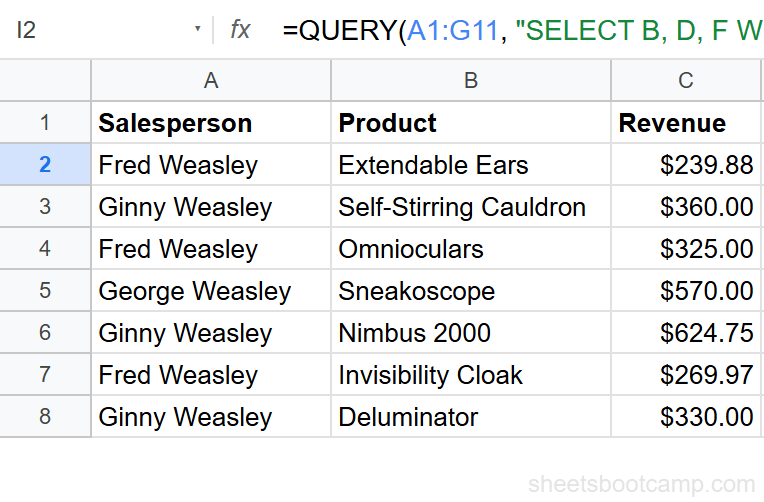
=QUERY(A1:G11, "SELECT B, D, F WHERE B contains 'Weasley'")This returns every row where the Salesperson name includes “Weasley.” Seven rows match — all transactions by Fred, Ginny, or George Weasley.
Starts With Example
=QUERY(A1:G11, "SELECT B, D WHERE D starts with 'S'")This returns products that start with the letter S: Self-Stirring Cauldron and Sneakoscope.
contains, starts with, and ends with are all case-sensitive. To match regardless of case, wrap the column in lower(): WHERE lower(B) contains 'weasley'.
Filter by Date
Dates in QUERY WHERE need the date keyword and YYYY-MM-DD format:
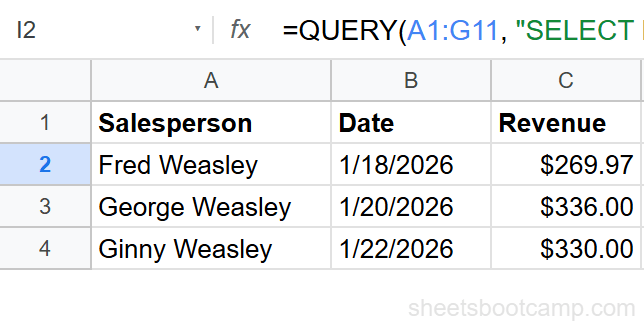
=QUERY(A1:G11, "SELECT B, A, F WHERE A > date '2026-01-15'")This returns transactions after January 15, 2026. Four rows from the 10-row dataset qualify: Fred Weasley (1/18/2026), George Weasley (1/20/2026), Ginny Weasley (1/22/2026), and Lee Jordan (no — he is 1/15, which is not after).
The actual matching rows are: Fred Weasley 1/18/2026 ($269.97), George Weasley 1/20/2026 ($336.00), and Ginny Weasley 1/22/2026 ($330.00).
Without the date keyword, QUERY treats the value as text and the comparison breaks. Always write date '2026-01-15', not '2026-01-15' or '1/15/2026'.
Common WHERE Mistakes
Missing single quotes around text values
WHERE C = Hogsmeade breaks because QUERY interprets Hogsmeade as a column name. The fix: WHERE C = 'Hogsmeade' with single quotes.
Using double quotes inside the query string
The query string is already inside double quotes, so using double quotes for text values causes a syntax error. Use single quotes for text values inside WHERE.
Case mismatch on text comparisons
WHERE B = 'fred weasley' returns no results when the data contains “Fred Weasley.” QUERY WHERE is case-sensitive. Either match the exact case or use lower(): WHERE lower(B) = 'fred weasley'.
Forgetting the date keyword
WHERE A > '2026-01-15' compares dates as text strings, which gives wrong results. Use WHERE A > date '2026-01-15' with the date keyword.
Wrong column letter
Column letters in the query string must match the columns in your data range. If your range is A1:G11, then A is the first column. If your range starts at C1, then C is the first column in the query. Double-check that you are referencing the correct column.
Tips
1. Start with SELECT * to see all columns. Once you confirm your WHERE condition returns the right rows, narrow the SELECT to the columns you need.
2. Use cell references for dynamic filtering. Instead of hardcoding a value, reference a cell: =QUERY(A1:G11, "SELECT * WHERE C = '"&I1&"'"). This lets you change the filter by editing cell I1. The concatenation ('"&I1&"') inserts single quotes around the cell value.
3. Chain WHERE with other clauses. WHERE combines with SELECT, GROUP BY, ORDER BY, and LIMIT. For example: "SELECT C, SUM(F) WHERE F > 200 GROUP BY C" filters first, then groups. WHERE always runs before GROUP BY.
For filtering without the query language syntax, the FILTER function is faster to write for basic row filtering. Reserve QUERY WHERE for when you also need sorting, grouping, or column selection in the same formula.
Related Google Sheets Tutorials
- QUERY Function: Complete Guide — covers all QUERY clauses with syntax and examples
- QUERY SELECT — choose specific columns and reorder the output
- QUERY GROUP BY — summarize and aggregate data with SUM, COUNT, and AVG
- IF with AND / OR — same AND/OR logic applied to IF statements
Frequently Asked Questions
How do you filter rows with QUERY WHERE in Google Sheets?
Add a WHERE clause to your QUERY string. For example, =QUERY(A1:G11, "SELECT * WHERE F > 400") returns only rows where column F exceeds 400. Text values need single quotes: WHERE C = 'Hogsmeade'.
Is QUERY WHERE case-sensitive in Google Sheets?
Yes. Text comparisons in QUERY WHERE are case-sensitive. WHERE B = 'fred weasley' returns no results if the data contains “Fred Weasley”. Use the lower() function to make comparisons case-insensitive: WHERE lower(B) = 'fred weasley'.
Can you use QUERY WHERE with multiple conditions?
Yes. Use AND to require all conditions: WHERE C = 'Diagon Alley' AND F > 300. Use OR to match any condition: WHERE C = 'Hogwarts' OR C = 'Hogsmeade'. You can combine AND and OR with parentheses.
How do you filter text that contains a word in QUERY?
Use the contains keyword: WHERE B contains 'Weasley' returns every row where column B includes the word Weasley anywhere in the cell. It is case-sensitive.
How do you use QUERY WHERE with dates?
Use the date keyword with the format YYYY-MM-DD in single quotes. For example: WHERE A > date '2026-01-15' returns rows where the date in column A is after January 15, 2026.