CONCATENATE & TEXTJOIN in Google Sheets
Learn how to combine text from multiple cells in Google Sheets using CONCATENATE, the ampersand operator, and TEXTJOIN with delimiters and ranges.
Sheets Bootcamp
March 22, 2026
CONCATENATE in Google Sheets joins text from multiple cells into a single string. The text functions pillar covers the full set of text manipulation tools, but combining text is one of the most common tasks, whether you are building full names, assembling addresses, or creating summary fields from multiple columns.
This guide covers three ways to combine text: the & operator, CONCATENATE, and TEXTJOIN. You’ll learn the syntax for each, when to use which, and how to handle delimiters and empty cells.
In This Guide
- The & Operator
- CONCATENATE Syntax and Examples
- TEXTJOIN Syntax and Examples
- Combine Text Step-by-Step
- Practical Examples
- Common Errors and How to Fix Them
- Tips and Best Practices
- Related Google Sheets Tutorials
- Frequently Asked Questions
The & Operator
The ampersand (&) joins two or more values. It is the shortest way to combine text in Google Sheets.
=A2 & " " & B2This joins the value in A2, a space, and the value in B2 into one string. You can chain as many & operators as needed: =A2 & ", " & B2 & " (" & C2 & ")" builds a formatted string with commas and parentheses.
The & operator does not add any separator on its own. If you write =A2&B2, the two values run together with nothing between them. Always include a text string for the separator you want: " " for a space, ", " for a comma and space, " - " for a dash.
The & operator converts numbers and dates to text automatically. If A2 contains the number 42, =A2&” items” returns “42 items”. But the result is a text string, not a number. You cannot use it in calculations without converting it back with VALUE.
CONCATENATE Syntax and Examples
CONCATENATE does the same thing as & with function syntax.
=CONCATENATE(string1, string2, ...)| Argument | Description | Required |
|---|---|---|
| string1 | First text value or cell reference | Yes |
| string2 | Second text value or cell reference | Yes |
| … | Additional values (up to 30 arguments) | No |
Example: =CONCATENATE("Hello, ", A2) returns "Hello, HARRY POTTER" when A2 contains "HARRY POTTER".
CONCATENATE does not accept range references. =CONCATENATE(A2:C2) returns only the value from the first cell in the range. To join multiple cells, list each one: =CONCATENATE(A2, " ", B2, " ", C2).
In practice, the & operator is more common because it is shorter. CONCATENATE is useful when you prefer function syntax for readability, but most users choose & for combining 2-3 values.
TEXTJOIN Syntax and Examples
TEXTJOIN joins a range of cells with a delimiter and can skip empty cells. It is the most flexible option for combining text.
=TEXTJOIN(delimiter, ignore_empty, string1, [string2, ...])| Argument | Description | Required |
|---|---|---|
| delimiter | Text placed between each value (e.g., ", ") | Yes |
| ignore_empty | TRUE to skip blank cells, FALSE to include them | Yes |
| string1 | First value or range to join | Yes |
Example: =TEXTJOIN(", ", TRUE, A2:E2) joins all five columns in row 2 with a comma and space between each value. If any cell in the range is empty, TEXTJOIN skips it when ignore_empty is TRUE.

TEXTJOIN accepts both individual cells and ranges. =TEXTJOIN(" | ", TRUE, A2:E2) is cleaner than =A2 & " | " & B2 & " | " & C2 & " | " & D2 & " | " & E2.
When ignore_empty is FALSE, TEXTJOIN includes empty cells as consecutive delimiters. If B2 is blank, =TEXTJOIN(”, ”, FALSE, A2:C2) returns something like “Harry, , London” with two commas in a row. Set it to TRUE to avoid this.
Combine Text Step-by-Step
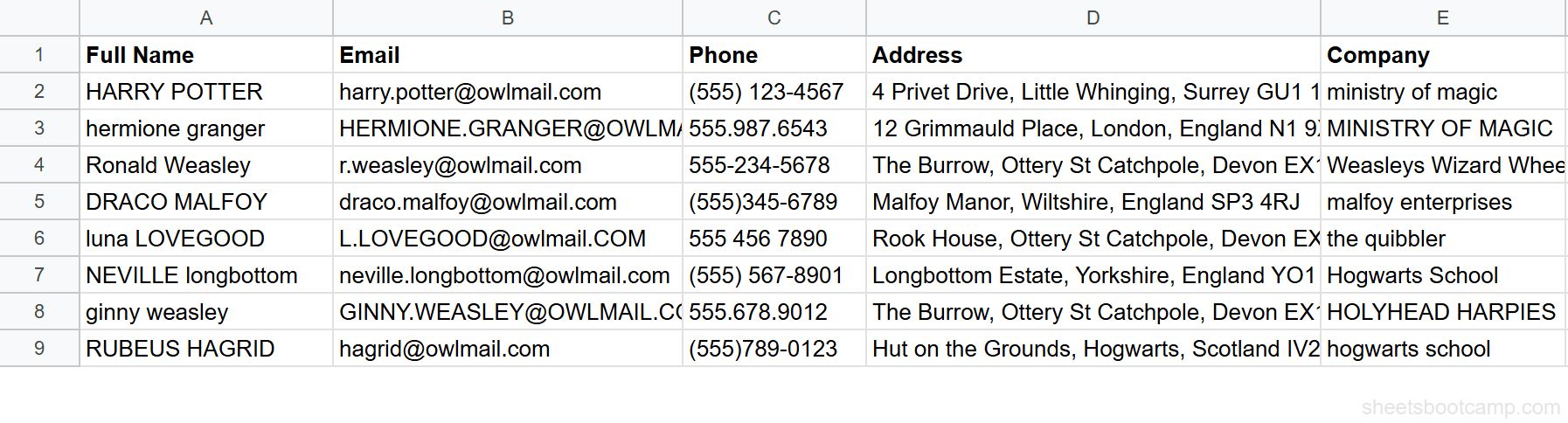
We’ll use the messy contacts table with 8 rows of names, emails, phone numbers, addresses, and company names.
Set up your data
Open the contacts spreadsheet. The data has Full Name in column A, Email in column B, Phone in column C, Address in column D, and Company in column E. The names have extra spaces and mixed capitalization, but we’ll combine first and clean later.
Combine name and company with &
Select cell F2 and enter:
=A2 & " - " & E2This joins the full name and company with a dash separator. For Harry Potter, the result is "HARRY POTTER - ministry of magic". The extra spaces and capitalization issues carry through, which is expected. You can wrap the result in TRIM and PROPER to clean it.

Use TEXTJOIN with a delimiter
Select cell G2 and enter:
=TEXTJOIN(", ", TRUE, A2, B2, E2)This joins the name, email, and company with a comma and space. The result is "HARRY POTTER, harry.potter@owlmail.com, ministry of magic". TEXTJOIN makes the delimiter consistent without manually adding ", " between every pair.
Apply TEXTJOIN to a full range
Select cell H2 and enter:
=TEXTJOIN(" | ", TRUE, A2:E2)This joins all five columns with a pipe separator. Copy the formula down through row 9 to build a one-line summary for each contact. For Ronald Weasley, the result is " Ronald Weasley | r.weasley@owlmail.com | 555-234-5678 | The Burrow, Ottery St Catchpole, Devon EX11 1HF | Weasleys Wizard Wheezes".

Combine TEXTJOIN with TRIM and PROPER for clean results in one formula: =TEXTJOIN(”, ”, TRUE, PROPER(TRIM(A2)), LOWER(B2), PROPER(TRIM(E2))). This cleans each value before joining them.
Practical Examples
Example 1: Build a Full Address Line
You need to combine name, company, and address into a single mailing line.
=TEXTJOIN(", ", TRUE, PROPER(TRIM(A2)), PROPER(TRIM(E2)), D2)For Harry Potter, this returns "Harry Potter, Ministry Of Magic, 4 Privet Drive, Little Whinging, Surrey GU1 1AA". PROPER and TRIM clean the name and company before TEXTJOIN combines everything.
Example 2: Create an Email Subject Line
You want to generate a personalized subject line from a contact name.
="Follow up: " & PROPER(TRIM(A2)) & " at " & PROPER(TRIM(E2))For row 2, this returns "Follow up: Harry Potter at Ministry Of Magic". The & operator works well here because you are joining a fixed number of values with different separators.
Example 3: Join with Line Breaks
TEXTJOIN can use a line break character as the delimiter. Use CHAR(10) for a newline.
=TEXTJOIN(CHAR(10), TRUE, PROPER(TRIM(A2)), LOWER(B2), D2)This stacks name, email, and address on separate lines within a single cell. You need to enable text wrapping (Format > Wrapping > Wrap) for the line breaks to display.
Common Errors and How to Fix Them
Values Running Together Without Spaces
If =A2&B2 returns "HARRY POTTERharry.potter@owlmail.com", you forgot the separator. Add a space or delimiter between the references: =A2 & " " & B2.
CONCATENATE Ignoring Range References
=CONCATENATE(A2:C2) returns only the first cell’s value. CONCATENATE does not expand ranges. List each cell individually: =CONCATENATE(A2, ", ", B2, ", ", C2), or switch to TEXTJOIN with a range reference.
Numbers Losing Formatting
When you concatenate a formatted number, the formatting is lost. If C2 displays $1,234.00, ="Total: " & C2 returns "Total: 1234". Use TEXT to preserve the format: ="Total: " & TEXT(C2, "$#,##0.00").
When combining dates with text, use TEXT to control the date format. =“Hired: ” & TEXT(D2, “M/D/YYYY”) returns “Hired: 8/1/2018” instead of a serial number like 43313.
Tips and Best Practices
-
Use
&for 2-3 values, TEXTJOIN for 4 or more. The&operator is cleaner for short joins. TEXTJOIN is cleaner when you have a range or many values with a consistent delimiter. -
Always set ignore_empty to TRUE in TEXTJOIN unless you have a specific reason to include blanks. Consecutive delimiters from empty cells look like errors in the output.
-
Clean before combining. Wrap individual values in TRIM, PROPER, or LOWER before joining them. Cleaning after concatenation is harder because the delimiter characters interfere with functions like TRIM.
-
Use CHAR(10) for multiline output. TEXTJOIN with
CHAR(10)as the delimiter creates line breaks within a cell. Enable Format > Wrapping > Wrap for the breaks to render. -
TEXTJOIN replaces CONCATENATE in most cases. Unless you need backward compatibility with older Sheets files that predate TEXTJOIN, there is little reason to use CONCATENATE. TEXTJOIN handles everything CONCATENATE does, plus ranges and delimiters.
Related Google Sheets Tutorials
- Text Functions in Google Sheets — Full guide to cleaning, extracting, and combining text data
- SPLIT Function in Google Sheets — The reverse of CONCATENATE: separate text into columns by delimiter
- TRIM and CLEAN in Google Sheets — Remove extra spaces before combining text
- LEFT, RIGHT, MID in Google Sheets — Extract parts of a string before or after combining
- Data Validation in Google Sheets — Set input rules to prevent messy data that needs combining
Frequently Asked Questions
What is the difference between CONCATENATE and TEXTJOIN in Google Sheets?
CONCATENATE joins individual cell references and text strings but does not accept ranges or add delimiters automatically. TEXTJOIN accepts a range, lets you set a delimiter like a comma or space, and can skip empty cells. Use CONCATENATE or the & operator for joining 2-3 values. Use TEXTJOIN when joining a range or when you need a consistent delimiter.
How do I combine text from two cells in Google Sheets?
Use the ampersand operator. Enter =A2&" "&B2 to join the values in A2 and B2 with a space between them. You can also use =CONCATENATE(A2, " ", B2) for the same result. The & operator is shorter to type and more common in practice.
How do I add a separator when combining text in Google Sheets?
With the & operator, include the separator as a text string: =A2&", "&B2 adds a comma and space. With TEXTJOIN, the first argument is your separator: =TEXTJOIN(", ", TRUE, A2:C2) joins all values in the range with a comma and space between each one.
Can TEXTJOIN skip empty cells in Google Sheets?
Yes. Set the second argument to TRUE and TEXTJOIN skips any blank cells in the range. =TEXTJOIN(", ", TRUE, A2:E2) joins only the cells that contain values. Set it to FALSE to include empty cells, which produces consecutive delimiters where blanks exist.
Is there a limit to how many cells CONCATENATE can join?
CONCATENATE accepts up to 30 arguments, though each argument can be a text string or cell reference. For joining more values, use TEXTJOIN with a range reference instead. TEXTJOIN has no practical limit on the number of cells it can join.