SPLIT Function in Google Sheets (With Examples)
Learn how to use the SPLIT function in Google Sheets to separate text into columns by any delimiter. Covers commas, spaces, custom delimiters, and edge cases.
Sheets Bootcamp
March 23, 2026
The SPLIT function in Google Sheets separates text in a cell into multiple columns based on a delimiter you choose. The text functions guide covers the full set of text tools, and SPLIT is the reverse of CONCATENATE and TEXTJOIN — instead of combining text, it breaks it apart.
This guide covers SPLIT syntax, splitting by commas, spaces, and custom delimiters, and how to handle the edge cases that trip people up.
In This Guide
- SPLIT Syntax and Parameters
- Split Text by Comma
- Split Text by Space
- Split Addresses Step-by-Step
- The split_by_each Argument
- Practical Examples
- Common Errors and How to Fix Them
- Tips and Best Practices
- Related Google Sheets Tutorials
- Frequently Asked Questions
SPLIT Syntax and Parameters
=SPLIT(text, delimiter, [split_by_each], [remove_empty_text])| Argument | Description | Required |
|---|---|---|
| text | The text string or cell reference to split | Yes |
| delimiter | The character(s) to split on | Yes |
| split_by_each | TRUE (default) treats each character as a separate delimiter. FALSE treats the entire string as one delimiter. | No |
| remove_empty_text | TRUE (default) removes empty results. FALSE keeps them. | No |
SPLIT outputs to the right. If the text has 3 commas, SPLIT creates 4 cells across 4 columns.
SPLIT expands into adjacent cells to the right. If those cells contain data, SPLIT returns a #REF! error instead of overwriting them. Always leave enough empty columns to the right of your SPLIT formula.
Split Text by Comma
Comma-separated values are the most common use case. Addresses, CSV data, and lists stored in single cells all use commas as separators.
=SPLIT(D2, ",")For an address like "4 Privet Drive, Little Whinging, Surrey GU1 1AA", this returns three cells:
| Cell | Value |
|---|---|
| First | 4 Privet Drive |
| Second | Little Whinging |
| Third | Surrey GU1 1AA |
Notice the leading spaces in the second and third values. The comma is the split point, but the space after each comma stays with the next segment. Wrap each result in TRIM to remove them, or split on ", " (comma followed by space) instead.
Split Text by Space
To split a full name into first and last name:
=SPLIT(A2, " ")For "Harry Potter", this returns "Harry" in one cell and "Potter" in the next. For names with middle names or multiple parts, SPLIT creates additional columns for each word.
When the source text has extra spaces — like "HARRY POTTER" with three spaces — SPLIT creates empty cells between the words. Use TRIM first: =SPLIT(TRIM(A2), " ") collapses the extra spaces before splitting.

Split Addresses Step-by-Step
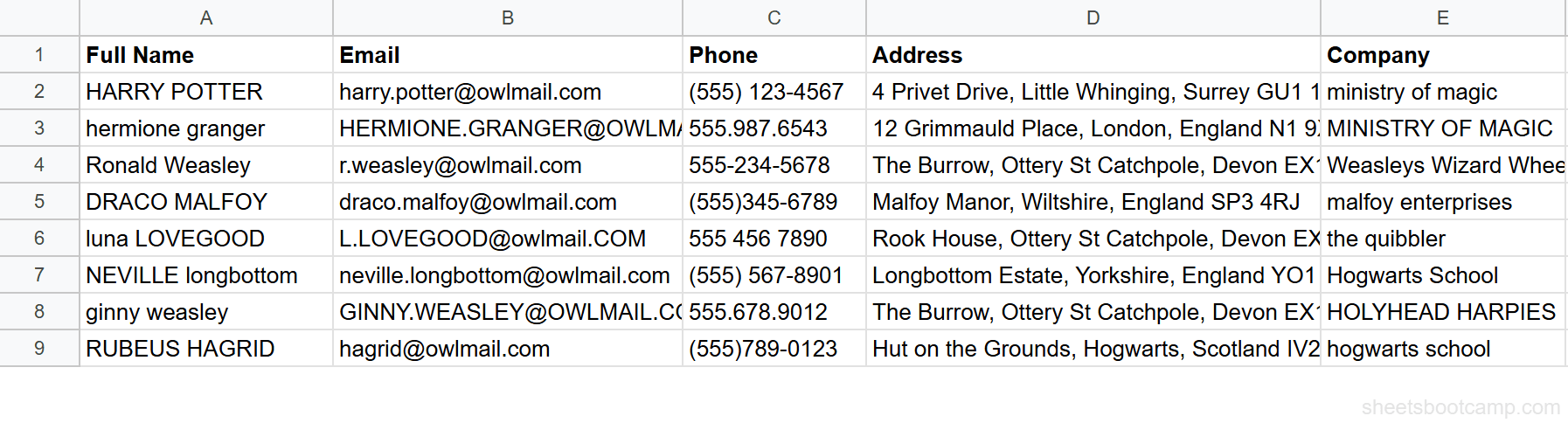
We’ll split the addresses in the messy contacts table into separate columns.
Set up your data
Open the contacts spreadsheet. Column D contains full addresses like "4 Privet Drive, Little Whinging, Surrey GU1 1AA". Each address uses commas to separate the street, city, and region.
Split an address by comma
Select cell F2 and enter:
=SPLIT(D2, ",")For Harry Potter’s address, SPLIT creates three columns: "4 Privet Drive", " Little Whinging", and " Surrey GU1 1AA". The results spill into columns F, G, and H.

Clean the split results with TRIM
The split values have leading spaces. Use ARRAYFORMULA with TRIM to clean all segments at once:
=ARRAYFORMULA(TRIM(SPLIT(D2, ",")))Now the results are "4 Privet Drive", "Little Whinging", and "Surrey GU1 1AA" with no extra spaces.
You can also split on ”, ” (comma + space) as the delimiter: =SPLIT(D2, ”, ”, FALSE). Set the third argument to FALSE so the two-character string is treated as a single delimiter, not as two separate split characters.
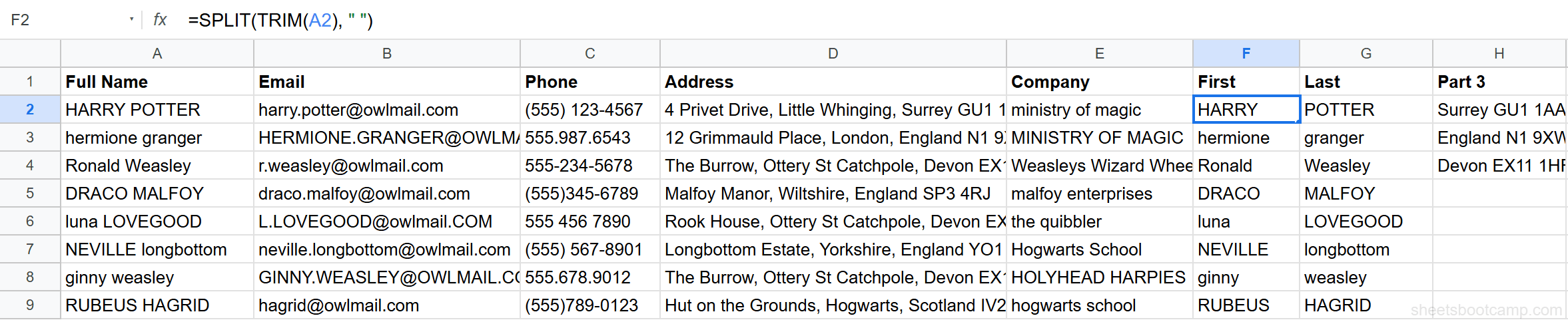
Split names by space
Select another empty cell and enter:
=SPLIT(TRIM(A2), " ")For "HARRY POTTER" (after TRIM collapses the extra spaces), this returns "HARRY" and "POTTER" in two cells. TRIM before SPLIT prevents empty cells caused by consecutive spaces.
The split_by_each Argument
By default, SPLIT treats each character in the delimiter as a separate split point. This is the split_by_each parameter.
split_by_each = TRUE (default):
=SPLIT("red-blue_green", "-_")This splits on both - and _, returning three cells: "red", "blue", "green".
split_by_each = FALSE:
=SPLIT("red-_blue-_green", "-_", FALSE)This splits only on the exact string "-_", returning three cells: "red", "blue", "green".
Use FALSE when your delimiter has multiple characters. A common case is splitting on ", " to avoid the leading spaces that come from splitting on just ",".
Practical Examples
Example 1: Extract Domain from Email
To get the domain part of an email address, split at the @ symbol and take the second piece.
=INDEX(SPLIT(B2, "@"), 1, 2)For "harry.potter@owlmail.com", SPLIT creates "harry.potter" and "owlmail.com". INDEX with row 1, column 2 returns "owlmail.com".
Example 2: Get the Postal Code from an Address
The postal code is the last part of the address. Split by space and use INDEX to get the last two elements.
=INDEX(SPLIT(D2, " "), 1, COUNTA(SPLIT(D2, " "))-1) & " " & INDEX(SPLIT(D2, " "), 1, COUNTA(SPLIT(D2, " ")))For a UK postal code like "GU1 1AA", this extracts the two-part code from the end. For simpler cases, use RIGHT with FIND to locate the pattern from the end of the string.
Example 3: Split and Transpose to Rows
SPLIT always outputs horizontally. To stack the results vertically, wrap SPLIT in TRANSPOSE:
=TRANSPOSE(SPLIT(D2, ","))This splits the address at commas and places each part in a separate row instead of a separate column.
Common Errors and How to Fix Them
#REF! Error from Occupied Cells
SPLIT returns #REF! when it needs to expand into cells that already have data. Clear the cells to the right of the formula, or move the formula to an area with enough empty columns.
Empty Cells from Extra Spaces
=SPLIT("HARRY POTTER", " ") creates 4 cells: "HARRY", empty, empty, "POTTER" because each space is a split point. Wrap the text in TRIM first: =SPLIT(TRIM(A2), " ") returns only "HARRY" and "POTTER".
Alternatively, set the fourth argument to TRUE (which is the default): =SPLIT(A2, " ", TRUE, TRUE). The remove_empty_text parameter removes the empty strings from the output.
Inconsistent Number of Columns
When splitting a column of data, different rows may have different numbers of delimiters. One address has 2 commas, another has 3. SPLIT creates a different number of columns per row. This is expected behavior. Handle it by using enough empty columns and applying INDEX to extract specific positions when you need consistency.
Use =COUNTA(SPLIT(A2, ”,”)) to count how many pieces a cell splits into before running the actual split. This helps you know how many columns to reserve.
Tips and Best Practices
-
Always TRIM before splitting by space. Extra spaces in the source data create empty cells in the output.
=SPLIT(TRIM(A2), " ")is safer than=SPLIT(A2, " "). -
Use split_by_each = FALSE for multi-character delimiters. If your delimiter is
", "or" - ", set the third argument to FALSE so SPLIT treats the full string as one split point. -
Combine SPLIT with INDEX for specific pieces.
=INDEX(SPLIT(A2, " "), 1, 1)returns the first word.=INDEX(SPLIT(A2, " "), 1, 2)returns the second. This is useful when you only need one part of the split. -
Consider Data > Split text to columns for one-time operations. Select the cells, go to Data > Split text to columns, and choose the delimiter. This is faster than formulas for bulk operations where you do not need the split to update dynamically.
-
Reserve enough empty columns. SPLIT outputs to the right and returns #REF! if it hits occupied cells. Check the maximum number of delimiters in your data and leave that many extra columns.
Related Google Sheets Tutorials
- Text Functions in Google Sheets — Full guide to cleaning, extracting, and combining text
- CONCATENATE and TEXTJOIN — The reverse of SPLIT: combine text from multiple cells into one
- TRIM and CLEAN in Google Sheets — Clean extra spaces before splitting text
- LEFT, RIGHT, MID — Extract a specific number of characters from text
- Data Validation in Google Sheets — Set input rules to control text formatting at entry
Frequently Asked Questions
How do I split text into columns in Google Sheets?
Use the SPLIT function. Enter =SPLIT(A2, ",") to split text at every comma, placing each piece in its own column to the right. You can split by any delimiter: spaces, hyphens, slashes, or any character. For a menu-based approach, select the cells and go to Data > Split text to columns.
How do I split text by space in Google Sheets?
Enter =SPLIT(A2, " ") to split text at every space. For "HARRY POTTER", this creates two cells: "HARRY" in the first and "POTTER" in the second. If the text has extra spaces, use =SPLIT(TRIM(A2), " ") to collapse multiple spaces before splitting.
What does the split_by_each argument do in SPLIT?
The third argument controls whether each character in the delimiter is treated as a separate split point. When TRUE (the default), =SPLIT(A2, "-_") splits on both hyphens and underscores. When FALSE, it splits only on the exact string "-_" as one delimiter. Set it to FALSE when your delimiter has multiple characters.
Why does SPLIT return a #REF! error?
SPLIT expands to the right into adjacent cells. If those cells already contain data, SPLIT returns #REF! instead of overwriting them. Clear the cells to the right of your SPLIT formula, or move the formula to an area with enough empty columns.
Can I split text into rows instead of columns in Google Sheets?
SPLIT always outputs to columns (horizontally). To split into rows, wrap SPLIT in TRANSPOSE: =TRANSPOSE(SPLIT(A2, ",")). This takes the horizontal output from SPLIT and flips it vertically into a column of rows.