VLOOKUP in Google Sheets: Complete Guide
Learn how to use VLOOKUP in Google Sheets with step-by-step examples. Master syntax, fix common errors, and explore alternatives.
Sheets Bootcamp
February 7, 2026
VLOOKUP is one of the most useful functions in Google Sheets. It searches for a value in the first column of a range and returns a corresponding value from another column. Whether you’re matching product IDs to prices or employee names to departments, VLOOKUP handles it.
This guide covers everything: syntax, step-by-step examples, common errors, and when to use alternatives like INDEX MATCH.
VLOOKUP Syntax
Here is the complete VLOOKUP syntax in Google Sheets:
=VLOOKUP(search_key, range, index, [is_sorted])| Parameter | Description |
|---|---|
| search_key | The value to search for in the first column of your range |
| range | The range of cells to search (the lookup table) |
| index | The column number in the range to return a value from (starting at 1) |
| is_sorted | FALSE for exact match (recommended), TRUE for approximate match |
Always use FALSE for the last parameter unless you specifically need approximate matching. Exact matching prevents unexpected results.
Step-by-Step Example
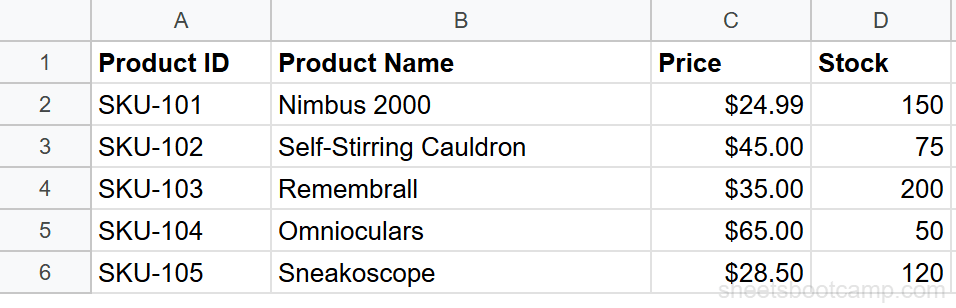
Let’s walk through a real example. You have a product inventory and want to look up prices by product ID.
Sample Data
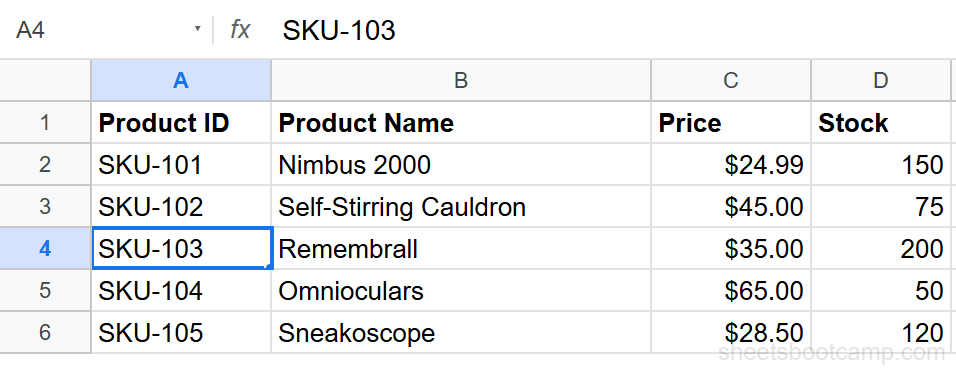
Identify your search value
Decide what you are looking for. In this case, you want to find the price for product ID SKU-103.
Write the VLOOKUP formula
Click on an empty cell and enter the formula:
=VLOOKUP("SKU-103", A2:D6, 3, FALSE)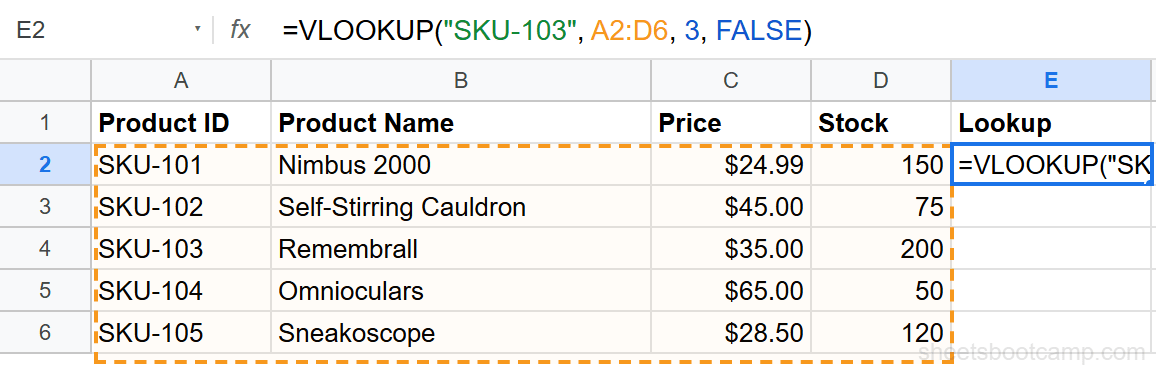
Here is what each part means:
"SKU-103"— the product ID to search forA2:D6— the data range (your lookup table)3— return the value from the 3rd column (Price)FALSE— find an exact match
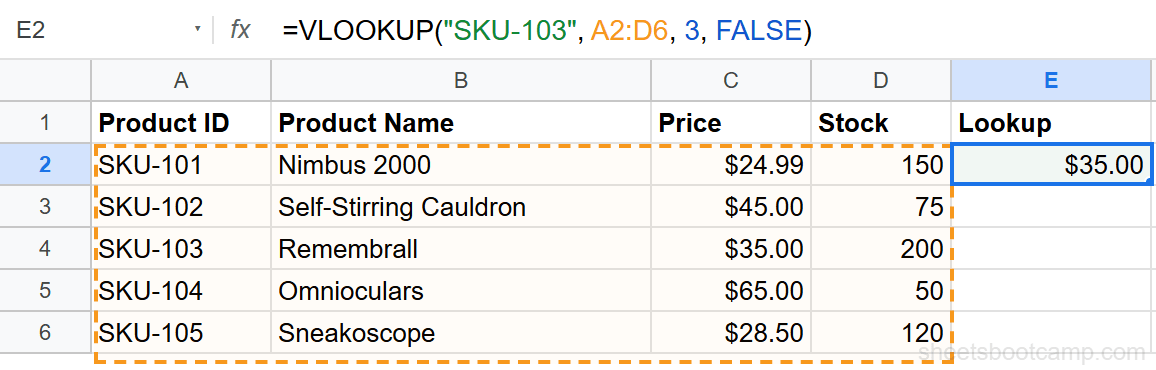
Press Enter to get the result
The formula returns $35.00, which is the price for the Remembrall.
Make it dynamic with a cell reference
Instead of hardcoding the search value, reference a cell:
=VLOOKUP(F2, A2:D6, 3, FALSE)Now you can type any product ID in cell F2, and the formula updates automatically.
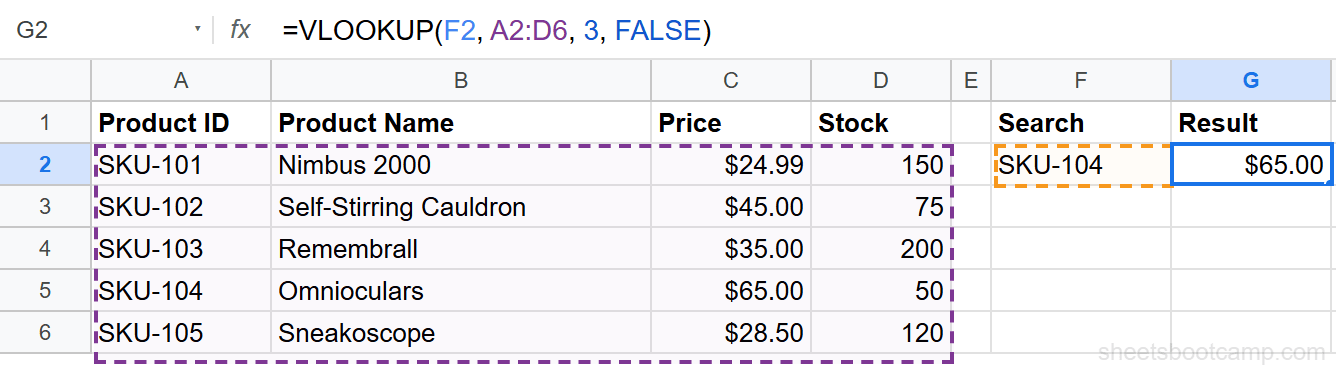
The search key must always be in the first column of your range. If your data is arranged differently, consider using INDEX MATCH instead.
Common VLOOKUP Errors
#N/A Error
The #N/A error means VLOOKUP could not find your search key in the lookup range. Common causes:
- Typos in the search key or data
- Extra spaces — use
TRIM()to clean data - Mismatched types — searching for text “123” in a column of numbers
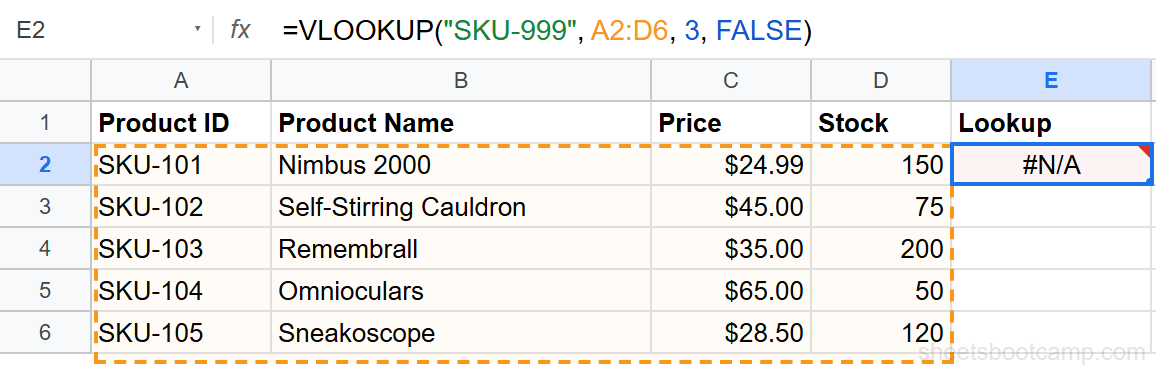
Fix it by wrapping VLOOKUP in IFERROR:
=IFERROR(VLOOKUP(F2, A2:D6, 3, FALSE), "Not found")#REF! Error
This happens when your index number exceeds the number of columns in the range. If your range has 4 columns, the index must be between 1 and 4.
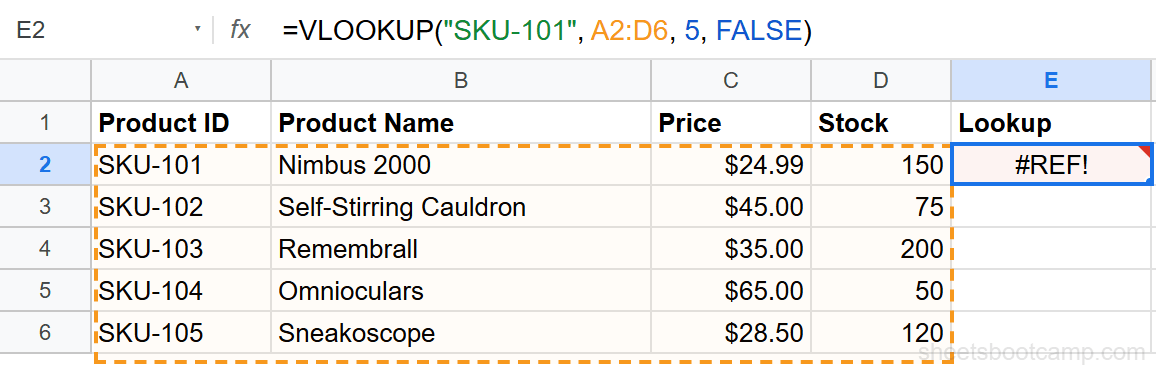
Never use an index number larger than the number of columns in your range. A range of A:C has 3 columns, so the maximum index is 3.
#VALUE! Error
The #VALUE! error usually means the index parameter is not a valid number, or the search key is in the wrong format.
VLOOKUP with Approximate Match
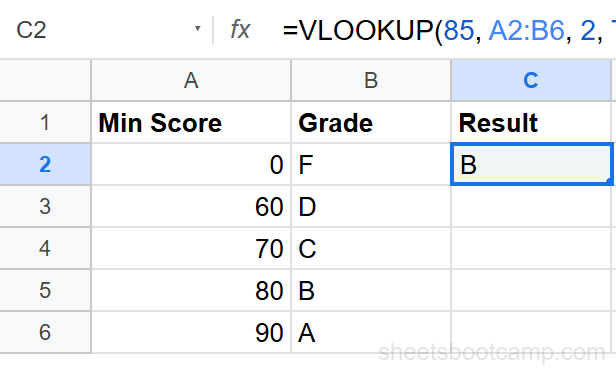
Setting the last parameter to TRUE enables approximate matching. VLOOKUP finds the largest value less than or equal to your search key.
When using approximate match (TRUE), your first column must be sorted in ascending order. If it is not sorted, VLOOKUP returns incorrect results.
This is useful for grade boundaries, tax brackets, or commission tiers:
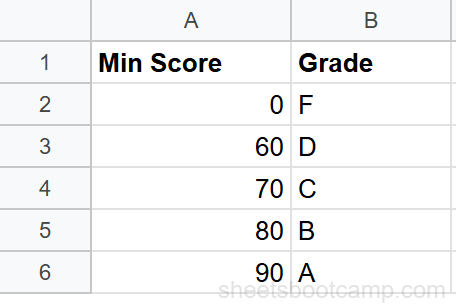
=VLOOKUP(85, A2:B6, 2, TRUE)This returns B because 85 falls between 80 and 89.
VLOOKUP vs INDEX MATCH
| Feature | VLOOKUP | INDEX MATCH |
|---|---|---|
| Lookup direction | Right only | Any direction |
| Column insertions | Breaks formula | Unaffected |
| Speed on large data | Slightly faster | Similar |
| Ease of use | Simpler syntax | More flexible |
| Multiple criteria | Not supported | Supported with arrays |
For straightforward right-lookups, VLOOKUP works well. For anything more complex, INDEX MATCH is the better choice.
Best Practices
1. Always use exact match — Set the fourth parameter to FALSE unless you specifically need approximate matching.
2. Lock your range with absolute references — Use $A$2:$D$6 instead of A2:D6 when copying formulas across multiple rows.
3. Wrap in IFERROR — Handle missing values gracefully instead of showing error messages.
4. Keep lookup columns clean — Remove extra spaces, ensure consistent formatting, and avoid mixed data types.
5. Consider alternatives for complex lookups — If you need to look left, match multiple criteria, or handle dynamic column positions, switch to INDEX MATCH or XLOOKUP.
Google Sheets now supports XLOOKUP, which combines the simplicity of VLOOKUP with the flexibility of INDEX MATCH. Check out our XLOOKUP guide to learn more.
Summary
VLOOKUP is the go-to function for looking up values in Google Sheets. Use it with FALSE for exact matches, wrap it in IFERROR to handle missing data, and switch to INDEX MATCH when you need more flexibility.