Google Apps Script for Sheets: Beginner's Guide
Learn how to use Google Apps Script with Google Sheets. Write custom functions, automate tasks, and build menus with step-by-step examples.
Sheets Bootcamp
February 19, 2026 · Updated July 20, 2026
Google Apps Script is a JavaScript-based platform built into Google Sheets that lets you automate tasks, write custom functions, and connect your spreadsheet to other Google services. If you have ever wished a built-in function existed for something specific, Apps Script is how you build it yourself.
This guide covers how to open the script editor, write your first custom function, use triggers to automate workflows, and send emails from your spreadsheet. No prior programming experience required — we will walk through every line of code.
In This Guide
- What Is Google Apps Script?
- How to Open the Script Editor
- Write a Custom Function: Step-by-Step
- Read and Write Sheet Data with Code
- Triggers: Run Code Automatically
- Practical Examples
- Common Errors and How to Fix Them
- Tips and Best Practices
- Related Google Sheets Tutorials
- FAQ
What Is Google Apps Script?
Google Apps Script is a cloud-based scripting language built on JavaScript. It runs on Google’s servers, not your computer, and it has direct access to Google Sheets, Gmail, Google Drive, Calendar, and other Workspace services.
In the context of Google Sheets, Apps Script lets you:
- Write custom functions that work like built-in formulas (e.g.,
=DOUBLE(A2)) - Automate repetitive tasks like formatting, data cleanup, or report generation
- Create custom menus with buttons that run your scripts
- Send emails based on spreadsheet data
- Connect to external APIs to pull or push data
You do not need to install anything. The script editor is built into every Google Sheet.
How to Open the Script Editor
- Open any Google Sheet
- Click Extensions in the menu bar
- Select Apps Script
A new browser tab opens with the Apps Script editor. You will see a file called Code.gs with a default empty function:
function myFunction() {

}
This is where you write your code. Each script project is bound to the spreadsheet you opened it from, so your code can read and write data in that sheet without any extra setup.
The script editor saves automatically, but you should press Ctrl+S (or Cmd+S) after writing code to make sure changes are saved before switching back to your sheet.
Write a Custom Function: Step-by-Step
Custom functions are the fastest way to start with Apps Script. You write a JavaScript function, and then call it by name in a cell — just like =SUM() or =VLOOKUP().
Open the Apps Script editor
Click Extensions > Apps Script. Delete the default myFunction code so you start with a blank file.
Write the function
Type this code in the editor:
/**
 * Doubles a number.
 * @param {number} value The number to double.
 * @return The doubled value.
 * @customfunction
 */
function DOUBLE(value) {
  return value * 2;
}
The JSDoc comment block (lines starting with *) is not decoration. The @customfunction tag tells Google Sheets to show your function in the autocomplete dropdown when you start typing =DOUBLE in a cell.
Press Ctrl+S to save.
Use the function in your sheet
Go back to your spreadsheet and type =DOUBLE(C2) in any cell. If C2 contains 24.99, the cell returns 49.98.
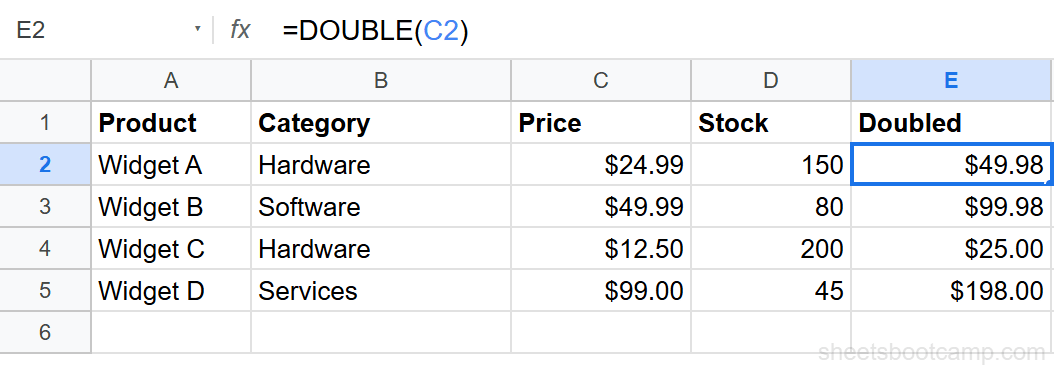
Drag the fill handle down to apply the function to more rows, just like any built-in formula.
Custom functions can only return values. They cannot format cells, send emails, or modify other parts of the spreadsheet. For those operations, use regular functions triggered by menus or triggers.
Read and Write Sheet Data with Code
Custom functions are useful, but the real power of Apps Script is reading and manipulating spreadsheet data directly from code.
Reading data
The SpreadsheetApp service gives you access to the active spreadsheet. Here is how you read a range of values:
function readData() {
  var sheet = SpreadsheetApp.getActiveSheet();
  var data = sheet.getRange("A2:D5").getValues();
  Logger.log(data);
}
getValues() returns a 2D array. Each row is an array of cell values. So data[0][0] is cell A2, data[0][1] is B2, and so on.
Writing data
To write values back to the sheet:
function writeData() {
  var sheet = SpreadsheetApp.getActiveSheet();
  sheet.getRange("E2").setValue("Updated");
}
You can also write a 2D array to a range:
function writeMultiple() {
  var sheet = SpreadsheetApp.getActiveSheet();
  var values = [["Result 1"], ["Result 2"], ["Result 3"]];
  sheet.getRange("E2:E4").setValues(values);
}Use getRange().getValues() to read data and getRange().setValues() to write data. The array dimensions must match the range dimensions, or Apps Script throws an error.
Running a function manually
To test your function, click the Run button (play icon) at the top of the script editor. Select the function name from the dropdown if you have multiple functions. The first time you run a script, Google asks you to authorize it — click through the permissions dialog.
Triggers: Run Code Automatically
Triggers execute functions in response to events. There are two types: simple triggers and installable triggers.
Simple triggers
Simple triggers are built-in and do not require setup:
| Trigger | Fires When |
|---|---|
onOpen(e) | The spreadsheet is opened |
onEdit(e) | A user edits a cell |
onSelectionChange(e) | A user selects a different cell |
Here is an onOpen trigger that adds a custom menu:
function onOpen() {
  var ui = SpreadsheetApp.getUi();
  ui.createMenu("Inventory Tools")
    .addItem("Highlight Low Stock", "highlightLowStock")
    .addItem("Send Alert Email", "sendLowStockAlert")
    .addToUi();
}
When you open the spreadsheet, an Inventory Tools menu appears in the menu bar with two options. Each option runs the specified function when clicked.
Installable triggers
Installable triggers can do things simple triggers cannot:
- Run on a time schedule (every hour, every day, every Monday)
- Fire when a Google Form submits a response
- Run functions that require authorization (like sending email)
Set up installable triggers in the script editor: click the clock icon in the left sidebar, then Add Trigger.
Simple triggers run as the user who opens the sheet. Installable triggers run as the user who created the trigger, even if someone else opens the sheet. This matters for permissions — an installable trigger can send email from your account regardless of who views the spreadsheet.
Practical Examples
Example 1: Highlight low stock items
This script reads the Stock column and highlights any row where stock falls below 50:
function highlightLowStock() {
  var sheet = SpreadsheetApp.getActiveSheet();
  var data = sheet.getRange("A2:D100").getValues();
  for (var i = 0; i < data.length; i++) {
    if (data[i][3] < 50 && data[i][3] !== "") {
      sheet.getRange(i + 2, 1, 1, 4)
        .setBackground("#fce4ec");
    }
  }
}
Column D (index 3) contains the stock values. The script loops through each row, checks if stock is below 50, and sets a light red background on the entire row.
Example 2: Send an email alert for low stock
This script checks stock levels and sends a summary email:
function sendLowStockAlert() {
  var sheet = SpreadsheetApp.getActiveSheet();
  var data = sheet.getRange("A2:D100").getValues();
  var lowStock = [];

  for (var i = 0; i < data.length; i++) {
    if (data[i][3] < 50 && data[i][0] !== "") {
      lowStock.push(data[i][0] + ": " + data[i][3] + " units");
    }
  }

  if (lowStock.length > 0) {
    MailApp.sendEmail(
      "you@example.com",
      "Low Stock Alert",
      "The following items are below 50 units:\n\n" +
        lowStock.join("\n")
    );
  }
}
The script builds a list of low-stock items, then sends a single email with all of them. Combine this with a time-driven trigger to get daily inventory alerts.
Replace "you@example.com" with your actual email address. MailApp.sendEmail sends from the Google account that authorized the script. Free accounts can send up to 100 emails per day.
Example 3: Auto-format new rows on edit
This onEdit trigger bolds the header row and formats column C as currency whenever a cell is edited:
function onEdit(e) {
  var sheet = e.source.getActiveSheet();
  var range = e.range;

  if (range.getRow() === 1) {
    range.setFontWeight("bold");
  }

  if (range.getColumn() === 3 && range.getRow() > 1) {
    range.setNumberFormat("$#,##0.00");
  }
}
Common Errors and How to Fix Them
Authorization required
The first time you run a script that accesses Sheets data or sends email, Google shows a permissions dialog. Click Advanced > Go to [project name] (unsafe) to authorize. This is normal for scripts you wrote yourself.
TypeError: Cannot read properties of undefined
This usually means your range is empty or the data array index is out of bounds. Check that your getRange() matches the actual data in your sheet. Log the data with Logger.log() to inspect what getValues() returns.
Custom function returns “Loading…”
Custom functions recalculate when their input cells change. If a function stays on “Loading…” for more than a few seconds, check the script editor for syntax errors. Open Execution log (View > Execution log) to see error details.
Exceeded maximum execution time
Scripts have a 6-minute runtime limit (30 minutes for Google Workspace accounts). If your script processes thousands of rows, batch the reads and writes. Read all data at once with getValues(), process it in memory, then write it back in one setValues() call.
Avoid calling getRange().getValue() inside a loop. Each call is a round-trip to Google’s servers. Read the entire range once with getValues(), process the array, then write it back with setValues(). This can turn a 5-minute script into a 5-second script.
Tips and Best Practices
-
Use
getValues()andsetValues()for batch operations. One call that reads 1,000 cells is faster than 1,000 calls that read one cell each. -
Add JSDoc comments to custom functions. The
@customfunctiontag enables autocomplete. The@paramand@returntags show descriptions in the function tooltip. -
Test with Logger.log(). Print variables and array contents to the execution log before adding more logic. It saves time debugging.
-
Keep custom functions pure. They should accept inputs and return outputs. Do not try to modify cells, send emails, or call other services from a custom function — use menu items or triggers instead.
-
Use the V8 runtime. In the script editor, click the gear icon (Project Settings) and make sure the runtime is set to V8. It supports modern JavaScript features like
const,let, arrow functions, and template literals.
Related Google Sheets Tutorials
- Google Sheets API - Read and write spreadsheet data from external applications using the REST API
- Mail Merge with Google Sheets - Send personalized emails to a list of recipients using Sheets and Gmail
- LET and LAMBDA Functions - Create reusable custom functions without leaving the formula bar
- ARRAYFORMULA Guide - Apply a formula to an entire column with a single function
FAQ
What is Google Apps Script?
Google Apps Script is a JavaScript-based platform for automating tasks across Google Workspace apps. In Google Sheets, it lets you write custom functions, create menus, send emails, and connect to external APIs.
How do I open Apps Script in Google Sheets?
Click Extensions > Apps Script from the menu bar. This opens the script editor in a new browser tab connected to your spreadsheet.
Can I write custom functions with Apps Script?
Yes. Write a JavaScript function that accepts parameters and returns a value. Save it in the script editor, then call it by name in any cell. For example, =DOUBLE(A2) calls a function named DOUBLE.
What are triggers in Google Apps Script?
Triggers run functions automatically in response to events. Simple triggers like onOpen and onEdit run when you open the sheet or edit a cell. Installable triggers can run on a schedule or when a form is submitted.
Is Google Apps Script free?
Yes. Apps Script is free for all Google accounts. There are daily quotas on operations like email sends and script runtime, but the limits are generous for typical use. Google Workspace accounts have higher quotas.
What language does Google Apps Script use?
Apps Script uses JavaScript (ES6+). If you know JavaScript, you already know the syntax. If not, the core concepts — variables, functions, loops, and objects — are the same across most programming languages.