Conditional Formatting Icons in Google Sheets
Learn how to add icons and emojis to Google Sheets using conditional formatting and formulas. Step-by-step guide with IF, CHAR, and emoji examples.
Sheets Bootcamp
February 21, 2026 · Updated September 14, 2026
Conditional formatting icons in Google Sheets let you add visual status indicators to your data using formulas and formatting rules. Unlike Excel, Sheets does not have a built-in icon set feature, but you can build the same effect with conditional formatting and a few helper columns. The result: a color-coded dashboard where status is visible at a glance.
We’ll cover how to create icon columns with IF and CHAR(), color them with conditional formatting rules, and build traffic-light emoji indicators using IFS formulas.
In This Guide
- How Icon Sets Work in Google Sheets
- Step-by-Step: Build a Status Icon Column
- Traffic Light Emojis with IFS
- CHAR() vs. Emoji: When to Use Each
- Tips and Best Practices
- Related Google Sheets Tutorials
- FAQ
How Icon Sets Work in Google Sheets
Excel has a built-in icon set feature that drops arrows, traffic lights, or checkmarks into cells based on value thresholds. Google Sheets does not offer this. Instead, you build it yourself in two parts:
- A formula column that returns a symbol (via CHAR() or direct emoji) based on cell values
- Conditional formatting rules that color the symbol based on the same values
The formula generates the icon. The formatting controls the color. Together, they replicate what Excel does with one click, except you get more control over which icons appear and how they look.
Sample Data
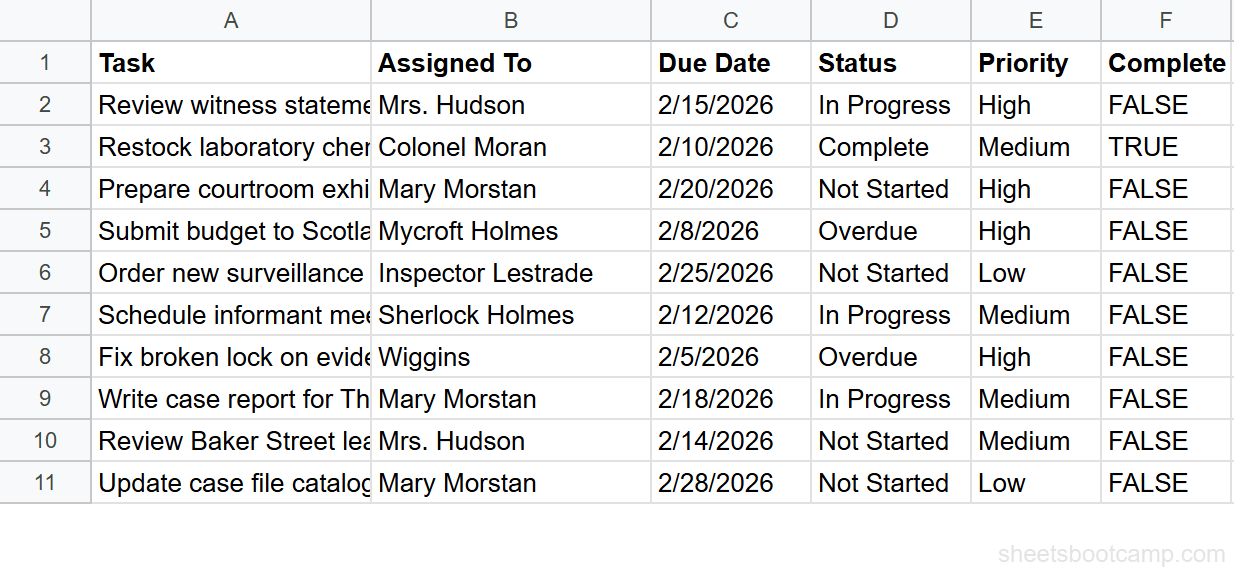
We’ll use a task tracker with 10 tasks. Columns A through F contain Task, Assigned To, Due Date, Status, Priority, and Complete.
| A | B | C | D | E | F | |
|---|---|---|---|---|---|---|
| 1 | Task | Assigned To | Due Date | Status | Priority | Complete |
| 2 | Review witness statements | Mrs. Hudson | 2/15/2026 | In Progress | High | FALSE |
| 3 | Restock laboratory chemicals | Colonel Moran | 2/10/2026 | Complete | Medium | TRUE |
| 4 | Prepare courtroom exhibits | Mary Morstan | 2/20/2026 | Not Started | High | FALSE |
| 5 | Submit budget to Scotland Yard | Mycroft Holmes | 2/8/2026 | Overdue | High | FALSE |
| 6 | Order new surveillance equipment | Inspector Lestrade | 2/25/2026 | Not Started | Low | FALSE |
| 7 | Schedule informant meetings | Sherlock Holmes | 2/12/2026 | In Progress | Medium | FALSE |
| 8 | Fix broken lock on evidence room | Wiggins | 2/5/2026 | Overdue | High | FALSE |
| 9 | Write article for The Strand Magazine | Mary Morstan | 2/18/2026 | In Progress | Medium | FALSE |
| 10 | Review Whitehall ward spells | Mrs. Hudson | 2/14/2026 | Not Started | Medium | FALSE |
| 11 | Update case file catalog | Mary Morstan | 2/28/2026 | Not Started | Low | FALSE |
Step-by-Step: Build a Status Icon Column
Add a helper column with an IFS formula
In cell G1, enter the header Icon. In G2, enter this formula:
=IFS(D2="Complete", CHAR(10004), D2="In Progress", CHAR(9654), D2="Not Started", CHAR(9675), TRUE, CHAR(9888))This returns a different symbol for each status:
| Status | CHAR Code | Symbol | Meaning |
|---|---|---|---|
| Complete | 10004 | ✔ | Checkmark |
| In Progress | 9654 | ▶ | Play/arrow |
| Not Started | 9675 | ○ | Open circle |
| Overdue | 9888 | ⚠ | Warning sign |
Copy G2 down through G11. Every row now shows a symbol based on its Status value.
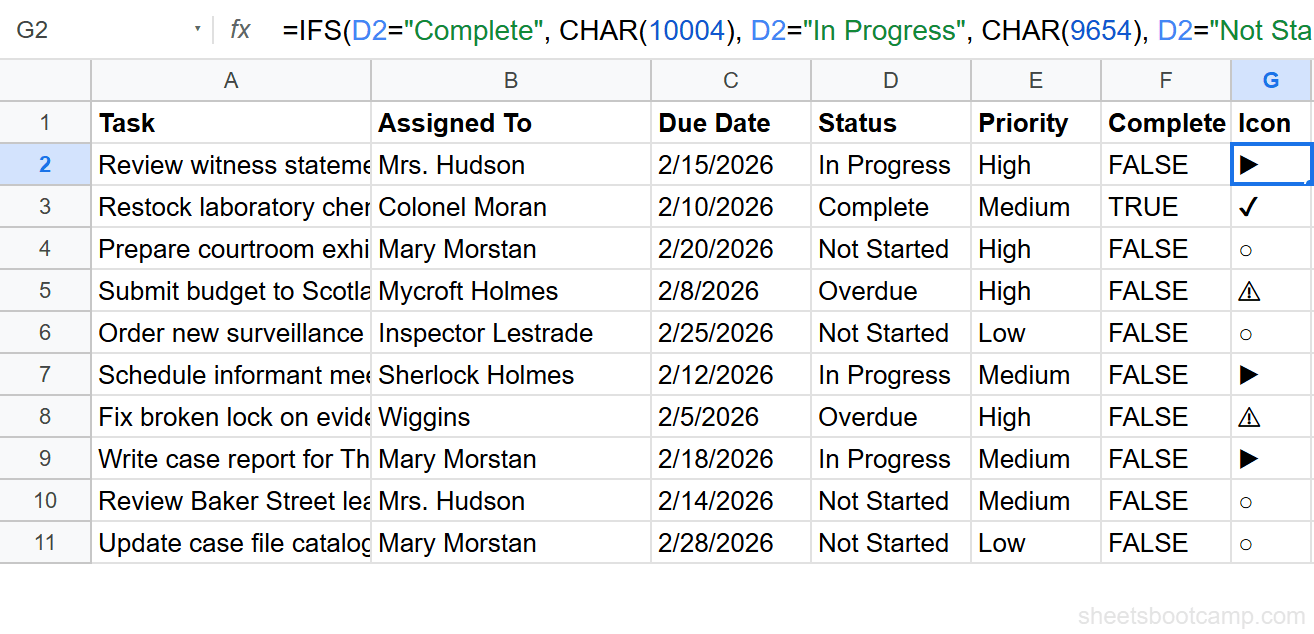
CHAR() symbols render as plain text characters. They inherit the cell’s font color, which is why conditional formatting can change their color. Emojis are graphical and ignore text color settings.
Apply conditional formatting to color the icons
Select G2:G11. Go to Format > Conditional formatting. Create four rules, each using Custom formula is:
Rule 1 — Complete (green):
=$D2="Complete"Set text color to green (#34a853).
Rule 2 — Overdue (red):
=$D2="Overdue"Set text color to red (#ea4335).
Rule 3 — In Progress (amber):
=$D2="In Progress"Set text color to dark yellow (#f59e0b).
Rule 4 — Not Started (gray):
=$D2="Not Started"Set text color to gray (#9ca3af).
The $D2 reference locks to column D so the rule checks the Status column for every row in the icon column. For more on this technique, see formatting based on another cell.

Optional: Add a priority indicator column
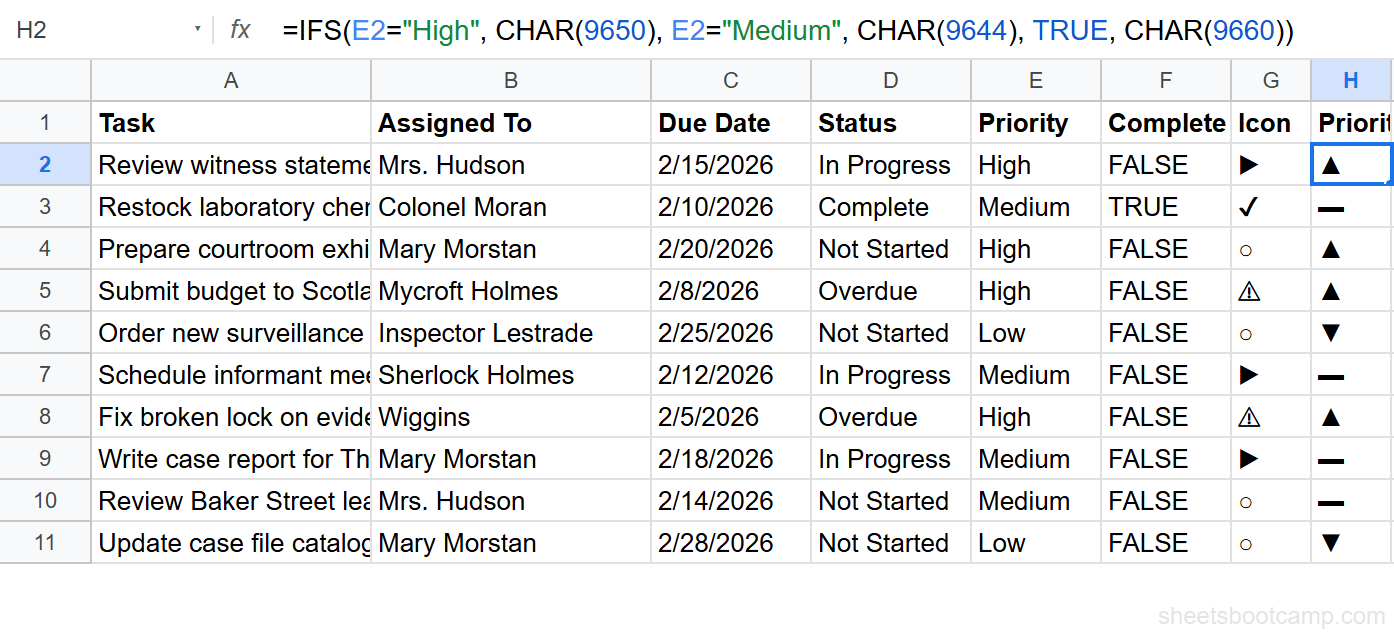
In column H, add a second icon column for Priority. In H2:
=IFS(E2="High", CHAR(9650), E2="Medium", CHAR(9644), TRUE, CHAR(9660))| Priority | CHAR Code | Symbol |
|---|---|---|
| High | 9650 | ▲ |
| Medium | 9644 | ▬ |
| Low | 9660 | ▼ |
Apply conditional formatting rules to H2:H11: red text for High (=$E2="High"), amber for Medium, and blue for Low.
Review the visual dashboard
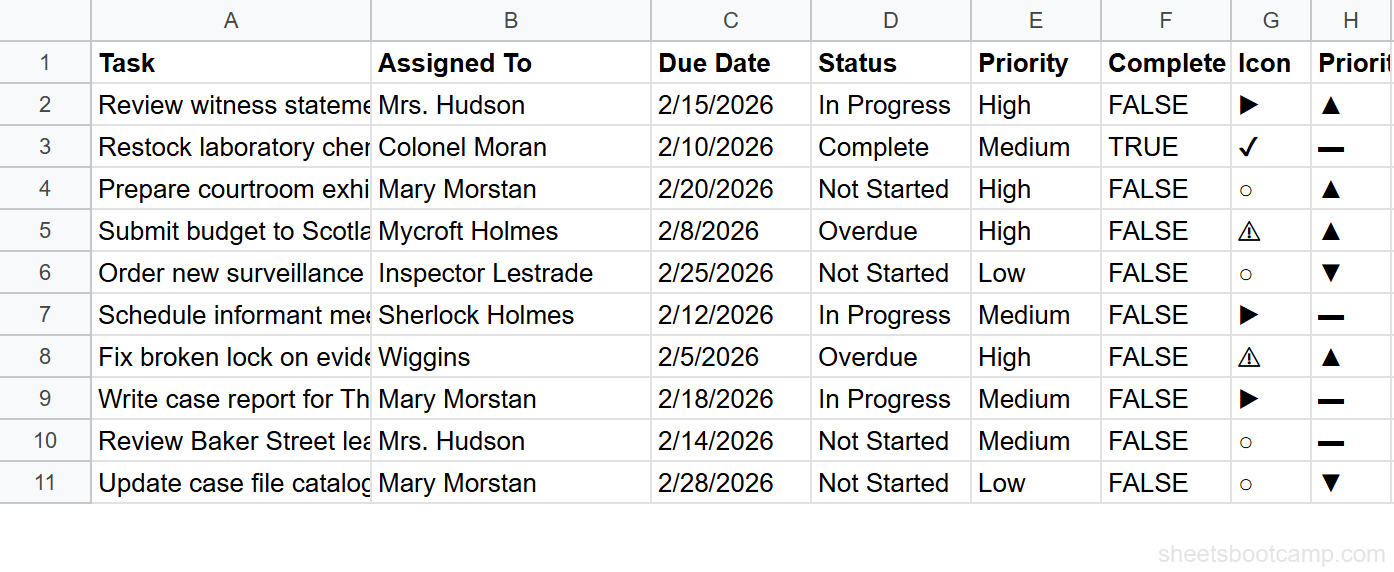
Your task tracker now has two icon columns. Each row displays its status and priority at a glance. Colonel Moran’s completed task shows a green checkmark and an amber dash. Mycroft Holmes’s overdue budget submission shows a red warning sign and a red up-arrow.
Traffic Light Emojis with IFS
If you want colored circles without conditional formatting, emoji characters handle both shape and color in one step. Unicode includes colored circle emojis that render consistently across platforms.
In a helper column, enter:
=IFS(F2=TRUE, CHAR(128994), D2="In Progress", CHAR(128993), D2="Overdue", CHAR(128308), TRUE, CHAR(11093))| Condition | CHAR Code | Emoji | Color |
|---|---|---|---|
| Complete (TRUE) | 128994 | Green | |
| In Progress | 128993 | Yellow | |
| Overdue | 128308 | Red | |
| Not Started | 11093 | White |
This approach checks the Complete column (F) first. If F2=TRUE, the task gets a green circle. Otherwise, the formula checks the Status column for In Progress, Overdue, or defaults to a white circle for Not Started.
Emoji rendering varies by device and operating system. What appears as a green filled circle on Windows may look slightly different on macOS or Android. CHAR()-based symbols are more consistent across platforms because they render as text glyphs.
Combining Approaches
You can use both techniques in the same sheet. CHAR() symbols with conditional formatting give you full control over colors and font size. Emoji circles work as a self-contained traffic light with no formatting rules needed. Pick whichever fits your use case, or use one column for status and the other for priority.
CHAR() vs. Emoji: When to Use Each
| Feature | CHAR() Symbols | Emoji Characters |
|---|---|---|
| Color control | Yes — responds to text color and conditional formatting | No — emojis are graphical and ignore text color |
| Platform consistency | High — renders as a text glyph in the cell’s font | Varies — depends on OS and browser |
| Available icons | Checkmarks, arrows, circles, triangles, warning signs | Hundreds of options including faces, objects, flags |
| Readability at small sizes | Good — scales with font size | Can be hard to distinguish at small font sizes |
| Best for | Status dashboards where color coding matters | Quick visual tags where built-in color is enough |
Use CHAR() when you need custom formula conditional formatting to control the icon’s appearance. Use emojis when the icon’s built-in color already communicates the meaning.
Tips and Best Practices
-
Keep icon columns narrow. Set column width to 30-40 pixels and center-align the cells. The icons stand out more when they are not surrounded by whitespace.
-
Use data validation for the Status column. A dropdown list prevents typos that break your IFS formula. If someone enters “complete” instead of “Complete,” the formula falls through to the default case. See checkbox data validation for another way to track completion.
-
Freeze the icon columns next to the data. If your sheet scrolls horizontally, freeze the status icon column so it stays visible. Go to View > Freeze and select the appropriate column count.
-
Test CHAR codes before committing. Enter
=CHAR(10004)in an empty cell to preview the symbol. Not all Unicode code points render in Google Sheets. Stick to common symbols in the 9000-10000 and 128000-129000 ranges.
You can type emojis directly into a formula with the emoji keyboard. On Windows, press Win + . to open it. On macOS, press Ctrl + Cmd + Space. This saves you from looking up CHAR codes for every emoji.
Related Google Sheets Tutorials
- Conditional Formatting: Complete Guide — all rule types, color scales, and managing multiple formatting rules
- Custom Formula Conditional Formatting — write your own formatting rules using any Google Sheets function
- Format Based on Another Cell — apply formatting to one column based on values in a different column
- Data Validation Checkboxes — add TRUE/FALSE checkboxes for task completion tracking
Frequently Asked Questions
Does Google Sheets have icon sets like Excel?
No. Google Sheets does not have a built-in icon set feature for conditional formatting. You can replicate the effect by using IF or IFS formulas with CHAR() or emoji characters to generate icons in a helper column, then applying conditional formatting to color them by status.
How do I add emoji icons based on cell values in Google Sheets?
Create a helper column with an IF or IFS formula that returns different emojis based on a condition. For example, =IF(D2="Complete", CHAR(9989), CHAR(10060)) returns a green checkmark for Complete and a red X for other values. You can also paste emoji characters directly into the formula.
Can I change emoji colors with conditional formatting?
Conditional formatting changes cell background and text color, but most emojis are rendered as images by the operating system and ignore text color. CHAR()-based symbols like checkmarks and X marks do respond to text color rules. Use CHAR(10004) for a checkmark and CHAR(10008) for an X if you need color control.
How do I create a traffic light system in Google Sheets?
Use an IFS formula to return colored circle emojis based on thresholds. For example, =IFS(F2>=80, CHAR(128994), F2>=50, CHAR(128993), TRUE, CHAR(128308)) returns a green circle for 80 or above, yellow for 50 to 79, and red below 50.
What is the difference between CHAR() symbols and emoji in Google Sheets?
CHAR() returns Unicode characters that render as plain text. They respond to font color and conditional formatting text color rules. Emojis are graphical characters rendered by the operating system. They appear in color regardless of text formatting. Use CHAR() when you need color control and emojis when you want universally recognizable icons.