Paste Special in Google Sheets (Values, Format)
Learn how to use Paste Special in Google Sheets to paste values only, formatting, transpose, and more. Covers shortcuts, menu options, and common use cases.
Sheets Bootcamp
February 22, 2026 · Updated June 10, 2026
Paste Special in Google Sheets lets you control exactly what gets pasted when you copy and paste cells. Instead of pasting everything — values, formulas, formatting, and data validation — you pick which parts to keep. The most common use: pasting values only to replace a formula with its result.
This guide covers every Paste Special option in Google Sheets, including the keyboard shortcuts, menu paths, and the real-world situations where each option saves time.
In This Guide
- Paste Special Options
- Paste Values Only: Step-by-Step
- Paste Format Only
- Paste Transposed
- Other Paste Special Options
- Keyboard Shortcuts
- Common Use Cases
- Tips and Best Practices
- Related Google Sheets Tutorials
- FAQ
Paste Special Options
Here’s every option under Edit > Paste special and what each one does:
| Option | Pastes | Skips |
|---|---|---|
| Paste values only | Calculated values | Formulas, formatting, validation |
| Paste format only | Font, color, borders, number format | Values, formulas |
| Paste all except borders | Values, formulas, formatting | Cell borders |
| Paste column widths only | Column widths | Everything else |
| Paste formula only | Formulas | Formatting, validation |
| Paste data validation only | Validation rules | Values, formatting |
| Paste conditional formatting only | CF rules | Values, other formatting |
| Paste transposed | Everything, but rows/columns are swapped | Nothing (rotates the data) |
Paste Values Only: Step-by-Step
This is the Paste Special option you’ll use most. It replaces formulas with their results, strips formatting, and gives you clean static values.
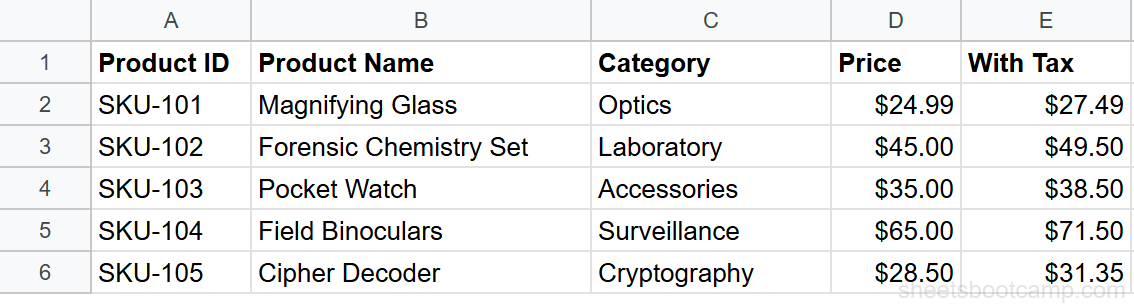
Copy the source cells
Select the range with formulas or formatted data and press Ctrl+C (Cmd+C on Mac). A dashed border appears around the copied range.
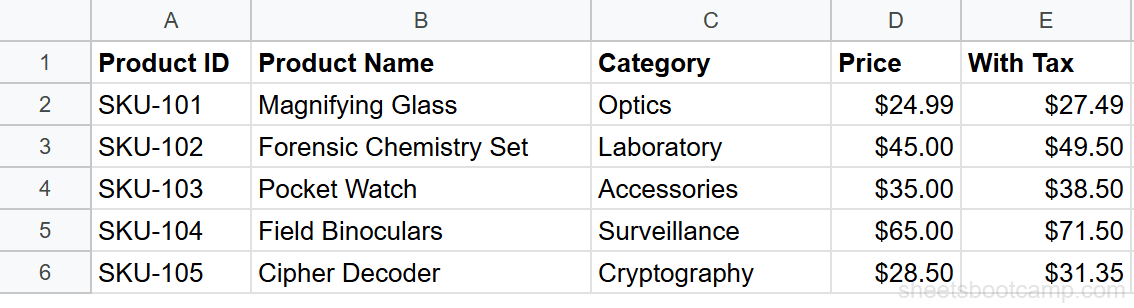
Paste values only
Click the target cell and press Ctrl+Shift+V (Cmd+Shift+V on Mac). Or go to Edit > Paste special > Paste values only.
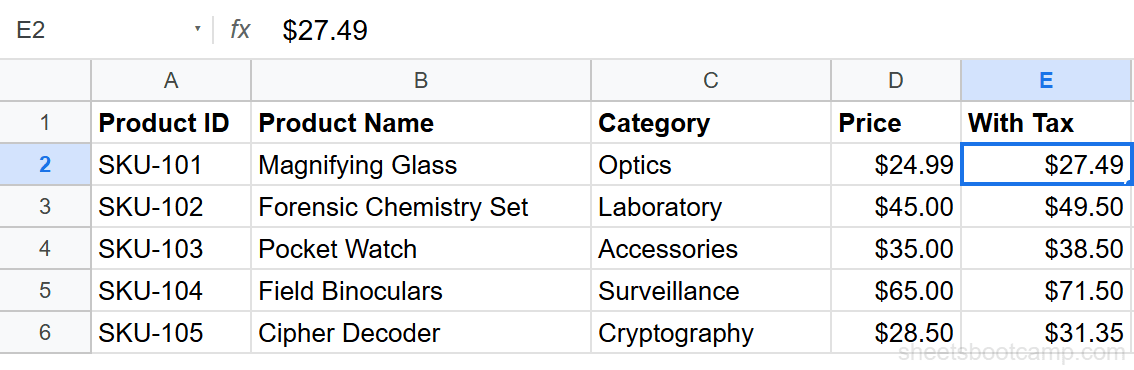
Verify the result
Click any pasted cell and check the formula bar. It shows the plain value (like 45) instead of a formula (like =C2*D2). The formatting from the source is not applied.
To convert formulas to values in place (same cells), copy the range, then immediately Paste values only back to the same location. The formulas are replaced with their current results. This is useful when you no longer need the formula and want to lock in the output.
Paste Format Only
Paste format only copies the visual appearance without changing cell values. The target cells keep their data but adopt the font, font size, colors, borders, number format, and text alignment from the source.
- Copy the formatted cells (Ctrl+C).
- Select the target range.
- Go to Edit > Paste special > Paste format only.
This works like the Paint format tool in the toolbar, but it handles larger ranges more reliably and can be undone as a single action.
Paste format only copies conditional formatting rules along with static formatting. If you want conditional formatting only, use “Paste conditional formatting only” instead.
Paste Transposed
Paste transposed rotates your data. Rows become columns and columns become rows. The original data stays unchanged.
- Copy the range (Ctrl+C).
- Click the target cell.
- Go to Edit > Paste special > Paste transposed.
A 3-column, 10-row table becomes a 10-column, 3-row table. Both values and formulas are transposed. Formula references adjust to match the new orientation.
This is quicker than using the TRANSPOSE function because the result is static — no formula dependency on the original data.
Other Paste Special Options
Paste formula only — Copies formulas without formatting. Useful when the source has styling you don’t want to bring along.
Paste data validation only — Copies dropdown lists, checkbox rules, or other validation without values. Handy for applying the same data validation rules across multiple ranges.
Paste column widths only — Matches column widths between ranges. Select the target columns, paste, and the widths match the source without affecting data.
Paste all except borders — Pastes everything but strips the cell borders. Useful when you want the data and formatting but not the grid lines from the source.
Keyboard Shortcuts
| Action | Windows / Chromebook | Mac |
|---|---|---|
| Copy | Ctrl+C | Cmd+C |
| Paste (everything) | Ctrl+V | Cmd+V |
| Paste values only | Ctrl+Shift+V | Cmd+Shift+V |
| Paste format only | No shortcut (use menu) | No shortcut (use menu) |
| Paste transposed | No shortcut (use menu) | No shortcut (use menu) |
Ctrl+Shift+V (paste values only) is the one Paste Special shortcut worth memorizing. You’ll use it far more often than any other paste option, especially when working with formulas and cell references.
Common Use Cases
Freeze formula results. You have a column of VLOOKUP formulas that pull from a data source. The source might change, but you want to lock in today’s values. Copy the column, paste values only in place.
Copy formatting across sheets. One sheet tab has a polished report layout. Copy the formatted range, switch to another tab, and paste format only. The new tab adopts the same look without overwriting its data.
Rotate a vertical list to horizontal. A column of month names (Jan through Dec) needs to become a header row. Copy the column, paste transposed into a row.
Strip formatting from pasted data. You copied data from an external source (a website, another spreadsheet) and it brought along unwanted formatting. Paste values only to get clean, unformatted data.
Tips and Best Practices
- Default to Paste values only when moving calculated results. Regular paste brings the formula, which may break if the new location doesn’t have the expected data layout.
- Use Paste transposed instead of the TRANSPOSE function when you want a static result. The function creates a dependency on the source range.
- Combine with Ctrl+Z. All Paste Special actions can be undone. If you paste the wrong option, press Ctrl+Z immediately.
- Check the formula bar after pasting. The quickest way to confirm whether you pasted values or formulas is to click a cell and look at the formula bar.
- Paste format only for consistent styling. Instead of manually formatting each section of a report, format one section, then paste the format across all others.
Related Google Sheets Tutorials
- Absolute vs Relative References — Understand how cell references change when pasting formulas to new locations
- CONCATENATE and TEXTJOIN in Google Sheets — Combine text from cells before pasting the result elsewhere
- Conditional Formatting in Google Sheets — Copy and paste conditional formatting rules between ranges
- How to Freeze Rows and Columns — Keep headers visible while working with pasted data in large sheets
FAQ
How do I paste values only in Google Sheets?
Copy the cells (Ctrl+C), click the target cell, then press Ctrl+Shift+V (Cmd+Shift+V on Mac). This pastes the calculated values without formulas, formatting, or data validation rules.
What is the shortcut for Paste Special in Google Sheets?
Ctrl+Shift+V (Cmd+Shift+V on Mac) pastes values only. For other Paste Special options like Paste format only or Paste transposed, use the menu: Edit > Paste special.
How do I paste formatting only in Google Sheets?
Copy the formatted cells, click the target, then go to Edit > Paste special > Paste format only. The target cells keep their values but take on the font, colors, borders, and number format from the source.
How do I transpose data when pasting in Google Sheets?
Copy the range, click the target cell, then go to Edit > Paste special > Paste transposed. Rows become columns and columns become rows. The result is a rotated version of the original data.
Why do my formulas break when I paste?
Regular paste (Ctrl+V) copies the formula with relative references that shift based on the new position. If the formula references cells that don’t exist in the new location, it returns errors. Use Paste values only (Ctrl+Shift+V) to paste the calculated result instead of the formula.
Can I paste column widths in Google Sheets?
Yes. Go to Edit > Paste special > Paste column widths only. This applies the source column widths to the target columns without changing any cell content or formatting.