Auto Timestamp When Cell Changes in Google Sheets
Learn three ways to auto timestamp when a cell changes in Google Sheets: IF+NOW formula, keyboard shortcut, and Apps Script for automatic date entry.
Sheets Bootcamp
February 24, 2026 · Updated April 22, 2026
Adding an automatic timestamp when a cell changes in Google Sheets is one of the most common automation requests. Whether you are tracking when orders were processed, when tasks were completed, or when data was last updated, you need a reliable way to record the date and time of each change.
There are three approaches, each with different tradeoffs. This guide covers all three: a formula with TODAY/NOW, a keyboard shortcut for static dates, and an Apps Script trigger for fully automatic permanent timestamps.
In This Guide
- Three Approaches Compared
- Method 1: Formula-Based Timestamp
- Method 2: Keyboard Shortcut
- Method 3: Apps Script Auto-Timestamp
- Step-by-Step: Apps Script Setup
- Common Issues and How to Fix Them
- Tips and Best Practices
- Related Google Sheets Tutorials
- Frequently Asked Questions
Three Approaches Compared
| Method | Permanent? | Automatic? | Complexity |
|---|---|---|---|
| IF + NOW formula | No — updates on every edit | Yes | Low |
| Ctrl+; shortcut | Yes — static value | No — manual entry | Low |
| Apps Script onEdit | Yes — permanent | Yes — fully automatic | Medium |
Choose based on your needs. If you want a live “last modified” indicator, use the formula. If you need a one-time record of when something happened, use Apps Script or the keyboard shortcut.
Method 1: Formula-Based Timestamp
The simplest approach uses IF with NOW to show a timestamp when a cell has content.
=IF(C2<>"", NOW(), "")This checks whether C2 is empty. If C2 has content, the formula returns the current date and time. If C2 is blank, it returns an empty string.
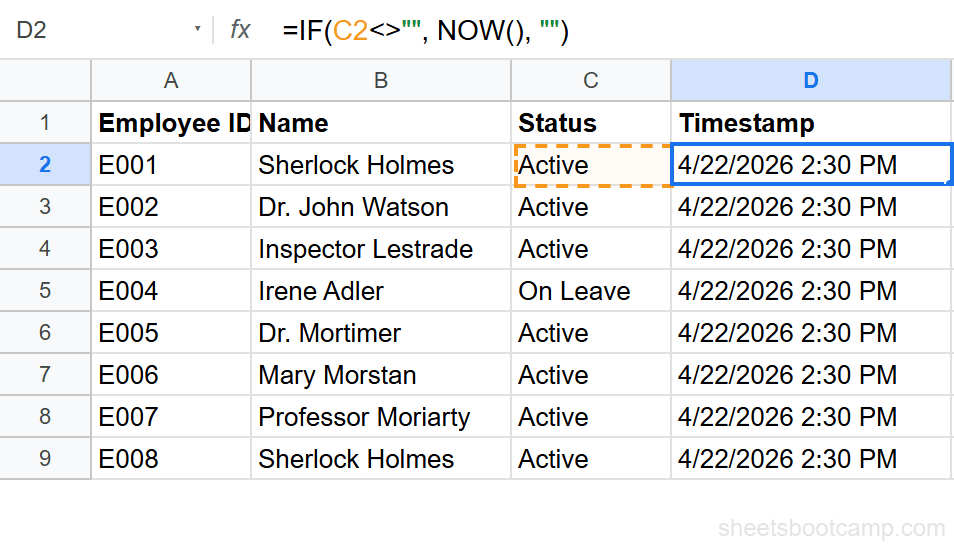
NOW is a volatile function. The timestamp updates every time any cell in the spreadsheet changes, not just when C2 changes. This means the timestamp always shows the most recent edit time for the entire sheet, not the time C2 was last modified. For a permanent timestamp, use Method 2 or Method 3.
This method works well when you want a “last updated” indicator that stays current. It does not work for recording when a specific event happened.
Date-Only Variation
If you only need the date without the time:
=IF(C2<>"", TODAY(), "")TODAY returns the current date without a time component. The same volatility limitation applies — the date updates daily.
Method 2: Keyboard Shortcut
Google Sheets provides keyboard shortcuts for inserting static date and time values. These values never change after entry.
| Shortcut | Result | Example |
|---|---|---|
| Ctrl+; | Current date | 4/22/2026 |
| Ctrl+Shift+; | Current time | 2:30:00 PM |
| Ctrl+Alt+Shift+; | Current date and time | 4/22/2026 14:30:00 |
On Mac, replace Ctrl with Cmd.
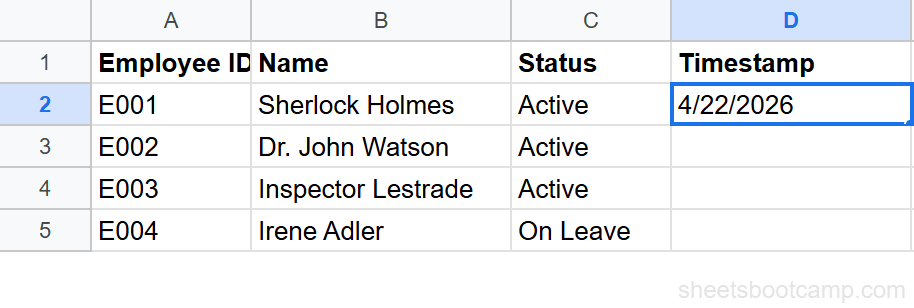
This method is reliable and simple. The downside is that it requires manual entry — you must remember to press the shortcut each time you update a row. For teams with multiple editors, this is easy to forget.
Method 3: Apps Script Auto-Timestamp
Apps Script provides fully automatic, permanent timestamps. An onEdit trigger runs every time a cell is edited. The script checks which column was edited and writes the current date and time to a timestamp column.
Here is the script:
function onEdit(e) {
  var sheet = e.source.getActiveSheet();
  var range = e.range;

  // Only run on Sheet1
  if (sheet.getName() !== "Sheet1") return;

  // Watch column 3 (C), write timestamp to column 4 (D)
  var watchColumn = 3;
  var timestampColumn = 4;

  if (range.getColumn() === watchColumn) {
    var row = range.getRow();
    if (row > 1) {  // Skip header row
      var cell = sheet.getRange(row, timestampColumn);
      if (range.getValue() !== "") {
        cell.setValue(new Date());
      } else {
        cell.setValue("");  // Clear timestamp if cell is emptied
      }
    }
  }
}
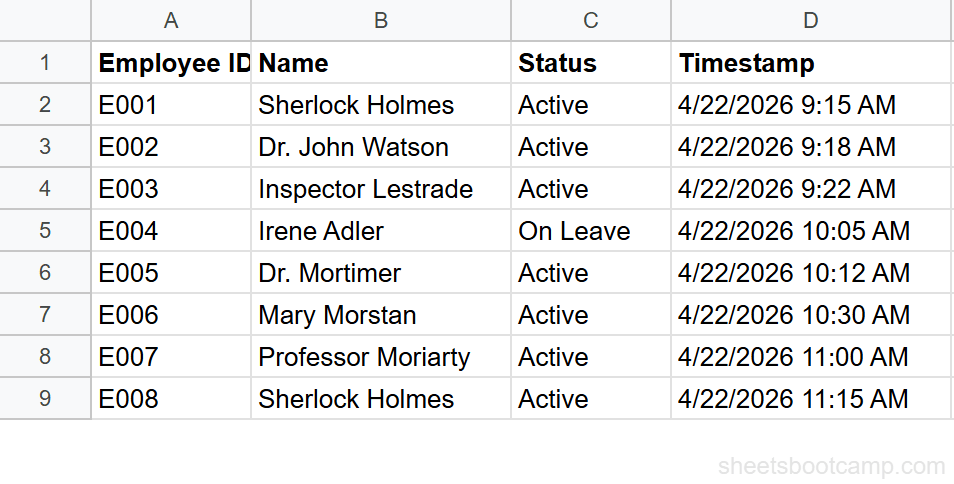
This script watches column C on Sheet1. When a cell in column C is edited, it writes the current date and time to the same row in column D. If the cell is cleared, the timestamp is also cleared.
Step-by-Step: Apps Script Setup
Set up your tracking sheet
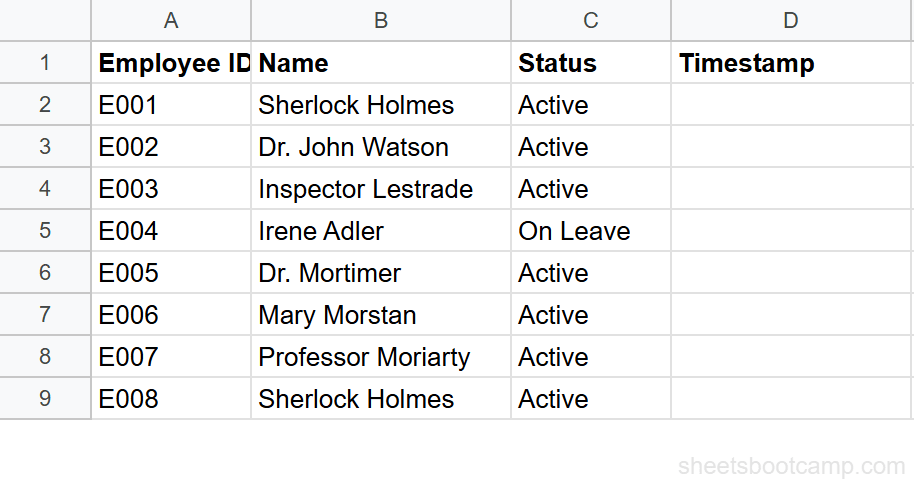
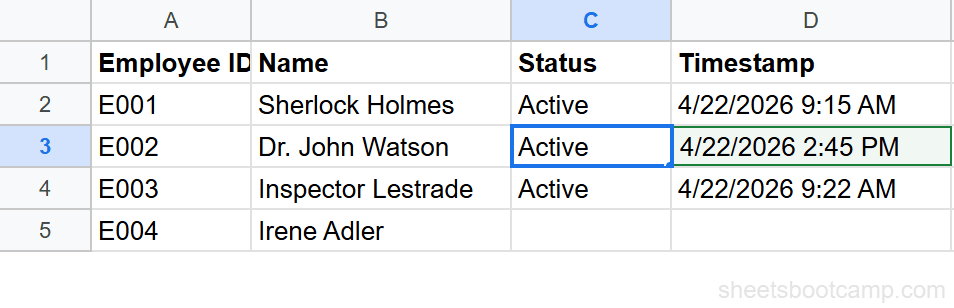
Create your spreadsheet with data columns and an empty Timestamp column. For this example, column A has Employee ID, column B has Name, column C has Status (the column to watch), and column D is Timestamp (where the script writes).
Open Apps Script
Go to Extensions > Apps Script. This opens the script editor in a new tab. Delete any existing code in the editor.
Paste the onEdit function
Copy the script from the section above and paste it into the editor. Adjust these values for your sheet:
sheet.getName() !== "Sheet1"— Change “Sheet1” to your sheet tab namevar watchColumn = 3— Change 3 to the column number you want to watch (A=1, B=2, C=3, etc.)var timestampColumn = 4— Change 4 to the column number for timestamps
Click the save icon (or Ctrl+S). You do not need to run the function manually — the onEdit trigger fires automatically when you edit the sheet.
Test the auto-timestamp
Return to your spreadsheet. Edit any cell in column C (row 2 or below). A timestamp appears immediately in column D for that row. Edit another cell in column C and a new timestamp appears in its row. Each timestamp is permanent and will not change.
The simple onEdit trigger runs automatically without authorization. For more complex scripts that need to access other spreadsheets or send emails, you would need an installable trigger instead. The simple trigger handles most timestamp use cases.
Common Issues and How to Fix Them
Timestamp Overwrites on Every Edit
You edit column C multiple times and the timestamp keeps updating. The script above always overwrites the timestamp with the latest edit time.
Fix: Add a check to skip rows that already have a timestamp:
if (range.getValue() !== "" && cell.getValue() === "") {
  cell.setValue(new Date());
}
This only writes a timestamp if the timestamp cell is currently empty. The first edit gets recorded; subsequent edits are ignored.
Script Does Not Run
You edit a cell in column C but nothing happens in column D.
Possible causes:
- The function is not named exactly
onEdit(case-sensitive) - The sheet name in the script does not match your actual sheet tab name
- The column numbers in the script do not match your sheet layout
- You pasted the script but did not save it
Fix: Double-check the function name, sheet name, and column numbers. Save the script. Try editing a cell in column C again.
NOW Formula Keeps Changing
Your formula-based timestamp shows a different time every time you look at it.
Fix: This is expected behavior for NOW. If you need a permanent timestamp, switch to Method 2 (keyboard shortcut) or Method 3 (Apps Script). There is no way to make NOW stop recalculating.
Timestamp Shows as a Number
The timestamp in column D shows a number like 46139.65 instead of a date.
Fix: Format the column as a date. Select column D, go to Format > Number > Date time. The serial number displays as a readable date and time.
Tips and Best Practices
-
Use Apps Script for shared sheets. In shared spreadsheets with multiple editors, keyboard shortcuts require each person to remember the step. Apps Script runs automatically for everyone.
-
Add a “Created” and “Modified” column. Use the “skip if already filled” pattern for a Created timestamp, and the default overwrite behavior for a Modified timestamp. Two columns, same script with a small tweak.
-
Format timestamps consistently. Use date formatting to display timestamps in a standard format like “2026-04-22 14:30” across all rows. Select the column and apply a custom format.
-
Protect the timestamp column. Right-click the column header, choose Protect range, and set permissions so only the script can write to it. This prevents accidental manual edits to timestamps.
-
Use TODAY for daily tracking, NOW for precise tracking. If you only care about the date (not the time), use
TODAY()in formulas ornew Date().toLocaleDateString()in scripts. For audit logs and time-sensitive tracking, use full datetime values.
Related Google Sheets Tutorials
- Google Sheets Date Functions: The Complete Guide — Full reference for TODAY, NOW, and all date functions
- TODAY and NOW Functions — Understand volatile functions and when to use each
- How to Format Dates in Google Sheets — Format timestamps for consistent display
- YEAR, MONTH, and DAY Functions — Extract date parts from timestamps
- IF Function in Google Sheets — Build conditional logic for formula-based timestamps
Frequently Asked Questions
How do I automatically add a timestamp when a cell is edited in Google Sheets?
Use an Apps Script onEdit trigger. Go to Extensions > Apps Script, paste the onEdit function that checks the edited column and writes new Date() to the timestamp column, then save. The script runs automatically every time you edit a cell in the watched column.
Can I use a formula to timestamp when a cell changes?
Partially. =IF(A2<>"", NOW(), "") adds a timestamp when A2 has content, but NOW recalculates on every edit — the timestamp updates to the current time whenever any cell changes. For a permanent timestamp that does not change, use Apps Script or the keyboard shortcut.
What is the keyboard shortcut for the current date in Google Sheets?
Press Ctrl+; (semicolon) to insert the current date. Press Ctrl+Shift+; to insert the current time. Press Ctrl+Alt+Shift+; to insert both date and time. These insert static values that do not change.
Why does my NOW timestamp keep changing?
NOW is a volatile function that recalculates every time any cell in the spreadsheet changes. This is by design. If you need a timestamp that stays fixed, use the Ctrl+; keyboard shortcut or an Apps Script onEdit trigger instead of a formula.
Can I add a timestamp to a specific column automatically?
Yes. Use an Apps Script onEdit trigger that watches a specific column. When a cell in that column is edited, the script writes the current date and time to the corresponding row in your timestamp column. This approach creates permanent timestamps that never change.