FILTER Function in Google Sheets: Complete Guide
Learn how to use the FILTER function in Google Sheets to extract rows matching conditions. Covers multiple criteria, AND/OR logic, and real examples.
Sheets Bootcamp
March 28, 2026
The FILTER function in Google Sheets returns rows from a range that match one or more conditions. It creates a dynamic filtered view without modifying your source data — the results update automatically whenever the original data changes.
This guide covers the FILTER syntax, step-by-step examples with single and multiple conditions, AND vs OR logic, combining FILTER with SORT, common errors, and a comparison with QUERY.
FILTER Syntax
Here is the full FILTER syntax in Google Sheets:
=FILTER(range, condition1, [condition2, ...])| Parameter | Required | Description |
|---|---|---|
| range | Yes | The range of data to filter and return |
| condition1 | Yes | A column or row of TRUE/FALSE values (same height as range) |
| condition2, … | No | Additional conditions. Each extra condition acts as AND logic |
Each condition must produce a column of TRUE or FALSE values the same size as the range. Write conditions as comparisons against a column: C2:C9="Quidditch" produces TRUE for each row where column C equals “Quidditch” and FALSE for the rest.
FILTER returns every row where all conditions evaluate to TRUE. The results spill into adjacent cells below the formula.
How to Use FILTER: Step-by-Step
Here is a product inventory table with 8 products. The goal is to filter products in the “Quidditch” category.
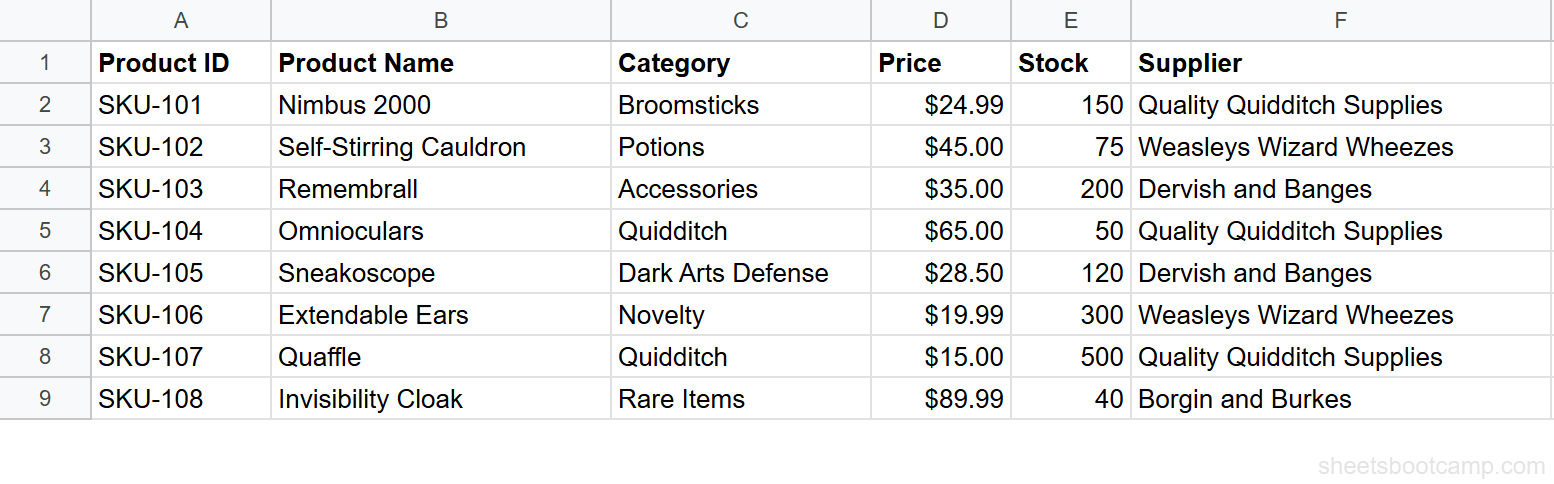
Select cell H2. Enter this formula:
=FILTER(A2:F9, C2:C9="Quidditch")A2:F9is the range — all data rows across all columnsC2:C9="Quidditch"is the condition — return rows where Category equals “Quidditch”
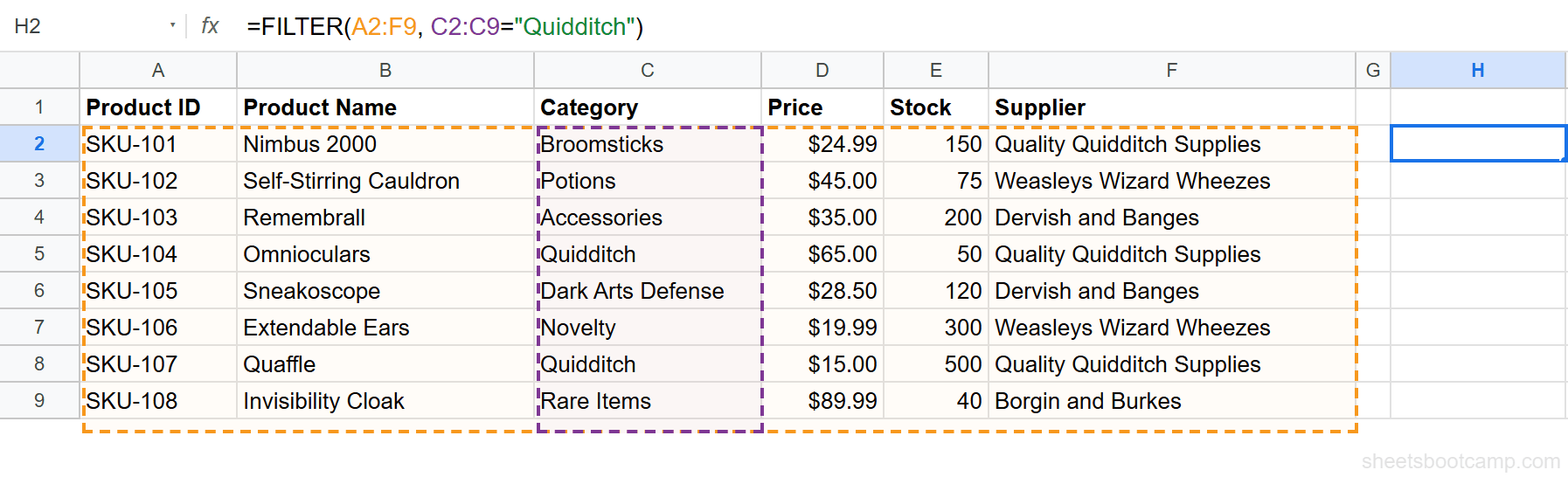
Press Enter. FILTER returns two rows: Omnioculars (SKU-104) and Quaffle (SKU-107). Both have “Quidditch” in the Category column.

The results spill into cells H2:M3 automatically. FILTER always returns the full rows (or whichever columns you included in the range argument).
To filter Quidditch products priced above $20, add a second condition:
=FILTER(A2:F9, C2:C9="Quidditch", D2:D9>20)Each condition separated by a comma acts as AND logic — both must be TRUE for a row to appear.
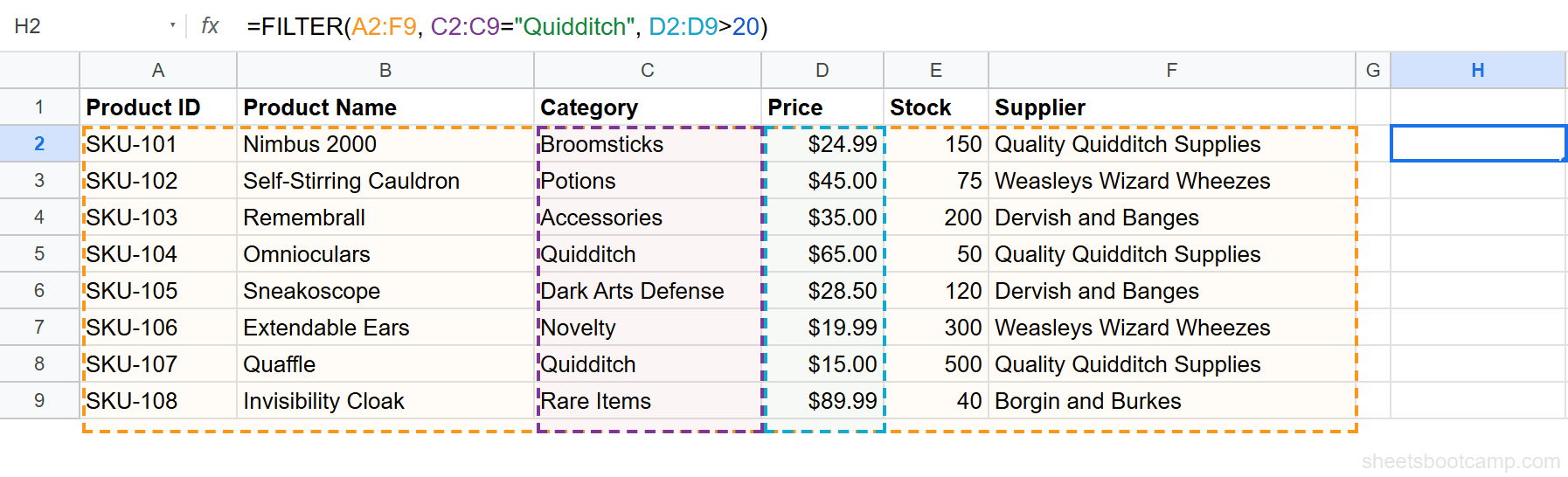
Only Omnioculars ($65.00) matches both conditions. The Quaffle ($15.00) is excluded because its price is not above $20.

You can add as many comma-separated conditions as you need. Each one narrows the results further. Think of commas as AND.
FILTER with OR Conditions
Comma-separated conditions are AND logic. For OR logic, use the + operator and wrap the combined condition in parentheses.
This formula filters products in the “Quidditch” OR “Broomsticks” category:
=FILTER(A2:F9, (C2:C9="Quidditch")+(C2:C9="Broomsticks"))The + operator combines the two conditions with OR logic. A row appears if either condition is TRUE.

FILTER returns four rows: Nimbus 2000 and Firebolt (Broomsticks), plus Omnioculars and Quaffle (Quidditch).
The parentheses around each condition are required when using + for OR. Without them, the operator precedence changes and the formula may produce unexpected results.
You can combine AND and OR in the same formula. Use + for OR within parentheses, and commas for AND between conditions:
=FILTER(A2:F9, (C2:C9="Quidditch")+(C2:C9="Broomsticks"), D2:D9>20)This returns Quidditch or Broomsticks products priced above $20. The Quaffle ($15.00) is excluded.
FILTER Examples
Example 1: Filter by Price Range
To find products priced between $20 and $50:
=FILTER(A2:F9, D2:D9>=20, D2:D9<=50)Both price conditions use commas (AND logic). The result includes every product where the price is at least $20 and at most $50.
Example 2: Filter with Partial Text Match
FILTER conditions are exact comparisons by default. To filter rows containing specific text, combine FILTER with SEARCH and ISNUMBER:
=FILTER(A2:F9, ISNUMBER(SEARCH("Quidditch", F2:F9)))SEARCH("Quidditch", F2:F9) returns a number (the position) when “Quidditch” appears in the Supplier column, and an error when it does not. ISNUMBER converts those results to TRUE/FALSE. The formula returns products from suppliers with “Quidditch” in their name.
Example 3: FILTER + SORT
FILTER results come back in the same order as the source data. To sort the filtered results, wrap FILTER inside SORT:
=SORT(FILTER(A2:F9, C2:C9="Quidditch"), 4, TRUE)This filters Quidditch products and sorts them by column 4 (Price) in ascending order.

The column number in SORT refers to the position within the filtered output, not the original sheet. Column 4 in the FILTER result is Price (the fourth column of A2:F9).
FILTER vs QUERY
Both FILTER and QUERY return subsets of your data, but they work differently.
| Feature | FILTER | QUERY |
|---|---|---|
| Syntax | Cell references + comparison operators | Text-based query language (SQL-like) |
| Multiple conditions | Commas for AND, + for OR | WHERE with AND/OR keywords |
| Sorting | Wrap in SORT | Built-in ORDER BY |
| Grouping / aggregation | Not supported (use SUMIF, COUNTIF) | Built-in GROUP BY, SUM, COUNT, AVG |
| Column selection | Change the range argument | SELECT specific columns |
| Learning curve | Lower — standard formula syntax | Higher — requires query language syntax |
Use FILTER when you need to grab rows matching conditions. It is faster to write and easier to read for straightforward filtering.
Use QUERY when you need to group, aggregate, sort, or select specific columns in one formula. QUERY handles more complex data operations in a single step.
Common Errors and How to Fix Them
#N/A — No Matching Rows
FILTER returns #N/A when no rows match all conditions. This is not a formula error — it means the filter worked correctly but found nothing.
Wrap the formula in IFERROR to return a message instead:
=IFERROR(FILTER(A2:F9, C2:C9="Wands"), "No results found")
#VALUE! — Condition Size Mismatch
Each condition must have the same number of rows as the range. If A2:F9 has 8 rows but your condition references C2:C5 (4 rows), FILTER returns #VALUE!.
Fix: make sure every condition column covers the same row range as the data.
#REF! — Spill Conflict
FILTER results spill into cells below the formula. If those cells already contain data, FILTER returns #REF!.
Fix: clear the cells below and to the right of the formula, or move the formula to an empty area.
Place FILTER formulas in a separate area of your sheet — away from the source data. This prevents spill conflicts and keeps your layout clean.
Tips and Best Practices
- Use cell references for conditions. Instead of hardcoding
"Quidditch"in the formula, reference a cell:=FILTER(A2:F9, C2:C9=H1). Change H1 to filter by any category without editing the formula. - Combine FILTER with SORT, UNIQUE, or INDEX. FILTER returns an array, so you can nest it inside other functions.
=UNIQUE(FILTER(B2:B9, C2:C9="Quidditch"))returns unique product names. - FILTER can return columns too. To filter columns instead of rows, orient the condition as a row:
=FILTER(A1:F1, A2:F2>50). This returns headers where row 2 exceeds 50. - FILTER results are dynamic. When source data changes, the filtered results update automatically. There is no need to re-run or refresh the formula.
Related Google Sheets Tutorials
- QUERY Function: Complete Guide — Text-based query language for filtering, sorting, and aggregating data
- VLOOKUP: Complete Guide — Look up a single value from a table by searching the first column
- XLOOKUP: Complete Guide — The modern lookup function with built-in error handling
- SUMIF and SUMIFS — Add values that match conditions without returning full rows
Frequently Asked Questions
What does the FILTER function do in Google Sheets?
The FILTER function returns rows or columns from a range that match one or more conditions. The results appear in adjacent cells automatically. Unlike the Data > Create a filter menu, FILTER is a formula that works anywhere in your spreadsheet.
How do I use FILTER with multiple conditions?
Add each condition as an additional argument separated by commas. Each comma-separated condition acts as AND logic. For OR logic, add conditions with + instead and wrap the combined condition in parentheses.
What is the difference between FILTER and QUERY?
FILTER uses cell references and comparison operators for conditions. QUERY uses a text-based query language similar to SQL. FILTER is faster to write for straightforward filtering. QUERY handles complex operations like GROUP BY, ORDER BY, and calculated columns.
Why does FILTER return #N/A?
FILTER returns #N/A when no rows match your conditions. Wrap the formula in IFERROR to return a custom message instead: =IFERROR(FILTER(A2:F9, C2:C9="Quidditch"), "No results found").
Can FILTER return specific columns instead of entire rows?
Yes. Change the first argument to include only the columns you want. For example, =FILTER(B2:B9, C2:C9="Quidditch") returns only the Product Name column for matching rows.
Does FILTER update automatically when data changes?
Yes. FILTER is a formula, so it recalculates every time the source data changes. If you add, edit, or delete rows in the source range, the filtered results update automatically.