How to Freeze Rows and Columns in Google Sheets
Learn how to freeze rows and columns in Google Sheets to keep headers visible while scrolling. Covers freeze options, shortcuts, and common issues.
Sheets Bootcamp
February 25, 2026 · Updated June 5, 2026
Freezing rows and columns in Google Sheets keeps specific rows or columns visible while you scroll through the rest of your data. This is how you lock your header row in place so column labels stay visible as you work with hundreds or thousands of rows.
This guide covers how to freeze rows, columns, or both in Google Sheets. You’ll learn the menu method, the drag method, and how to unfreeze when you need to.
In This Guide
- When to Freeze Rows or Columns
- How to Freeze Rows: Step-by-Step
- How to Freeze Columns
- Freeze Both Rows and Columns
- The Drag Method
- How to Unfreeze
- Common Issues and Fixes
- Tips and Best Practices
- Related Google Sheets Tutorials
- FAQ
When to Freeze Rows or Columns
Any time your spreadsheet has more data than fits on screen, freezing helps you stay oriented. The most common scenario: you have a header row with column labels (Name, Date, Amount) and dozens or hundreds of data rows below. Without freezing, the headers scroll out of view and you lose track of which column is which.
The same applies to columns. If column A holds employee names and you’re reviewing data in columns F through M, freezing column A keeps those names visible as you scroll right.
How to Freeze Rows: Step-by-Step
Open the Freeze menu
Go to View > Freeze in the menu bar. You’ll see options for rows and columns.
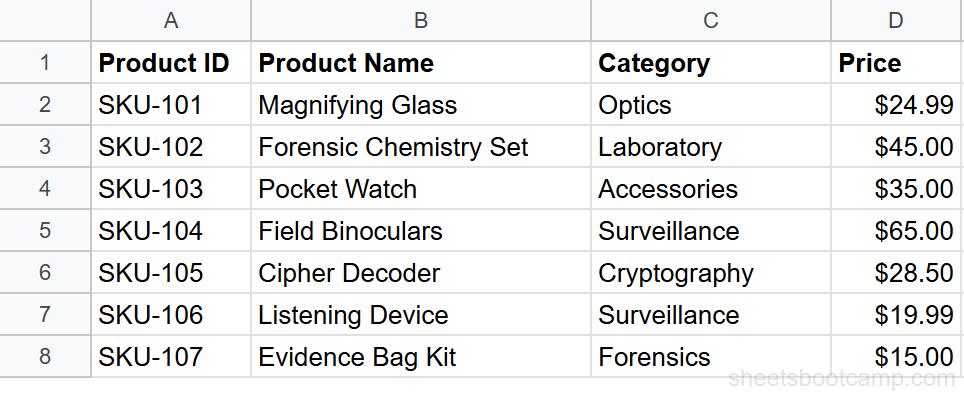
Select the number of rows to freeze
Choose 1 row to freeze the header row. If your data has a two-row header (like a title row above column labels), choose 2 rows.
For more than two rows, click a cell in the row just below where you want the freeze to stop, then choose Up to current row.
Scroll to verify
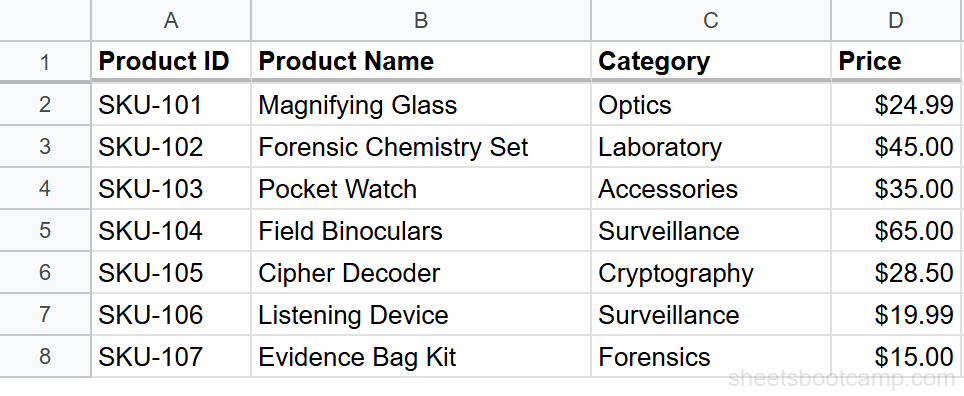
A thick gray line appears below the frozen area. Scroll down to confirm. Row 1 stays pinned at the top while rows 2 and below move.
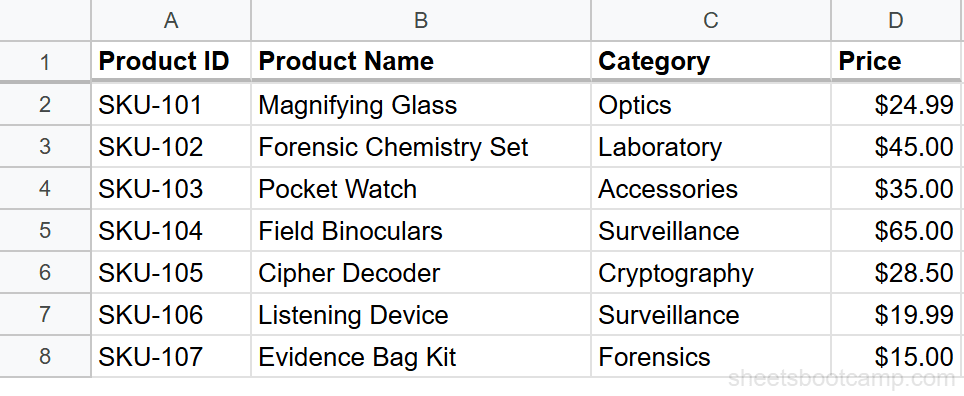
Freeze the header row before adding filters. When you apply a filter (Data > Create a filter), the filter dropdowns attach to the frozen header row and stay visible as you scroll.
How to Freeze Columns
Go to View > Freeze > 1 column to freeze column A. Choose 2 columns to freeze A and B, or use Up to current column to freeze more.
This works the same way as rows. A thick gray line appears to the right of the frozen columns, and they stay in place when you scroll horizontally.
Freeze Both Rows and Columns
You can freeze rows and columns independently. Freeze one row and one column, and the top-left cell stays anchored while the rest of the sheet scrolls in both directions.
- Go to View > Freeze > 1 row
- Go to View > Freeze > 1 column
Both freeze lines appear. The top-left corner of your sheet is now locked.
Freezing rows and columns uses separate settings. Changing the row freeze does not affect the column freeze, and vice versa.
The Drag Method
There’s a faster way to freeze without the menu. Look at the top-left corner of the sheet, where the row numbers meet the column headers. You’ll see a small thick gray bar at the edge of the intersection.
- To freeze rows: drag the horizontal bar downward to the row boundary you want.
- To freeze columns: drag the vertical bar to the right to the column boundary you want.
This method is quicker once you know where to look, but the bars are small and easy to miss.
How to Unfreeze
Go to View > Freeze > No rows to remove the row freeze. Choose No columns to remove the column freeze. The thick gray line disappears and the sheet scrolls normally.
You can also drag the freeze bar back to the top-left corner to unfreeze.
Common Issues and Fixes
Freeze option is grayed out
If the Freeze options appear grayed out, you may be editing a cell (the cursor is in the formula bar). Press Escape to exit edit mode, then try again.
Frozen area is too large
If you freeze too many rows, the scrollable area shrinks and the sheet feels cramped. Go to View > Freeze > No rows and re-freeze with fewer rows.
Data looks misaligned after freezing
This is a display quirk. The freeze line can create a visual gap. Zoom to 100% (View > Zoom > 100%) and resize the browser window if needed. The data itself hasn’t moved.
Freezing is per-user when the sheet is shared. Your freeze settings do not affect what collaborators see. Each person can freeze their own rows and columns independently.
Tips and Best Practices
- Freeze row 1 immediately. Any spreadsheet with headers benefits from a frozen first row. Do it before adding data.
- Avoid freezing too many rows. One or two rows is usually enough. Freezing five or more rows wastes screen space and makes scrolling less useful.
- Combine with filters. Frozen headers plus filter dropdowns let you sort and filter without losing track of column names.
- Use freeze with conditional formatting rules. When reviewing color-coded data in large sheets, frozen headers help you remember what each color means.
- Check the freeze before sharing. While freeze settings are per-user, printing a sheet with a strange freeze boundary can confuse collaborators.
Related Google Sheets Tutorials
- VLOOKUP in Google Sheets — Look up data across columns in large spreadsheets where freezing keeps headers visible
- QUERY Function in Google Sheets — Filter and summarize data from large datasets where frozen rows help navigate results
- Conditional Formatting in Google Sheets — Apply color rules to data and use frozen rows to keep column context while reviewing
- Data Validation in Google Sheets — Add dropdown lists and rules that work alongside frozen rows for structured data entry
FAQ
How do I freeze the top row in Google Sheets?
Go to View > Freeze > 1 row. A thick gray line appears below row 1, and the header row stays visible as you scroll down.
Can I freeze both rows and columns at the same time?
Yes. Freeze rows first (View > Freeze > 1 row), then freeze columns separately (View > Freeze > 1 column). Both freeze lines appear and work independently.
How do I unfreeze rows or columns?
Go to View > Freeze > No rows (or No columns). The thick gray line disappears and the frozen area scrolls normally again.
Why can’t I see the freeze option in Google Sheets?
The Freeze option is under the View menu, not the Format or Data menu. If you are in a filtered view, exit the filter first, then check View > Freeze.
Does freezing rows affect formulas or printing?
No. Freezing is a display setting only. It does not change cell references, formula behavior, or print layout. Frozen rows scroll independently on screen but print normally.
Can I freeze more than two rows in Google Sheets?
Yes. Click a cell in the row below where you want the freeze to end, then go to View > Freeze > Up to current row. You can freeze as many rows as needed, though freezing too many reduces visible scrolling space.