
Google Sheets is a free, cloud-based spreadsheet app. Create a new spreadsheet at sheets.google.com by clicking the + button, click any cell to type data, and start a calculation with =, for example, =SUM(A1:A10) adds the values in cells A1 through A10. Your work auto-saves every few seconds.
beginner 2 min read
Getting Started with Google Sheets: A Complete Beginner's Guide
Learn the fundamentals of Google Sheets including creating spreadsheets, entering data, formatting cells, and using basic formulas.
SB
Sheets Bootcamp
January 15, 2024 · Updated June 22, 2026
Table of Contents
Quick Answer
What is Google Sheets?
Google Sheets is a powerful, cloud-based spreadsheet application that’s part of Google’s free office suite. Whether you’re tracking expenses, analyzing data, or collaborating with a team, Sheets provides all the tools you need.
Tip
Google Sheets automatically saves your work every few seconds, so you never have to worry about losing data. Look for “All changes saved” in the menu bar to confirm.
Why Choose Google Sheets?
There are several compelling reasons to use Google Sheets:
- Free to use - No subscription required
- Cloud-based - Access from any device
- Real-time collaboration - Work with others simultaneously
- Auto-save - Never lose your work
- Integration - Connects with other Google services
Getting Started
Creating Your First Spreadsheet
To create a new spreadsheet, navigate to sheets.google.com and click the + button. You can also access Sheets through Google Drive.

Understanding the Interface
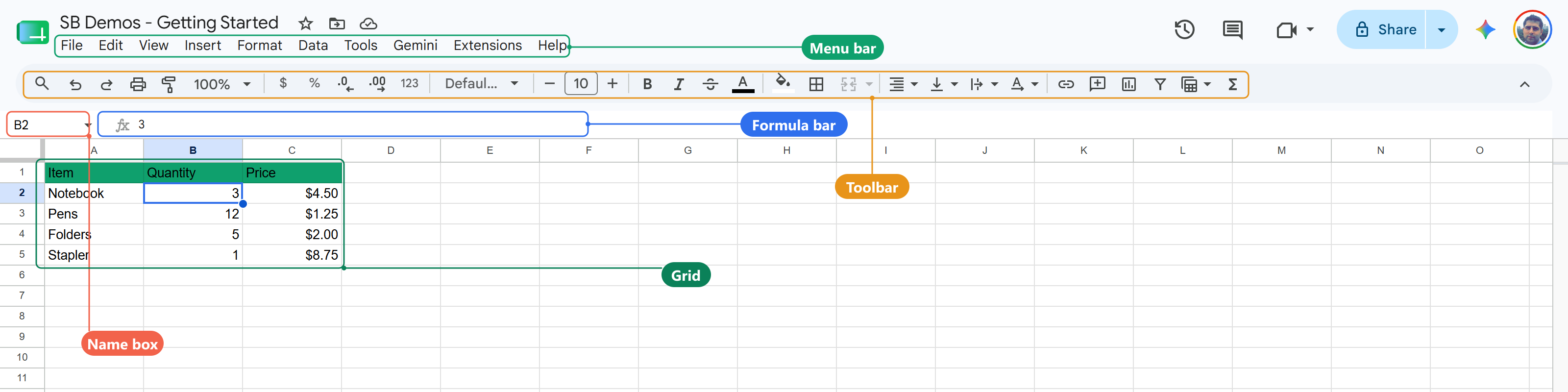
The Google Sheets interface consists of several key areas:
- Menu bar - Access all features and settings
- Toolbar - Quick access to formatting options
- Formula bar - Enter and edit formulas
- Grid - Where you enter your data
- Sheet tabs - Navigate between sheets
Basic Cell Operations
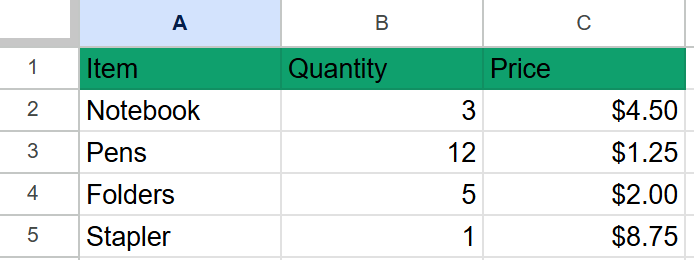
Click any cell and start typing to enter text or numbers, press Enter to move down a row, or Tab to move right. Here’s a simple table with a few items entered:
Here are some essential keyboard shortcuts:
| Action | Shortcut |
|---|---|
| Copy | Ctrl/Cmd + C |
| Paste | Ctrl/Cmd + V |
| Undo | Ctrl/Cmd + Z |
| Bold | Ctrl/Cmd + B |
| Find | Ctrl/Cmd + F |
Your First Formula
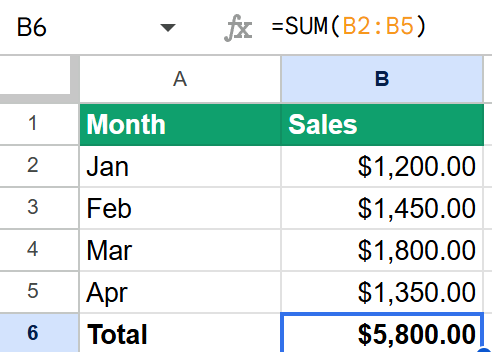
Let’s create a simple SUM formula to add up values in a column:
SUM Formula
=SUM(A1:A10)
This formula adds all values from cells A1 through A10.
Important
Always start formulas with an equals sign (=). Without it, Sheets will treat your input as plain text instead of a formula.
More Basic Formulas
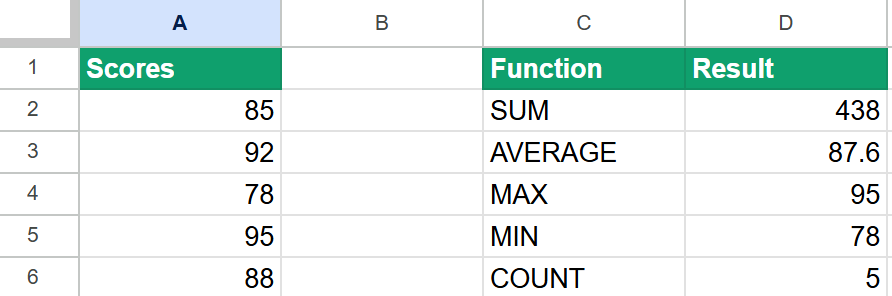
Here are more formulas you’ll use frequently:
AVERAGE
=AVERAGE(B1:B20)
COUNT
=COUNT(A:A)
MAX / MIN
 =MAX(C1:C100)
=MIN(C1:C100)
Next Steps
Now that you’ve written your first formula, these are the everyday skills to learn next, roughly in the order you’ll need them:
- How to sort and alphabetize - Put rows in order without scrambling them
- How to sum a column - Totals that update themselves
- How to subtract - Balances, differences, and days between dates
- How to multiply and divide - Prices, quantities, and fixing #DIV/0!
- How to calculate percentages - Percent of total and percent change
- How to count non-empty cells - COUNTA, COUNT and COUNTBLANK
- How to make a table - Turn a range into a structured table
- How to hide and unhide rows - Tidy a sheet without deleting anything
- How to freeze rows and columns - Keep headers on screen
- Google Sheets dark mode - Where it exists and where it doesn’t
When those feel comfortable, move on to conditional formatting, dropdown lists, charts and pivot tables.
Frequently Asked Questions
Is Google Sheets free to use?
Yes, Google Sheets is completely free with a Google account. You get 15GB of free storage shared across Google Drive, Gmail, and Google Photos.
Can I use Google Sheets offline?
Yes, you can enable offline access through Google Drive settings. Your changes will sync once you’re back online.
What's the difference between Google Sheets and Excel?
Google Sheets is cloud-based and free, while Excel is a desktop application. Sheets excels at collaboration, while Excel has more advanced features for complex data analysis.
Want to practice this instead of rereading it?
The Bootcamp gives you 193 Google Sheets exercises that check your formula as you type.
Get It for $29 Get the Bootcamp for $2930-day refund. Reply to any email and you get your money back.