GOOGLEFINANCE Function in Google Sheets (Stock Data)
Learn how to use the GOOGLEFINANCE function in Google Sheets to get live stock prices, historical data, and currency exchange rates with real-time formulas.
Sheets Bootcamp
February 26, 2026 · Updated July 6, 2026
The GOOGLEFINANCE function in Google Sheets pulls live stock prices, historical data, and currency exchange rates directly into your spreadsheet. Enter a ticker symbol and an attribute, and the function returns the data from Google Finance — no API key or add-on needed.
This guide covers the syntax, how to get current and historical stock data, currency conversion, and what to do when the function returns errors.
In This Guide
- Syntax and Parameters
- How to Get a Stock Price: Step-by-Step
- GOOGLEFINANCE Attributes
- GOOGLEFINANCE Examples
- Common Errors and How to Fix Them
- Tips and Best Practices
- Related Google Sheets Tutorials
- FAQ
Syntax and Parameters
=GOOGLEFINANCE(ticker, [attribute], [start_date], [end_date|num_days], [interval])| Parameter | Description | Required |
|---|---|---|
| ticker | The stock ticker symbol (e.g., "GOOG", "NASDAQ:AAPL", "CURRENCY:USDEUR") | Yes |
| attribute | The data to return (e.g., "price", "close", "high", "volume"). Defaults to "price" | No |
| start_date | Start date for historical data. Use a DATE function or cell reference | No |
| end_date or num_days | End date for the range, or the number of days of data to return | No |
| interval | Frequency: "DAILY" or "WEEKLY". Defaults to "DAILY" | No |
GOOGLEFINANCE data comes from Google Finance and may be delayed up to 20 minutes during market hours. Do not use it for real-time trading decisions. It is designed for tracking and analysis.
How to Get a Stock Price: Step-by-Step
Enter a ticker symbol
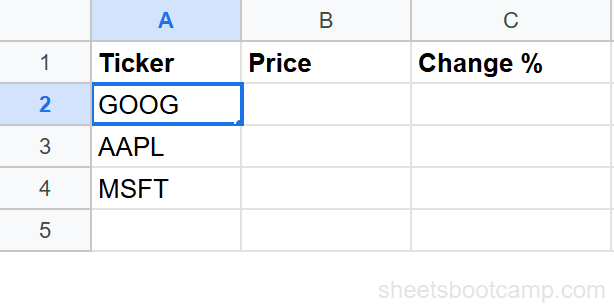
Type a stock ticker in cell A2. For example, GOOG for Alphabet, AAPL for Apple, or MSFT for Microsoft.
Write the GOOGLEFINANCE formula
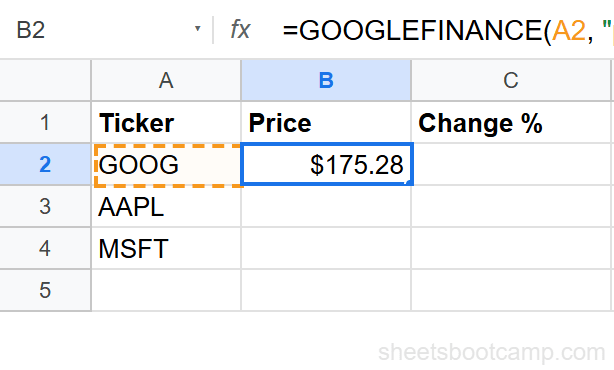
In cell B2, enter:
=GOOGLEFINANCE(A2, "price")This returns the current (or most recent) price for the ticker in A2.
Review the live result
The cell displays the latest available stock price. During market hours, this updates roughly every 20 minutes. After market close, it shows the closing price.
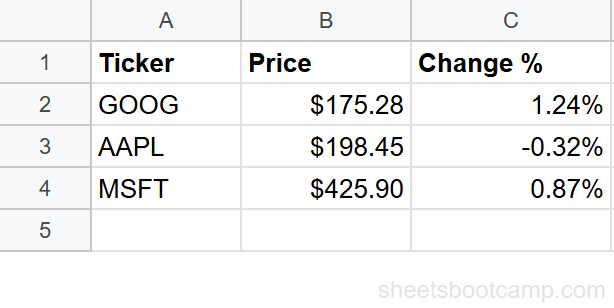
To display the price as currency, select the cell and go to Format > Number > Currency. GOOGLEFINANCE returns a plain number — it doesn’t format the cell automatically.
GOOGLEFINANCE Attributes
Current Data Attributes
These return a single value for the most recent data:
| Attribute | Returns |
|---|---|
"price" | Current or last closing price (default) |
"high" | Current day’s high price |
"low" | Current day’s low price |
"open" | Current day’s opening price |
"volume" | Current day’s trading volume |
"marketcap" | Market capitalization |
"pe" | Price-to-earnings ratio |
"eps" | Earnings per share |
"change" | Price change from previous close |
"changepct" | Percentage change from previous close |
"name" | Company name |
Historical Data Attributes
These require start_date and end_date and return a table:
| Attribute | Returns |
|---|---|
"open" | Opening price for each period |
"close" | Closing price for each period |
"high" | High price for each period |
"low" | Low price for each period |
"volume" | Trading volume for each period |
GOOGLEFINANCE Examples
Get Historical Closing Prices
Pull a year of daily closing prices:
=GOOGLEFINANCE("GOOG", "close", DATE(2025,1,1), DATE(2025,12,31), "DAILY")This returns a two-column table (Date and Close) that spills into the cells below and to the right. The result includes headers in the first row.
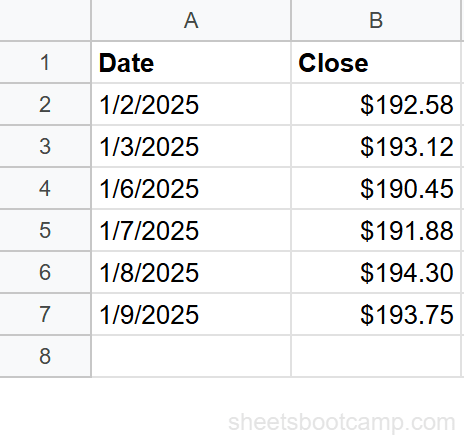
Historical data spills into adjacent cells. Make sure the area below and to the right of the formula cell is empty, or you’ll get a #REF! error from the spill.
Convert Currency
Get the current USD to EUR exchange rate:
=GOOGLEFINANCE("CURRENCY:USDEUR")For historical currency data, add date parameters:
=GOOGLEFINANCE("CURRENCY:USDEUR", "close", DATE(2025,1,1), DATE(2025,6,30))Build a Stock Tracker
Create a simple portfolio tracker by listing tickers in column A and using GOOGLEFINANCE in columns B through E:
| Column | Formula | Returns |
|---|---|---|
| B (Price) | =GOOGLEFINANCE(A2, "price") | Current price |
| C (Change %) | =GOOGLEFINANCE(A2, "changepct") | Daily percentage change |
| D (Market Cap) | =GOOGLEFINANCE(A2, "marketcap") | Market capitalization |
| E (Name) | =GOOGLEFINANCE(A2, "name") | Company name |
Combine this with a line chart of historical data for a visual dashboard.
52-Week High and Low
Use historical data to calculate the 52-week range:
=GOOGLEFINANCE("GOOG", "high", TODAY()-365, TODAY(), "WEEKLY")This returns weekly high prices for the past year. Use MAX on the results for the 52-week high, and a similar formula with "low" plus MIN for the 52-week low.
Common Errors and How to Fix Them
#N/A Error
The ticker isn’t recognized. Check the spelling and try adding the exchange prefix: "NASDAQ:GOOG" instead of "GOOG", or "NYSE:V" instead of "V". Some tickers require the prefix when multiple exchanges list the same symbol.
#REF! Error (Historical Data)
The spill area has data in it. Historical queries return a table that expands downward and to the right. Clear the cells below and to the right of the formula, or move the formula to an area with room.
#VALUE! Error
The date format is wrong. Use the DATE function: DATE(2025, 1, 1) instead of text strings. Also verify the start date comes before the end date.
Data Not Updating
GOOGLEFINANCE refreshes on its own schedule (roughly every 20 minutes during market hours). You can’t force a refresh. If data seems stale, check that your spreadsheet isn’t set to manual recalculation (File > Settings > Calculation > Recalculation).
Use =GOOGLEFINANCE(A2, "price") with TODAY in a nearby cell to timestamp when you last checked. GOOGLEFINANCE doesn’t show when its data was last refreshed.
Tips and Best Practices
-
Stick to the
"price"attribute for current data. It returns the most recent price and is the most reliable attribute. Other attributes like"pe"and"eps"may not be available for all tickers. -
Use DATE() for historical ranges. Typing dates as text is unreliable across locales.
DATE(2025, 1, 1)always means January 1, 2025 regardless of your spreadsheet locale. -
Leave room for historical data spills. Historical queries return unpredictable row counts. Place the formula in a corner of the sheet with empty rows below and columns to the right.
-
Format numbers after the formula. GOOGLEFINANCE returns raw numbers. Apply custom number formatting — currency for prices, percentage for change, comma separators for volume.
-
GOOGLEFINANCE is not available in all Google Workspace environments. Some enterprise Google Workspace configurations disable external data functions. If GOOGLEFINANCE doesn’t work in your organization, check with your Workspace admin.
Related Google Sheets Tutorials
- TODAY and NOW Functions - Use TODAY() with GOOGLEFINANCE for date-based calculations
- Custom Number Formats in Google Sheets - Format stock prices and percentages from GOOGLEFINANCE
- Line Charts in Google Sheets - Chart historical stock data from GOOGLEFINANCE
- ARRAYFORMULA in Google Sheets - Apply GOOGLEFINANCE across a column of tickers
FAQ
How do I get a stock price in Google Sheets?
Use =GOOGLEFINANCE("GOOG", "price") with the stock ticker symbol. This returns the current or most recent price. Replace GOOG with any valid ticker. The data updates periodically throughout the trading day.
Can GOOGLEFINANCE get historical stock data?
Yes. Use =GOOGLEFINANCE("GOOG", "close", DATE(2025,1,1), DATE(2025,12,31), "DAILY"). This returns a table of daily closing prices for the date range. The result spills into multiple rows and columns automatically.
Does GOOGLEFINANCE work for currency exchange rates?
Yes. Use the format CURRENCY:FROMTO, for example =GOOGLEFINANCE("CURRENCY:USDEUR") to get the USD to EUR exchange rate. This returns the current rate. Historical currency data also works with start and end dates.
How often does GOOGLEFINANCE update?
During market hours, data updates roughly every 20 minutes. It is not truly real-time — there is a delay of up to 20 minutes. After market hours, the function returns the last closing price until the next trading session.
Why does GOOGLEFINANCE return #N/A?
The ticker symbol is invalid or not recognized by Google Finance. Check the ticker spelling, add the exchange prefix if needed (e.g., NYSE:V instead of V), or verify the stock is listed on a supported exchange.
Can I use GOOGLEFINANCE for mutual funds or ETFs?
Yes. ETFs work with their standard ticker symbols (e.g., SPY, QQQ, VTI). Some mutual funds are supported as well, but coverage varies. If a specific fund returns an error, it may not be in Google Finance’s database.