Google Sheets API: Read and Write Data Programmatically
Learn how to use the Google Sheets API to read and write spreadsheet data. Step-by-step setup with Python and JavaScript code examples.
Sheets Bootcamp
February 27, 2026 · Updated July 27, 2026
The Google Sheets API lets you read and write spreadsheet data from any programming language. If you need to pull data from a sheet into a Python script, push results from a backend server into a dashboard, or sync data between Google Sheets and another system, the API is how you do it.
This guide walks through the full setup: creating a Google Cloud project, authenticating with a service account, reading data, writing data, and handling common errors. Code examples are in Python and JavaScript (Node.js). For automations that stay inside Google Sheets, see the Google Apps Script guide instead.
In This Guide
- When to Use the Sheets API vs Apps Script
- Set Up the Google Sheets API: Step-by-Step
- Read Data from a Sheet (Python)
- Write Data to a Sheet (Python)
- JavaScript (Node.js) Examples
- Common Errors and How to Fix Them
- Tips and Best Practices
- Related Google Sheets Tutorials
- FAQ
When to Use the Sheets API vs Apps Script
Both tools let you automate Google Sheets, but they serve different purposes.
| Feature | Sheets API | Apps Script |
|---|---|---|
| Runs from | Your server or app | Google’s servers |
| Language | Any (Python, JS, Go, etc.) | JavaScript only |
| Authentication | Service account or OAuth | Built-in (bound to sheet) |
| Best for | External integrations, data pipelines | In-sheet automations, custom menus |
| Formatting | batchUpdate requests | Direct methods like setBackground() |
Use the Sheets API when the code lives outside Google. Use Apps Script when the code lives inside the spreadsheet.
Set Up the Google Sheets API: Step-by-Step
Create a Google Cloud project
Go to console.cloud.google.com and sign in with your Google account. Click Select a Project > New Project. Give it a name like “Sheets API Project” and click Create.
Enable the Sheets API
In the left sidebar, click APIs & Services > Library. Search for Google Sheets API and click the result. Click Enable.
Create a service account
Go to APIs & Services > Credentials. Click Create Credentials > Service Account. Enter a name and click Create and Continue. Skip the optional permissions steps and click Done.
On the Credentials page, click the service account you created. Go to the Keys tab, click Add Key > Create New Key, select JSON, and click Create. A JSON file downloads — this is your credentials file.
Keep the JSON key file secure. It grants full access to any Google Sheet shared with the service account. Do not commit it to version control. Add the filename to your .gitignore file.
Share your sheet with the service account
Open the JSON file and find the client_email field. It looks like your-service@project-id.iam.gserviceaccount.com. Open your Google Sheet, click Share, paste that email address, and give it Editor access.
This is the step most people forget. Without sharing, the API returns a “not found” error even though the sheet exists.
Read Data from a Sheet (Python)
Install the required packages:
pip install google-api-python-client google-authHere is a complete script that reads data from a sheet:
from google.oauth2.service_account import Credentials
from googleapiclient.discovery import build

SCOPES = ["https://www.googleapis.com/auth/spreadsheets.readonly"]
CREDS_FILE = "credentials.json"
SPREADSHEET_ID = "your-spreadsheet-id-here"
RANGE_NAME = "Sheet1!A1:D5"

creds = Credentials.from_service_account_file(CREDS_FILE, scopes=SCOPES)
service = build("sheets", "v4", credentials=creds)

result = service.spreadsheets().values().get(
    spreadsheetId=SPREADSHEET_ID,
    range=RANGE_NAME
).execute()

rows = result.get("values", [])
for row in rows:
    print(row)
The SPREADSHEET_ID is the long string in your sheet URL between /d/ and /edit. For example, in docs.google.com/spreadsheets/d/abc123xyz/edit, the ID is abc123xyz.
RANGE_NAME uses A1 notation, the same syntax you use in formulas. Include the sheet name if your spreadsheet has multiple tabs.
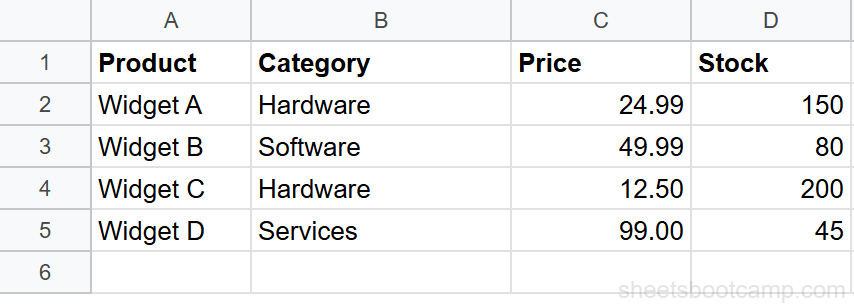
The script returns each row as a list:
['Product', 'Category', 'Price', 'Stock']
['Widget A', 'Hardware', '24.99', '150']
['Widget B', 'Software', '49.99', '80']
['Widget C', 'Hardware', '12.50', '200']
['Widget D', 'Services', '99.00', '45']The API returns all values as strings. Numbers, dates, and booleans come back as text. Convert them in your code: float(row[2]) for prices, int(row[3]) for stock counts.
Write Data to a Sheet (Python)
Update existing cells
Use values().update() to overwrite a specific range:
SCOPES = ["https://www.googleapis.com/auth/spreadsheets"]

creds = Credentials.from_service_account_file(CREDS_FILE, scopes=SCOPES)
service = build("sheets", "v4", credentials=creds)

values = [["Widget E", "Hardware", "34.99", "120"]]

service.spreadsheets().values().update(
    spreadsheetId=SPREADSHEET_ID,
    range="Sheet1!A6:D6",
    valueInputOption="USER_ENTERED",
    body={"values": values}
).execute()
The valueInputOption parameter controls how the API interprets your data:
| Option | Behavior |
|---|---|
RAW | Values are stored as-is (text) |
USER_ENTERED | Values are parsed as if you typed them into a cell (numbers, dates, formulas) |
Use USER_ENTERED for most cases. It lets you write formulas like =SUM(A2:A5) and have them evaluated.
Append new rows
Use values().append() to add rows after the last row of data:
values = [
    ["Widget F", "Software", "29.99", "75"],
    ["Widget G", "Hardware", "15.00", "300"]
]

service.spreadsheets().values().append(
    spreadsheetId=SPREADSHEET_ID,
    range="Sheet1!A:D",
    valueInputOption="USER_ENTERED",
    body={"values": values}
).execute()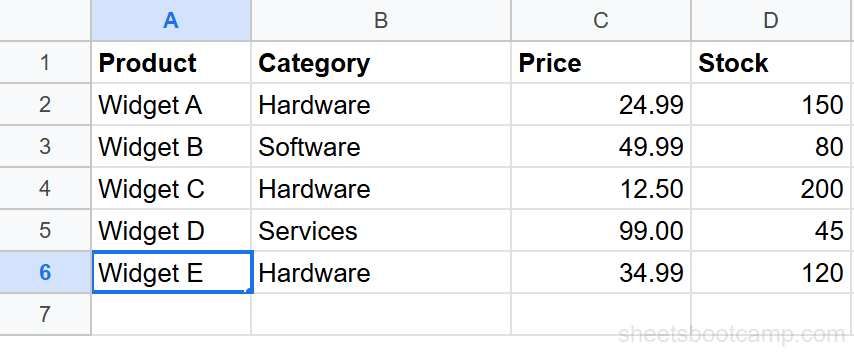
When appending, set the range to the full columns (e.g., Sheet1!A:D). The API finds the last row with data and appends below it. You do not need to calculate the next empty row yourself.
JavaScript (Node.js) Examples
Install the Google APIs client:
npm install googleapisRead data
const { google } = require("googleapis");

async function readSheet() {
  const auth = new google.auth.GoogleAuth({
    keyFile: "credentials.json",
    scopes: ["https://www.googleapis.com/auth/spreadsheets.readonly"],
  });

  const sheets = google.sheets({ version: "v4", auth });

  const response = await sheets.spreadsheets.values.get({
    spreadsheetId: "your-spreadsheet-id-here",
    range: "Sheet1!A1:D5",
  });

  console.log(response.data.values);
}

readSheet();
Write data
async function writeSheet() {
  const auth = new google.auth.GoogleAuth({
    keyFile: "credentials.json",
    scopes: ["https://www.googleapis.com/auth/spreadsheets"],
  });

  const sheets = google.sheets({ version: "v4", auth });

  await sheets.spreadsheets.values.update({
    spreadsheetId: "your-spreadsheet-id-here",
    range: "Sheet1!A6:D6",
    valueInputOption: "USER_ENTERED",
    requestBody: {
      values: [["Widget E", "Hardware", "34.99", "120"]],
    },
  });

  console.log("Row updated.");
}

writeSheet();
Common Errors and How to Fix Them
403: The caller does not have permission
You forgot to share the spreadsheet with the service account email. Open the sheet, click Share, and add the client_email from your JSON key file as an Editor.
404: Requested entity was not found
The SPREADSHEET_ID is wrong, or the sheet has not been shared with the service account. Double-check the ID from the URL and confirm the share settings.
400: Invalid range
The sheet name or range in your request does not match the actual sheet. Sheet names are case-sensitive. If your tab is named “Inventory” and you write Sheet1!A1:D5, you get this error. Use Inventory!A1:D5 instead.
429: Rate limit exceeded
You are sending too many requests. The default limit is 60 read and 60 write requests per minute per user. Add delays between requests, batch operations where possible, and use batchGet or batchUpdate for multiple ranges.
Use spreadsheets.values.batchGet() to read multiple ranges in a single API call. This is faster and counts as one request toward your quota instead of multiple.
Tips and Best Practices
-
Use
USER_ENTEREDfor writes. This makes the API parse numbers, dates, and formulas the same way Google Sheets does when you type in a cell. UseRAWonly when you want values stored as plain text. -
Batch your operations. Read multiple ranges with
batchGet()and write multiple ranges withbatchUpdate(). This reduces API calls and stays within rate limits. -
Use read-only scopes when you only need to read. The scope
spreadsheets.readonlyis less permissive. It is good practice to request only the access you need. -
Store credentials securely. Use environment variables or a secrets manager for the service account key path. Never hardcode the JSON file path or embed the key contents in your code.
-
Handle empty cells. The API skips trailing empty cells in a row. If row 3 has data in columns A and B but not C and D, the API returns a list with two elements, not four. Pad your arrays or check lengths before accessing indices.
Related Google Sheets Tutorials
- Google Apps Script for Sheets - Write automations and custom functions that run inside the spreadsheet
- Mail Merge with Google Sheets - Send personalized emails to a list of recipients using Sheets data
- IMPORTRANGE Guide - Pull data from one Google Sheet into another without code
- ARRAYFORMULA Guide - Apply a formula to an entire column with a single function
FAQ
What is the Google Sheets API?
The Google Sheets API is a REST API that lets you read, write, and format Google Sheets data from any programming language. You can use it to build dashboards, automate data pipelines, sync data between systems, and create custom integrations.
Is the Google Sheets API free?
Yes. The API itself is free. Google imposes rate limits of 60 read requests per minute per user and 60 write requests per minute per user. For most use cases, these limits are more than enough.
How do I authenticate with the Google Sheets API?
The most common method is a service account. Create one in the Google Cloud Console, download the JSON key file, and share your spreadsheet with the service account email. For user-facing apps, use OAuth 2.0 to get the user’s consent.
Can I use the Sheets API with Python?
Yes. Install the google-api-python-client and google-auth packages. Use the service account credentials to build a service object, then call methods like spreadsheets().values().get() and spreadsheets().values().update().
What is the difference between the Sheets API and Apps Script?
Apps Script runs inside Google’s infrastructure and is tied to a specific spreadsheet. The Sheets API runs from your own server or application and can access any sheet you have permission for. Use Apps Script for quick automations inside a sheet, and the API for external integrations.
Can I format cells with the Sheets API?
Yes. The spreadsheets.batchUpdate method lets you apply formatting like bold text, background colors, number formats, and conditional formatting rules. It uses a request body with specific formatting objects rather than A1 notation.