Fix INDEX MATCH Errors in Google Sheets
Fix #N/A, #REF!, #VALUE!, and wrong results from INDEX MATCH in Google Sheets. Step-by-step troubleshooting for every common error with examples.
Sheets Bootcamp
March 4, 2026 · Updated May 13, 2026
INDEX MATCH errors in Google Sheets fall into a few predictable categories. The #N/A error means the value was not found, #REF! means a range mismatch, and #VALUE! means a structural problem in the formula. This guide covers each error type, shows the exact cause, and walks through the fix.
In This Guide
- Debugging Strategy
- #N/A Error — Value Not Found
- #REF! Error — Range Mismatch
- #VALUE! Error — Formula Structure Problem
- Wrong Value (No Error)
- 0 Instead of a Value
- Hiding Errors with IFERROR
- Tips
- Related Google Sheets Tutorials
- Frequently Asked Questions
Debugging Strategy
Before fixing a specific error, isolate which function is causing it. INDEX MATCH combines two functions, so the error could come from either one.
Identify the error type
The error message tells you the category:
- #N/A — MATCH did not find the search key
- #REF! — The MATCH position exceeds the INDEX range
- #VALUE! — The MATCH range has the wrong shape, or the formula has a syntax issue
Test MATCH separately
Pull the MATCH function out and test it on its own:
=MATCH("SKU-103", A2:A9, 0)If MATCH returns a number, the issue is in the INDEX part. If MATCH returns an error, focus on the search key and lookup range.
Check data types and formatting
Use =TYPE() to check whether values are text or numbers. If the search key is a number (1) but the lookup column stores text (“1”), MATCH will not find a match.
Verify range alignment
Count the rows in both ranges. If MATCH searches A2:A9 (8 rows) and INDEX references D2:D5 (4 rows), a match at position 5 or higher causes #REF!.
#N/A Error — Value Not Found
The #N/A error means MATCH searched the lookup range and could not find the search key. This is the most common INDEX MATCH error.
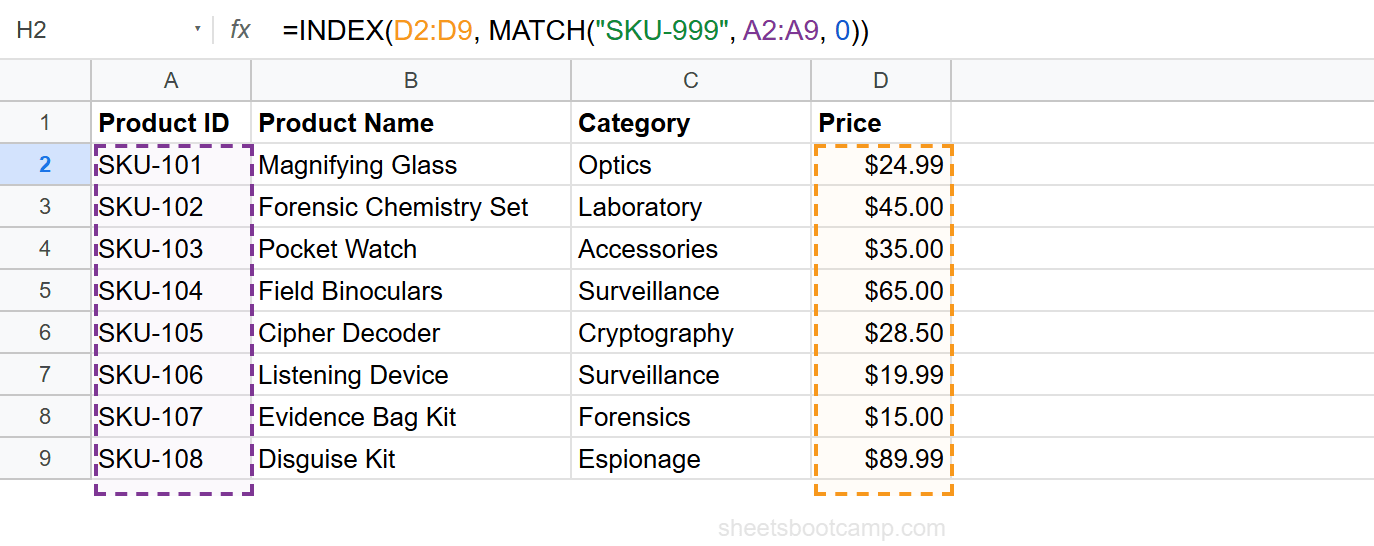
Cause 1: Typo or misspelling
The search key does not match any value in the lookup range. “Remebrall” (typo) does not match “Pocket Watch”.
Fix: Check the spelling of the search key against the actual data in the lookup column.
Cause 2: Extra spaces
The lookup value has trailing or leading spaces that are invisible but prevent matching. “SKU-103 ” (with a trailing space) does not match “SKU-103”.
Fix: Clean the data with TRIM: =INDEX(D2:D9, MATCH(TRIM(H2), A2:A9, 0)).
Cause 3: Mismatched data types
The search key is a number but the lookup column contains text (or vice versa). Cell A2 displays “103” but is stored as text, while the search key 103 is a number. They look identical but MATCH treats them as different values.
Fix: Use =TYPE(A2) and =TYPE(H2) to check. Type 1 = number, Type 2 = text. Convert with VALUE() or TEXT() to match types.
=INDEX(D2:D9, MATCH(VALUE(H2), A2:A9, 0))Cause 4: Missing 0 in MATCH (approximate match on unsorted data)
MATCH defaults to match_type 1 (approximate match) if you omit the third argument. On unsorted data, approximate matching returns the wrong position or #N/A.
Fix: Always include 0 as the third argument: MATCH(H2, A2:A9, 0).
Omitting the 0 in MATCH is the most dangerous INDEX MATCH mistake. On unsorted data, MATCH with approximate matching sometimes returns a wrong position instead of #N/A. You get a result that looks correct but is not.
#REF! Error — Range Mismatch
The #REF! error means the position from MATCH exceeds the number of rows in the INDEX range.
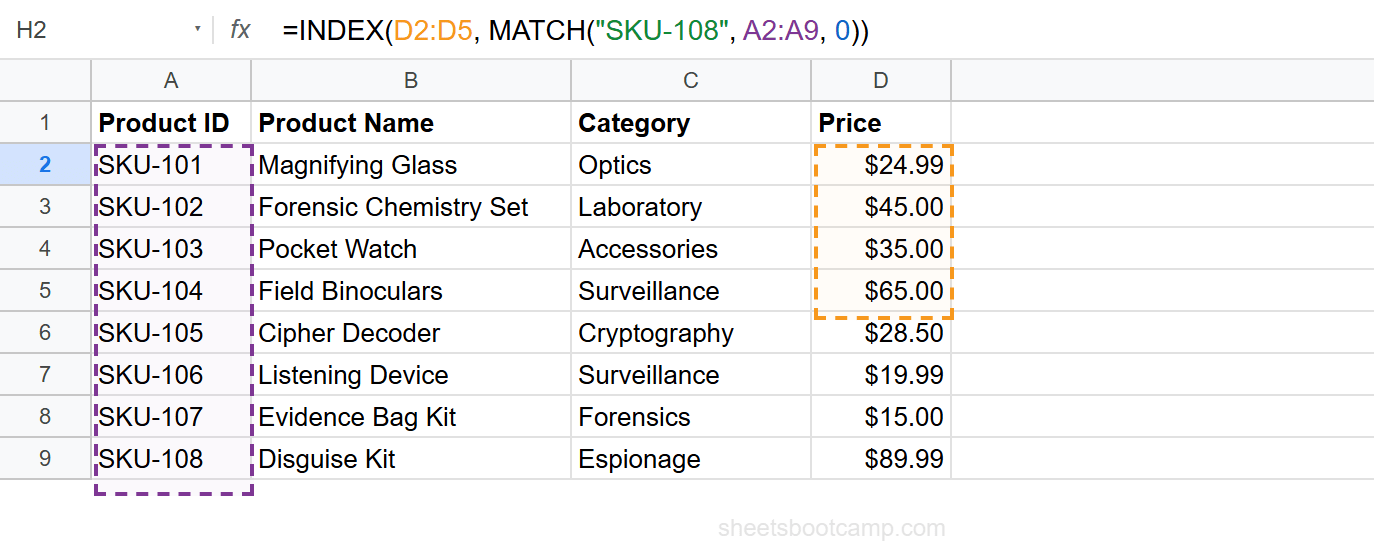
Cause: INDEX range has fewer rows than MATCH range
MATCH searches A2:A9 (8 rows) and finds the value at position 7. INDEX references D2:D5 (4 rows). Position 7 does not exist in a 4-row range, so INDEX returns #REF!.
Fix: Make both ranges the same size. If MATCH uses A2:A9, INDEX should use D2:D9:
=INDEX(D2:D9, MATCH(H2, A2:A9, 0))Both ranges must start and end at the same rows. A2:A9 and D2:D9 both cover rows 2 through 9 (8 rows each). A2:A9 and D3:D10 cover different rows, even though both have 8 entries.
#VALUE! Error — Formula Structure Problem
The #VALUE! error means something is wrong with how the formula is constructed, not with the data.
Cause 1: Multi-column range in MATCH
MATCH requires a single column or single row. Passing a multi-column range like A2:B9 causes #VALUE!.
Fix: Use a single column: MATCH(H2, A2:A9, 0).
Cause 2: Missing or extra argument
A misplaced comma or missing argument breaks the formula structure.
Fix: Check the formula for correct syntax: =INDEX(range, MATCH(key, range, 0)).
Cause 3: Text instead of number for match_type
The third argument in MATCH must be a number (0, 1, or -1). Passing “exact” or another text value causes #VALUE!.
Fix: Use 0 for exact match, not a text string.
Wrong Value (No Error)
The formula returns a value, but it is from the wrong row. This is harder to catch because there is no error message.
Cause 1: Missing 0 in MATCH (approximate match)
Without the 0 third argument, MATCH uses approximate matching. On unsorted data, this returns whichever position the binary search algorithm lands on, which is unpredictable.
Fix: Add 0: MATCH(H2, A2:A9, 0).
Cause 2: Ranges start at different rows
MATCH searches A2:A9 and finds the value at position 3. INDEX references D5:D12 (starting at row 5 instead of row 2). Position 3 in D5:D12 is D7, but the correct value is in D4.
Fix: Start both ranges at the same row. Use A2:A9 and D2:D9.
Cause 3: Duplicate values in the lookup column
The lookup column has two identical entries. MATCH returns the first one. If you expected the second, the result is from the wrong row.
Fix: Use INDEX MATCH with multiple criteria to narrow the search. Or use the FILTER function to return all matching rows.
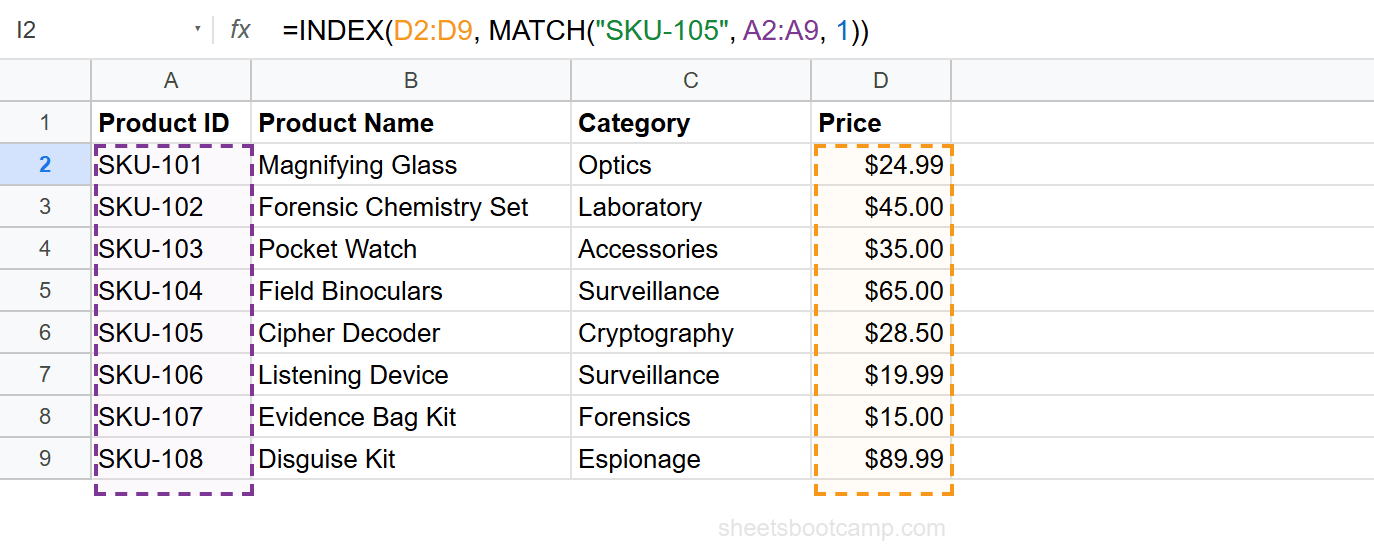
Wrong results with no error are the hardest bugs to find. When a formula returns a value, the natural assumption is that it is correct. Test with known values to verify the formula before relying on it.
0 Instead of a Value
The formula returns 0 instead of the expected value. There is no error, but the result looks wrong.
Cause: The matched cell is empty
INDEX returns 0 when it references an empty cell. The lookup worked correctly and found the right position, but the return cell has no content. Google Sheets displays empty cells as 0 in formula results.
Fix: Check the return column at the matched position. If the cell is intentionally empty, wrap in an IF check:
=IF(INDEX(D2:D9, MATCH(H2, A2:A9, 0))=0, "", INDEX(D2:D9, MATCH(H2, A2:A9, 0)))Or use IFERROR combined with a check:
=IFERROR(IF(INDEX(D2:D9, MATCH(H2, A2:A9, 0))=0, "Empty", INDEX(D2:D9, MATCH(H2, A2:A9, 0))), "Not found")Hiding Errors with IFERROR
After fixing the root cause, wrap the formula in IFERROR to handle edge cases:
=IFERROR(INDEX(D2:D9, MATCH(H2, A2:A9, 0)), "Not found")This returns “Not found” instead of any error. Use it for user-facing sheets where #N/A would be confusing.
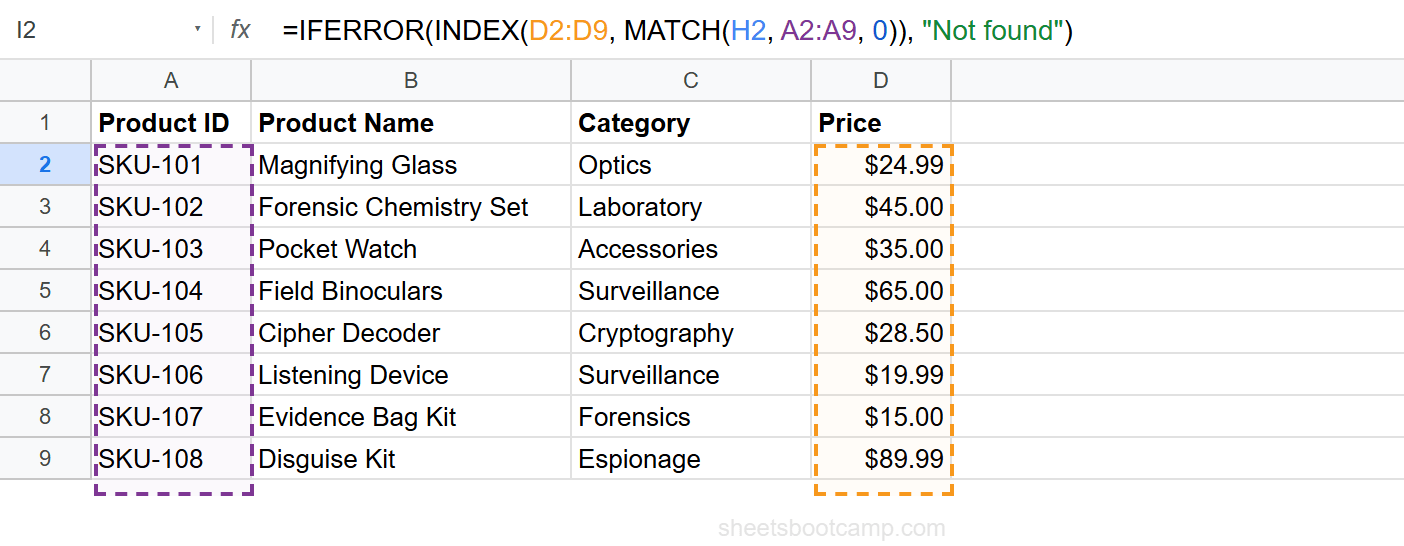
Do not add IFERROR before diagnosing the problem. IFERROR hides all errors, including ones that indicate a formula mistake. Fix the issue first, then add IFERROR for legitimate edge cases like optional search fields.
Tips
-
Always test MATCH by itself first.
=MATCH(H2, A2:A9, 0)should return a number. If it returns an error, focus on the MATCH arguments. -
Always use 0 for exact match. Omitting the third argument in MATCH is the root cause of most INDEX MATCH problems. Make
0a habit. -
Use TYPE() to debug data type mismatches.
=TYPE(A2)returns 1 for numbers and 2 for text. If the lookup column and search key have different types, MATCH will not find a match. -
Check for invisible characters. Extra spaces, line breaks, and non-breaking spaces prevent matching. Use
=LEN(A2)to check string length — if “SKU-103” shows length 8 instead of 7, there is an invisible character. -
Validate range sizes. Count the rows in both ranges. They must match. A quick check:
=ROWS(A2:A9)and=ROWS(D2:D9)should return the same number.
Related Google Sheets Tutorials
- INDEX MATCH: The Complete Guide — Full syntax, examples, and advanced patterns
- INDEX MATCH for Beginners — Step-by-step tutorial for your first formula
- INDEX MATCH with Multiple Criteria — Handle duplicate values with additional conditions
- Fix VLOOKUP Errors — Troubleshoot #N/A, #REF!, and #VALUE! in VLOOKUP
- IFERROR Function — Hide errors gracefully in any formula
Frequently Asked Questions
Why does INDEX MATCH return #N/A in Google Sheets?
The #N/A error means MATCH could not find the search key in the lookup range. Common causes are typos, extra spaces, mismatched data types (text vs number), and forgetting the 0 for exact matching.
How do I fix INDEX MATCH #REF! error?
The #REF! error occurs when the MATCH position exceeds the INDEX range size. Check that both ranges have the same number of rows. If MATCH searches 8 rows but INDEX covers only 5 rows, positions 6-8 cause #REF!.
Why does my INDEX MATCH return the wrong value?
The most common cause is omitting the third argument in MATCH. Without 0, MATCH defaults to approximate matching, which requires sorted data and returns wrong positions on unsorted data. Always use 0 for exact match.
How do I hide INDEX MATCH errors?
Wrap the formula in IFERROR: =IFERROR(INDEX(range, MATCH(key, range, 0)), "Not found"). This returns your custom message instead of the error. Fix the root cause first, then add IFERROR for edge cases.
Why does INDEX MATCH return 0 instead of a value?
INDEX returns 0 when the matched cell is empty. The lookup worked correctly, but the target cell has no content. Check whether the return range has blank cells at the matched position.