LET and LAMBDA Functions in Google Sheets
Learn how to use the LET and LAMBDA functions in Google Sheets. Simplify complex formulas with named variables and create reusable custom functions.
Sheets Bootcamp
March 6, 2026 · Updated June 26, 2026
The LET function in Google Sheets lets you name intermediate calculations inside a formula, so you can reuse them without repeating the same expression. LAMBDA takes this further — it lets you create your own custom functions with defined parameters.
Together, LET and LAMBDA are how you turn long, repetitive formulas into something readable and maintainable. This guide covers both functions with syntax breakdowns, step-by-step examples, and how to save LAMBDA as a reusable named function.
In This Guide
- What Are LET and LAMBDA?
- LET Syntax and Parameters
- How to Use LET: Step-by-Step
- LAMBDA Syntax and Parameters
- LAMBDA Examples
- Common Errors and How to Fix Them
- Tips and Best Practices
- Related Google Sheets Tutorials
- FAQ
What Are LET and LAMBDA?
LET assigns a name to a value or calculation inside a formula. Instead of writing the same VLOOKUP three times, you write it once, name the result, and reference that name wherever you need it. The formula is shorter, the logic is clearer, and Sheets evaluates the expression only once.
LAMBDA defines a custom function. You specify parameters (inputs) and a formula (the calculation), and Google Sheets treats it like a new function. Save it through Data > Named functions, and anyone using the spreadsheet can call it by name.
LET Syntax and Parameters
=LET(name1, value1, [name2, value2, ...], expression)| Parameter | Description | Required |
|---|---|---|
| name1 | A name for the first variable (no spaces, must start with a letter) | Yes |
| value1 | The value or expression assigned to name1 | Yes |
| name2, value2 | Additional name-value pairs. Each name can reference previously defined names | No |
| expression | The final calculation that uses the named variables. This is what the formula returns | Yes |
Variable names in LET follow the same rules as named ranges — they must start with a letter, can’t contain spaces, and can’t conflict with cell references like A1 or B2.
How to Use LET: Step-by-Step
We’ll refactor a formula that repeats the same VLOOKUP three times.
Identify a repeated calculation
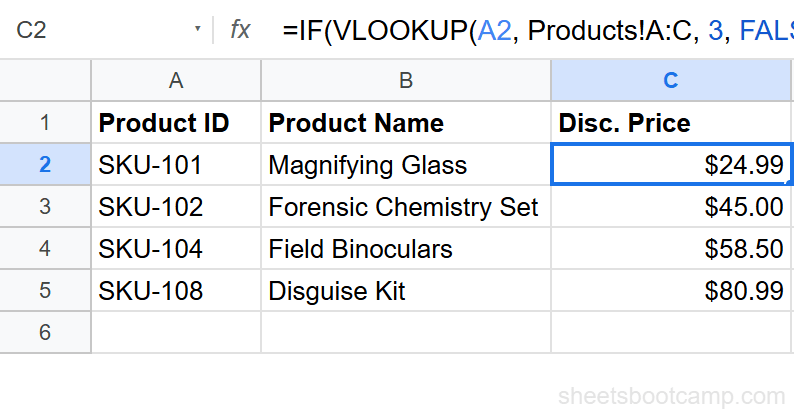
Here’s a formula that applies a discount based on a looked-up price. The VLOOKUP appears three times:
=IF(VLOOKUP(A2, Products!A:C, 3, FALSE) > 100, VLOOKUP(A2, Products!A:C, 3, FALSE) * 0.9, VLOOKUP(A2, Products!A:C, 3, FALSE))This works, but it’s hard to read and the VLOOKUP runs three times.
Wrap the formula in LET
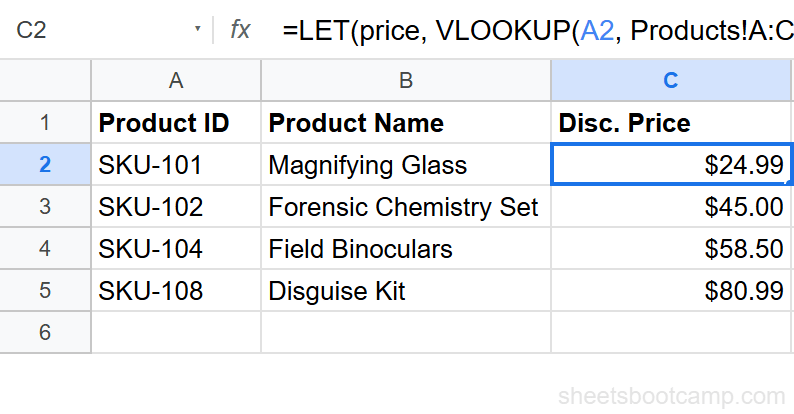
Name the VLOOKUP result “price” and reference that name in the rest of the formula:
=LET(price, VLOOKUP(A2, Products!A:C, 3, FALSE), IF(price > 100, price * 0.9, price))Sheets evaluates the VLOOKUP once and stores the result as price. The IF statement uses price twice, but the lookup only runs once.
Verify the result matches
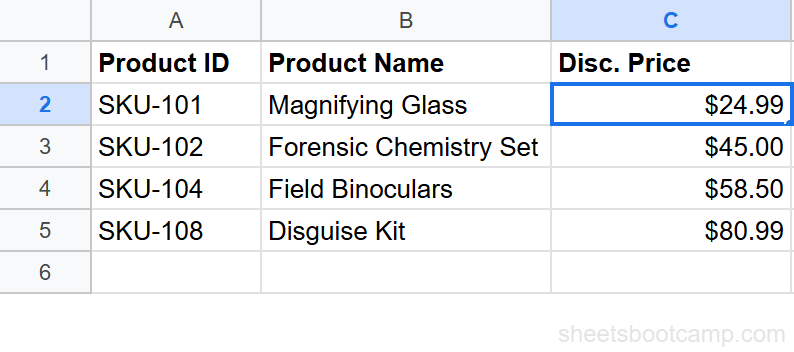
Both formulas return the same value. The LET version is shorter, runs faster, and makes the logic visible — if the price exceeds 100, apply a 10% discount.
You can chain multiple variables. Each one can reference the previous: =LET(price, B2, tax, price * 0.08, total, price + tax, total). This reads top to bottom like a set of assignments.
LET with Multiple Variables
LET supports as many name-value pairs as you need. Later variables can reference earlier ones:
=LET(revenue, SUM(B2:B13), expenses, SUM(C2:C13), profit, revenue - expenses, IF(profit > 0, "Profitable", "Loss"))This calculates revenue, expenses, and profit as named steps, then returns a label based on the result.
LAMBDA Syntax and Parameters
=LAMBDA(param1, [param2, ...], formula_expression)| Parameter | Description | Required |
|---|---|---|
| param1 | The first input parameter name | Yes |
| param2 | Additional parameter names | No |
| formula_expression | The calculation that uses the parameters. This is the function body | Yes |
A LAMBDA on its own doesn’t do anything in a cell — you need to either call it immediately or save it as a named function.
Calling LAMBDA Directly
To test a LAMBDA, call it with arguments in the same formula:
=LAMBDA(x, y, x * y)(5, 10)This returns 50. The LAMBDA defines a multiply function with parameters x and y, and the (5, 10) at the end passes the arguments.
Saving LAMBDA as a Named Function
The real value of LAMBDA is saving it as a reusable function:
- Go to Data > Named functions
- Click Add new function
- Name it (e.g.,
DISCOUNT) - Define the parameters (e.g.,
price,rate) - Enter the formula:
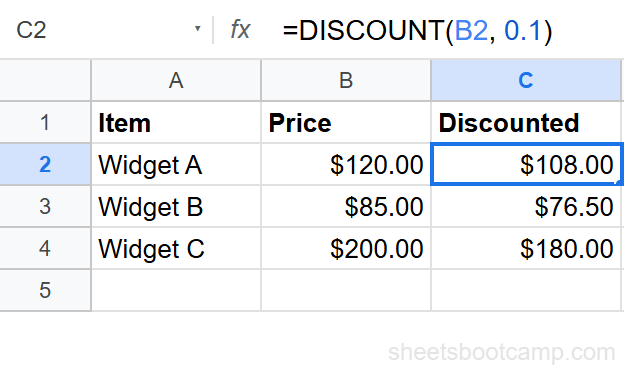
=LAMBDA(price, rate, price * (1 - rate)) - Click Save
Now anyone can use =DISCOUNT(B2, 0.1) in any cell to apply a 10% discount.
LAMBDA Examples
Tax Calculator
Create a function that adds tax to a price:
=LAMBDA(amount, rate, amount + (amount * rate))Save this as ADDTAX. Then use =ADDTAX(B2, 0.08) to add 8% tax to any value. Change the rate per row without modifying the function.
Conditional Markup
Combine LAMBDA with LET for a function that applies tiered pricing:
=LAMBDA(cost, LET(markup, IF(cost > 100, 1.2, IF(cost > 50, 1.35, 1.5)), ROUND(cost * markup, 2)))Save as TIEREDPRICE. Items over $100 get a 20% markup, items over $50 get 35%, and everything else gets 50%.
Common Errors and How to Fix Them
#NAME? Error
The variable name in LET conflicts with an existing named range or function, or you misspelled a variable name in the expression. Check that your variable names don’t match any named ranges in the spreadsheet.
#VALUE! Error
The number of arguments doesn’t match the LAMBDA parameters. If your LAMBDA defines two parameters but you pass three arguments, you get #VALUE!. Check the parameter count.
Wrong Number of Arguments in LET
LET requires an odd number of arguments — pairs of name-value, followed by a single expression. If you pass an even number, the last “name” has no value and no expression exists. Add the final expression.
Build complex formulas incrementally. Start with a working formula, then wrap it in LET to name repeated parts. Test at each step. This is easier than writing the full LET or LAMBDA from scratch.
Tips and Best Practices
-
Use LET when the same expression appears twice or more. One occurrence doesn’t justify LET. Two or more means you save both readability and computation.
-
Name variables descriptively.
priceis better thanx.taxRateis better thanr. The whole point of LET is clarity. -
Save reusable LAMBDA functions through Data > Named functions. A LAMBDA in a single cell is useful for testing, but a named function is available across the entire spreadsheet.
-
Combine LET and LAMBDA. Use LET inside a LAMBDA body for intermediate calculations. This keeps the named function readable even when the logic is complex.
-
LET variables are formula-scoped. They exist only inside the LET block. They don’t affect other cells or create named ranges. You can reuse the same variable name in different formulas without conflict.
LAMBDA functions saved as named functions are scoped to the spreadsheet file. They don’t transfer automatically when you copy the sheet to another file. Re-create them in the new file or use an Apps Script add-on to copy definitions.
Related Google Sheets Tutorials
- ARRAYFORMULA in Google Sheets - Apply LET and LAMBDA across entire columns with ARRAYFORMULA
- Named Ranges in Google Sheets - Understand naming conventions that also apply to LET variables
- Nested IF Statements in Google Sheets - Simplify nested IFs using LET for intermediate values
- INDIRECT Function in Google Sheets - Another advanced formula technique for dynamic references
FAQ
What does the LET function do in Google Sheets?
LET assigns names to values or expressions inside a formula so you can reuse them without repeating the calculation. It improves readability and performance by evaluating each named expression only once.
What is the LAMBDA function in Google Sheets?
LAMBDA creates a custom function from a formula. You define parameters and a calculation, then save it as a named function via Data > Named functions. Once saved, you can call it by name like any built-in function.
Can I use LET and LAMBDA together?
Yes. Use LET inside a LAMBDA body to define intermediate variables, or use LAMBDA inside LET to create a reusable function within a single formula. They complement each other well in complex calculations.
How many variables can LET have?
LET supports multiple name-value pairs. The syntax is =LET(name1, value1, name2, value2, ..., expression). Each variable can reference previously defined variables in the same LET block. There is no hard limit, but keep it readable.
Do LET and LAMBDA improve formula performance?
LET improves performance by evaluating each expression once, even if it is referenced multiple times. LAMBDA itself does not change performance, but it enables cleaner formulas that are easier to optimize and maintain.
Are LET and LAMBDA available in Google Sheets?
Yes. Google Sheets added LET and LAMBDA in 2022. They work in all Google Sheets environments including web, mobile, and the API. They are not available in older Excel versions prior to Excel 365.