Mail Merge with Google Sheets and Gmail
Learn how to do a mail merge with Google Sheets and Gmail. Send personalized emails to a contact list using Apps Script with step-by-step examples.
Sheets Bootcamp
March 6, 2026 · Updated August 3, 2026
A mail merge in Google Sheets lets you send personalized emails to a list of contacts using data from your spreadsheet. Each recipient gets a unique email with their name, order details, or any other information pulled from the columns you define.
Google Sheets does not have a built-in mail merge button. Instead, you use Google Apps Script — a free scripting tool built into every sheet — to read your contact list, build each email, and send it through Gmail. This guide covers the full workflow from setting up your data to sending your first batch.
In This Guide
- Set Up Your Contact List
- Write the Mail Merge Script: Step-by-Step
- Send HTML Emails
- Practical Examples
- Common Errors and How to Fix Them
- Tips and Best Practices
- Related Google Sheets Tutorials
- FAQ
Set Up Your Contact List
Your spreadsheet needs column headers in row 1 and data starting in row 2. At minimum, include Name and Email columns. Add any extra columns that hold data you want to insert into the email.
| Name | Product | Amount | |
|---|---|---|---|
| Alice Chen | alice@example.com | Widget A | $24.99 |
| Bob Smith | bob@example.com | Widget B | $49.99 |
| Carol Davis | carol@example.com | Widget C | $12.50 |
| Dan Lee | dan@example.com | Widget D | $99.00 |
Add a Status column as the last column. The script will write “Sent” with a timestamp here after each email sends. This prevents duplicate sends if you run the script again.
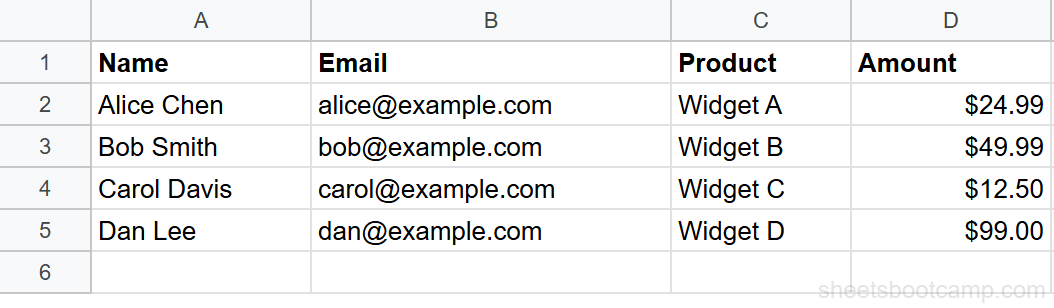
Column headers must match the placeholder names you use in the email template exactly. If the header says “Name” in the sheet, use {{Name}} in the template — not {{name}} or {{First Name}}.
Write the Mail Merge Script: Step-by-Step
Open the script editor
In your Google Sheet, click Extensions > Apps Script. Delete any existing code in the editor.
Paste the mail merge script
Copy this script into the editor:
function sendMailMerge() {
  var sheet = SpreadsheetApp.getActiveSheet();
  var data = sheet.getDataRange().getValues();
  var headers = data[0];
  var statusCol = headers.indexOf("Status");

  var subject = "Your order confirmation - {{Product}}";
  var template =
    "Hi {{Name}},\n\n" +
    "Thank you for your order of {{Product}} " +
    "for {{Amount}}.\n\n" +
    "We will process your order shortly.\n\n" +
    "Best regards,\nThe Team";

  for (var i = 1; i < data.length; i++) {
    var row = data[i];

    // Skip if already sent or no email
    if (row[statusCol] !== "" || row[1] === "") continue;

    var emailBody = template;
    var emailSubject = subject;

    // Replace all placeholders with row data
    for (var j = 0; j < headers.length; j++) {
      var placeholder = "{{" + headers[j] + "}}";
      emailBody = emailBody.replace(
        new RegExp(placeholder.replace(/[{}]/g, "\\$&"), "g"),
        row[j]
      );
      emailSubject = emailSubject.replace(
        new RegExp(placeholder.replace(/[{}]/g, "\\$&"), "g"),
        row[j]
      );
    }

    MailApp.sendEmail(row[1], emailSubject, emailBody);

    // Mark as sent
    sheet.getRange(i + 1, statusCol + 1).setValue(
      "Sent " + Utilities.formatDate(
        new Date(), Session.getScriptTimeZone(), "M/d/yyyy"
      )
    );
  }
}
The script reads every row, replaces {{placeholder}} tags with actual cell values, sends the email, and writes “Sent” with a date in the Status column.
Run the script
Click the Run button (play icon) at the top. The first time, Google asks for permissions to send email on your behalf — click Advanced > Go to [project name] and authorize.
Check your sheet. The Status column should show “Sent” with today’s date for each row.
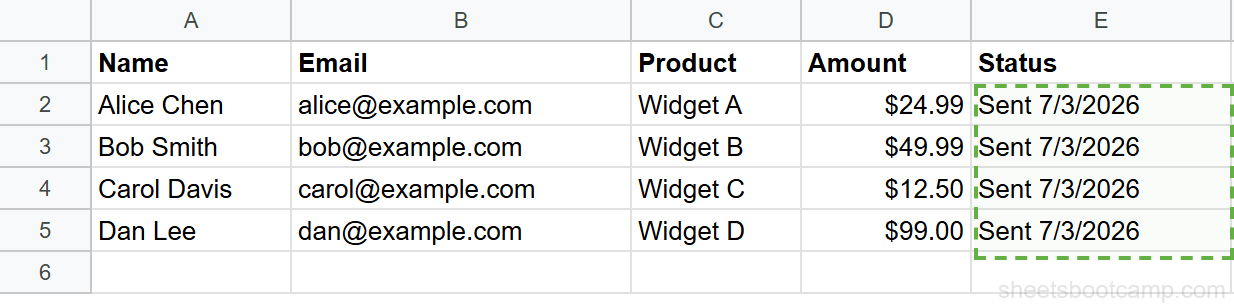
Check your Gmail Sent folder to verify the emails were delivered with the correct personalized content before sending to a large list.
Send HTML Emails
Plain text emails work for simple messages. For formatted emails with bold text, links, or styled layouts, use the htmlBody option:
function sendHtmlMailMerge() {
  var sheet = SpreadsheetApp.getActiveSheet();
  var data = sheet.getDataRange().getValues();
  var headers = data[0];
  var statusCol = headers.indexOf("Status");

  for (var i = 1; i < data.length; i++) {
    var row = data[i];
    if (row[statusCol] !== "" || row[1] === "") continue;

    var htmlBody =
      "<h2>Order Confirmation</h2>" +
      "<p>Hi <strong>" + row[0] + "</strong>,</p>" +
      "<p>Thank you for ordering <strong>" + row[2] +
      "</strong> for " + row[3] + ".</p>" +
      "<p>We will process your order within 24 hours.</p>" +
      "<p>Best regards,<br>The Team</p>";

    MailApp.sendEmail({
      to: row[1],
      subject: "Order Confirmation - " + row[2],
      body: "Hi " + row[0] + ", thank you for your order.",
      htmlBody: htmlBody
    });

    sheet.getRange(i + 1, statusCol + 1).setValue(
      "Sent " + Utilities.formatDate(
        new Date(), Session.getScriptTimeZone(), "M/d/yyyy"
      )
    );
  }
}
The body parameter serves as a plain-text fallback for email clients that do not render HTML. Always include both.
Gmail strips some CSS properties from HTML emails. Stick to inline styles, basic HTML tags, and avoid external stylesheets. Tables, bold text, links, and images all work reliably.
Practical Examples
Example 1: Add a custom menu to trigger the merge
Instead of running the script from the editor, add a menu button:
function onOpen() {
  SpreadsheetApp.getUi()
    .createMenu("Mail Merge")
    .addItem("Send Emails", "sendMailMerge")
    .addItem("Check Quota", "checkQuota")
    .addToUi();
}

function checkQuota() {
  var remaining = MailApp.getRemainingDailyQuota();
  SpreadsheetApp.getUi().alert(
    "You can send " + remaining + " more emails today."
  );
}
After saving, refresh the spreadsheet. A Mail Merge menu appears with options to send emails or check how many you have left in your daily quota.
Example 2: Send only to selected rows
Add a Send? column with checkboxes. Modify the script to only send to checked rows:
function sendSelected() {
  var sheet = SpreadsheetApp.getActiveSheet();
  var data = sheet.getDataRange().getValues();
  var headers = data[0];
  var sendCol = headers.indexOf("Send?");
  var statusCol = headers.indexOf("Status");

  for (var i = 1; i < data.length; i++) {
    if (data[i][sendCol] !== true) continue;
    if (data[i][statusCol] !== "") continue;

    // ... same email logic as before
  }
}
This gives you a manual approval step before each batch. Check the boxes for the recipients you want to include, then run the script.
Common Errors and How to Fix Them
Authorization required
The first time you run the script, Google asks for permission to send email on your behalf. Click Advanced > Go to [project name] (unsafe) and authorize. This is normal for scripts you wrote yourself.
Daily quota exceeded
Free Gmail accounts allow 100 emails per day. Google Workspace accounts allow 1,500. If you hit the limit, wait 24 hours or use a Workspace account for larger lists. Check your remaining quota with MailApp.getRemainingDailyQuota().
Emails going to spam
Personalized emails from your Gmail account are less likely to be flagged than mass marketing tools, but it can still happen. Avoid all-caps subject lines, excessive links, and trigger words like “free” or “urgent.” Keep the email content relevant to the recipient.
Placeholder not replaced
If your email shows {{Name}} instead of the actual name, the column header does not match the placeholder. Headers are case-sensitive. Check that the header in row 1 matches the placeholder exactly.
Test with a small list (2-3 rows) before sending to your full contact list. Send test emails to yourself first to verify the formatting and personalization look correct.
Tips and Best Practices
-
Always include a Status column. This prevents duplicate sends. The script checks for existing “Sent” values and skips those rows on subsequent runs.
-
Use
getRemainingDailyQuota()before large batches. Log the remaining quota at the start of the script and stop if it is too low for the number of recipients. -
Keep email templates in your code, not in cells. Storing templates in the script makes them easier to maintain and version. If you need non-technical users to edit templates, consider using a Google Doc as a template instead.
-
Schedule recurring mail merges with triggers. Use an installable time-driven trigger to run the script daily or weekly. Combined with the Status column, it sends new emails only to rows that have not been processed yet.
-
Add CC or BCC with the options object. Pass
cc: "manager@example.com"orbcc: "archive@example.com"in thesendEmail()options to copy additional recipients.
Related Google Sheets Tutorials
- Google Apps Script for Sheets - Learn the scripting fundamentals behind this mail merge
- Google Sheets API - Read and write spreadsheet data from external applications
- Checkboxes in Google Sheets - Add checkboxes to control which rows get included
- IFS Function - Handle multiple conditions for routing emails to different templates
FAQ
How do I do a mail merge in Google Sheets?
Set up your contact list with headers like Name, Email, and any personalization fields. Open Extensions > Apps Script, write a function that reads each row and sends a personalized email using MailApp.sendEmail(). Run the script and it sends one email per row.
Can I send personalized emails from Google Sheets?
Yes. Use Google Apps Script to read data from your sheet and insert values into an email template. Each recipient gets a unique email with their name, order details, or any other column data. The emails send through your Gmail account.
How many emails can I send with Google Sheets mail merge?
Free Gmail accounts can send up to 100 emails per day through Apps Script. Google Workspace accounts can send up to 1,500 per day. The MailApp.getRemainingDailyQuota() function returns how many you have left.
Is there a built-in mail merge in Google Sheets?
Not directly. Google Sheets does not have a built-in mail merge button. However, you can use Google Apps Script (free, built into every sheet) or third-party add-ons from the Google Workspace Marketplace to send personalized emails.
Can I send HTML emails with Google Sheets mail merge?
Yes. Use the htmlBody option in MailApp.sendEmail() to send formatted HTML emails. You can include bold text, links, images, and styled layouts. The plain text body parameter serves as a fallback for email clients that do not render HTML.