How to Merge Cells in Google Sheets
Learn how to merge cells in Google Sheets with Merge all, Merge horizontally, and Merge vertically. Includes unmerge steps, formula tips, and common pitfalls.
Sheets Bootcamp
March 7, 2026 · Updated June 8, 2026
Merging cells in Google Sheets combines two or more cells into a single cell that spans multiple rows, columns, or both. It’s commonly used for creating centered titles, grouping category headers, and formatting reports where a label needs to stretch across several columns.
This guide covers how to merge and unmerge cells in Google Sheets, the three merge types, and the trade-offs you should know before merging anything.
In This Guide
- The Three Merge Types
- How to Merge Cells: Step-by-Step
- How to Unmerge Cells
- Merge Cells Without Losing Data
- When Merging Causes Problems
- Center Across Selection (Alternative)
- Tips and Best Practices
- Related Google Sheets Tutorials
- FAQ
The Three Merge Types
Google Sheets offers three ways to merge cells, all under Format > Merge cells:
| Merge Type | What It Does |
|---|---|
| Merge all | Combines every selected cell into one large cell |
| Merge horizontally | Merges cells in each row separately (useful for multi-row selections) |
| Merge vertically | Merges cells in each column separately |
For most tasks, Merge all is what you want. The other two options help when you’re merging a block of cells and need to preserve row or column structure within the selection.
How to Merge Cells: Step-by-Step
Select the cells to merge
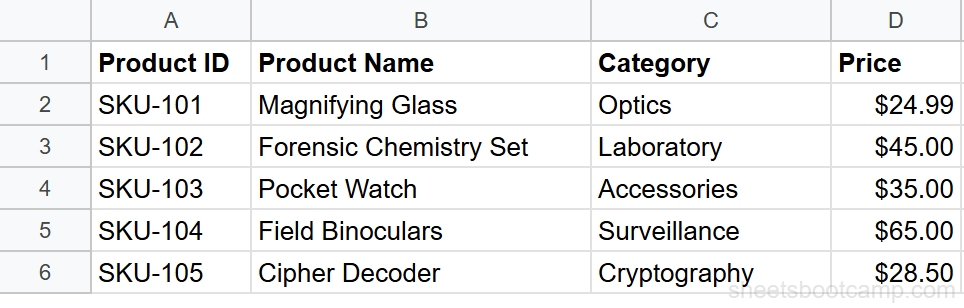
Click and drag to highlight the cells. To create a title that spans columns A through D, select A1:D1.
Apply the merge
Go to Format > Merge cells > Merge all. You can also click the Merge cells icon in the toolbar (the icon with arrows pointing inward). The dropdown next to the icon shows all three merge types.
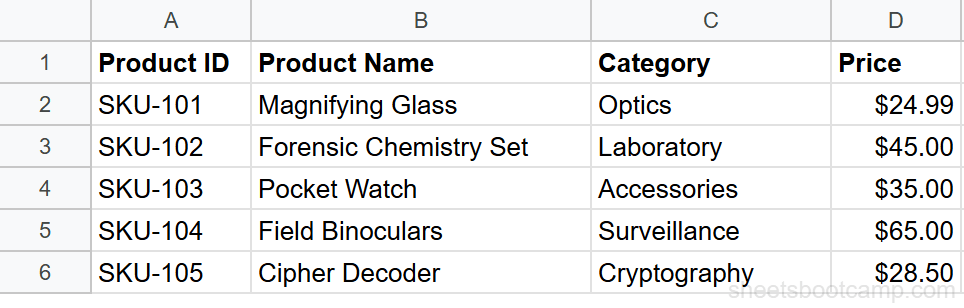
If the selected cells contain data in more than one cell, Google Sheets shows a warning: “Merging cells will only keep the upper-left value and discard other values.” Click OK to proceed, or Cancel to keep your data intact.
Verify the merged cell
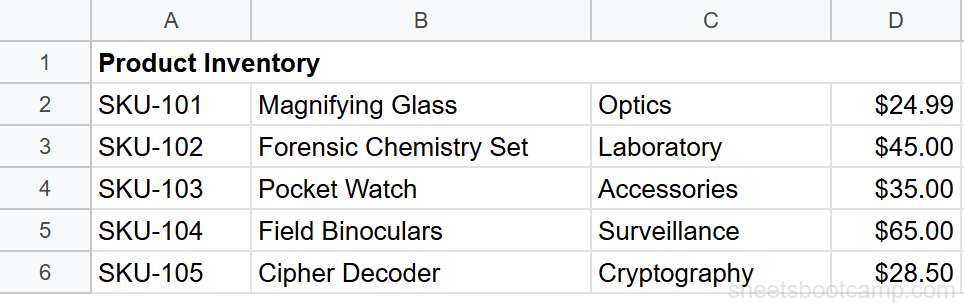
The cells combine into one. The text aligns to the default position (left for text, right for numbers). To center the content, select the merged cell and click the Center align button in the toolbar.
How to Unmerge Cells
Click the merged cell, then go to Format > Merge cells > Unmerge. The cell splits back into its original individual cells. The content stays in the upper-left cell, and the previously merged cells become empty.
You can also click the Merge cells toolbar icon again to toggle the merge off.
Merge Cells Without Losing Data
The merge feature keeps only the upper-left cell’s value. To combine text from multiple cells before merging:
Using CONCATENATE:
=CONCATENATE(A1, " ", B1, " ", C1)Using the ampersand operator:
=A1 & " " & B1 & " " & C1Using TEXTJOIN with a delimiter:
=TEXTJOIN(", ", TRUE, A1:C1)After combining the text, copy the result cell, paste as values only (Ctrl+Shift+V), then merge the cells. The combined text stays intact. For more on combining text, see CONCATENATE and TEXTJOIN in Google Sheets.
TEXTJOIN is the most flexible option. The second argument (TRUE) skips blank cells, and you can set any delimiter — comma, space, dash, or newline.
When Merging Causes Problems
Merging is a formatting tool, not a data tool. It looks clean in reports and dashboards, but it creates problems when combined with data operations:
- Sorting — Google Sheets refuses to sort ranges that contain merged cells. Unmerge first.
- Filtering — Filters skip merged cells or produce unexpected results. Avoid merging cells in data ranges you plan to filter.
- Formulas — Referencing a range that includes merged cells can return errors or blank values. The merged cell occupies the top-left position, and the hidden cells behind it are treated as empty.
- Copy/paste — Pasting into a range with merged cells often fails. Google Sheets blocks the paste if the target range doesn’t match the merge layout.
Avoid merging cells in ranges you plan to sort, filter, or reference in formulas. Use merging only in header rows, title areas, or formatted reports that won’t be processed by functions.
Center Across Selection (Alternative)
If you want a centered title without actually merging cells, use horizontal alignment with padding instead. This approach keeps cells independent so sorting and filtering still work:
- Enter the title text in the leftmost cell (A1).
- Leave the cells to the right empty (B1, C1, D1).
- Select A1, then click Format > Alignment > Center or use the toolbar.
The text appears centered in A1 but doesn’t span other cells. The adjacent cells remain separate and functional. This doesn’t give the same visual result as merging, but it avoids the compatibility problems.
Tips and Best Practices
- Use merging sparingly. It’s best for report titles and visual headers, not for data ranges. The more you merge, the harder the sheet is to work with programmatically.
- Unmerge before adding formulas. If you inherit a sheet with merged cells and need to run formulas on it, unmerge everything first (Ctrl+A to select all, then Format > Merge cells > Unmerge).
- Combine with frozen rows. A merged title in row 1 with frozen rows keeps your report header visible while you scroll through data below.
- Back up data before merging. If multiple cells in the selection contain data, copy the data somewhere else before merging to avoid accidental loss.
- Check before sharing. Merged cells can confuse collaborators who expect standard grid behavior. If the sheet is shared for data entry, avoid merges in the data area.
Related Google Sheets Tutorials
- CONCATENATE and TEXTJOIN in Google Sheets — Combine text from multiple cells with formulas instead of merging
- How to Freeze Rows and Columns — Lock headers in place while scrolling through large datasets
- Conditional Formatting in Google Sheets — Apply color rules to format data ranges (works best without merged cells)
- Data Validation in Google Sheets — Add dropdown lists and input rules to standard (non-merged) cells
FAQ
How do I merge cells in Google Sheets?
Select the cells you want to merge, then go to Format > Merge cells > Merge all. The cells combine into one. Only the content from the upper-left cell is kept.
How do I unmerge cells in Google Sheets?
Click the merged cell, then go to Format > Merge cells > Unmerge. The cell splits back into individual cells. The original content stays in the top-left cell and the other cells become empty.
Does merging cells delete data?
Yes. When you merge cells that all contain data, Google Sheets keeps the value from the upper-left cell and discards the rest. A warning dialog appears before the merge so you can cancel if needed.
Can I merge cells without losing data?
Not with the merge feature alone. To combine text from multiple cells into one, use the CONCATENATE function or the ampersand (&) operator first, paste the result, then merge the cells. Or use =TEXTJOIN to join values with a delimiter.
Is there a keyboard shortcut to merge cells in Google Sheets?
There is no built-in keyboard shortcut for merging cells in Google Sheets. You can use Alt+O, M, then Enter on Windows to navigate the Format > Merge cells menu. On Mac, use Ctrl+Option+O, then M.
Why can’t I sort data with merged cells?
Google Sheets cannot sort a range that contains merged cells. Unmerge all cells in the range first (Format > Merge cells > Unmerge), then sort. Merged cells and sorting do not work together.