How to Protect Sheets and Ranges in Google Sheets
Learn how to protect sheets and lock specific cell ranges in Google Sheets. Control who can edit what with permissions, warnings, and exceptions.
Sheets Bootcamp
March 8, 2026 · Updated June 29, 2026
Protecting sheets and ranges in Google Sheets lets you lock cells so collaborators can’t accidentally overwrite formulas, headers, or reference data. You control who can edit what — down to individual cells.
This guide covers how to protect entire sheets, lock specific ranges, set editing permissions, and add exceptions for cells that should stay editable. If you share spreadsheets with others, protection is how you keep your data intact.
In This Guide
- Protect a Range vs. Protect a Sheet
- How to Protect a Range: Step-by-Step
- How to Protect an Entire Sheet
- Show a Warning Instead of Blocking
- Tips and Best Practices
- Related Google Sheets Tutorials
- FAQ
Protect a Range vs. Protect a Sheet
Google Sheets offers two levels of protection:
| Type | What It Does | Best For |
|---|---|---|
| Protect a range | Locks specific cells. Everything else stays editable | Protecting formulas or header rows while the rest is a data entry form |
| Protect a sheet | Locks the entire sheet. You add exceptions for editable cells | Locking a reference sheet but allowing input in specific fields |
Both use the same sidebar (Data > Protect sheets and ranges) and the same permission options. The difference is starting point — lock a few cells, or lock everything and unlock a few.
How to Protect a Range: Step-by-Step
We’ll lock a header row so collaborators can’t change column labels.
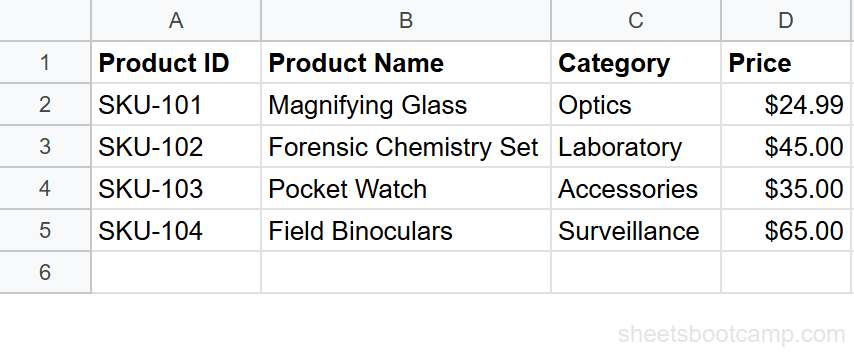
Select the range to protect
Highlight cells A1:D1 — the header row of your spreadsheet.
Open the protected ranges panel
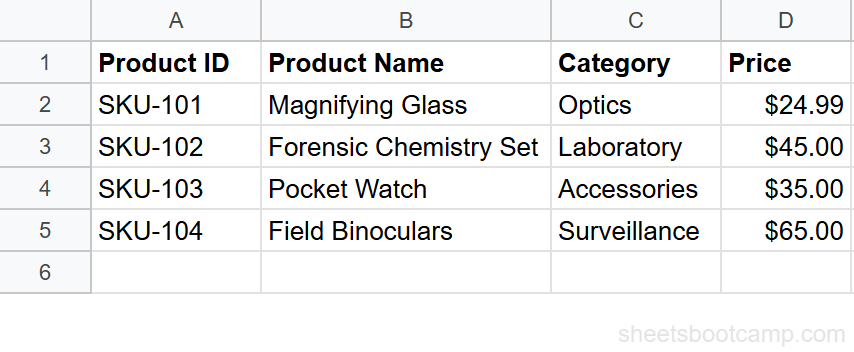
Go to Data > Protect sheets and ranges. The sidebar opens on the right. Click Add a sheet or range, type a description like “Header Row,” and confirm the range shows A1:D1.
Set editing permissions
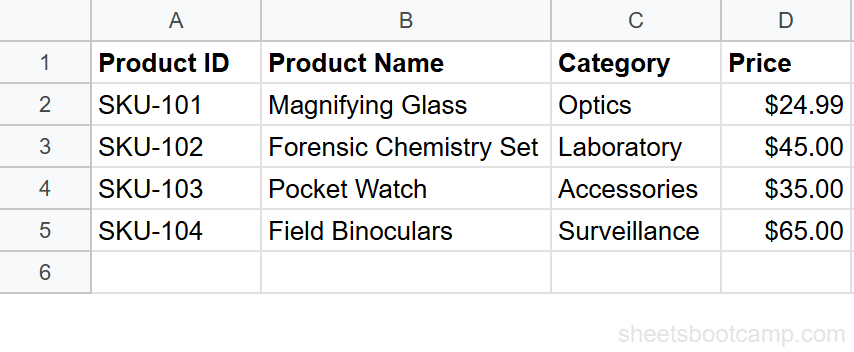
Click Set permissions. Select Restrict who can edit this range, then choose Only you from the dropdown. Click Done.
Anyone who tries to edit A1:D1 sees a message that the range is protected. Only you can change those cells.
You can add specific collaborators to the allowed editors list. Click Custom instead of Only you and enter their email addresses. This is useful when one person manages data entry and another manages formulas.
How to Protect an Entire Sheet
Sometimes you want to lock everything and only allow editing in a few cells — for example, a form where users fill in highlighted fields and the rest is locked.
- Go to Data > Protect sheets and ranges
- Click Add a sheet or range
- Select the Sheet tab (not Range)
- Choose the sheet to protect
- Check Except certain cells and enter the ranges that should stay editable (e.g., B2:B20)
- Click Set permissions and restrict editing to yourself or specific people
Users can edit the exception ranges but nothing else on the sheet.
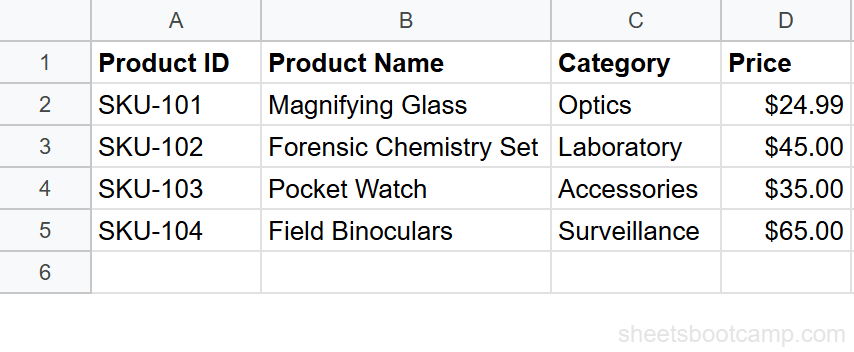
Sheet protection only prevents editing cell values. It does not prevent users with edit access from adding or deleting rows, columns, or sheet tabs. For full structural protection, set those users to Viewer or Commenter access instead.
Show a Warning Instead of Blocking
If you want a softer approach, you can show a warning instead of blocking edits entirely.
- Open the protection settings for a range or sheet
- Click Set permissions
- Select Show a warning when editing this range
- Click Done
Users see a dialog saying “Heads up! You’re trying to edit part of this sheet that shouldn’t be changed accidentally.” They can click OK to edit anyway or Cancel to back out.
This is useful for cells that should rarely change but don’t need hard locks — like a settings table or lookup reference that might need occasional updates.
Tips and Best Practices
-
Protect formula cells first. The most common reason to use protection is preventing formulas from being overwritten by collaborators entering data. Lock any cell that contains a formula.
-
Use descriptions for every protected range. “Header Row,” “Formula Column E,” and “Settings Table” make it clear what each protection covers when you review them later.
-
Combine protection with data validation. Protection stops people from editing cells. Data validation controls what they can enter in cells that are editable. Together, they create a controlled data entry form.
-
Review protections periodically. Open Data > Protect sheets and ranges to see all active protections. Remove outdated ones and verify the right people have access.
-
Protection applies per-spreadsheet, not globally. If you make a copy of the spreadsheet, the copy gets the same protections, but you (the copy owner) become the sole editor. Collaborators from the original don’t carry over automatically.
Only the spreadsheet owner or the person who created a protection can modify or remove it. If a collaborator creates a protection, even the owner needs to ask them to remove it — unless the owner removes the collaborator’s edit access entirely.
Related Google Sheets Tutorials
- How to Share Google Sheets - Set share permissions before adding cell-level protection
- Data Validation in Google Sheets - Control what users can enter in editable cells
- Drop-Down Lists in Google Sheets - Combine dropdowns with protected ranges for controlled forms
- Conditional Formatting in Google Sheets - Highlight protected and editable cells with color coding
FAQ
How do I protect a sheet in Google Sheets?
Go to Data > Protect sheets and ranges, click Add a sheet or range, select the Sheet tab, choose which sheet to protect, and set permissions. You can allow specific people to edit while blocking everyone else.
How do I lock specific cells in Google Sheets?
Select the cells, go to Data > Protect sheets and ranges, add the range, and set permissions to restrict editing. This locks those specific cells while leaving the rest of the sheet editable.
Can I show a warning instead of blocking edits?
Yes. When setting permissions, choose “Show a warning when editing this range” instead of “Restrict who can edit.” Users see a confirmation dialog but can still edit if they choose to proceed. This works as a soft lock.
How do I allow certain cells to be edited on a protected sheet?
Protect the entire sheet, then add exceptions. In the protection sidebar, check “Except certain cells” and specify the ranges that should remain editable. For example, protect Sheet1 but allow editing in B2:B20.
Can I protect a sheet from being deleted?
No. Sheet protection only prevents editing cell contents. It does not prevent a user with edit access from deleting, renaming, or hiding the sheet tab. To prevent structural changes, restrict share permissions to Viewer or Commenter for those users.
How do I remove a protected range?
Go to Data > Protect sheets and ranges. Find the protection rule in the sidebar, click it, then click the trash icon to delete it. Only the person who created the protection (or the spreadsheet owner) can remove it.