QUERY with Dates in Google Sheets (Filter, Format)
Learn how to use QUERY with dates in Google Sheets. Filter by date ranges, compare dates, format output, and avoid common date errors. Examples included.
Sheets Bootcamp
March 8, 2026 · Updated May 5, 2026
Dates in QUERY require specific syntax — the date keyword and YYYY-MM-DD format — and getting it wrong is one of the most common QUERY errors. This guide covers how to filter by date, compare date ranges, use dynamic dates with cell references, and format dates in QUERY output. We’ll use practical examples from sales data so you can follow along.
In This Guide
- Date Syntax in QUERY
- How to Filter by Date: Step-by-Step
- Filter a Date Range
- Use Dynamic Dates (TODAY, Cell References)
- Format Dates in QUERY Output
- GROUP BY Date Parts (Month, Year)
- Common Date Errors
- Tips
- Related Google Sheets Tutorials
- FAQ
Date Syntax in QUERY
QUERY uses the date keyword followed by a value in YYYY-MM-DD format, wrapped in single quotes:
=QUERY(data, "SELECT * WHERE A > date '2026-01-15'")| Format | Correct? | Example |
|---|---|---|
date '2026-01-15' | Yes | WHERE A > date '2026-01-15' |
'2026-01-15' | No | Treated as text, not a date |
'1/15/2026' | No | Wrong format, treated as text |
date '01/15/2026' | No | Wrong format, must be YYYY-MM-DD |
Without the date keyword, QUERY compares your value as a text string, not a date. The formula may run without errors but return wrong results. Always use date 'YYYY-MM-DD' for date comparisons.
How to Filter by Date: Step-by-Step
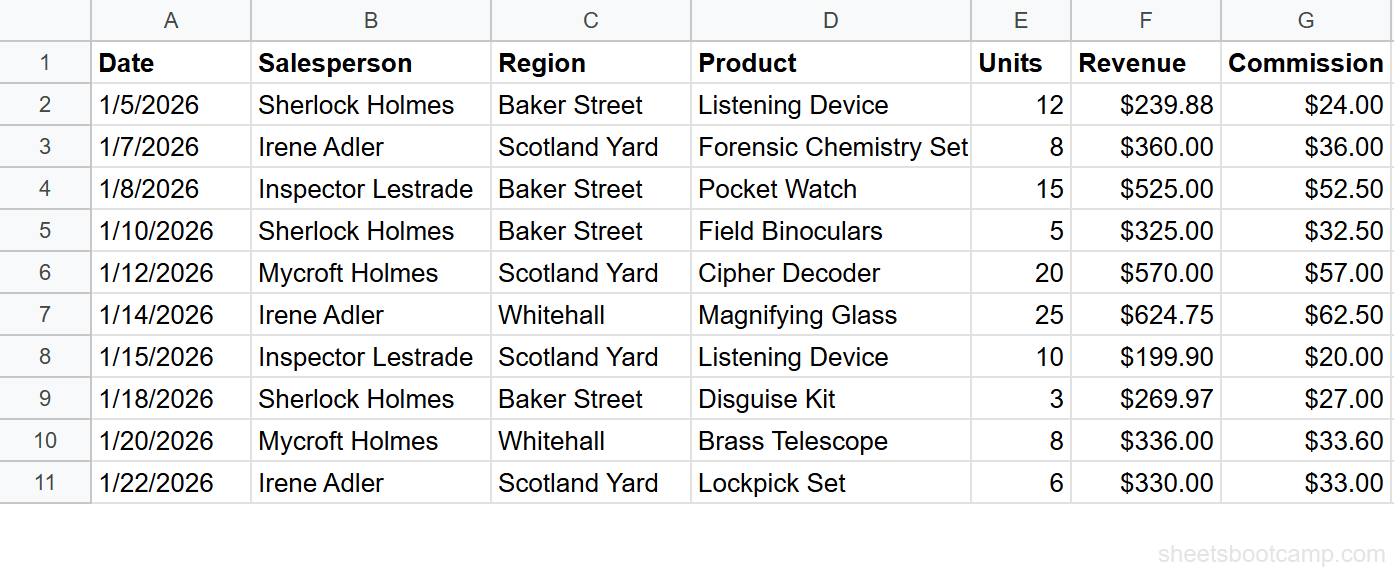
We’ll use the same sales records table from the QUERY guide. The data is in A1:G11 with 10 transactions from January 2026.
Sample Data
| A | B | C | D | E | F | G | |
|---|---|---|---|---|---|---|---|
| 1 | Date | Salesperson | Region | Product | Units | Revenue | Commission |
| 2 | 1/5/2026 | Sherlock Holmes | Baker Street | Listening Device | 12 | $239.88 | $24.00 |
| 3 | 1/7/2026 | Irene Adler | Scotland Yard | Forensic Chemistry Set | 8 | $360.00 | $36.00 |
| 4 | 1/8/2026 | Inspector Lestrade | Baker Street | Pocket Watch | 15 | $525.00 | $52.50 |
| 5 | 1/10/2026 | Sherlock Holmes | Baker Street | Field Binoculars | 5 | $325.00 | $32.50 |
| 6 | 1/12/2026 | Mycroft Holmes | Scotland Yard | Cipher Decoder | 20 | $570.00 | $57.00 |
| 7 | 1/14/2026 | Irene Adler | Whitehall | Magnifying Glass | 25 | $624.75 | $62.50 |
| 8 | 1/15/2026 | Inspector Lestrade | Scotland Yard | Listening Device | 10 | $199.90 | $20.00 |
| 9 | 1/18/2026 | Sherlock Holmes | Baker Street | Disguise Kit | 3 | $269.97 | $27.00 |
| 10 | 1/20/2026 | Mycroft Holmes | Whitehall | Brass Telescope | 8 | $336.00 | $33.60 |
| 11 | 1/22/2026 | Irene Adler | Scotland Yard | Lockpick Set | 6 | $330.00 | $33.00 |
Review your data range
Your data lives in A1:G11. Column A contains dates. Google Sheets recognizes these as date values (not text), which is required for date comparisons to work.
Filter rows after a specific date
Select an empty cell and enter:
=QUERY(A1:G11, "SELECT A, B, F WHERE A > date '2026-01-15'")This returns Date, Salesperson, and Revenue for transactions after January 15, 2026. Three rows match: Sherlock Holmes on 1/18/2026 ($269.97), Mycroft Holmes on 1/20/2026 ($336.00), and Irene Adler on 1/22/2026 ($330.00).

Filter a date range
Enter:
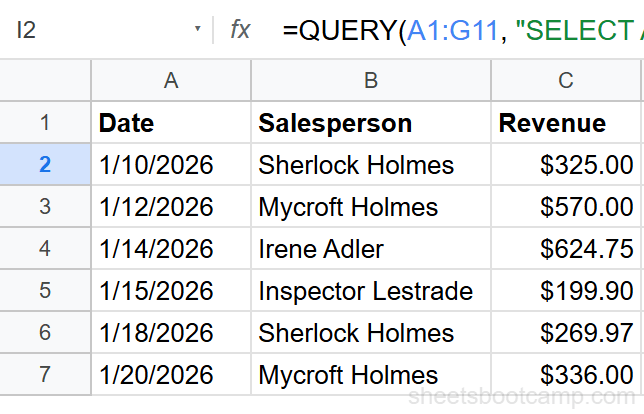
=QUERY(A1:G11, "SELECT A, B, F WHERE A >= date '2026-01-10' AND A <= date '2026-01-20'")This returns transactions between January 10 and January 20, inclusive. Five rows match: Sherlock Holmes (1/10), Mycroft Holmes (1/12), Irene Adler (1/14), Inspector Lestrade (1/15), Sherlock Holmes (1/18), and Mycroft Holmes (1/20).
Format dates in the output
Enter:
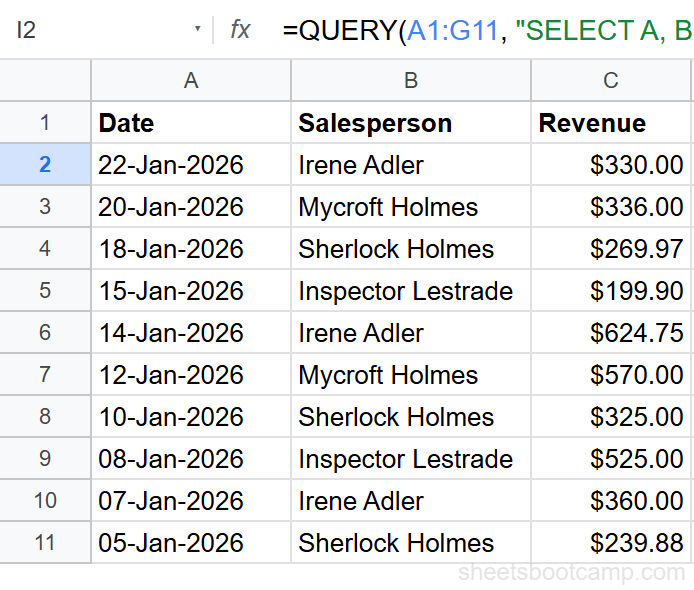
=QUERY(A1:G11, "SELECT A, B, F ORDER BY A DESC FORMAT A 'dd-mmm-yyyy'")This sorts by date descending and formats dates as “22-Jan-2026” instead of the default “1/22/2026”. The FORMAT clause changes how dates display without affecting the underlying values.
Filter a Date Range
Use two conditions with AND to filter between two dates:
=QUERY(A1:G11, "SELECT * WHERE A >= date '2026-01-07' AND A <= date '2026-01-14'")This returns all transactions in the first two weeks of January (7th through 14th). The >= and <= operators make the range inclusive on both ends.
To exclude the boundary dates, use > and <:
=QUERY(A1:G11, "SELECT * WHERE A > date '2026-01-07' AND A < date '2026-01-14'")This returns rows strictly between January 7 and 14, excluding both boundary dates.
Use Dynamic Dates (TODAY, Cell References)
Hardcoded dates like date '2026-01-15' do not update automatically. To use dynamic dates, reference a cell with a date value.
Reference a cell with TODAY()
Put =TODAY() in cell I1. Then use concatenation to build the query string:
=QUERY(A1:G11, "SELECT A, B, F WHERE A >= date '" & TEXT(I1, "yyyy-mm-dd") & "'")The TEXT(I1, "yyyy-mm-dd") function converts the cell’s date to the format QUERY expects. As TODAY() updates daily, the QUERY results update automatically.
Reference a date-picker cell
Put any date in cell I1 (typed manually or from a date picker). The same concatenation pattern works:
=QUERY(A1:G11, "SELECT * WHERE A > date '" & TEXT(I1, "yyyy-mm-dd") & "'")The concatenation pattern "date '"&TEXT(cell,"yyyy-mm-dd")&"'" works for any cell containing a date. Use it for start dates, end dates, or any dynamic date filter.
Last N days
To filter the last 30 days dynamically:
=QUERY(A1:G11, "SELECT A, B, F WHERE A >= date '" & TEXT(TODAY()-30, "yyyy-mm-dd") & "'")This returns all transactions from the last 30 days, recalculating daily.
Format Dates in QUERY Output
The FORMAT clause controls how dates display in the results:
=QUERY(A1:G11, "SELECT A, B FORMAT A 'yyyy-mm-dd'")Common date format patterns:
| Pattern | Output | Example |
|---|---|---|
mm/dd/yyyy | Month/Day/Year | 01/15/2026 |
dd-mmm-yyyy | Day-MonthAbbrev-Year | 15-Jan-2026 |
yyyy-mm-dd | Year-Month-Day (ISO) | 2026-01-15 |
mmm yyyy | MonthAbbrev Year | Jan 2026 |
dd/mm/yyyy | Day/Month/Year | 15/01/2026 |
FORMAT only changes the display. The underlying date value stays the same, so sorting and filtering still work correctly.
GROUP BY Date Parts (Month, Year)
QUERY does not have built-in MONTH() or YEAR() functions. To group by month, use FORMAT to convert dates to a month label, then group by the formatted column:
=QUERY(A1:G11, "SELECT A, SUM(F) GROUP BY A FORMAT A 'mmm yyyy' LABEL SUM(F) 'Revenue'")This groups all transactions by their exact date, then formats each date as “Jan 2026”. Since all 10 transactions fall in January 2026, this returns one row.
For multi-month data, this approach groups by month automatically. The FORMAT clause turns individual dates into month labels, and GROUP BY collapses matching labels into one row.
GROUP BY runs before FORMAT. QUERY groups by the actual date values first, then formats the result. If all your dates are unique (which they often are), each date gets its own group. To truly group by month across different days, add a helper column with =TEXT(A2, "yyyy-mm") and query that column instead.
Common Date Errors
Missing the date keyword
WHERE A > '2026-01-15' compares dates as text strings. January 15 as text (“1/15/2026”) does not compare correctly against the format “2026-01-15.” Always use date '2026-01-15'.
Wrong date format
date '01/15/2026' is not valid. QUERY requires YYYY-MM-DD format: date '2026-01-15'. No other date format works with the date keyword.
Dates stored as text
If your dates were imported as text (check by right-aligning — real dates right-align, text left-aligns), QUERY cannot compare them as dates. Convert text dates to real dates with =DATEVALUE(A2) or by selecting the column and choosing Format > Number > Date. See the date functions guide for more on date conversion.
Wrong results with formatted dates
Applying number formatting to a column (like “January 15, 2026”) does not change the underlying date value. QUERY WHERE still uses the raw date, not the displayed format. This is correct behavior — your filter works fine even if the display format looks different from YYYY-MM-DD.
Tips
1. Test your date syntax with a known value. Enter =QUERY(A1:G11, "SELECT * WHERE A = date '2026-01-05'") to confirm it returns the January 5 row. If it returns nothing, your dates may be stored as text.
2. Use TEXT() for dynamic date references. The pattern date '"&TEXT(cell,"yyyy-mm-dd")&"'" converts any cell date to the format QUERY expects. This works with TODAY(), EDATE(), and any other date function.
3. Combine date filtering with ORDER BY for chronological reports. WHERE A >= date '2026-01-01' ORDER BY A DESC returns recent transactions first.
If QUERY returns all rows or no rows when filtering by date, check whether your date column contains actual dates or text strings that look like dates. Select a cell in the date column — if it left-aligns by default, it is text, not a date.
Related Google Sheets Tutorials
- QUERY Function: Complete Guide — covers all QUERY clauses with syntax and examples
- QUERY WHERE Clause — filter rows by text, numbers, and dates
- QUERY ORDER BY — sort results chronologically or by any column
- Date Functions Guide — TODAY, DATEDIF, EDATE, and date formatting
Frequently Asked Questions
How do you filter by date in QUERY in Google Sheets?
Use the date keyword in the WHERE clause with YYYY-MM-DD format: =QUERY(A1:G11, "SELECT * WHERE A > date '2026-01-15'"). This returns rows where the date in column A is after January 15, 2026.
Why does QUERY not recognize my dates?
QUERY only recognizes dates that Google Sheets treats as actual date values. If your dates are stored as text (common with imported data), QUERY cannot filter or sort them as dates. Convert text to dates using DATEVALUE or the Format menu before querying.
How do you filter a date range in QUERY?
Use two conditions with AND: WHERE A >= date '2026-01-10' AND A <= date '2026-01-20'. This returns rows where the date falls between January 10 and January 20, 2026, inclusive.
How do you use today’s date in a QUERY?
Use cell reference concatenation instead of the date keyword. Put =TODAY() in a cell (like I1), then write: =QUERY(A1:G11, "SELECT * WHERE A = date '"&TEXT(I1,"yyyy-mm-dd")&"'"). The TEXT function converts the date to the required YYYY-MM-DD format.
How do you format dates in QUERY output?
Use the FORMAT clause: =QUERY(A1:G11, "SELECT A, B FORMAT A 'mm/dd/yyyy'"). You can use patterns like yyyy-mm-dd, mm/dd/yyyy, dd-mmm-yyyy, or mmm yyyy to control how dates display in the results.