QUERY LABEL in Google Sheets: Rename Headers
Learn how to use QUERY LABEL in Google Sheets to rename column headers in your output. Syntax, step-by-step examples, and common mistakes.
Sheets Bootcamp
March 8, 2026 · Updated September 7, 2026
The QUERY LABEL clause in Google Sheets renames column headers in the output without changing your source data. When a QUERY formula returns results, the headers default to your original column names or, worse, auto-generated labels like “sum Revenue.” LABEL gives you control over what those headers say. We’ll cover the syntax, walk through renaming single and multiple columns, and show how LABEL pairs with GROUP BY and FORMAT.
In This Guide
- LABEL Syntax
- How to Use QUERY LABEL: Step-by-Step
- LABEL Examples
- Common Errors
- Tips and Best Practices
- Related Google Sheets Tutorials
- FAQ
LABEL Syntax
LABEL goes at the end of the query string, after all other clauses:
=QUERY(data, "SELECT columns ... LABEL column1 'New Name', column2 'New Name'")| Part | Description | Required |
|---|---|---|
| Column reference | The column letter (A, B, C) or aggregate expression (SUM(F)) to rename | Yes |
| New name | The replacement header text, wrapped in single quotes | Yes |
| Comma separator | Separates multiple column-label pairs | Only for multiple labels |
LABEL accepts any column referenced in your SELECT clause, including aggregate functions like SUM(F) or COUNT(D).
New header names must be wrapped in single quotes inside the query string. LABEL B 'Sales Rep' works. LABEL B "Sales Rep" breaks because the double quotes conflict with the outer formula quotes.
Clause Order
QUERY clauses must follow this order: SELECT, WHERE, GROUP BY, PIVOT, ORDER BY, LIMIT, OFFSET, LABEL, FORMAT. LABEL always comes near the end. Placing it before ORDER BY or GROUP BY causes a parse error.
How to Use QUERY LABEL: Step-by-Step
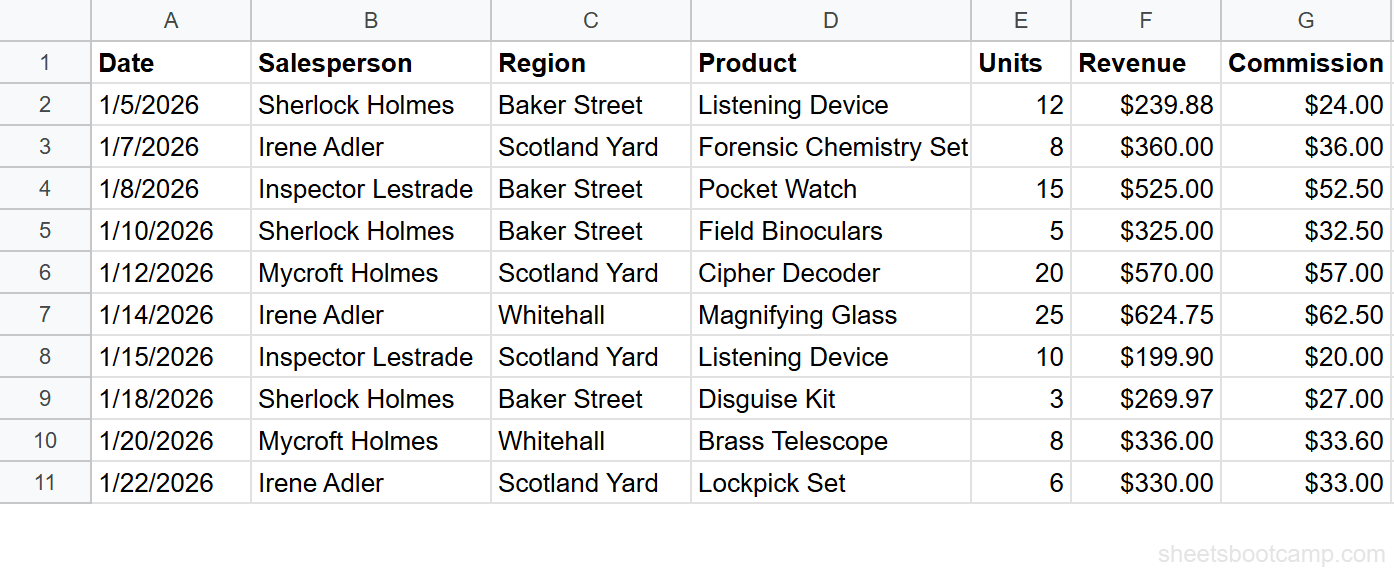
We’ll use the sales records table from the QUERY guide. The data is in A1:G19 with 18 transactions.
Sample Data
| A | B | C | D | E | F | G | |
|---|---|---|---|---|---|---|---|
| 1 | Date | Salesperson | Region | Product | Units | Revenue | Commission |
| 2 | 1/5/2026 | Sherlock Holmes | Baker Street | Listening Device | 12 | $239.88 | $24.00 |
| 3 | 1/7/2026 | Irene Adler | Scotland Yard | Forensic Chemistry Set | 8 | $360.00 | $36.00 |
| 4 | 1/8/2026 | Inspector Lestrade | Baker Street | Pocket Watch | 15 | $525.00 | $52.50 |
| 5 | 1/10/2026 | Sherlock Holmes | Baker Street | Field Binoculars | 5 | $325.00 | $32.50 |
| 6 | 1/12/2026 | Mycroft Holmes | Scotland Yard | Cipher Decoder | 20 | $570.00 | $57.00 |
Review your data range
Your data is in A1:G19. Row 1 is the header row. Seven columns: Date (A), Salesperson (B), Region (C), Product (D), Units (E), Revenue (F), and Commission (G).
Write a QUERY with LABEL
Select an empty cell and enter:
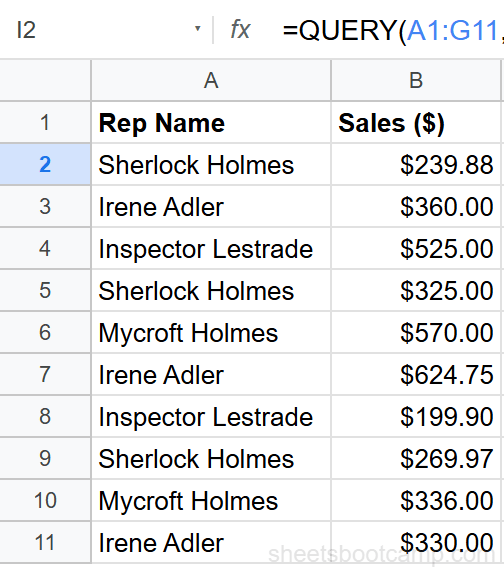
=QUERY(A1:G19, "SELECT B, C, F LABEL B 'Sales Rep', C 'Territory', F 'Amount'")This returns three columns with renamed headers: Sales Rep, Territory, and Amount. The data stays the same. Only the headers change.
Combine LABEL with GROUP BY
Enter:
=QUERY(A1:G19, "SELECT C, SUM(F) GROUP BY C LABEL C 'Region', SUM(F) 'Total Revenue'")Without LABEL, the aggregated column header would read “sum Revenue.” With LABEL, it reads “Total Revenue.” The grouped column header changes from “Region” to “Region” (same in this case, but you can rename it to anything).
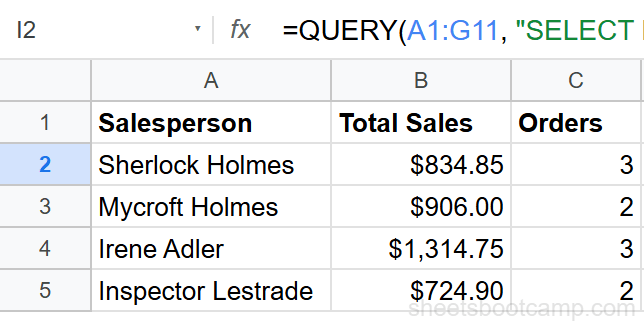
Always add LABEL when using GROUP BY. The default aggregate headers like “sum Revenue” or “count Product” are not presentation-ready. LABEL takes a few extra seconds and makes the output shareable.
LABEL Examples
Rename a Single Column
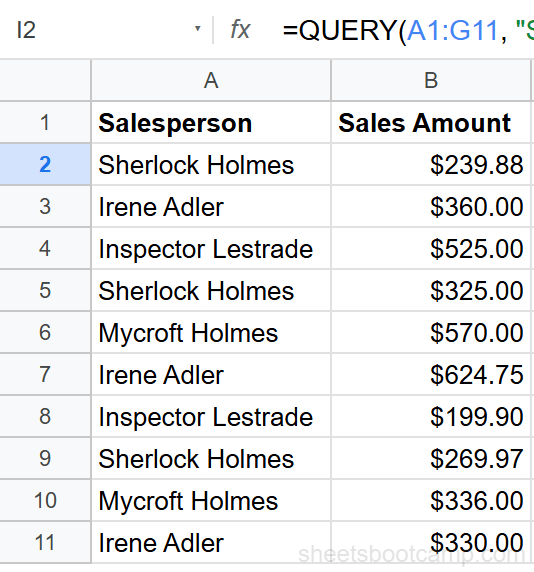
=QUERY(A1:G19, "SELECT B, F LABEL F 'Sales Amount'")This returns Salesperson and Revenue columns. Only the Revenue header changes to “Sales Amount.” The Salesperson header stays as “Salesperson” because it is not referenced in LABEL.
Rename Multiple Columns
=QUERY(A1:G19, "SELECT A, B, D, F LABEL A 'Sale Date', B 'Sales Rep', D 'Item', F 'Revenue ($)'")Each column gets its own label, separated by commas. The output headers read: Sale Date, Sales Rep, Item, Revenue ($). You can include special characters like parentheses and dollar signs in the label text.
LABEL with GROUP BY
Aggregate functions generate automatic headers that are not readable. LABEL fixes them:
=QUERY(A1:G19, "SELECT B, SUM(F), COUNT(D) GROUP BY B LABEL B 'Salesperson', SUM(F) 'Total Revenue', COUNT(D) 'Transactions'")Without LABEL, the headers would be “Salesperson”, “sum Revenue”, and “count Product.” With LABEL, they read “Salesperson”, “Total Revenue”, and “Transactions.”
| Salesperson | Total Revenue | Transactions |
|---|---|---|
| Sherlock Holmes | $1,189.73 | 4 |
| Mycroft Holmes | $1,410.86 | 4 |
| Irene Adler | $1,529.75 | 4 |
| Inspector Lestrade | $1,719.90 | 4 |
When labeling an aggregate column, use the full aggregate expression as the reference. Write LABEL SUM(F) 'Total', not LABEL F 'Total'. The column reference in LABEL must match exactly what appears in SELECT.
LABEL with FORMAT
LABEL and FORMAT are separate clauses, but they work together. LABEL renames the header. FORMAT controls how the values display:
=QUERY(A1:G19, "SELECT C, SUM(F) GROUP BY C LABEL SUM(F) 'Total Revenue' FORMAT SUM(F) '$#,##0.00'")This renames the header to “Total Revenue” and formats the values as currency with two decimal places. LABEL comes before FORMAT in the clause order.
Remove a Header with an Empty Label
You can set a header to blank by using an empty string:
=QUERY(A1:G19, "SELECT B, F LABEL B '', F ''")Both headers become empty. This is useful when you are appending QUERY output below existing headers using curly-bracket array syntax.
Common Errors
Column reference does not match SELECT
If you write LABEL E 'Units' but column E is not in your SELECT clause, QUERY returns a parse error. Every column in LABEL must also appear in SELECT.
Using the wrong reference for aggregated columns
LABEL F 'Total' does not work when SELECT uses SUM(F). You must write LABEL SUM(F) 'Total'. The LABEL reference must match the SELECT expression exactly.
Missing single quotes around the new name
LABEL B Sales Rep breaks. The new name must be wrapped in single quotes: LABEL B 'Sales Rep'. Without quotes, QUERY interprets “Sales” and “Rep” as separate tokens and throws a parse error.
Placing LABEL before ORDER BY
LABEL must come after ORDER BY in the query string. SELECT C, SUM(F) GROUP BY C LABEL SUM(F) 'Total' ORDER BY SUM(F) DESC fails. Move LABEL to the end: SELECT C, SUM(F) GROUP BY C ORDER BY SUM(F) DESC LABEL SUM(F) 'Total'.
Tips and Best Practices
1. Always use LABEL with GROUP BY queries. Aggregate headers like “sum Revenue” and “avg Commission” are confusing. LABEL turns them into readable column names with no extra effort.
2. Match LABEL references to SELECT references exactly. If SELECT says SUM(F), LABEL must say SUM(F). If SELECT says B, LABEL must say B. Mismatches cause parse errors.
3. Use empty labels to hide headers when stacking QUERY results. When combining multiple QUERY outputs with {query1; query2}, set the second query’s headers to empty strings so they do not appear as data rows.
4. Keep label names short and descriptive. Headers appear at the top of the output table. Long names push column widths wider. Aim for 2-3 words per label.
5. Pair LABEL with FORMAT for polished reports. LABEL controls the header text. FORMAT controls value display. Together, they produce output that is ready to share without additional formatting.
You can rename a column to the same text as another column. QUERY does not require unique headers in the output. This can be useful when combining data from different sources.
Related Google Sheets Tutorials
- QUERY Function: Complete Guide - covers all QUERY clauses including SELECT, WHERE, GROUP BY, and LABEL
- QUERY SELECT - choose and reorder columns in the output before labeling them
- QUERY GROUP BY - summarize data with SUM, COUNT, and AVG, then use LABEL to rename the aggregate headers
- QUERY ORDER BY - sort results before applying LABEL and FORMAT
Frequently Asked Questions
What does the LABEL clause do in Google Sheets QUERY?
LABEL renames column headers in the QUERY output. It does not change your source data. For example, LABEL B 'Sales Rep' changes the header of column B from “Salesperson” to “Sales Rep” in the result table.
How do you rename multiple columns with QUERY LABEL?
List each column and its new name separated by commas. For example, LABEL B 'Sales Rep', F 'Total Sales' renames both columns in a single clause. Each new name goes in single quotes.
Where does LABEL go in a QUERY string?
LABEL goes at the end of the query string, after SELECT, WHERE, GROUP BY, ORDER BY, and LIMIT. For example: SELECT B, F WHERE F > 300 ORDER BY F DESC LABEL B 'Rep', F 'Revenue'.
Can you use LABEL with GROUP BY in QUERY?
Yes. LABEL is especially useful with GROUP BY because aggregate functions create headers like “sum Revenue” or “count Product”. Use LABEL SUM(F) 'Total Revenue' to replace those default headers with readable names.