SORT Function in Google Sheets (Formula Guide)
Learn how to use the SORT function in Google Sheets to sort data by one or multiple columns. Covers syntax, examples, and combining SORT with FILTER.
Sheets Bootcamp
March 11, 2026 · Updated June 12, 2026
The SORT function in Google Sheets sorts a range of data by one or more columns and returns the sorted result to a new location. Unlike the Sort menu under Data, the SORT function leaves your original data untouched and updates automatically when values change.
This guide covers the SORT function syntax, sorting by single and multiple columns, combining SORT with FILTER, and fixing common errors.
In This Guide
- What Is the SORT Function?
- Syntax and Parameters
- How to Use SORT: Step-by-Step
- SORT Examples
- Common Errors and How to Fix Them
- Tips and Best Practices
- Related Google Sheets Tutorials
- FAQ
What Is the SORT Function?
SORT takes a range of data, sorts it by the column you specify, and outputs the sorted result starting in the cell where you enter the formula. The original data doesn’t move.
This is useful when you want to keep raw data in one place and display a sorted view somewhere else — like showing top sales by revenue on a dashboard tab while the source data stays in entry order on another tab.
Syntax and Parameters
=SORT(range, sort_column, is_ascending, [sort_column2], [is_ascending2])| Parameter | Description | Required |
|---|---|---|
| range | The data range to sort | Yes |
| sort_column | The column number within the range to sort by (1 = first column) | Yes |
| is_ascending | TRUE for A-Z / smallest first. FALSE for Z-A / largest first | Yes |
| sort_column2 | A second column to sort by as a tiebreaker | No |
| is_ascending2 | Sort direction for the second column | No |
The sort_column number is relative to the range, not the sheet. If your range is C2:F10, sort_column 1 refers to column C, not column A.
How to Use SORT: Step-by-Step
We’ll sort a sales dataset by revenue from highest to lowest.
Set up your data range
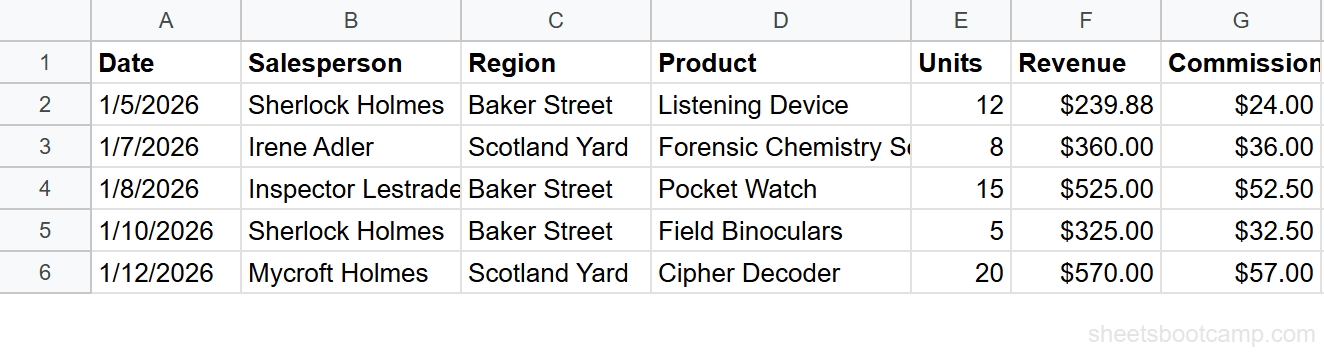
This example uses sales data in columns A through G with 18 rows of records. The headers are in row 1, and the data starts in row 2.
Enter the SORT formula
Click cell I2 (or any cell outside your data area). Enter the formula to sort by Revenue (column 6) in descending order:
=SORT(A2:G19, 6, FALSE)
Review the sorted results
The formula outputs all 18 rows sorted by Revenue from highest to lowest. The original data in columns A through G stays in its original order.
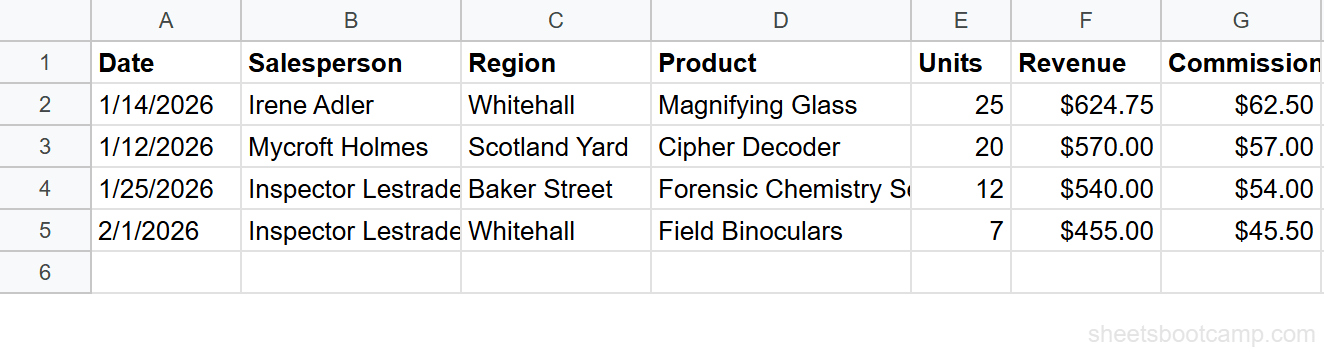
Add headers above your SORT output manually. The SORT function doesn’t carry over headers from the original range.
SORT Examples
Sort by Multiple Columns
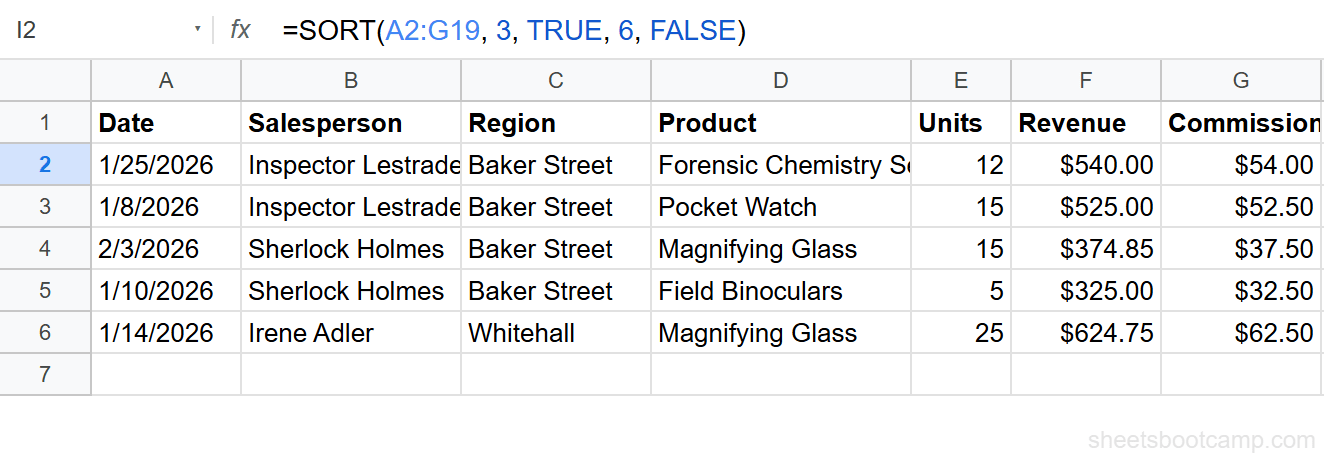
Sort by Region alphabetically, then by Revenue descending within each region:
=SORT(A2:G19, 3, TRUE, 6, FALSE)This groups all Baker Street records together (sorted by Revenue descending), then Whitehall, then Scotland Yard. The second sort acts as a tiebreaker within each region.
Sort Filtered Data
Combine SORT with FILTER to sort only matching rows. Show Baker Street sales sorted by Units descending:
=SORT(FILTER(A2:G19, C2:C19="Baker Street"), 5, FALSE)FILTER returns only the Baker Street rows, and SORT arranges them by Units (column 5) from highest to lowest.

Sort by a Column Outside the Range
Sort product names in column D alphabetically using a sort range from a different column:
=SORT(A2:G19, D2:D19, TRUE)Instead of a column number, you can pass an external sort column as the second argument. This sorts the full range A2:G19 based on the alphabetical order of column D.
Common Errors and How to Fix Them
#REF! Error
The sorted output needs more space than what’s available. If your SORT returns 18 rows and 7 columns, the cells below and to the right of the formula must be empty. Clear the area or move the formula.
#VALUE! Error
The is_ascending argument is missing or not a boolean. Every sort_column needs a matching TRUE or FALSE. If you add a second sort_column, you need a second is_ascending value to go with it.
#N/A in Output Rows
Your source data contains #N/A errors. SORT passes through whatever is in the source range, including errors. Fix the errors in the source data, or wrap the source in IFERROR before sorting.
Wrap error-prone source data: =SORT(IFERROR(A2:G19, ""), 6, FALSE). This replaces errors with blank strings before sorting.
Tips and Best Practices
-
Exclude headers from the range. Start your range at row 2 (e.g., A2:G19) so headers don’t get sorted into the data. Add headers above the output manually.
-
Use SORT for dashboards. Place raw data on one tab and SORT formulas on a dashboard tab. The sorted view updates automatically as new data is entered.
-
Combine with QUERY for more control. QUERY handles sorting, filtering, and grouping in one formula. Use SORT for straightforward sorting and QUERY when you need WHERE clauses or aggregation.
-
Avoid sorting into occupied cells. SORT spills its output into adjacent cells. If those cells contain data, you get a #REF! error. Keep the output area clear.
-
Sort by calculated values. You can sort by a helper column that contains formulas. For example, sort by a column that calculates profit margin rather than raw revenue.
Related Google Sheets Tutorials
- FILTER Function Complete Guide - Filter rows by condition and combine with SORT for filtered, sorted output
- Google Sheets QUERY Function - Sort, filter, and aggregate data in a single formula using SQL-like syntax
- UNIQUE Function in Google Sheets - Extract unique values from a column, then sort the results
- How to Remove Duplicates in Google Sheets - Five methods to clean duplicate data before sorting
FAQ
How do I sort data with a formula in Google Sheets?
Use =SORT(range, sort_column, is_ascending). The range is your data, sort_column is the column number to sort by (1 for the first column), and is_ascending is TRUE for A-Z or FALSE for Z-A. The function outputs a sorted copy of your data.
Can I sort by multiple columns in Google Sheets?
Yes. Add more sort_column and is_ascending pairs: =SORT(A2:D10, 1, TRUE, 3, FALSE). This sorts by column 1 ascending first, then by column 3 descending as a tiebreaker.
What is the difference between SORT function and the Sort menu?
The Sort menu (Data > Sort range) modifies your original data in place. The SORT function creates a separate sorted output and leaves the original data untouched. The function also updates automatically when data changes.
Can I use SORT with FILTER in Google Sheets?
Yes. Nest FILTER inside SORT: =SORT(FILTER(A2:D10, C2:C10>100), 3, FALSE). This filters rows first, then sorts the filtered results. You can also nest SORT inside FILTER.
Why does SORT return a #REF! error?
The sorted output doesn’t have enough room to spill. Clear the cells below and to the right of your SORT formula, or move the formula to an area with enough empty space for the full output.
Does the SORT function include headers?
No. SORT sorts everything in the range you give it, so if you include the header row, it gets sorted along with the data. Start your range one row below the headers (e.g., A2:D10 instead of A1:D10).