Case-Sensitive VLOOKUP in Google Sheets
Learn how to do a case-sensitive VLOOKUP in Google Sheets using INDEX, MATCH, and EXACT. Step-by-step formula examples, common errors, and best practices.
Sheets Bootcamp
March 14, 2026 · Updated August 31, 2026
A case-sensitive VLOOKUP in Google Sheets requires a workaround because VLOOKUP ignores letter case by default. If your data contains values like “SKU-101” and “sku-101,” VLOOKUP treats them as identical and returns the first match it finds.
This guide shows you how to build a case-sensitive lookup using INDEX, MATCH, and EXACT. You will get a formula that distinguishes uppercase from lowercase, with step-by-step instructions and error fixes.
In This Guide
- Why VLOOKUP Ignores Case
- The Fix: INDEX + MATCH + EXACT
- Step-by-Step: Case-Sensitive Lookup
- Examples
- Common Errors and How to Fix Them
- Tips and Best Practices
- Related Google Sheets Tutorials
- Frequently Asked Questions
Why VLOOKUP Ignores Case
VLOOKUP in Google Sheets is case-insensitive by design. When you search for “sku-101,” it matches “SKU-101,” “Sku-101,” or any other capitalization variant. Google Sheets does not offer a built-in argument to change this behavior.
This creates a problem when your data has entries that differ only by case. Consider a product inventory where “SKU-101” and “sku-101” refer to different items. A standard VLOOKUP returns the first match from top to bottom, regardless of capitalization.
=VLOOKUP("sku-101", A2:C12, 2, FALSE)This formula returns “Magnifying Glass” (the first row with any case variation of “sku-101”) even if you intended to match the lowercase version on a different row.
VLOOKUP has no optional argument for case sensitivity. You cannot fix this by changing the last parameter. The workaround requires a different set of functions.
The Fix: INDEX + MATCH + EXACT
The solution combines three functions:
- EXACT(text1, text2) compares two strings with case sensitivity. It returns TRUE only when every character matches, including uppercase and lowercase letters.
- MATCH(search_key, range, type) finds the position of a value in a range. When paired with EXACT, it locates the row where the case-sensitive match occurs.
- INDEX(range, row) returns the value at a specific position in a range.
The combined formula:
=INDEX(return_range, MATCH(TRUE, ARRAYFORMULA(EXACT(lookup_range, lookup_value)), 0))Here is how each piece works:
| Component | What It Does |
|---|---|
EXACT(A2:A12, F2) | Compares each cell in A2:A12 against F2 with case sensitivity. Returns an array of TRUE/FALSE values. |
ARRAYFORMULA(...) | Forces EXACT to evaluate every cell in the range, not just the first one. |
MATCH(TRUE, ..., 0) | Finds the position of the first TRUE in the array (the case-sensitive match). |
INDEX(C2:C12, ...) | Returns the value from column C at the matched position. |
The EXACT function is the key ingredient. On its own, =EXACT("sku-101", "SKU-101") returns FALSE because the cases differ. =EXACT("SKU-101", "SKU-101") returns TRUE.
Step-by-Step: Case-Sensitive Lookup
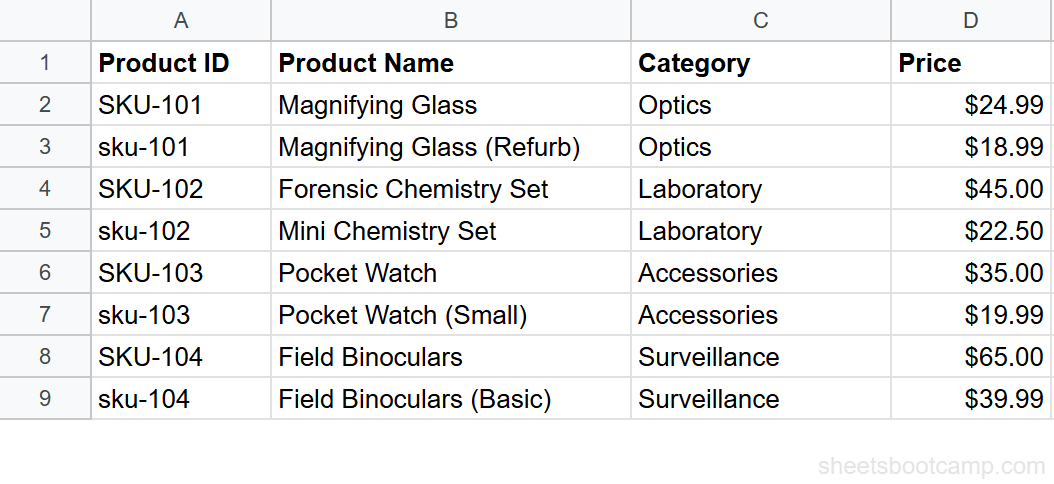
We will use the product inventory data. Imagine the sheet has both “SKU-101” and “sku-101” as Product IDs pointing to different items. The goal: look up the Category for “sku-101” specifically, not its uppercase counterpart.
Set up your data with mixed-case Product IDs
Your data is in columns A through C. Column A has Product IDs, column B has Product Names, and column C has Categories. Enter the lookup value “sku-101” in cell F2.
Enter the INDEX MATCH EXACT formula
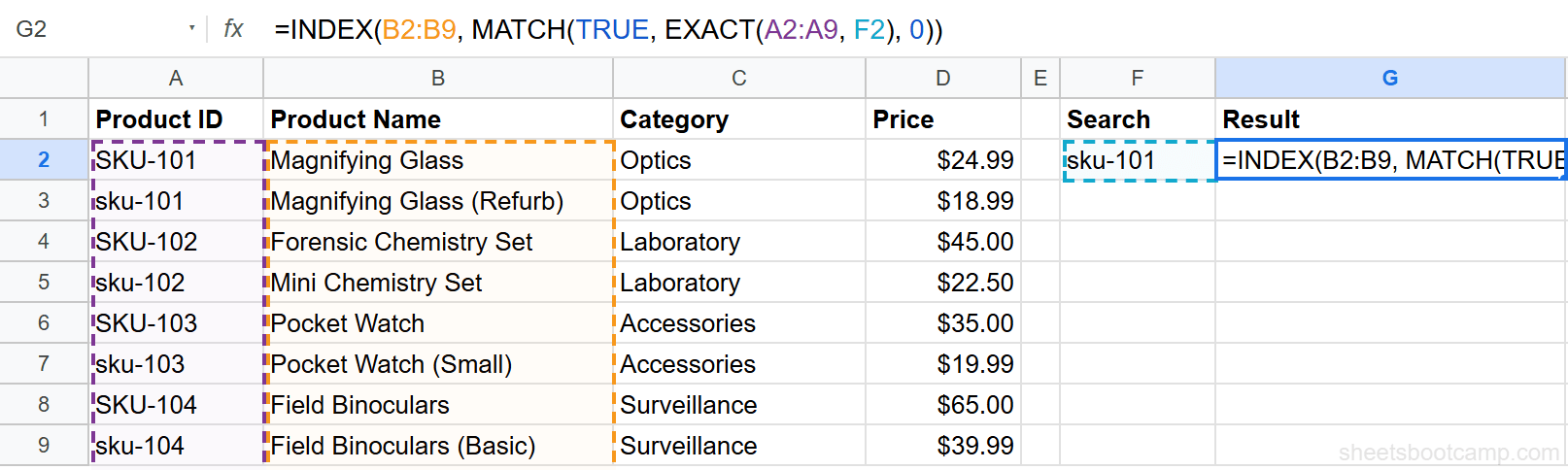
Select cell G2 and enter:
=INDEX(C2:C12, MATCH(TRUE, ARRAYFORMULA(EXACT(A2:A12, F2)), 0))EXACT checks each Product ID in A2:A12 against the value in F2. Because F2 contains “sku-101” in lowercase, EXACT returns TRUE only for the row where column A also has “sku-101” in lowercase. MATCH finds that row position, and INDEX returns the Category from column C.
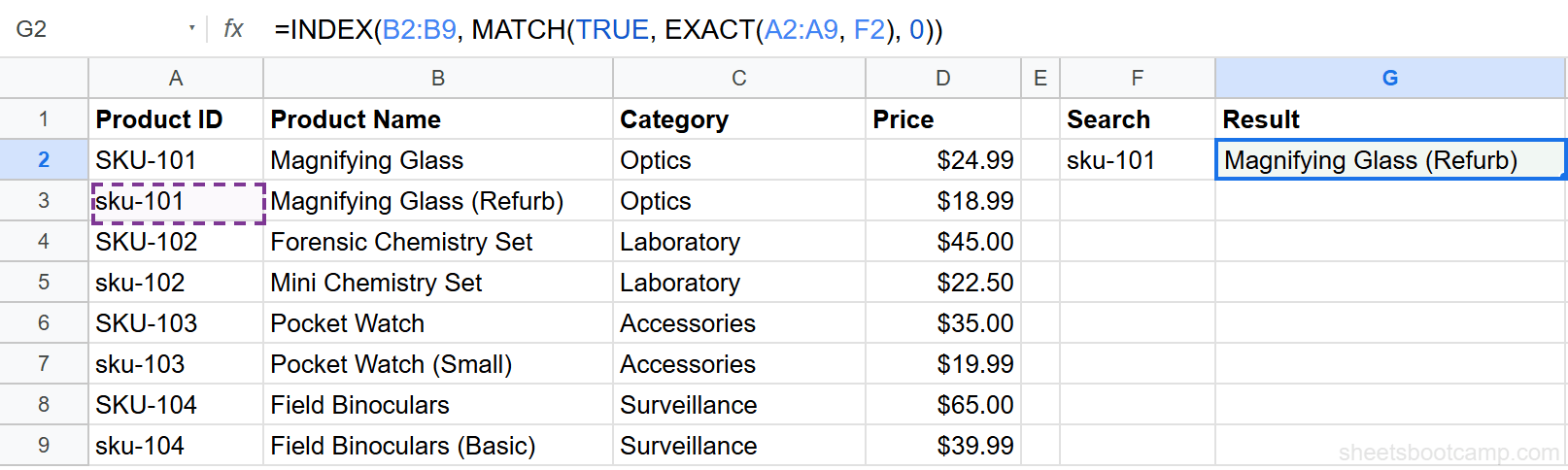
Verify the case-sensitive result
The formula returns the Category for the lowercase “sku-101” row. If you change F2 to “SKU-101” (uppercase), the result updates to show the Category for the uppercase row instead. This confirms the lookup is case-sensitive.
You can replace C2:C12 with any column range to return a different field. Use B2:B12 to return the Product Name, or D2:D12 for the Price.
Examples
Example 1: Case-Sensitive Lookup Without ARRAYFORMULA
In some legacy guides, you will see the formula entered without ARRAYFORMULA and confirmed with Ctrl+Shift+Enter instead:
=INDEX(C2:C12, MATCH(TRUE, EXACT(A2:A12, F2), 0))Press Ctrl+Shift+Enter after typing this formula. Google Sheets wraps it in curly braces {} to indicate it is processing as an array. The result is identical. However, using ARRAYFORMULA is the recommended approach because it works without a special keyboard shortcut.
If you press Enter instead of Ctrl+Shift+Enter (without ARRAYFORMULA), the formula evaluates EXACT against only the first cell in the range. This returns an incorrect result or #N/A.
Example 2: Case-Sensitive Price Lookup
To return the Price for a specific case-sensitive Product ID:
=INDEX(D2:D12, MATCH(TRUE, ARRAYFORMULA(EXACT(A2:A12, "SKU-108")), 0))This returns $89.99, the price for “SKU-108” (Disguise Kit). If the sheet had a row with “sku-108” pointing to a different item, this formula would skip it and match only the uppercase version.
Common Errors and How to Fix Them
#N/A Error
The lookup value does not match any cell in the range when compared with exact case. This happens when:
- The capitalization is wrong. Double-check every character. “Sku-101” does not match “SKU-101” or “sku-101.”
- Extra spaces exist. A trailing space makes “SKU-101 ” different from “SKU-101.” Use
=TRIM(F2)inside the formula:=INDEX(C2:C12, MATCH(TRUE, ARRAYFORMULA(EXACT(A2:A12, TRIM(F2))), 0)). - The lookup range is wrong. Verify that
A2:A12covers all rows with data.
#VALUE! Error
This appears when the return range and lookup range have different sizes. Make sure both ranges have the same number of rows. If the lookup range is A2:A12 (11 rows), the return range must also be 11 rows, such as C2:C12.
Wrap the formula in IFERROR to handle missing matches gracefully: =IFERROR(INDEX(C2:C12, MATCH(TRUE, ARRAYFORMULA(EXACT(A2:A12, F2)), 0)), "No case match").
Tips and Best Practices
-
Always use ARRAYFORMULA. It is more reliable than Ctrl+Shift+Enter and makes the formula self-documenting. Anyone reading it can see the array evaluation is intentional.
-
EXACT is strict about every character. Leading spaces, trailing spaces, and non-breaking spaces all cause mismatches. Clean your data with TRIM before running case-sensitive lookups.
-
Combine with data validation. If your Product IDs follow a specific case pattern (all uppercase, for example), use data validation to enforce it at entry time. Prevention beats troubleshooting.
-
Use named ranges for readability. Replace
A2:A12with a named range likeProductIDs. The formula becomes=INDEX(Categories, MATCH(TRUE, ARRAYFORMULA(EXACT(ProductIDs, F2)), 0)), which is easier to read and maintain. -
Consider INDEX MATCH for all lookups. Once you are comfortable with this pattern, INDEX MATCH handles case sensitivity, left-side lookups, and multiple criteria. It covers gaps that VLOOKUP cannot.
Related Google Sheets Tutorials
- VLOOKUP in Google Sheets - Complete guide to VLOOKUP syntax, examples, and features
- Fix VLOOKUP Errors - Troubleshoot #N/A, #REF!, and #VALUE! errors in VLOOKUP formulas
- INDEX MATCH in Google Sheets - A flexible lookup method that handles case sensitivity and more
- VLOOKUP with ARRAYFORMULA - Apply VLOOKUP across multiple rows automatically
Frequently Asked Questions
Is VLOOKUP case-sensitive in Google Sheets?
No. VLOOKUP treats uppercase and lowercase letters as identical. It considers “SKU-101” and “sku-101” the same value. To match case, use INDEX, MATCH, and EXACT together.
How do I make a case-sensitive lookup in Google Sheets?
Use the formula =INDEX(return_range, MATCH(TRUE, ARRAYFORMULA(EXACT(lookup_range, lookup_value)), 0)). EXACT compares each cell with case sensitivity, MATCH finds the TRUE result, and INDEX returns the corresponding value.
Do I need Ctrl+Shift+Enter for the EXACT MATCH formula?
Not in Google Sheets. Wrap the formula in ARRAYFORMULA instead: =INDEX(C2:C12, MATCH(TRUE, ARRAYFORMULA(EXACT(A2:A12, F2)), 0)). This handles the array evaluation without a keyboard shortcut.
Why does my case-sensitive lookup return #N/A?
The lookup value does not match any cell in the range when compared with case sensitivity. Check for extra spaces, confirm the exact capitalization, and verify the lookup range is correct.