COUNT, COUNTA, COUNTBLANK in Google Sheets
Learn how to use COUNT, COUNTA, and COUNTBLANK in Google Sheets. Covers counting numbers, non-empty cells, blanks, and when to use each function.
Sheets Bootcamp
February 22, 2026 · Updated June 17, 2026
COUNT, COUNTA, and COUNTBLANK are three counting functions in Google Sheets that each count a different type of cell. COUNT counts numeric cells, COUNTA counts all non-empty cells, and COUNTBLANK counts empty cells. Knowing which one to use depends on what you’re counting.
This guide covers the syntax, behavior, and practical use of all three functions, plus how to combine them for data validation and reporting.
In This Guide
- When to Use Each Function
- Syntax and Parameters
- How to Use COUNT, COUNTA, COUNTBLANK: Step-by-Step
- Practical Examples
- Common Errors and How to Fix Them
- Tips and Best Practices
- Related Google Sheets Tutorials
- FAQ
When to Use Each Function
| Function | Counts | Ignores |
|---|---|---|
| COUNT | Numeric values only | Text, blanks, errors |
| COUNTA | All non-empty cells (text, numbers, dates, errors) | Empty cells only |
| COUNTBLANK | Empty cells | Everything with a value |
Use COUNT when your column should contain only numbers and you want to verify that. Use COUNTA when you need to know how many rows have data regardless of type. Use COUNTBLANK when you want to find gaps in your data.
Syntax and Parameters
COUNT
=COUNT(value1, [value2], ...)| Parameter | Description | Required |
|---|---|---|
| value1 | A value, cell reference, or range to count | Yes |
| value2 | Additional values or ranges | No |
COUNTA
=COUNTA(value1, [value2], ...)| Parameter | Description | Required |
|---|---|---|
| value1 | A value, cell reference, or range to count | Yes |
| value2 | Additional values or ranges | No |
COUNTBLANK
=COUNTBLANK(range)| Parameter | Description | Required |
|---|---|---|
| range | The range to check for empty cells | Yes |
COUNTBLANK treats cells with formulas that return "" (empty string) as blank. A cell with =IF(A1>5, "Yes", "") that evaluates to "" is counted by COUNTBLANK even though it technically contains a formula.
How to Use COUNT, COUNTA, COUNTBLANK: Step-by-Step
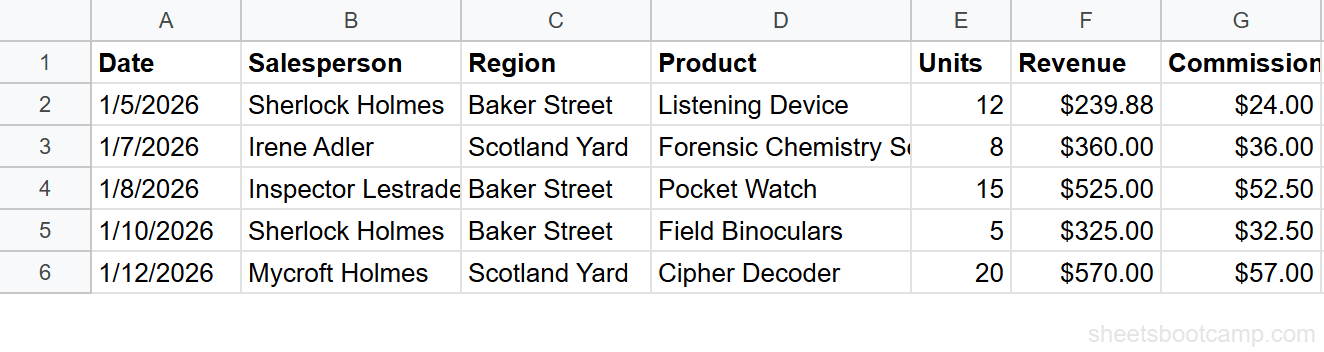
We’ll count different types of cells in a sales dataset.
Identify what you want to count
The sales data has 18 rows. Column F (Revenue) contains numbers. Column B (Salesperson) contains text. Some cells in the dataset might be blank.
Enter the formulas
In three separate cells, enter each counting formula:
=COUNT(F2:F19)=COUNTA(B2:B19)=COUNTBLANK(A2:G19)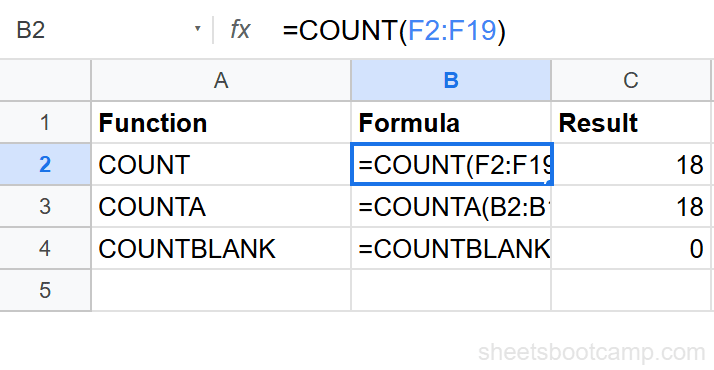
Review the counts
COUNT returns 18 (all revenue cells are numeric). COUNTA returns 18 (all salesperson cells have names). COUNTBLANK returns 0 if the dataset has no empty cells.
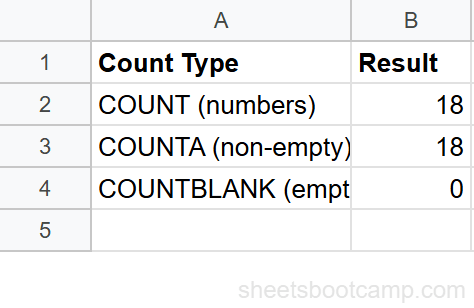
Use these three functions together to audit a dataset. If COUNTA and COUNT return different values for the same column, some cells contain text instead of numbers.
Practical Examples
Data Completeness Check
Calculate the percentage of cells filled in a column:
=COUNTA(B2:B100) / ROWS(B2:B100)COUNTA counts non-empty cells and ROWS counts total rows. Multiply by 100 or format as percentage to see completion rate. This is useful for tracking survey responses or form submissions.
Find How Many Records Are Missing Data
Count how many rows are missing a Manager value:
=COUNTBLANK(G2:G12)If the employee database should have a manager for every employee but COUNTBLANK returns 2, you know two records need attention.
Count Numbers in Mixed Data
A column contains a mix of numbers and text entries. Count only the numeric values:
=COUNT(E2:E19)If some cells say “N/A” or “Pending” instead of a number, COUNT ignores those and returns only the count of actual numeric values.
Validate Data Entry
Check if all required fields are filled using COUNTBLANK. If any cell is blank, flag the issue:
=IF(COUNTBLANK(A2:F2)>0, "Incomplete", "Complete")This checks a single row (A2:F2) for any blanks. Apply it down a helper column to flag incomplete records across the dataset.
Count Across Multiple Ranges
COUNT and COUNTA accept multiple range arguments:
=COUNTA(A2:A19, A22:A35, A38:A50)This counts non-empty cells across three separate ranges in one formula. Useful when data is split across sections of the same sheet.
Common Errors and How to Fix Them
COUNT Returns 0 for Number-Like Data
The cells contain numbers stored as text. Google Sheets sometimes imports values as text, especially from CSV files or pasted data. Select the column, go to Format > Number > Number to convert. Or use =COUNT(VALUE(A2:A19)) — though VALUE doesn’t accept array arguments, so you may need a helper column.
COUNTA Counts More Than Expected
COUNTA counts cells with error values (#N/A, #REF!) as non-empty. If you have formula errors in the range, COUNTA includes them. Use COUNTIF with specific criteria to exclude errors: =COUNTIF(A2:A19, "<>#N/A").
COUNTA counts everything that isn’t truly empty. This includes cells with spaces, formulas returning empty strings, error values, and hidden characters. If COUNTA returns a higher number than you expect, investigate with LEN to check for invisible content.
COUNTBLANK and Empty Strings
A cell showing nothing but containing ="" is counted as blank by COUNTBLANK. If you need to distinguish between truly empty cells and cells with empty-string formulas, use =ROWS(range) - COUNTA(range) instead. This counts cells where COUNTA sees no value.
Tips and Best Practices
-
Use COUNTA for row counting. =COUNTA(A2:A1000) gives you the number of data rows when column A always has a value. This is more reliable than manually tracking the last row.
-
Pair COUNT with COUNTA for data quality checks. If =COUNT(E2:E100) and =COUNTA(E2:E100) return different values on a numeric column, some cells contain text instead of numbers.
-
COUNTBLANK across rows for completeness. =COUNTBLANK(A2:F2) on each row tells you how many fields are missing. Useful for forms and data entry validation.
-
Use COUNTIF when you need conditions. COUNT, COUNTA, and COUNTBLANK count by cell type, not by value. For “count cells equal to X,” use COUNTIF instead.
-
ROWS minus COUNTA equals blanks. =ROWS(A2:A100)-COUNTA(A2:A100) is an alternative to COUNTBLANK that works the same way for single-column ranges.
Related Google Sheets Tutorials
- COUNTIF and COUNTIFS in Google Sheets - Count cells that match specific conditions
- AVERAGE, AVERAGEIF, and AVERAGEIFS - Calculate averages with optional conditions
- SUMIF and SUMIFS in Google Sheets - Sum values that meet criteria
- MAX, MIN, LARGE, and SMALL - Find the highest and lowest values in a range
FAQ
What is the difference between COUNT and COUNTA?
COUNT counts only cells containing numbers. COUNTA counts all non-empty cells, including text, numbers, dates, formulas, and error values. Use COUNT when you need numeric cells only, COUNTA when you need all non-empty cells.
How do I count non-empty cells in Google Sheets?
Use =COUNTA(range). For example, =COUNTA(A2:A100) returns the number of cells in that range that contain any value — text, numbers, dates, or formulas. Empty cells are excluded.
How do I count blank cells in Google Sheets?
Use =COUNTBLANK(range). For example, =COUNTBLANK(A2:A100) returns the number of empty cells in that range. Cells with formulas that return empty strings ("") are counted as blank.
Does COUNT include cells with text?
No. COUNT only counts cells containing numeric values. Text, logical values (TRUE/FALSE), and error values are ignored. Use COUNTA to count all non-empty cells regardless of type.
How do I count cells that match a condition?
Use COUNTIF for one condition or COUNTIFS for multiple conditions. For example, =COUNTIF(C2:C19, "Scotland Yard") counts how many cells in the range contain Scotland Yard. See the COUNTIF and COUNTIFS guide for details.
Why does COUNT return 0 when cells have data?
The cells contain text that looks like numbers. If a column has values like $100 stored as text (not formatted numbers), COUNT returns 0 because there are no true numeric values. Check Format > Number to verify the cell type.