Find and Replace in Google Sheets (With Regex)
Learn how to use Find and Replace in Google Sheets. Covers basic search, match case, search by regex, replace across sheets, and formula-based alternatives.
Sheets Bootcamp
February 25, 2026 · Updated June 11, 2026
Find and Replace in Google Sheets searches for text across your spreadsheet and replaces it with something else. It handles bulk text changes that would take forever to do cell by cell — renaming a product, fixing a misspelling, or updating a category label across thousands of rows.
This guide covers the basic Find and Replace dialog, the advanced options (match case, regex, search within formulas), and formula-based alternatives like SUBSTITUTE for when you need to keep the original data intact.
In This Guide
- Find and Replace: Step-by-Step
- Find Only (Ctrl+F)
- Advanced Options
- Search Using Regular Expressions
- Search Within Formulas
- Formula Alternative: SUBSTITUTE
- Common Use Cases
- Tips and Best Practices
- Related Google Sheets Tutorials
- FAQ
Find and Replace: Step-by-Step
Open Find and Replace
Press Ctrl+H (Cmd+Shift+H on Mac) or go to Edit > Find and replace. The dialog opens with two text fields and several checkboxes for search options.
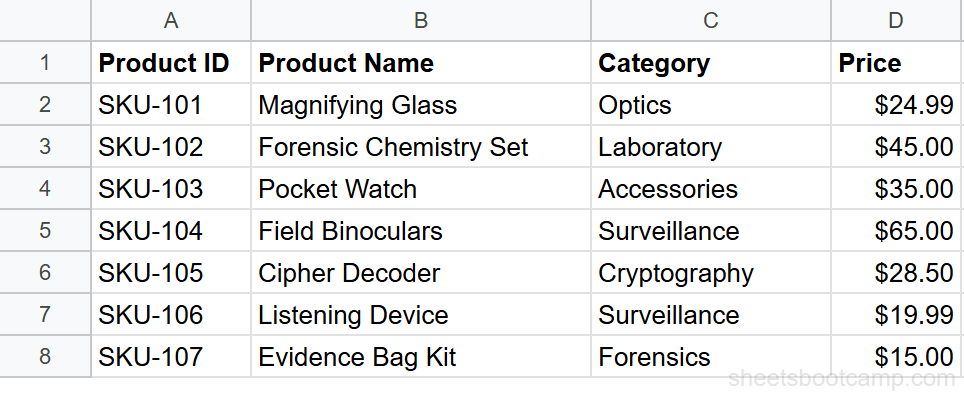
Enter the search and replacement text
Type the text to find in the Find field. Type the replacement in the Replace with field. Click Find to jump to the first match, or click Replace all to replace every occurrence at once.
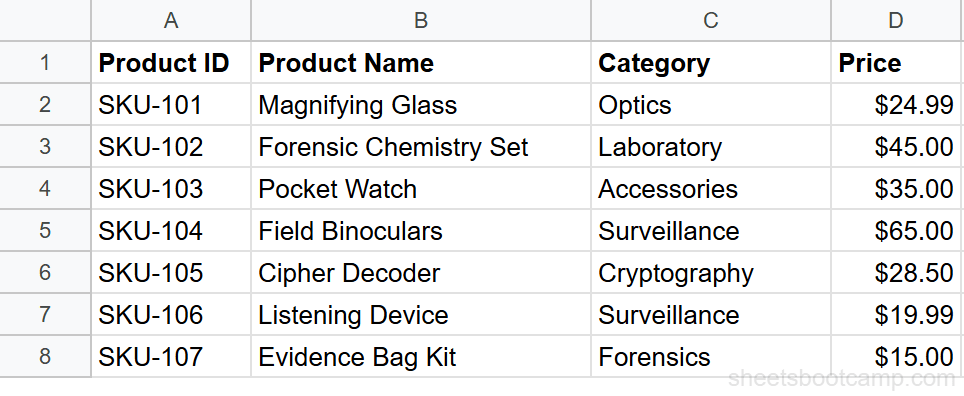
Review the changes
Google Sheets shows a message: “X occurrences replaced.” Scroll through the sheet to verify. If a replacement went wrong, press Ctrl+Z immediately to undo all changes in one step.
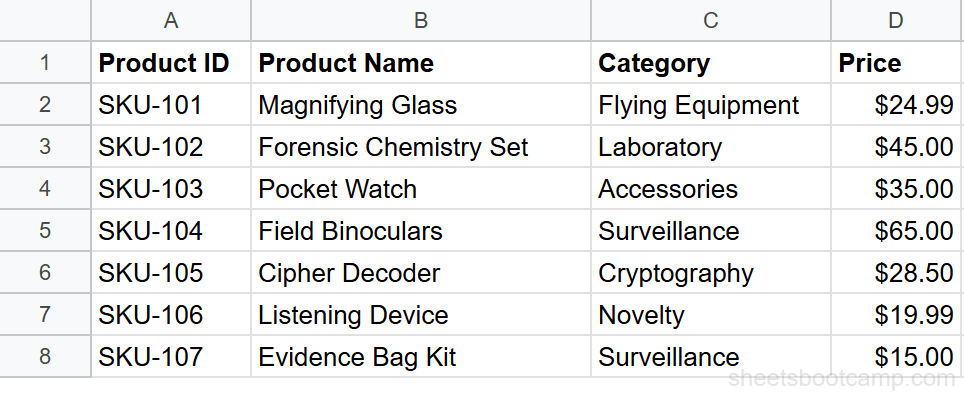
Click Replace (not Replace all) to step through matches one at a time. This lets you review each occurrence before deciding to replace or skip it.
Find Only (Ctrl+F)
Press Ctrl+F (Cmd+F on Mac) to open the Find bar at the top of the sheet. This searches without replacing. Type a term, and Google Sheets highlights every match and shows a count (e.g., “1 of 12”). Use the arrows to jump between matches.
The Find bar is faster for locating data. Use Find and Replace (Ctrl+H) when you need to change values.
Advanced Options
The Find and Replace dialog has several checkboxes that change how the search works:
| Option | What It Does |
|---|---|
| Match case | Only finds text that matches the exact capitalization. “Product” matches but “product” does not. |
| Match entire cell contents | Only matches cells where the entire value equals the search term. Searching “Apple” skips cells that say “Apple Pie”. |
| Search using regular expressions | Enables regex pattern matching (covered below). |
| Also search within formulas | Searches inside formula text, not just displayed values. |
| Search: This sheet / All sheets | Controls whether the search covers the current tab or every tab. |
“Match entire cell contents” is off by default. This means searching for “Sales” also matches “Presales” and “Sales Manager.” Turn it on when you need exact matches only.
Search Using Regular Expressions
Check Search using regular expressions to use regex patterns in the Find field. This is how you find patterns instead of literal text.
Common regex patterns for spreadsheet cleanup:
| Pattern | Finds | Example Match |
|---|---|---|
\d+ | One or more digits | ”42”, “1000” |
[A-Z]{2,} | Two or more uppercase letters | ”USA”, “SKU” |
^\s+ | Leading spaces | ” Hello” → matches the spaces |
\s+$ | Trailing spaces | ”Hello ” → matches the trailing spaces |
\(.*?\) | Text inside parentheses | ”(optional)”, “(2026)“ |
^$ | Empty cells | Blank cells |
Regex replace with capture groups:
The Replace with field supports $1, $2, etc. for captured groups:
- Find:
(\d{3})-(\d{4}) - Replace:
($1) $2 - Result: “555-1234” becomes “(555) 1234”
Google Sheets uses the RE2 regex engine. Some features from other regex flavors (like lookaheads and lookbehinds) are not supported. For full regex support in formulas, see REGEXMATCH, REGEXEXTRACT, and REGEXREPLACE.
Search Within Formulas
Check Also search within formulas to search inside the formula text instead of the displayed value. This is useful for:
- Renaming cell references. If you moved data from column B to column G, find
B2:Band replace withG2:Gacross all formulas. - Swapping function names. Replace
VLOOKUPwithXLOOKUPacross the sheet (though you’ll need to update the syntax too). - Updating sheet references. Replace
'Old Tab'!with'New Tab'!when you rename a tab but existing formulas still reference the old name.
Be careful replacing text inside formulas. A broad search term can match unintended parts of a formula and break it. Use “Match entire cell contents” off but be specific with your search term. Always review the results and have Ctrl+Z ready.
Formula Alternative: SUBSTITUTE
Find and Replace modifies cells directly. If you need to keep the original data and produce cleaned versions in a new column, use the SUBSTITUTE function instead:
=SUBSTITUTE(A2, "Optics", "Flying Equipment")This returns the modified text without changing cell A2. SUBSTITUTE is non-destructive and works inside other formulas.
For multiple replacements, nest SUBSTITUTE calls:
=SUBSTITUTE(SUBSTITUTE(A2, "old1", "new1"), "old2", "new2")Common Use Cases
Fix misspellings across a sheet. Find “Recieve” and replace with “Receive.” Replace all handles every instance in one click.
Rename a category or status. A “Pending” status needs to become “In Progress.” Find and Replace updates every cell without manual editing.
Clean up imported data. External data often has extra spaces, inconsistent capitalization, or unwanted characters. Use regex to strip leading/trailing spaces (^\s+ and \s+$ replaced with nothing).
Update cell references in formulas. After reorganizing columns, update all formulas that reference the old column. Search within formulas to change C2:C to D2:D.
Remove specific text. To delete text without replacing it, leave the Replace with field empty. Find “TBD” and replace with nothing to remove every “TBD” from the sheet.
Tips and Best Practices
- Use Ctrl+Z as your safety net. Replace all can change hundreds of cells instantly. If the replacement is wrong, undo immediately. Google Sheets treats Replace all as a single undoable action.
- Start specific, then broaden. Search for the exact term first. If too few results match, widen the search by unchecking “Match case” or “Match entire cell contents.”
- Preview before replacing all. Click Find a few times to see what matches before committing to Replace all. One unexpected match can cause data corruption.
- Use regex for pattern-based cleanup. Literal find-and-replace works for exact text. Regex handles patterns like phone numbers, dates, or codes that vary in format.
- Prefer SUBSTITUTE for non-destructive changes. When the original data must stay intact, use the SUBSTITUTE function in a helper column instead of Find and Replace.
Related Google Sheets Tutorials
- SUBSTITUTE Function in Google Sheets — Replace text within formulas without modifying the original cell
- REGEXMATCH, REGEXEXTRACT, REGEXREPLACE — Use regular expressions in formulas for pattern matching and extraction
- TRIM and CLEAN in Google Sheets — Remove extra spaces and non-printable characters from imported data
- Remove Duplicates in Google Sheets — Find and remove repeated rows using the built-in tool or formulas
FAQ
How do I find and replace in Google Sheets?
Press Ctrl+H (Cmd+Shift+H on Mac) to open the Find and replace dialog. Enter the text to find and the replacement text, then click Replace all. Google Sheets replaces every match and tells you how many changes were made.
Can I find and replace across all sheets?
Yes. In the Find and replace dialog, check the box labeled Search: All sheets. Google Sheets searches every tab in the spreadsheet, not just the active one.
How do I use regex in Find and Replace?
Check the Search using regular expressions box in the Find and replace dialog. This lets you use regex patterns like \d+ for numbers, [A-Z] for uppercase letters, or .* for any text. The Replace with field supports capture groups like $1.
Does Find and Replace work on formulas?
Yes. Check the Also search within formulas box to find text inside formulas, not just cell values. This is useful for replacing function names or cell references across many formulas at once.
How do I find without replacing in Google Sheets?
Press Ctrl+F (Cmd+F on Mac) to open the Find bar without the replace option. Or open Find and replace (Ctrl+H) and leave the Replace with field empty. Click Find to cycle through matches without changing anything.
Can I use SUBSTITUTE instead of Find and Replace?
Yes. The SUBSTITUTE function replaces text within a formula and outputs the result to a new cell without modifying the original. Use =SUBSTITUTE(A1, “old”, “new”) to replace text non-destructively. This is better when you need to keep the original data intact.