Google Sheets IF Function: Complete Guide
Learn how to use the IF function in Google Sheets with step-by-step examples. Covers syntax, nested IF, IF with AND/OR, common errors, and best practices.
Sheets Bootcamp
February 18, 2026
The IF function in Google Sheets tests a condition and returns different values based on whether that condition is true or false. It’s the foundation of every logical formula in Sheets — once you understand IF, functions like COUNTIF, SUMIF, and IFS all make more sense.
This guide covers the IF function syntax, walks through real examples with sales data, and shows how to combine IF with AND, OR, and nested conditions.
In This Guide
- IF Function Syntax
- How to Use IF in Google Sheets: Step-by-Step
- IF Function Examples
- Nested IF Statements
- IF with AND and OR
- Common IF Function Errors
- Tips and Best Practices
- Related Google Sheets Tutorials
- FAQ
IF Function Syntax
The IF function takes three arguments:
=IF(logical_expression, value_if_true, value_if_false)| Parameter | Description | Required |
|---|---|---|
| logical_expression | A condition that evaluates to TRUE or FALSE (e.g., A1>100, B2="Yes") | Yes |
| value_if_true | The value returned when the condition is TRUE | Yes |
| value_if_false | The value returned when the condition is FALSE | No |
The condition can use any comparison operator:
| Operator | Meaning | Example |
|---|---|---|
= | Equal to | A1="Yes" |
<> | Not equal to | A1<>"" |
> | Greater than | B2>100 |
< | Less than | B2<50 |
>= | Greater than or equal to | C3>=90 |
<= | Less than or equal to | C3<=0 |
If you omit value_if_false, the function returns FALSE (the boolean value, not the text “FALSE”). To return a blank cell instead, use an empty string: =IF(A1>100, "Over", "").
How to Use IF in Google Sheets: Step-by-Step
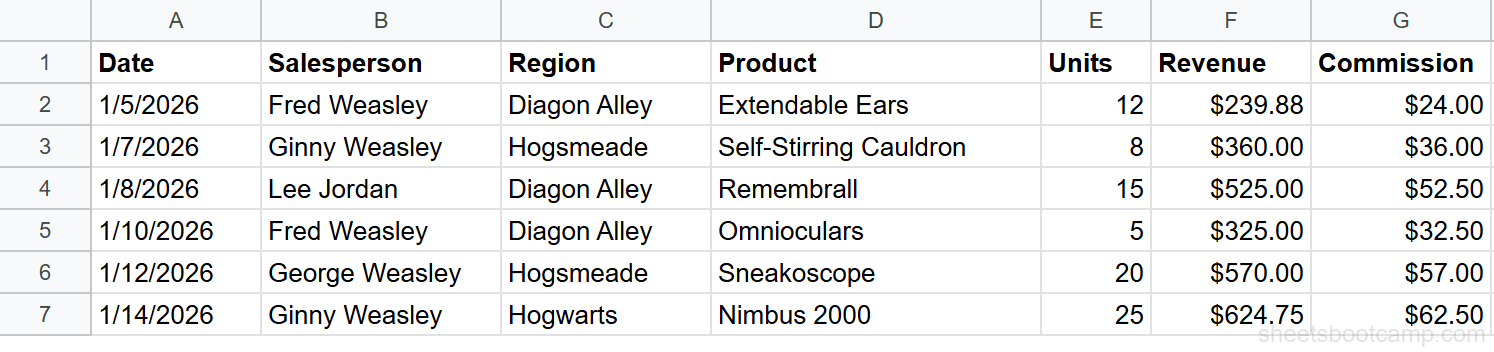
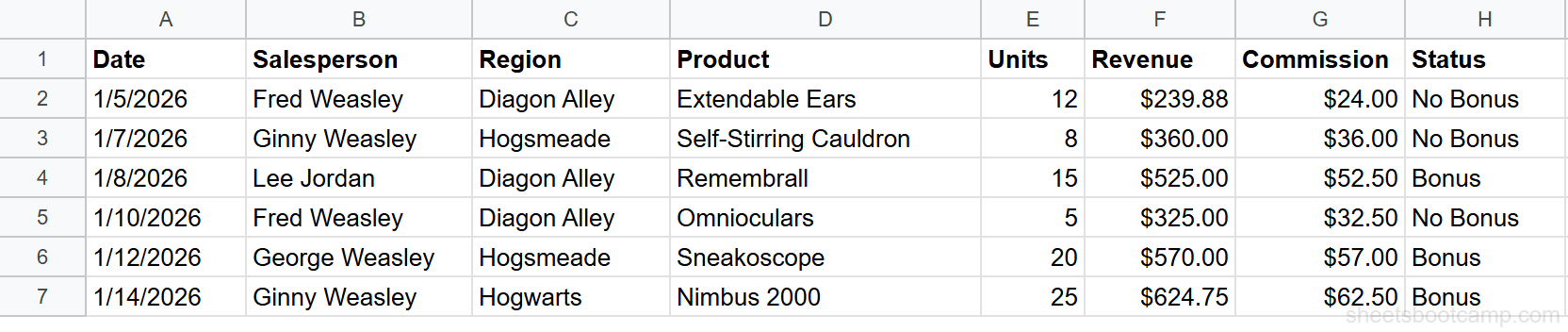
We’ll use a sales records table to determine which transactions qualify for a bonus. Any sale with revenue over $400 earns a bonus.
Sample Data
Set up your data
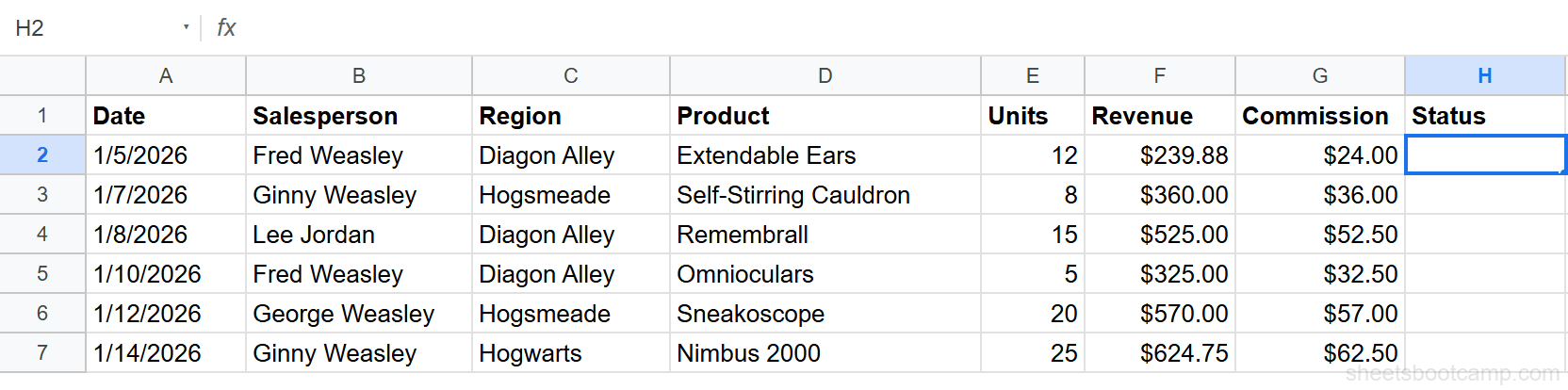
You need a column with values to evaluate. In this table, column F (Revenue) contains the values we’ll check. Select cell H2 — that’s where the IF result will go.
Enter the IF formula
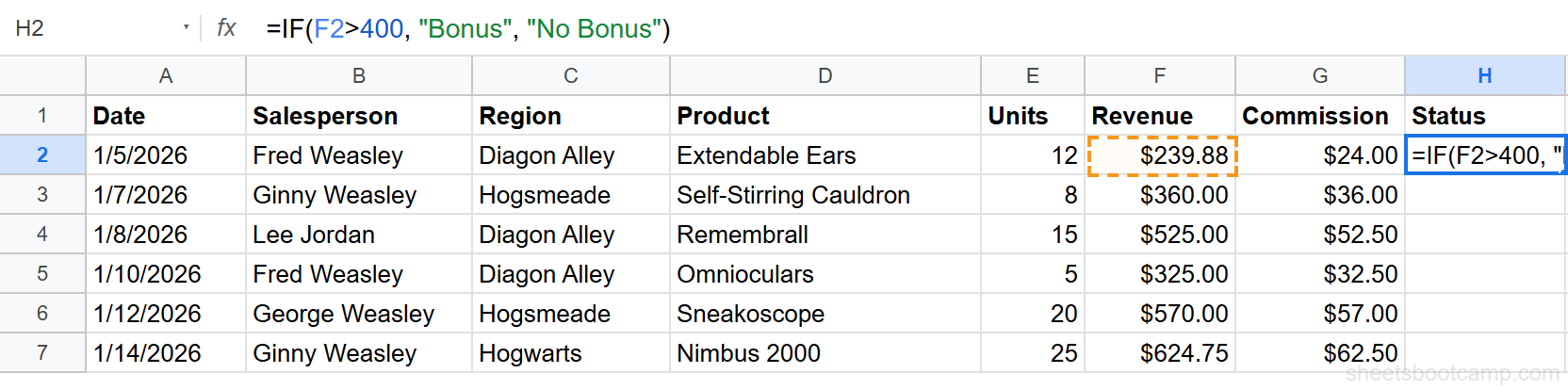
Type the following formula in cell H2:
=IF(F2>400, "Bonus", "No Bonus")This checks whether the revenue in F2 is greater than 400. If true, it returns “Bonus”. If false, it returns “No Bonus”.
Review the result
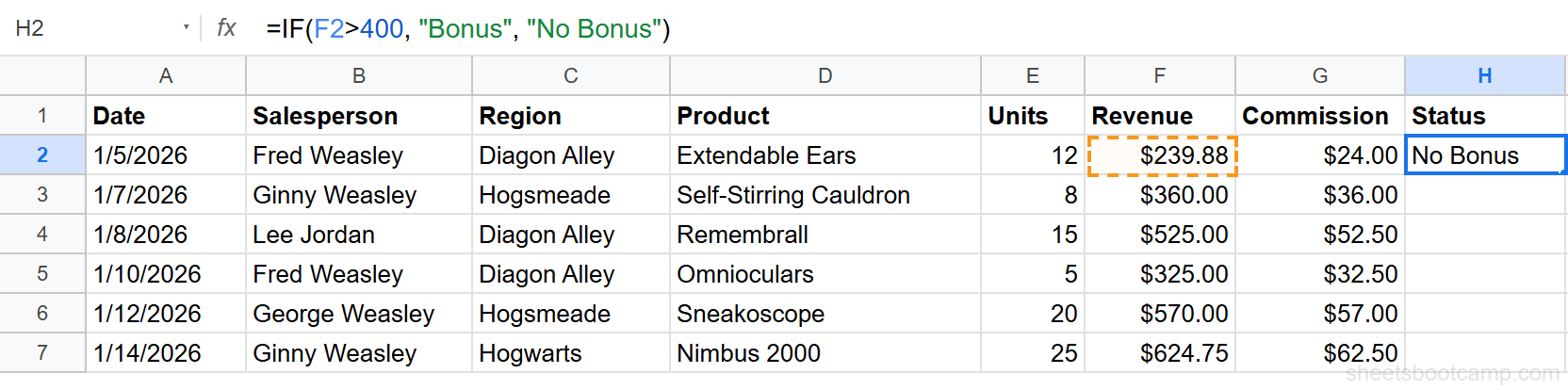
Press Enter. Cell H2 shows “No Bonus” because F2 contains $239.88, which is less than 400.
Copy the formula down the column
Select H2 and drag the fill handle down through H7. Each row evaluates its own revenue value. Rows with revenue over $400 show “Bonus” and the rest show “No Bonus”.
When copying IF formulas down a column, the cell references update automatically. F2 becomes F3, F4, and so on. If you need to reference a fixed cell (like a threshold value in a specific cell), use an absolute reference: $B$1.
IF Function Examples
Example 1: Label Performance Tiers
You want to label each sale as “Top Seller” when revenue exceeds $500, or “Standard” otherwise.
=IF(F2>500, "Top Seller", "Standard")For row 6 where Ginny Weasley sold Nimbus 2000s for $624.75, this returns “Top Seller”. For row 1 where Fred Weasley sold Extendable Ears for $239.88, it returns “Standard”.
Example 2: Check for Empty Cells
Before running calculations on a column, you might need to check whether cells contain data.
=IF(A2="", "Missing", A2)If cell A2 is empty, this returns “Missing”. If A2 has a value, it returns that value as-is. This is useful for flagging incomplete records in a shared spreadsheet.
An empty string "" and a blank cell are not the same thing in Google Sheets. A cell that looks empty might contain a space or a zero-length formula result. Use =IF(ISBLANK(A2), "Empty", "Has data") to specifically test for truly blank cells.
Example 3: Return a Calculated Value
IF doesn’t have to return text. It can return numbers, formulas, or calculations.
=IF(E2>10, F2*0.1, F2*0.05)This creates a tiered commission: 10% commission on sales with more than 10 units, and 5% on smaller sales. For row 3 where Lee Jordan sold 15 Remembralls for $525.00, this returns $52.50 (10% rate). For row 4 where Fred Weasley sold 5 Omnioculars for $325.00, it returns $16.25 (5% rate).
Nested IF Statements
When you need more than two outcomes, nest one IF inside another. Each IF handles one condition, and the false branch passes control to the next IF.
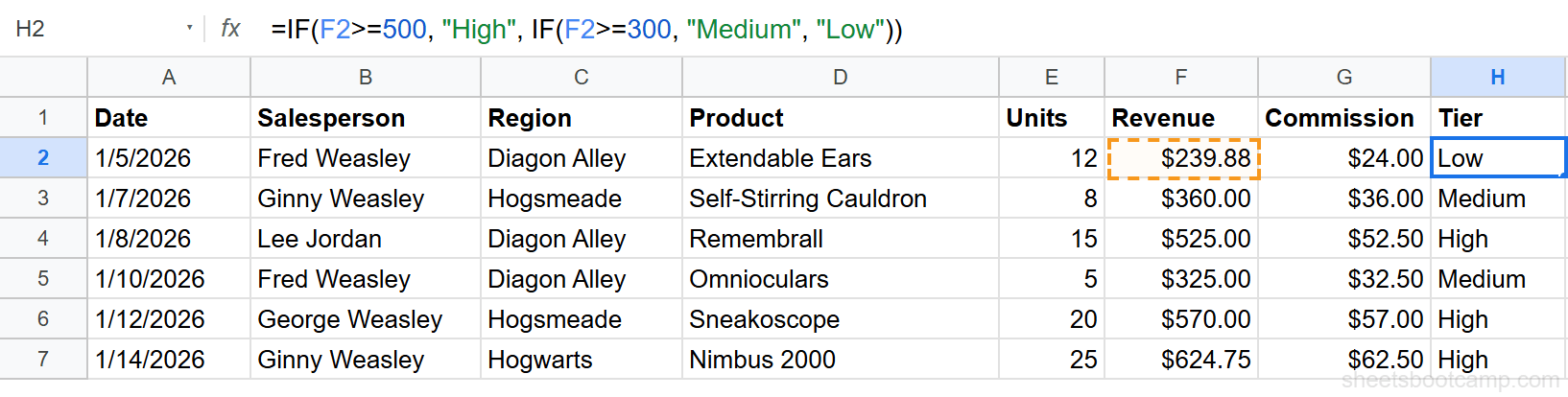
=IF(F2>=500, "High", IF(F2>=300, "Medium", "Low"))This creates three tiers:
- Revenue $500 or more → “High”
- Revenue $300 to $499 → “Medium”
- Revenue under $300 → “Low”
For Ginny Weasley’s $624.75 Nimbus 2000 sale, this returns “High”. For Fred Weasley’s $239.88 Extendable Ears sale, it returns “Low”.
Nested IFs get hard to read after 3 levels. For 4 or more conditions, use the IFS function instead. IFS checks multiple conditions in a flat list without nesting.
For a deeper walkthrough with more complex examples, see our guide on nested IF statements in Google Sheets.
IF with AND and OR
Combine IF with AND or OR to test multiple conditions at once.
IF with AND (all conditions must be true)
AND returns TRUE only when every condition inside it is true.
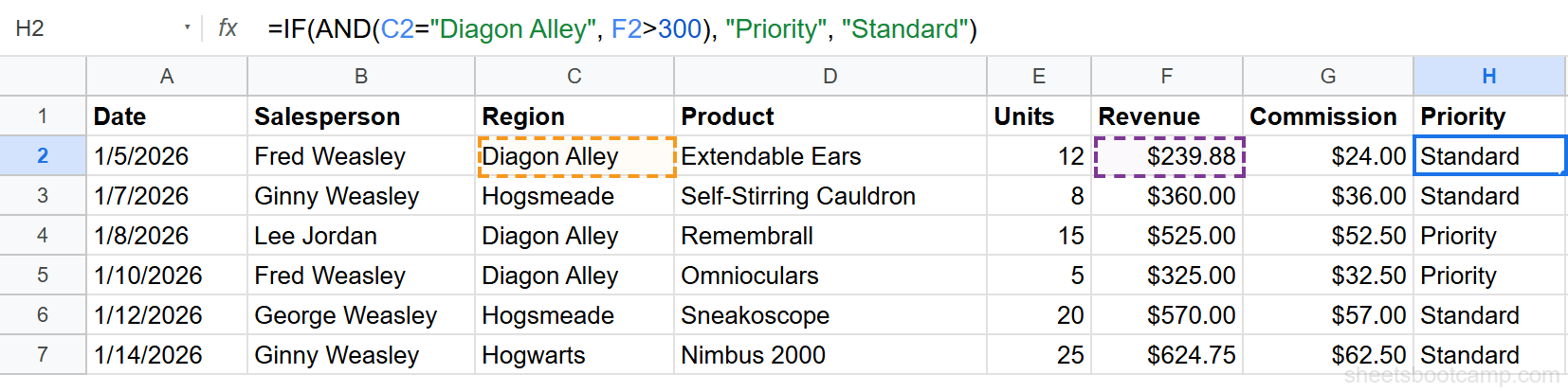
=IF(AND(C2="Diagon Alley", F2>300), "Priority", "Standard")This checks two things: the region is Diagon Alley AND revenue exceeds $300. Both must be true to return “Priority”. For Fred Weasley’s $325.00 Omnioculars sale in Diagon Alley, this returns “Priority”. For his $239.88 Extendable Ears sale (also Diagon Alley but under $300), it returns “Standard”.
IF with OR (any condition can be true)
OR returns TRUE when at least one condition is true.
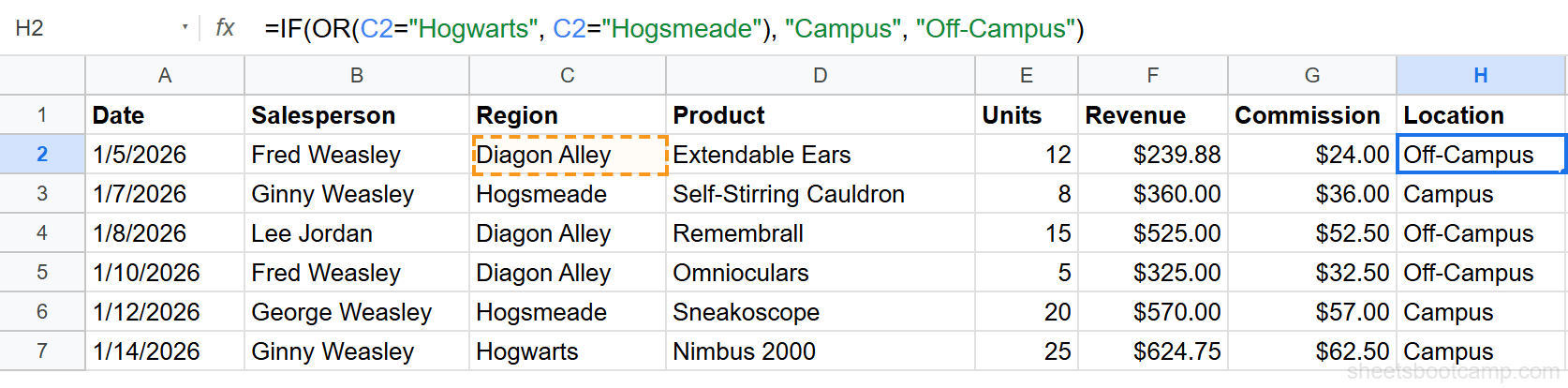
=IF(OR(C2="Hogwarts", C2="Hogsmeade"), "Campus", "Off-Campus")This checks whether the region is Hogwarts OR Hogsmeade. Either one returns “Campus”. Any other region returns “Off-Campus”. For Ginny Weasley’s Hogwarts sale, this returns “Campus”. For Fred Weasley’s Diagon Alley sale, it returns “Off-Campus”.
For more patterns including combined AND/OR conditions, see the full guide on IF with AND and OR.
Common IF Function Errors
Empty String vs. FALSE
If you write =IF(A1>100, "Yes") without a third argument, the false result is the boolean value FALSE — not a blank cell. This can break formulas that reference the cell later.
Fix it by always including the third argument:
=IF(A1>100, "Yes", "")The empty string "" displays as a blank cell and doesn’t interfere with other formulas.
#VALUE! Error
This usually happens when the logical expression references text where a number is expected, or vice versa.
=IF("hello">100, "Yes", "No")You can’t compare text to a number with >. Google Sheets returns #VALUE! because the comparison doesn’t make sense. Make sure both sides of a comparison are the same data type.
Text Comparisons Are Not Case-Sensitive
=IF(A1="apple", "Found", "Not found") returns “Found” for “apple”, “APPLE”, and “Apple”. IF treats all three as equal.
If you need case-sensitive matching:
=IF(EXACT(A1, "Apple"), "Match", "No match")The EXACT function compares two strings with case sensitivity, and the IF function acts on the result.
Comparing Dates
Dates in Google Sheets are numbers. You can compare them directly:
=IF(A2>DATE(2026,1,15), "After Jan 15", "Before Jan 15")Use the DATE function to create a date value for comparison. Don’t compare against a text string like “1/15/2026” — it will work sometimes but fail when date formats differ.
Wrap any IF formula in IFERROR to catch unexpected errors: =IFERROR(IF(F2>400, "Bonus", "No Bonus"), "Check data"). This prevents a single bad cell from breaking an entire column of formulas.
Tips and Best Practices
-
Always include the third argument. Omitting
value_if_falsereturns the booleanFALSE, which displays as “FALSE” in the cell and confuses other formulas. Use""for a blank cell or0for zero. -
Keep nesting under 3 levels.
=IF(A, X, IF(B, Y, IF(C, Z, W)))is about as deep as you should go. Beyond that, switch to IFS or SWITCH. -
IF is not case-sensitive. For case-sensitive text checks, wrap the condition in
EXACT(). -
Use absolute references when copying down. If your formula references a fixed threshold (like a target in cell B1), lock it with
$B$1so it doesn’t shift when you drag the formula down. -
Combine with IFERROR for cleaner results.
=IFERROR(IF(...), "Error")catches any unexpected issues and returns a clean fallback value.
Related Google Sheets Tutorials
- Nested IF Statements in Google Sheets — Handle 3 or more outcomes by stacking IF functions inside each other
- IFS Function in Google Sheets — Check multiple conditions without nesting, cleaner than nested IF for 4+ outcomes
- IF with AND / OR in Google Sheets — Test multiple conditions at once using AND (all must be true) or OR (any can be true)
- COUNTIF and COUNTIFS Guide — Count cells that match one or more conditions
- SUMIF and SUMIFS Guide — Add up values that match specific criteria
- VLOOKUP Complete Guide — Look up values from a table, often combined with IF for conditional lookups
Frequently Asked Questions
What does the IF function do in Google Sheets?
The IF function tests a condition and returns one value when the condition is true and a different value when it is false. For example, =IF(A1>100, "Over budget", "Within budget") checks if A1 exceeds 100 and returns the matching label.
How do you write an IF/THEN formula in Google Sheets?
Use the syntax =IF(condition, value_if_true, value_if_false). The condition is any expression that evaluates to TRUE or FALSE. For example, =IF(B2="Yes", "Complete", "Pending") checks if B2 contains “Yes” and returns the appropriate status.
Can you nest IF statements in Google Sheets?
Yes. Place another IF function inside the value_if_true or value_if_false argument. For example, =IF(A1>=90, "A", IF(A1>=80, "B", "C")) checks multiple conditions in sequence. Google Sheets supports nesting, but beyond 3 levels, IFS is cleaner.
Is the IF function case-sensitive in Google Sheets?
No. IF treats “apple” and “APPLE” as the same value when comparing text. If you need a case-sensitive comparison, wrap the condition in EXACT: =IF(EXACT(A1, "Apple"), "Match", "No match").
What is the difference between IF and IFS in Google Sheets?
IF checks one condition and returns one of two values. IFS checks multiple conditions in order and returns the value for the first true condition. IFS replaces deeply nested IF statements with a flat, readable formula.