Remove Duplicates in Google Sheets (5 Methods)
Learn 5 ways to remove duplicates in Google Sheets. Covers the built-in tool, UNIQUE function, COUNTIF helper column, and more with step-by-step examples.
Sheets Bootcamp
March 15, 2026 · Updated March 30, 2026
Removing duplicates in Google Sheets cleans up repeated rows so your data has one entry per record. Whether you have duplicate product IDs, repeated customer entries, or imported data with copies, there are several ways to fix it.
This guide covers 5 methods to remove duplicates in Google Sheets: the built-in menu tool, the UNIQUE function, a COUNTIF helper column, conditional formatting, and Apps Script. Each method works differently, and the right choice depends on whether you want to modify your source data or keep it intact.
In This Guide
- What Counts as a Duplicate?
- Method 1: Built-in Remove Duplicates Tool
- Method 2: UNIQUE Function
- Method 3: COUNTIF Helper Column
- Method 4: Highlight Duplicates with Conditional Formatting
- Method 5: Apps Script for Automation
- Which Method Should You Use?
- Tips and Best Practices
- Related Google Sheets Tutorials
- FAQ
What Counts as a Duplicate?
Before removing anything, decide what “duplicate” means for your data. There are two types:
Exact row duplicates — every column in one row matches every column in another row. Row 2 and row 5 below are exact duplicates because Product ID, Product Name, Category, and Price all match.
Single-column duplicates — one column has repeated values, but other columns may differ. Two rows might share the same Product ID but have different prices (for example, after a price change). Whether these count as duplicates depends on your use case.
Here is a product inventory with 10 rows. Three are duplicates: SKU-101 appears in rows 2 and 5, SKU-102 in rows 3 and 8, and SKU-103 in rows 4 and 10.
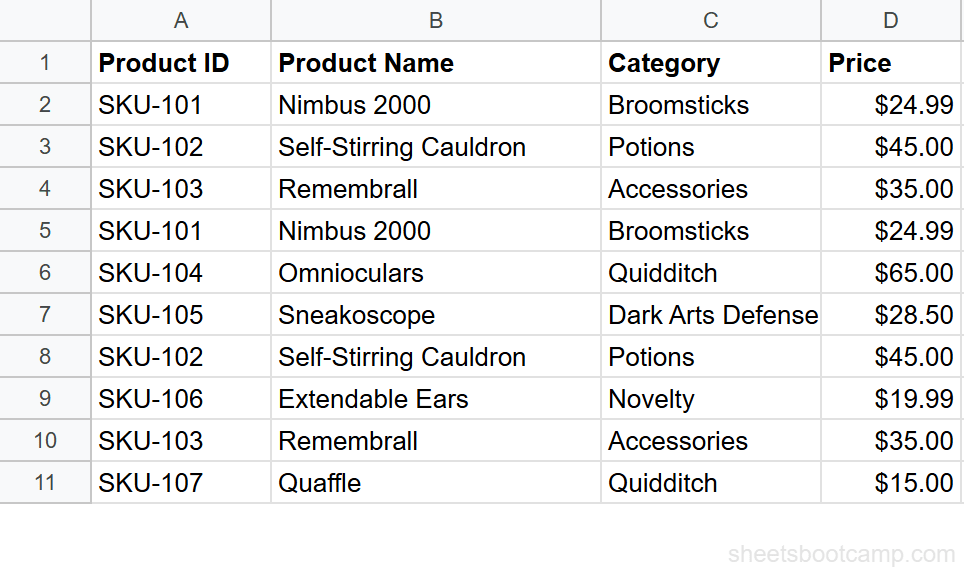
Every method below uses this same dataset.
Method 1: Built-in Remove Duplicates Tool
The fastest way to delete duplicate rows. Google Sheets has a built-in tool under the Data menu that finds and removes duplicates in one step.
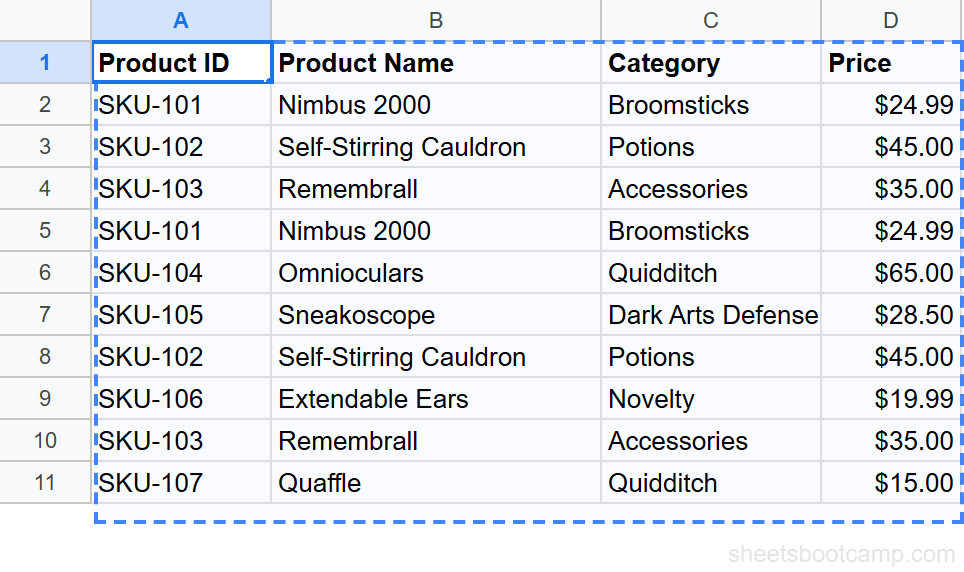
Select your data
Select the range that contains your data, including the header row. For this example, select A1:D11.
Open the Remove duplicates tool
Go to Data > Data cleanup > Remove duplicates. A dialog appears with a checkbox for each column. Keep all columns checked to find exact row matches. Check the Data has header row box so Google Sheets skips the header during comparison.
To compare only specific columns, uncheck the ones you want to ignore. For example, uncheck Price to treat rows as duplicates even if prices differ.
Remove the duplicates
Click Remove duplicates. Google Sheets deletes the duplicate rows and shows a confirmation message: “3 duplicate rows found and removed; 7 unique rows remain.”
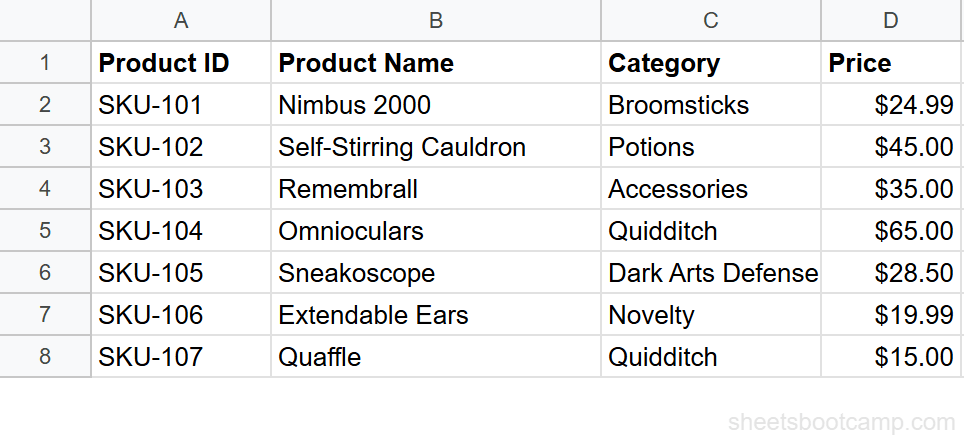
Google Sheets keeps the first occurrence of each duplicate and deletes the later ones. The remaining 7 rows are all unique.
This modifies your data permanently. Press Ctrl+Z (Cmd+Z on Mac) immediately if you removed the wrong rows. For safety, make a copy of your sheet before running Remove duplicates on large datasets.
Method 2: UNIQUE Function
UNIQUE creates a new list of unique rows without touching the source data. The original stays intact, and the deduplicated results appear in a separate area.
Enter this formula in cell F2 (with matching headers in F1:I1):
=UNIQUE(A2:D11)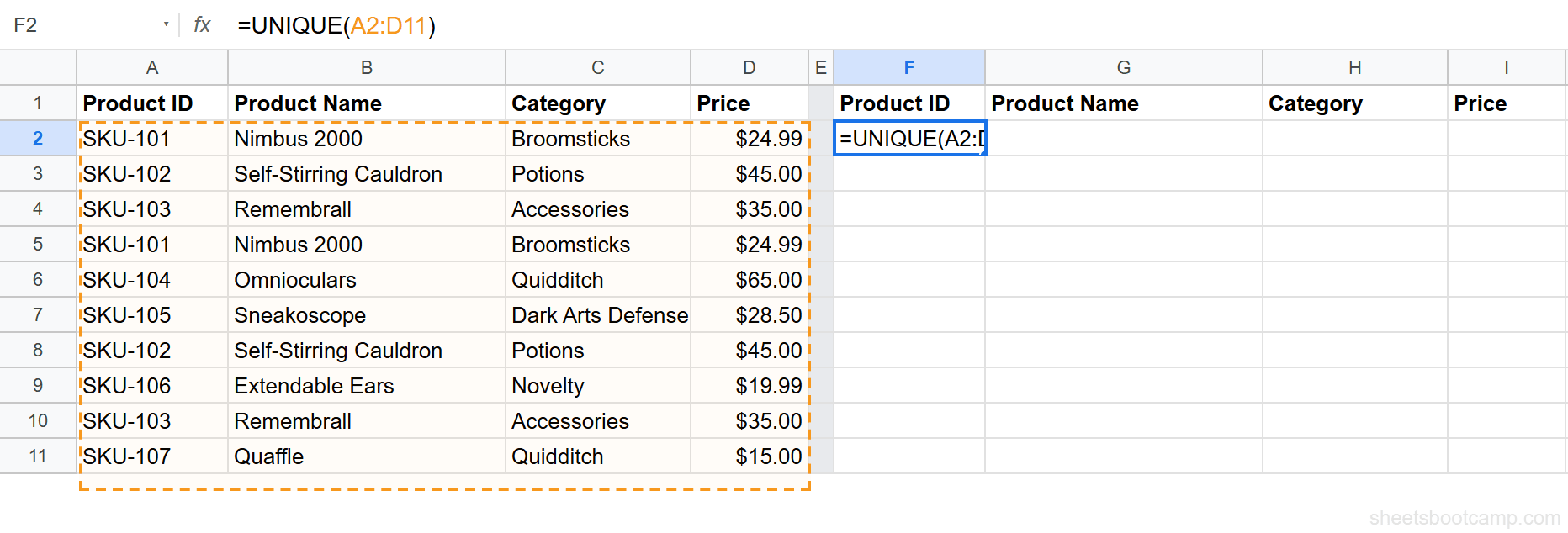
UNIQUE compares entire rows across all four columns. It returns 7 rows — the same result as the built-in tool, but without deleting anything.
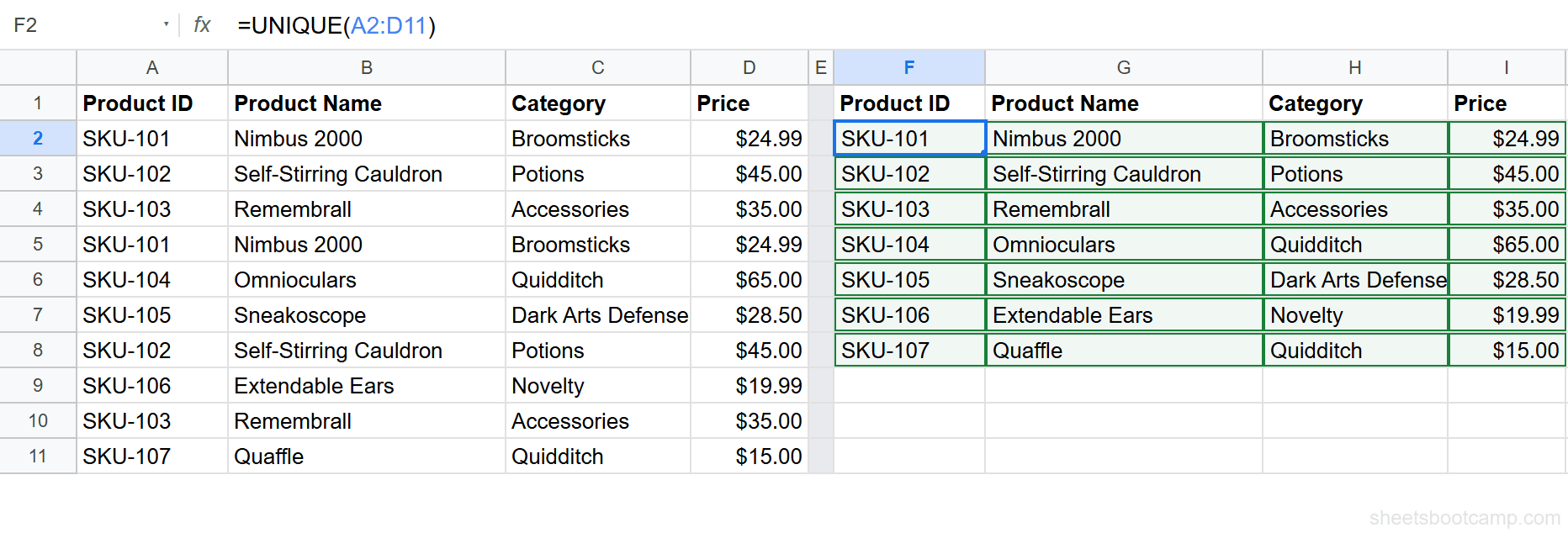
The results spill into the cells below automatically. If you add or change data in the source range, the UNIQUE output updates in real time.
UNIQUE on a single column
To extract unique values from one column, reference just that column:
=UNIQUE(C2:C11)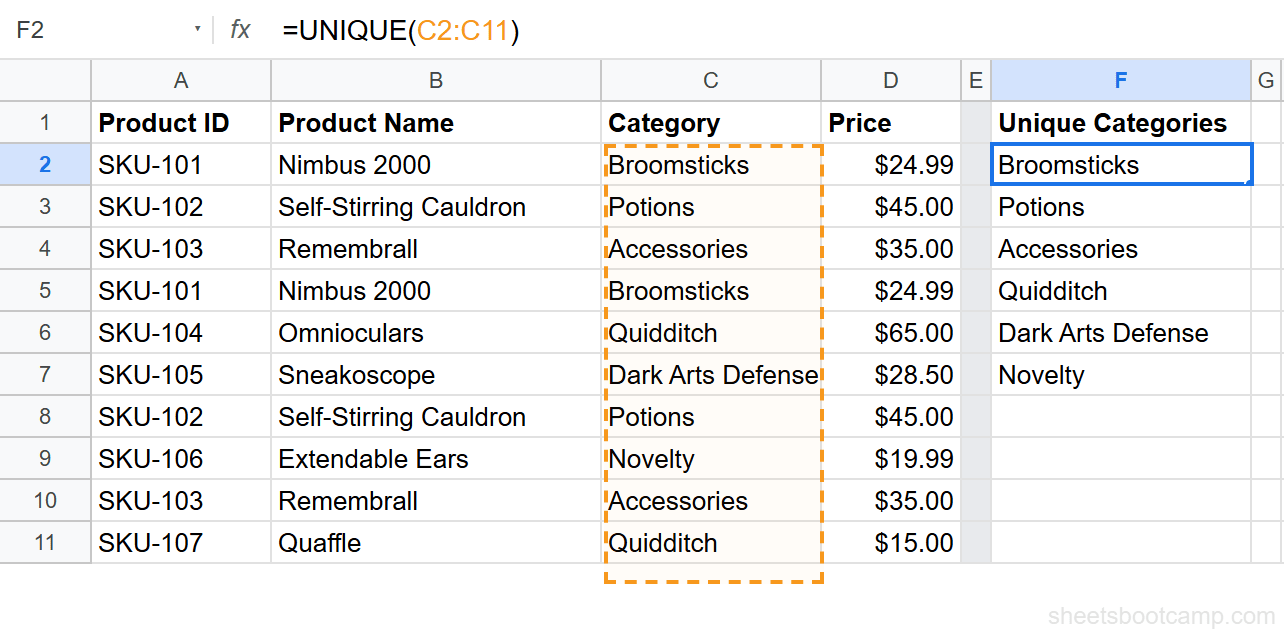
This returns the 6 unique category names: Broomsticks, Potions, Accessories, Quidditch, Dark Arts Defense, and Novelty. Duplicates like Broomsticks (which appears twice in the source) show up only once.
UNIQUE is the best method when you need deduplicated data in another part of your sheet or in another formula. Combine it with SORT to get a sorted unique list: =SORT(UNIQUE(C2:C11)).
Method 3: COUNTIF Helper Column
The COUNTIF method lets you identify duplicates before deleting them. You add a helper column that counts how many times each value has appeared so far. Any count above 1 is a duplicate.
Add a “Count” header in E1. Enter this formula in E2 and drag it down to E11:
=COUNTIF(A$2:A2, A2)The expanding range A$2:A2 starts from row 2 and grows as you drag down. For each row, it counts how many times the Product ID in column A has appeared from the top of the data down to the current row. The first occurrence returns 1. The second occurrence returns 2.

Rows 5, 8, and 10 show a count of 2 — these are the duplicates. Now you can review them before deleting.
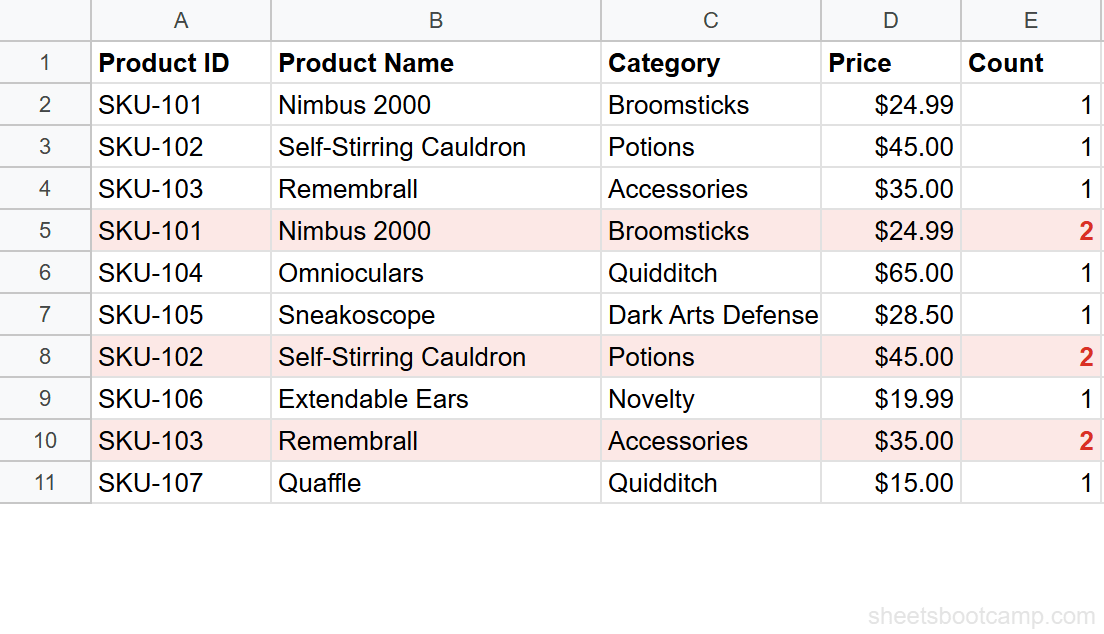
To remove the duplicates: sort by column E (descending) to group all duplicates at the top, select those rows, right-click, and choose Delete rows. Then delete the helper column.
This method checks one column (Product ID) for duplicates. To check multiple columns, concatenate them: =COUNTIF(A$2:A2&B$2:B2, A2&B2). This treats rows as duplicates only when both columns match.
Method 4: Highlight Duplicates with Conditional Formatting
If you want to see duplicates before deciding what to do with them, conditional formatting with a COUNTIF rule highlights duplicate cells in color.
- Select the column to check for duplicates (for example, A2:A11)
- Go to Format > Conditional formatting
- Set the format rule to Custom formula is
- Enter:
=COUNTIF(A$2:A$11, A2)>1 - Choose a fill color (light red works well) and click Done
Every cell in column A that appears more than once gets highlighted. You can then review the highlighted rows and manually delete the ones you do not need.
This method is non-destructive — it only adds color, not deletes anything. For a full walkthrough, see the highlight duplicates guide.
Method 5: Apps Script for Automation
For spreadsheets where duplicates keep appearing (shared sheets, imported data), an Apps Script can remove them automatically.
Go to Extensions > Apps Script and paste this function:
function removeDuplicateRows() {
  var sheet = SpreadsheetApp.getActiveSheet();
  var data = sheet.getDataRange().getValues();
  var unique = {};
  var rowsToDelete = [];

  for (var i = 1; i < data.length; i++) {
    var key = data[i].join('|');
    if (unique[key]) {
      rowsToDelete.push(i + 1);
    } else {
      unique[key] = true;
    }
  }

  for (var j = rowsToDelete.length - 1; j >= 0; j--) {
    sheet.deleteRow(rowsToDelete[j]);
  }
}
Click the Run button (or set it on a time-driven trigger to run daily). The script compares every column in each row. It keeps the first occurrence and deletes later duplicates — the same behavior as the built-in tool, but scriptable and schedulable.
Apps Script deletes rows permanently. Test the script on a copy of your sheet first. You can undo by pressing Ctrl+Z only if you run it manually — triggered scripts cannot be undone.
Which Method Should You Use?
| Method | Modifies source data? | Best for |
|---|---|---|
| Remove duplicates tool | Yes | Quick one-time cleanup on small to medium datasets |
| UNIQUE function | No | Creating a deduplicated list while keeping the original intact |
| COUNTIF helper column | No (until you delete rows) | Reviewing duplicates before removing them |
| Conditional formatting | No | Visually identifying duplicates without any deletion |
| Apps Script | Yes | Automating cleanup on sheets with recurring duplicates |
Start with Method 1 for most situations. Use UNIQUE when you need non-destructive deduplication. Use COUNTIF when you want to inspect duplicates before acting.
Tips and Best Practices
-
Back up before deleting. Duplicate the sheet tab (right-click the tab > Duplicate) before running Remove duplicates or an Apps Script. This gives you a recovery point if you remove the wrong rows.
-
Decide which columns matter. Two rows might look different but share the same ID. Or they might look identical but belong to different time periods. Check the right columns for your use case.
-
Prevent duplicates at the source. Use data validation to restrict what values can be entered. A dropdown list or a custom formula rule like
=COUNTIF(A:A, A1)<=1rejects duplicate entries before they happen. -
Use UNIQUE for dropdown lists. Combine UNIQUE with data validation to create a dropdown that automatically shows only unique values from a column. The list updates as your data changes.
-
Check for near-duplicates. Extra spaces and inconsistent capitalization can hide duplicates. Use TRIM and UPPER before comparing to catch entries like ” SKU-101” and “SKU-101 ” that look different but are the same value.
Related Google Sheets Tutorials
- Highlight Duplicates with Conditional Formatting — Visually identify duplicates with color-coded cells before removing them
- COUNTIF and COUNTIFS — Count matching values to find and flag duplicates
- QUERY Function: Complete Guide — Use SELECT DISTINCT in a QUERY formula for formula-based deduplication
- FILTER Function: Complete Guide — Combine FILTER with COUNTIF to extract only non-duplicate rows
FAQ
How do I remove duplicates in Google Sheets?
Select your data range, go to Data > Data cleanup > Remove duplicates, check the columns to compare, and click Remove duplicates. Google Sheets deletes duplicate rows and tells you how many were removed.
Does Remove duplicates delete the original or the copy?
Google Sheets keeps the first occurrence and deletes later duplicates. If row 2 and row 5 are identical, row 5 is deleted and row 2 stays.
How do I find duplicates without deleting them?
Use conditional formatting with a COUNTIF formula to highlight duplicates visually. Or add a helper column with =COUNTIF(A$2:A2, A2) to flag rows that appear more than once. Both methods let you review duplicates before deciding what to delete.
Can I remove duplicates based on one column only?
Yes. In the Remove duplicates dialog, uncheck all columns except the one you want to compare. Google Sheets treats rows as duplicates if that single column matches, even if other columns differ.
What is the difference between Remove duplicates and UNIQUE?
Remove duplicates (Data menu) permanently deletes rows from your data. The UNIQUE function creates a separate list of unique values without touching the original data. Use Remove duplicates when you want to clean the source. Use UNIQUE when you want to keep the source intact.
How do I remove duplicates from a single column?
Select the column, go to Data > Data cleanup > Remove duplicates, and make sure only that column is checked. Alternatively, use =UNIQUE(A2:A) in another cell to extract unique values without modifying the original column.