REGEXMATCH, REGEXEXTRACT, REGEXREPLACE
Use REGEXMATCH, REGEXEXTRACT, and REGEXREPLACE in Google Sheets for pattern-based text matching, extraction, and replacement with regular expressions.
Sheets Bootcamp
May 19, 2026
REGEXMATCH, REGEXEXTRACT, and REGEXREPLACE in Google Sheets use regular expressions to match, extract, and replace text based on patterns. The text functions guide covers the full set of text tools, and these three regex functions handle tasks that would require complex combinations of FIND, MID, and SUBSTITUTE.
This guide covers each function’s syntax, the most useful regex patterns, and practical examples using real data.
In This Guide
- REGEXMATCH: Test for a Pattern
- REGEXEXTRACT: Pull Out Matching Text
- REGEXREPLACE: Replace by Pattern
- Regex Patterns Step-by-Step
- Essential Regex Patterns
- Practical Examples
- Common Errors and How to Fix Them
- Tips and Best Practices
- Related Google Sheets Tutorials
- Frequently Asked Questions
REGEXMATCH: Test for a Pattern
REGEXMATCH returns TRUE or FALSE based on whether the text matches a regex pattern.
=REGEXMATCH(text, regular_expression)| Argument | Description | Required |
|---|---|---|
| text | The text string or cell reference | Yes |
| regular_expression | The regex pattern to test against | Yes |
Example: =REGEXMATCH("harry.potter@owlmail.com", "@owlmail\.com$") returns TRUE. The pattern checks if the text ends with @owlmail.com.
REGEXMATCH does not extract or modify text. It only checks for a match. Use it inside IF to branch based on patterns: =IF(REGEXMATCH(A2, "^E\d+"), "Employee", "Other").
REGEXEXTRACT: Pull Out Matching Text
REGEXEXTRACT returns the portion of text that matches a regex pattern.
=REGEXEXTRACT(text, regular_expression)| Argument | Description | Required |
|---|---|---|
| text | The text string or cell reference | Yes |
| regular_expression | The regex pattern with optional capture group | Yes |
Example: =REGEXEXTRACT("(555) 123-4567", "\d{3}") returns "555". The pattern \d{3} matches the first group of three consecutive digits.
When you use parentheses (capture groups), REGEXEXTRACT returns only the captured portion:
=REGEXEXTRACT(B2, "@(.+)")For "harry.potter@owlmail.com", the pattern matches @owlmail.com, but the capture group returns only owlmail.com (everything inside the parentheses).
REGEXREPLACE: Replace by Pattern
REGEXREPLACE replaces text that matches a regex pattern with new text.
=REGEXREPLACE(text, regular_expression, replacement)| Argument | Description | Required |
|---|---|---|
| text | The text string or cell reference | Yes |
| regular_expression | The pattern to match | Yes |
| replacement | The replacement text (use "" to delete) | Yes |
Example: =REGEXREPLACE("(555) 123-4567", "[^\d]", "") returns "5551234567". The pattern [^\d] matches every non-digit character, and replacing with "" removes them all.
The regex functions are case-sensitive by default. Add (?i) at the start of the pattern for case-insensitive matching. =REGEXMATCH(A2, ”(?i)potter”) matches “POTTER”, “Potter”, and “potter”.
Regex Patterns Step-by-Step
We’ll validate, extract, and clean data from the messy contacts table.
Open the contacts spreadsheet
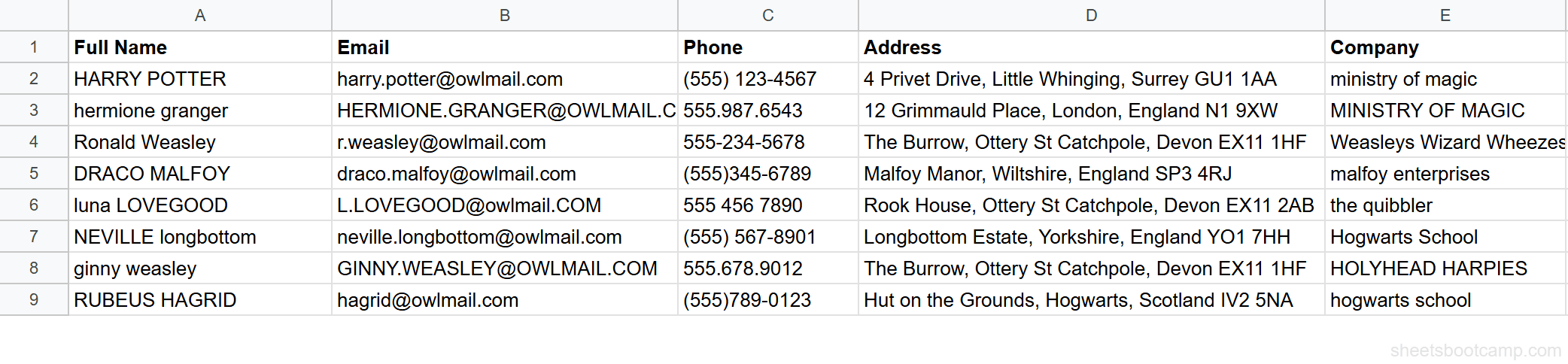
The table has 8 contacts with mixed-case emails in column B and phone numbers in various formats in column C: "(555) 123-4567", "555.987.6543", "555-234-5678".
Validate email domains with REGEXMATCH
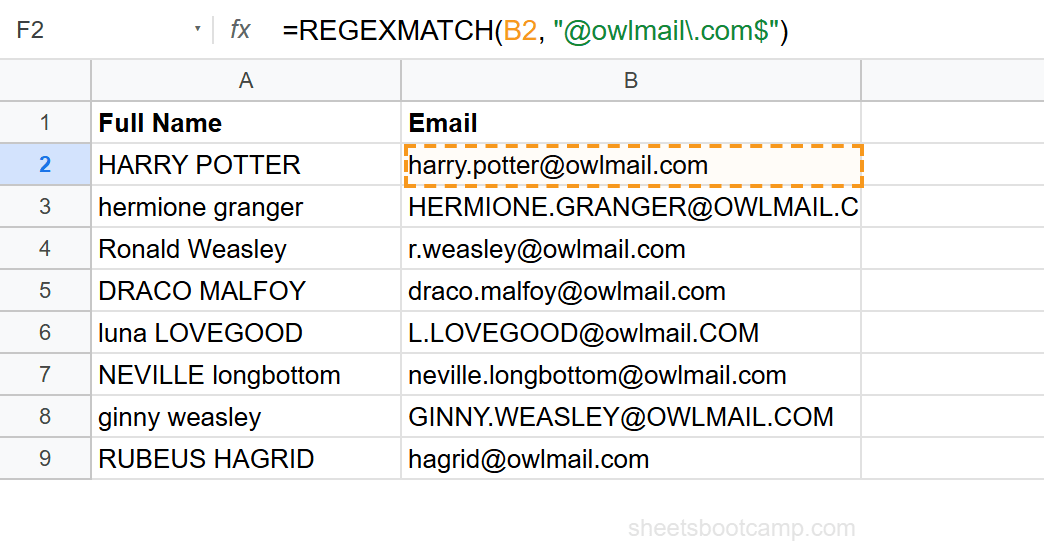
Select cell F2 and enter:
=REGEXMATCH(B2, "@owlmail\.com$")The $ anchor matches only at the end of the string. The \. escapes the period to match a literal dot (not any character). For "harry.potter@owlmail.com" (lowercase), this returns TRUE. For "HERMIONE.GRANGER@OWLMAIL.COM" (uppercase), this returns FALSE because the regex is case-sensitive.
To match regardless of case, add (?i):
=REGEXMATCH(B2, "(?i)@owlmail\.com$")Now both lowercase and uppercase emails return TRUE.
Extract area codes with REGEXEXTRACT
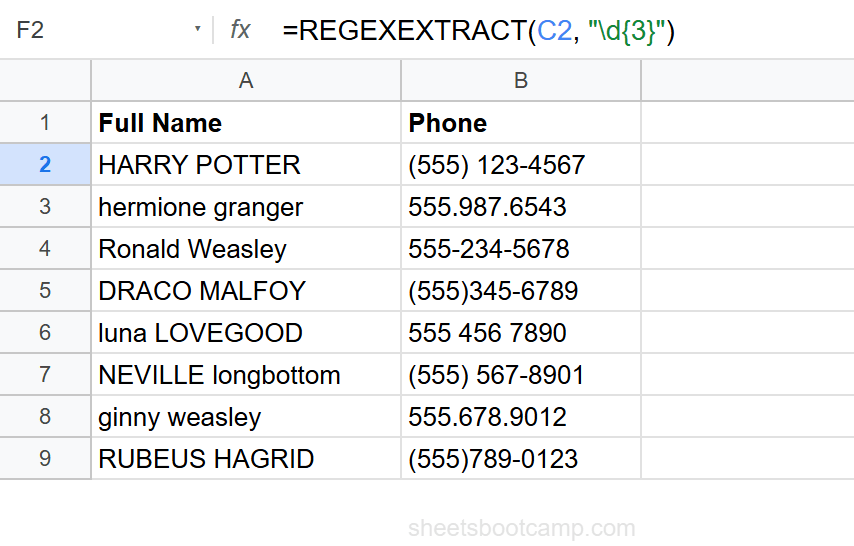
Select cell G2 and enter:
=REGEXEXTRACT(C2, "\d{3}")\d{3} matches the first three consecutive digits. Regardless of whether the phone is "(555) 123-4567", "555.987.6543", or "555-234-5678", the area code 555 is always the first three-digit group.
Clean phone numbers with REGEXREPLACE
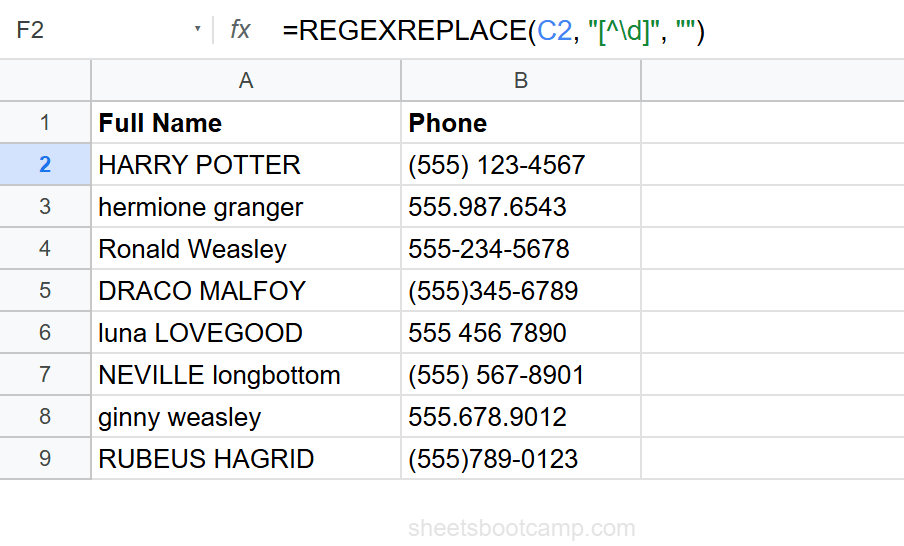
Select cell H2 and enter:
=REGEXREPLACE(C2, "[^\d]", "")[^\d] matches any character that is not a digit. Replacing with "" removes all formatting. For any phone format in the data, this returns a clean 10-digit number: 5551234567.
Compare this to the SUBSTITUTE approach: =SUBSTITUTE(SUBSTITUTE(SUBSTITUTE(SUBSTITUTE(C2,”(”,""),”)”,""),”-”,""),” ”,"") needs five layers. REGEXREPLACE does it in one.
Essential Regex Patterns
Here are the patterns that cover most Google Sheets use cases:
| Pattern | Matches | Example |
|---|---|---|
\d | Any digit (0-9) | \d{3} matches “555” |
\D | Any non-digit | \D+ matches ”()” and ”-“ |
\w | Word character (letter, digit, _) | \w+ matches “harry” |
\s | Whitespace (space, tab) | \s+ matches ” “ |
. | Any character except newline | a.b matches “a1b” |
[abc] | Character in set | [aeiou] matches vowels |
[^abc] | Character not in set | [^\d] matches non-digits |
^ | Start of string | ^E matches strings starting with E |
$ | End of string | \.com$ matches strings ending in .com |
+ | One or more | \d+ matches “123” |
* | Zero or more | \d* matches "" or “123” |
? | Zero or one | \d? matches "" or “5” |
{n} | Exactly n times | \d{3} matches “555” |
(...) | Capture group | @(.+) captures “owlmail.com” |
(?i) | Case-insensitive flag | (?i)hello matches “HELLO” |
Practical Examples
Example 1: Extract Domain from Email
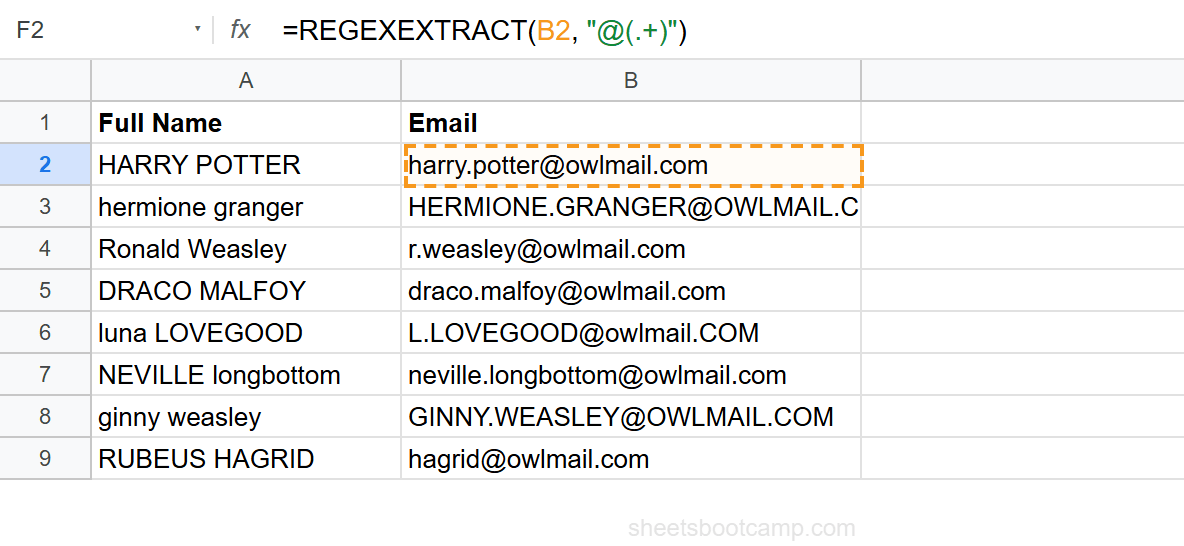
Use a capture group to get everything after the @ symbol:
=REGEXEXTRACT(B2, "@(.+)")For "harry.potter@owlmail.com", the capture group returns owlmail.com. The @ is part of the match but not the capture.
Example 2: Validate Phone Number Format
Check if a phone number has exactly 10 digits (after stripping formatting):
=REGEXMATCH(REGEXREPLACE(C2, "[^\d]", ""), "^\d{10}$")The inner REGEXREPLACE strips all non-digits. The outer REGEXMATCH checks if the result is exactly 10 digits. Returns TRUE for valid phone numbers, FALSE for ones with too few or too many digits.
Example 3: Extract First Name from Mixed-Case Names
Pull the first word (letters only) from names with extra spaces:
=REGEXEXTRACT(TRIM(A2), "^\w+")^\w+ matches one or more word characters from the start of the string. For "HARRY POTTER" (after TRIM), this returns HARRY. Combine with PROPER to get Harry: =PROPER(REGEXEXTRACT(TRIM(A2), "^\w+")).
Example 4: Format Phone Numbers
Insert formatting into clean digit strings:
=REGEXREPLACE(REGEXREPLACE(C2, "[^\d]", ""), "(\d{3})(\d{3})(\d{4})", "($1) $2-$3")The three capture groups grab the area code, exchange, and line number. The replacement string formats them as (555) 123-4567. This normalizes any phone format to a consistent US format.
Common Errors and How to Fix Them
#VALUE! Error: No Match Found
REGEXEXTRACT returns #VALUE! when the pattern does not match any text in the cell. Wrap in IFERROR: =IFERROR(REGEXEXTRACT(A2, "\d+"), "No digits").
REGEXMATCH does not have this problem — it returns FALSE instead of erroring.
#VALUE! Error: Invalid Regular Expression
A malformed regex pattern causes a #VALUE! error. Common mistakes:
- Unescaped special characters: use
\.for a literal period, not. - Unmatched parentheses or brackets
- Invalid quantifiers like
{3,1}(max must be >= min)
#REF! Error from Multiple Capture Groups
REGEXEXTRACT with multiple capture groups returns multiple columns. If the cells to the right are occupied, it returns #REF!. Clear the adjacent cells or use a single capture group.
Test your regex patterns on a single cell before applying to a full column. Complex patterns with subtle bugs are hard to debug across 100+ rows.
Tips and Best Practices
-
Start with REGEXMATCH for validation. Before extracting or replacing, test the pattern with REGEXMATCH to confirm it matches the text you expect.
-
Use
(?i)for case-insensitive patterns. Place it at the start of the pattern.(?i)@owlmail\.com$matches emails regardless of case. -
Escape special characters with a backslash. Periods (
.), parentheses (()), brackets ([]), and other regex metacharacters need a\prefix to match literally. -
Use REGEXREPLACE for cleaning tasks.
=REGEXREPLACE(A2, "[^\d]", "")is cleaner than nesting five SUBSTITUTE calls to remove individual characters. -
Capture groups control what REGEXEXTRACT returns. Without parentheses, it returns the full match. With parentheses, it returns only the captured portion. Use this to exclude parts of the match you do not need.
Related Google Sheets Tutorials
- Text Functions in Google Sheets — Full guide to cleaning, extracting, and combining text
- FIND and SEARCH in Google Sheets — Locate text positions without regex
- SUBSTITUTE Function in Google Sheets — Replace specific text without regex
- LEFT, RIGHT, MID in Google Sheets — Extract text by position
- IF Function in Google Sheets — Combine with REGEXMATCH for conditional logic
Frequently Asked Questions
What is REGEXMATCH in Google Sheets?
REGEXMATCH tests whether a text string matches a regular expression pattern and returns TRUE or FALSE. For example, =REGEXMATCH(A2, "^[0-9]+$") returns TRUE if the cell contains only digits. It is useful for data validation and conditional checks.
How do I extract text with a pattern in Google Sheets?
Use REGEXEXTRACT. =REGEXEXTRACT(A2, "pattern") returns the portion of text that matches the pattern. Use capture groups (parentheses) to specify exactly which part to return. For example, =REGEXEXTRACT(B2, "@(.+)") extracts the domain from an email address.
How do I remove all non-numeric characters in Google Sheets?
Use =REGEXREPLACE(A2, "[^0-9]", ""). The pattern [^0-9] matches any character that is not a digit. Replacing with an empty string removes them all. This is cleaner than nesting multiple SUBSTITUTE calls for different characters.
Are Google Sheets regex functions case-sensitive?
Yes, by default. REGEXMATCH, REGEXEXTRACT, and REGEXREPLACE are case-sensitive. Add (?i) at the start of the pattern for case-insensitive matching. For example, =REGEXMATCH(A2, "(?i)potter") matches “POTTER”, “Potter”, and “potter”.
What regex syntax does Google Sheets use?
Google Sheets uses RE2 syntax, which is a subset of standard regex. It supports character classes [a-z], quantifiers (+, *, ?), anchors (^, $), groups (), alternation (|), and most common patterns. It does not support lookaheads, lookbehinds, or backreferences.