UPPER, LOWER, PROPER Functions in Google Sheets
Change text case in Google Sheets with UPPER, LOWER, and PROPER. Convert to uppercase, lowercase, or title case with step-by-step examples and formulas.
Sheets Bootcamp
May 18, 2026
UPPER, LOWER, and PROPER in Google Sheets convert text to uppercase, lowercase, or title case. The text functions guide covers the full set of text tools, and these three case functions are among the fastest ways to clean inconsistent data.
This guide covers the syntax, when to use each function, and how to handle the edge cases PROPER does not get right.
In This Guide
- UPPER Function
- LOWER Function
- PROPER Function
- Change Case Step-by-Step
- PROPER Limitations and Workarounds
- Practical Examples
- Tips and Best Practices
- Related Google Sheets Tutorials
- Frequently Asked Questions
UPPER Function
UPPER converts every letter in a text string to uppercase.
=UPPER(text)| Argument | Description | Required |
|---|---|---|
| text | The text string or cell reference | Yes |
Example: =UPPER("hermione granger") returns "HERMIONE GRANGER". Numbers, spaces, and symbols are not affected.
Use UPPER for standardizing codes, creating headers, or matching data that must be compared in a consistent case.
LOWER Function
LOWER converts every letter in a text string to lowercase.
=LOWER(text)| Argument | Description | Required |
|---|---|---|
| text | The text string or cell reference | Yes |
Example: =LOWER("HERMIONE.GRANGER@OWLMAIL.COM") returns "hermione.granger@owlmail.com".
LOWER is the standard choice for normalizing email addresses. Email addresses are case-insensitive by spec, but inconsistent casing makes data look messy and can cause matching issues with case-sensitive functions like FIND.
PROPER Function
PROPER capitalizes the first letter of every word and lowercases the rest.
=PROPER(text)| Argument | Description | Required |
|---|---|---|
| text | The text string or cell reference | Yes |
Example: =PROPER("hermione granger") returns "Hermione Granger". Each word gets a capital first letter.
PROPER resets capitalization at every non-letter character: spaces, hyphens, apostrophes, and periods. =PROPER("o'brien") returns "O'Brien" correctly because the apostrophe triggers a new capital letter.
Change Case Step-by-Step
We’ll clean the inconsistent casing in the messy contacts table.
Open the messy contacts table
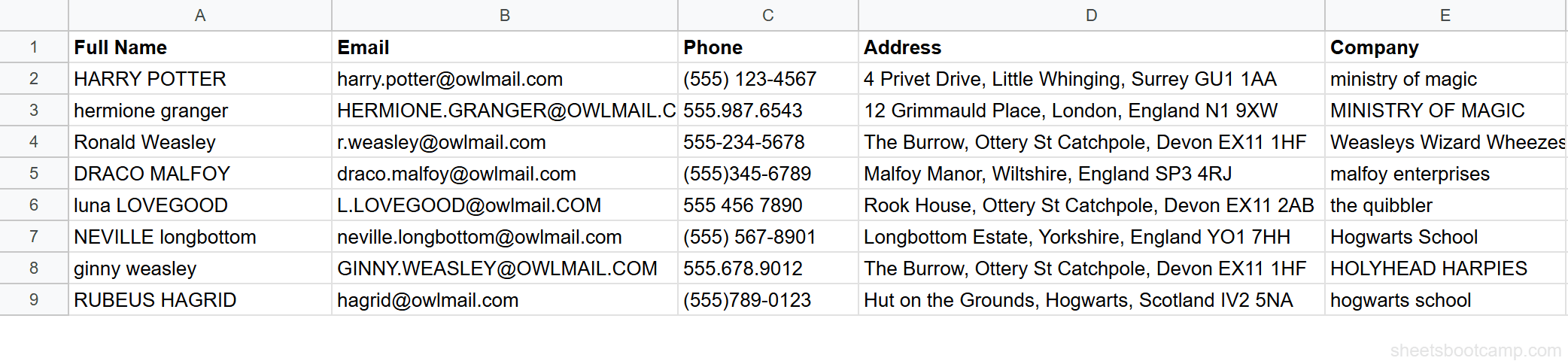
The contacts have names in every style: "HARRY POTTER" (all caps), "hermione granger" (all lowercase), "luna LOVEGOOD" (mixed), and " NEVILLE longbottom " (mixed with spaces). Column E has company names in inconsistent casing.
Apply PROPER to clean names
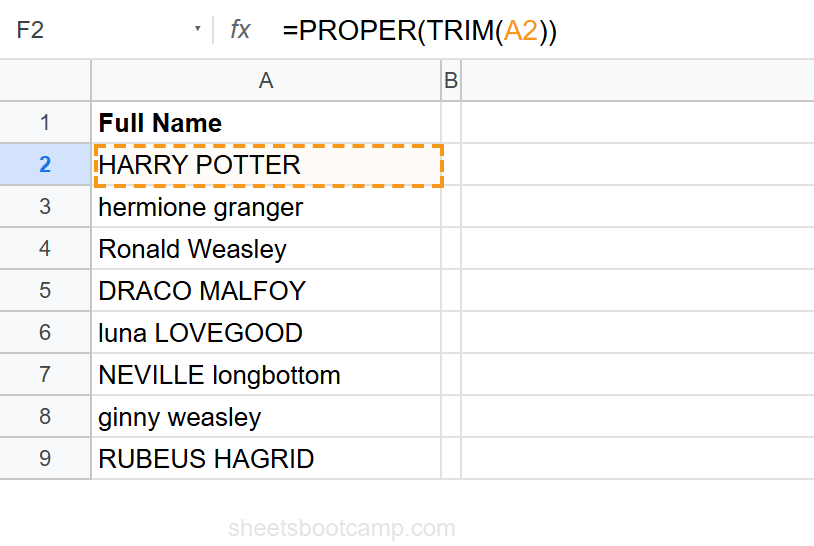
Select cell F2 and enter:
=PROPER(TRIM(A2))TRIM removes leading, trailing, and extra spaces first. Then PROPER capitalizes the first letter of each word. For "HARRY POTTER", TRIM returns "HARRY POTTER", and PROPER returns Harry Potter. Copy the formula down through row 9. Every name normalizes to title case.
Apply LOWER to standardize emails
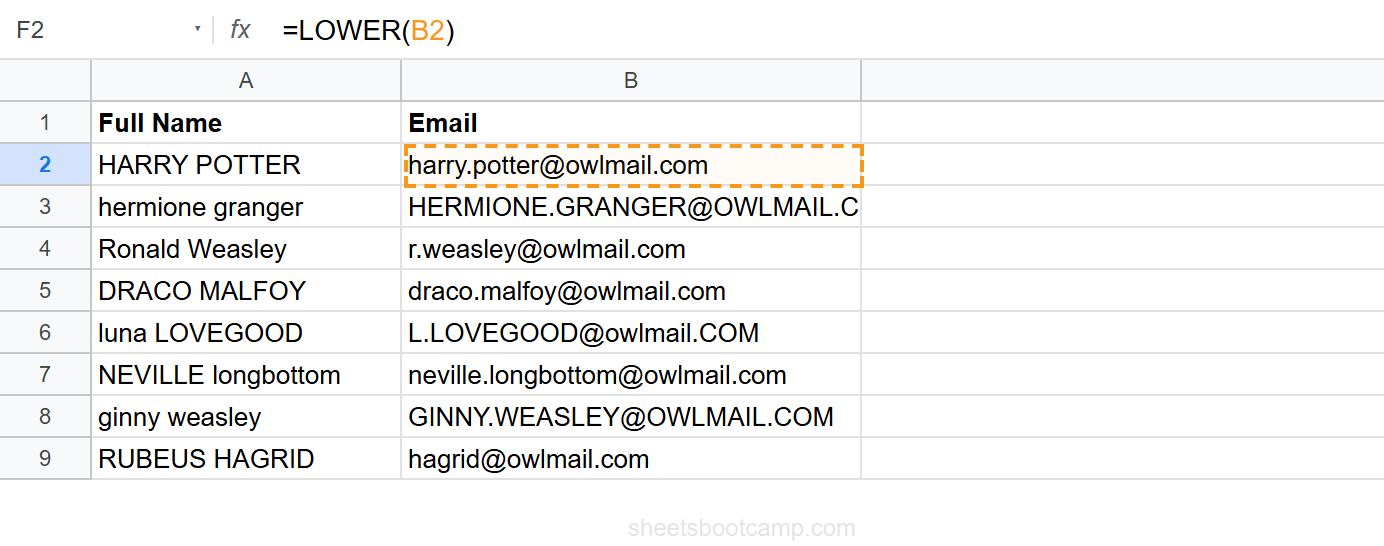
Select cell G2 and enter:
=LOWER(B2)For "HERMIONE.GRANGER@OWLMAIL.COM", this returns hermione.granger@owlmail.com. For "L.LOVEGOOD@owlmail.COM", it returns l.lovegood@owlmail.com. Copy down to normalize every email.
Apply UPPER for labels
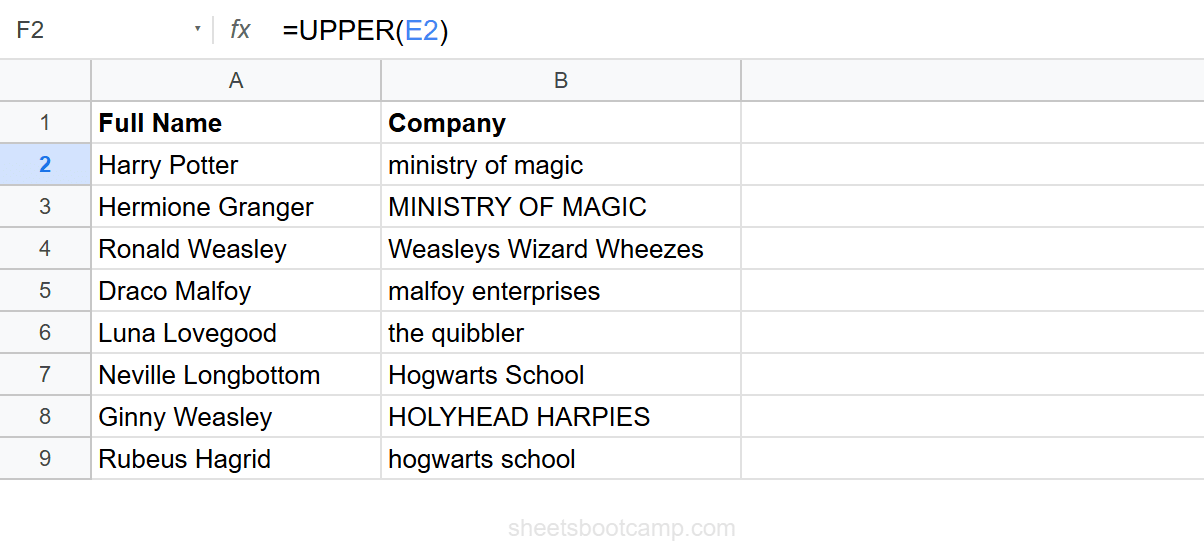
Select cell H2 and enter:
=UPPER(E2)For "ministry of magic", this returns MINISTRY OF MAGIC. For "Weasleys Wizard Wheezes", it returns WEASLEYS WIZARD WHEEZES. UPPER is useful for creating consistent labels, headings, or standardized codes.
After generating clean values with UPPER, LOWER, or PROPER, you can replace the originals: select the formula results, copy (Ctrl+C), select the original column, and paste as values only (Ctrl+Shift+V). Then delete the helper column.
PROPER Limitations and Workarounds
PROPER capitalizes the first letter after every non-letter character. This works for most names but fails on a few common patterns:
| Input | PROPER Returns | Expected |
|---|---|---|
"mcdonald" | "Mcdonald" | "McDonald" |
"iPhone" | "Iphone" | "iPhone" |
"van der berg" | "Van Der Berg" | "van der Berg" |
"USA" | "Usa" | "USA" |
PROPER has no way to know that “Mc” is a prefix or that “USA” is an acronym. For these edge cases:
Fix McDonald-style names:
=SUBSTITUTE(PROPER(A2), "Mc", "MC")This is a targeted fix. After PROPER returns "Mcdonald", SUBSTITUTE replaces "Mc" with "MC", returning "MCdonald". Not perfect either. For names like these, manual review is often the most reliable approach.
PROPER works well for the vast majority of names. Fix the exceptions manually rather than building increasingly complex formulas to handle every edge case.
Practical Examples
Example 1: Case-Insensitive Comparison
To compare two cells regardless of case, convert both to the same case:
=LOWER(A2) = LOWER(B2)"Harry Potter" and "HARRY POTTER" return TRUE. This is useful in IF statements where the comparison data has inconsistent casing.
Example 2: Capitalize First Letter Only
PROPER capitalizes every word. To capitalize only the first letter of the entire string:
=UPPER(LEFT(A2, 1)) & LOWER(MID(A2, 2, LEN(A2)))For "HARRY POTTER", this returns “Harry potter”. UPPER gets the first character, then LOWER handles the rest. Use this for sentence-case formatting.
Example 3: Clean and Standardize a Column
Combine TRIM, PROPER, and SUBSTITUTE for a full cleanup:
=PROPER(TRIM(SUBSTITUTE(A2, " ", " ")))This collapses double spaces, trims whitespace, and applies title case in one formula. For " NEVILLE longbottom ", it returns Neville Longbottom.
Tips and Best Practices
-
Always TRIM before PROPER. Extra spaces affect word boundaries.
=PROPER(TRIM(A2))handles both problems in one formula. -
Use LOWER for data matching. When looking up text with VLOOKUP or INDEX MATCH, wrap both the lookup key and the search column in LOWER to avoid case mismatches.
-
Paste as values to replace originals. These functions output to new cells. To overwrite the originals: copy the results, select the source cells, paste as values (Ctrl+Shift+V), then delete the helper column.
-
UPPER for acronyms and codes. Product codes, country codes, and abbreviations are typically uppercase by convention. Use UPPER to standardize them.
-
Do not over-engineer PROPER fixes. If a few names need corrections that PROPER cannot handle, fix them manually. Building complex formulas for rare edge cases adds fragility.
Related Google Sheets Tutorials
- Text Functions in Google Sheets — Full guide to cleaning, extracting, and combining text
- TRIM and CLEAN in Google Sheets — Remove extra spaces before changing case
- SUBSTITUTE Function in Google Sheets — Replace specific text after case conversion
- CONCATENATE and TEXTJOIN — Combine text with consistent casing
- FIND and SEARCH in Google Sheets — FIND is case-sensitive, SEARCH is not
Frequently Asked Questions
How do I change text to uppercase in Google Sheets?
Use =UPPER(A2) to convert all characters to uppercase. For "hermione granger", this returns "HERMIONE GRANGER". UPPER converts every letter and leaves numbers and symbols unchanged.
How do I change text to lowercase in Google Sheets?
Use =LOWER(A2) to convert all characters to lowercase. For "HARRY POTTER", this returns "harry potter". LOWER is useful for standardizing email addresses and text comparisons.
How do I capitalize the first letter of each word in Google Sheets?
Use =PROPER(A2) to convert to title case. For "hermione granger", this returns "Hermione Granger". PROPER capitalizes the first letter after every space, hyphen, or other non-letter character.
Does PROPER work correctly with names like McDonald or O’Brien?
Not perfectly. PROPER returns "Mcdonald" and "O'Brien". It gets O’Brien right because the apostrophe resets capitalization, but it does not handle the capital D in McDonald. For special cases like these, you need a custom formula or manual correction.
How do I change case without a formula in Google Sheets?
Google Sheets does not have a built-in menu option to change case like Microsoft Word. You must use a formula (UPPER, LOWER, or PROPER) in a helper column, then copy and paste the results as values over the original data.