
To sort or alphabetize in Google Sheets, select your whole table, go to Data > Sort range > Advanced range sorting options, check “Data has header row”, pick a column, choose A to Z, and press Sort. Select every column, not just the one you’re sorting, so each row moves as one unit.
beginner 3 min read
How to Sort and Alphabetize in Google Sheets
Sort or alphabetize data in Google Sheets without scrambling rows: sort a range A to Z, sort by date, sort by multiple columns, and keep the header in place.
SB
Sheets Bootcamp
September 30, 2026
Table of Contents
Quick Answer
Sorting is one of those things that takes two clicks when it works and ruins a spreadsheet when it doesn’t. The two classic disasters are sorting one column so names no longer line up with their numbers, and sorting the header row into the middle of the data. This guide shows the menu method that avoids both, plus sorting by date, by several columns, and keeping a list sorted automatically.
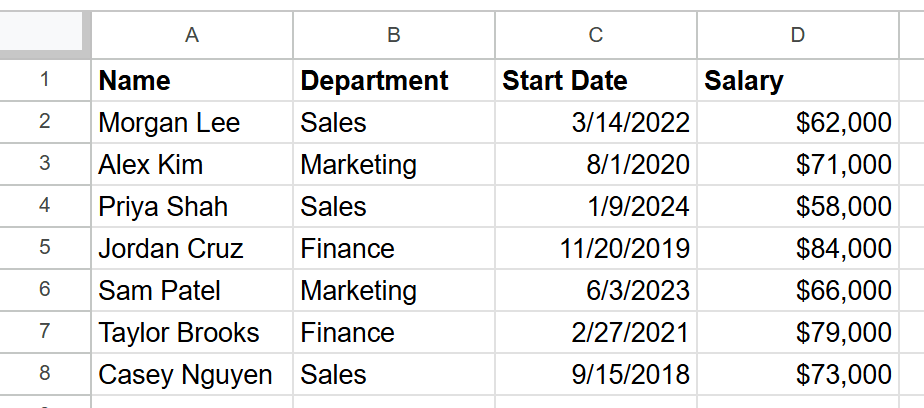
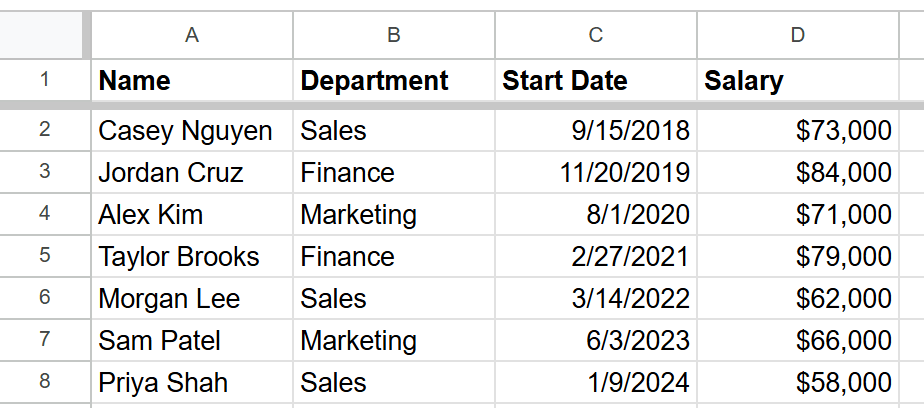
All the examples use this employee list:
How to Sort a Range A to Z
1
Select the whole table
Click and drag across every column of your data, header row included. Here that’s A1:D8. If you select only column A, Sheets sorts only column A, and every name ends up next to someone else’s salary.
2
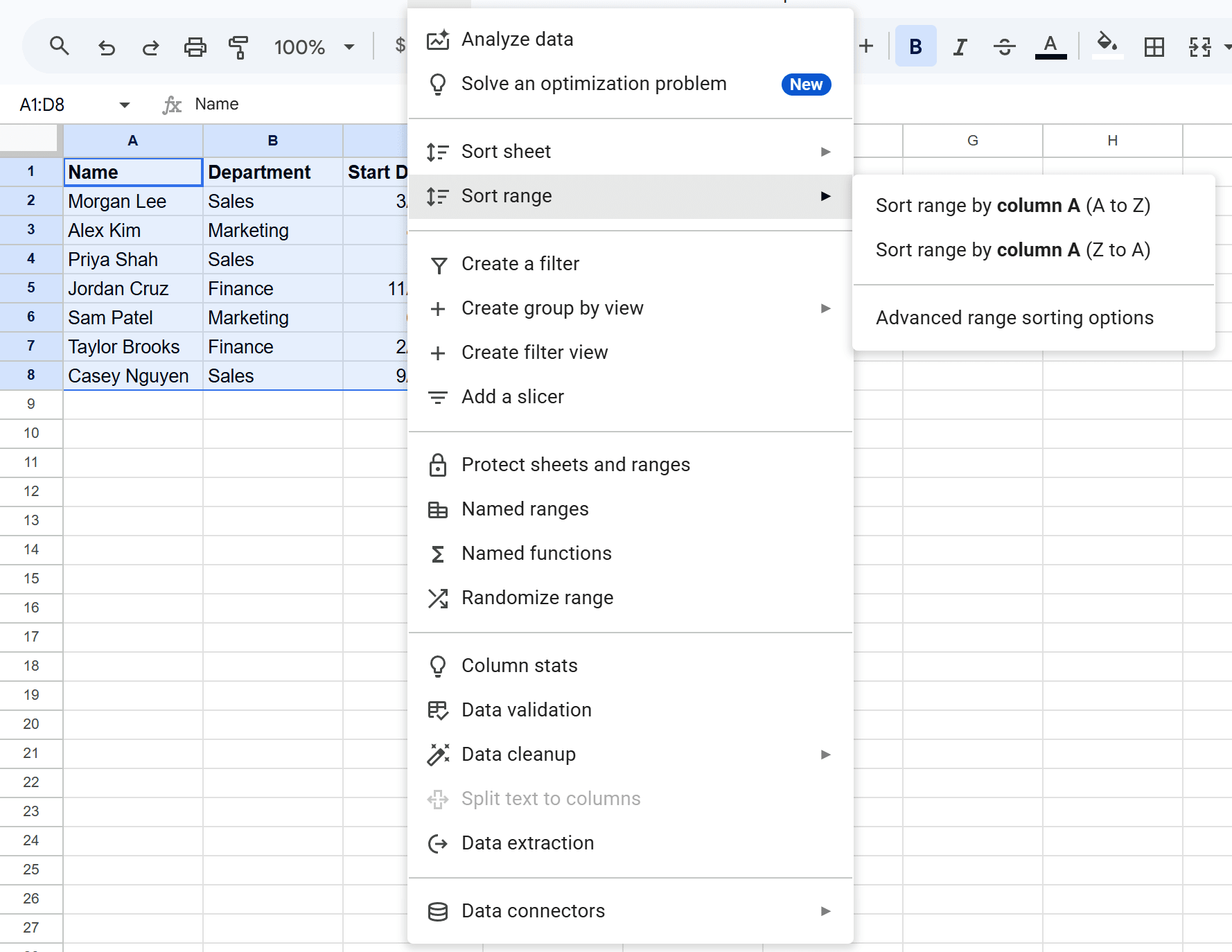
Open Data > Sort range
Go to Data > Sort range. The quick options at the top sort by the first column of your selection. Choose Advanced range sorting options instead, because it’s the only one that knows about headers.
3
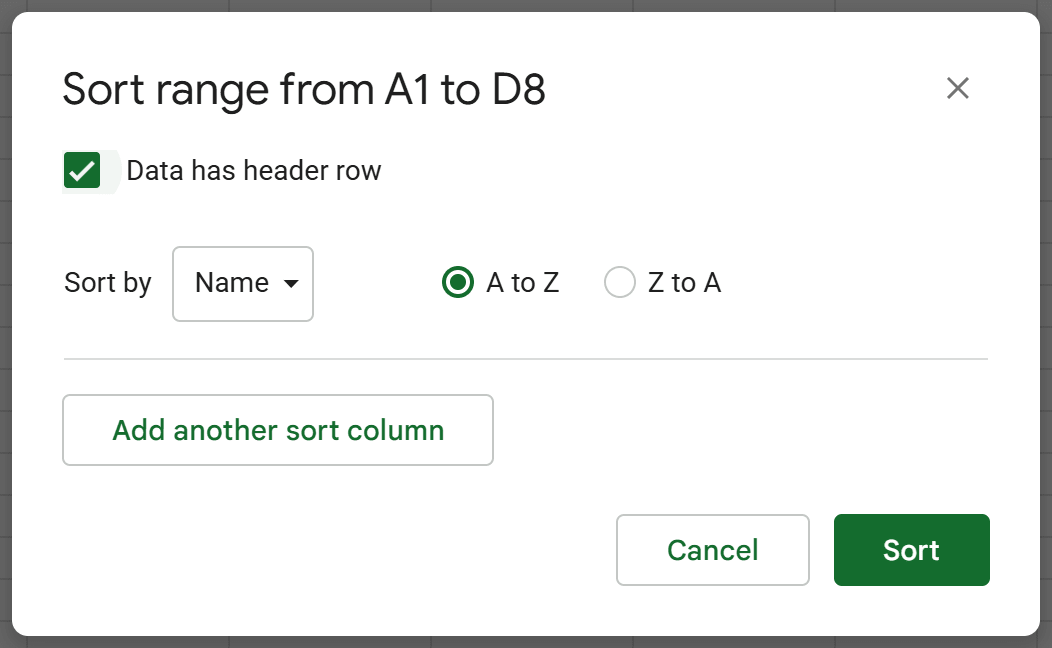
Check Data has header row
The dialog opens as Sort range from A1 to D8. Check Data has header row. Two things change: the header stays at the top, and the Sort by dropdown switches from “Column A” to your real column names.
4
Pick the column and order, then Sort
Choose Name and A to Z, then press Sort. The list is now alphabetical, and every row kept its own department, date, and salary.
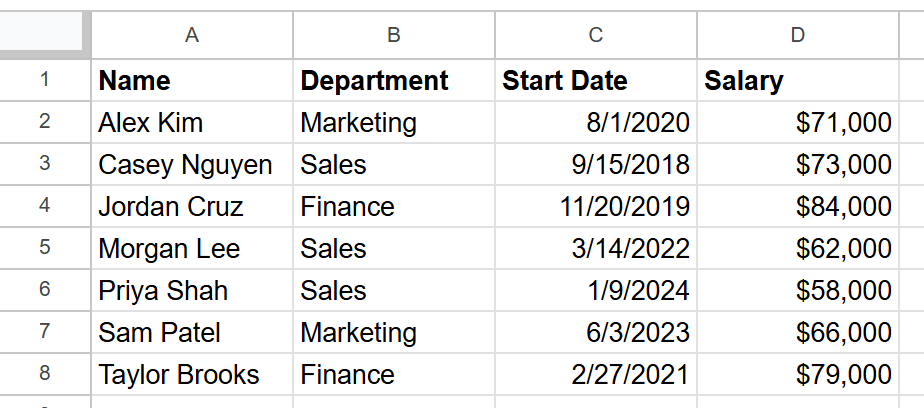
That’s also how you alphabetize in Google Sheets. There’s no separate alphabetize command. Alphabetizing is an A to Z sort on a text column.
Sort Sheet vs. Sort Range
The Data menu has two sort commands, and the difference matters.
| Command | What it sorts | Header row |
|---|---|---|
| Sort range | Only the cells you selected | Kept in place if you check “Data has header row” |
| Sort sheet | Every row on the sheet | Kept in place only if it’s frozen |
You’ll also find Sort sheet A to Z and Sort sheet Z to A when you right-click a column letter. It’s fast, but we tested it on this list without a frozen header: sorting by Start Date moved the Name header down into the data and put Casey Nguyen in row 1.
Warning
Before using Sort sheet, freeze your header with View > Freeze > 1 row. Frozen rows stay put. Everything below them gets sorted.
How to Sort by Date
With row 1 frozen, right-click the C column letter and choose Sort sheet A to Z. A to Z on dates means oldest first, and Z to A means newest first.
This only works on real dates. If your dates were pasted in as text, Sheets sorts them alphabetically, character by character, so “11/20/2019” comes before “3/14/2022” because “1” comes before “3”. To check, click a date cell. Real dates are right-aligned by default and text is left-aligned. See date formatting in Google Sheets and DATEVALUE to convert text dates.
How to Sort by Multiple Columns
To sort by department, then by salary within each department:
- Select the table and open Data > Sort range > Advanced range sorting options.
- Check Data has header row.
- Set Sort by to Department, A to Z.
- Press Add another sort column, choose Salary, and pick Z to A for highest first.
- Press Sort.
Sheets sorts by the first column and only uses the second to order rows that tie on the first. In this list, the three Sales people end up together, highest salary first.
Sort Automatically with the SORT Function
Every method above is a one-time sort. Add a new row at the bottom and it stays at the bottom. If you want a list that stays sorted by itself, use the SORT function in an empty area:
Formula
=SORT(A2:D8, 1, TRUE) That returns the rows of A2:D8 sorted by the first column, A to Z, and re-sorts whenever the source changes. The original data doesn’t move, which also makes it the safe choice when other formulas point at specific rows.
Tip
Want to sort without changing anyone else’s view of a shared sheet? Use Data > Create filter view, then sort inside the filter view. The sort only applies to your view.
Common Sorting Problems
The rows got scrambled. Only one column was selected. Press Ctrl+Z to undo, select every column, and sort again.
The header moved into the data. Sort sheet was used without a frozen row 1, or Sort range was used without “Data has header row”. Undo, then use either fix above.
Dates or numbers sort in a strange order. They’re stored as text. Numbers stored as text sort like words, so “100” comes before “20”.
Related Google Sheets Tutorials
- SORT Function - Keep a sorted copy of your data that updates itself
- Freeze Rows and Columns - Lock the header before you use Sort sheet
- FILTER Function - Show only the rows that match a condition
- Remove Duplicates - Clean the list before you sort it
Frequently Asked Questions
How do I alphabetize a column in Google Sheets?
Select the data, go to Data > Sort range > Advanced range sorting options, check Data has header row, pick the column, choose A to Z, and press Sort. Select every column of the table, not just the one you're alphabetizing, or the rows get scrambled.
Why did my header row get sorted into the data?
Sort sheet treats row 1 as data unless it's frozen. In a test, sorting a sheet by Start Date without a frozen header moved the Name header down into the list. Freeze row 1 with View > Freeze > 1 row, or use Sort range with Data has header row checked.
How do I sort by date in Google Sheets?
Sort the date column A to Z for oldest first or Z to A for newest first. This only works if the cells are real dates. Dates stored as text sort alphabetically, so 11/20/2019 would land before 3/14/2022.
Can Google Sheets sort automatically when data changes?
The Sort menu sorts once. To keep a list sorted as you add data, use the SORT function in another range, for example =SORT(A2:D8, 1, TRUE), which re-sorts whenever the source changes.
How do I sort by more than one column?
In Data > Sort range > Advanced range sorting options, pick the first column, then press Add another sort column and pick the second. Sheets sorts by the first column and uses the second to order any ties.
You've googled this formula before. Probably more than once.
The Bootcamp is a real Google Sheet that grades every formula the moment you press Enter. 193 exercises across 9 modules, the 10% of Sheets that does 90% of the work. One payment of $29.
Get It for $29 Get the Bootcamp for $2930-day refund. Reply to any email and you get your money back.
Not ready to pay? Try Basic Training free →