
Google Sheets has a free template gallery built in: go to sheets.google.com, or File > New > From template gallery inside any spreadsheet. For templates that go further, the Sheets Bootcamp templates below are free with no email needed, and each one includes a tab explaining the formulas inside.
beginner 8 min read
Best Google Sheets Templates (Budget, Project, More)
Discover the best Google Sheets templates for budgets, project tracking, invoices, and more. Learn how to find, use, and customize built-in and community templates.
SB
Sheets Bootcamp
February 27, 2026 · Updated July 13, 2026
Table of Contents
Quick Answer
Google Sheets templates give you a pre-built spreadsheet with formatting, formulas, and structure already in place. Instead of building a budget tracker or project plan from scratch, you start with a working framework and fill in your data.
Free Templates from Sheets Bootcamp
Each of these is free, needs no sign-up, and copies straight into your own Google Drive. Every one has a How it works tab that explains its formulas in plain language.
| Template | What it does |
|---|---|
| Budget Tracker | A full year of budgeting in one file, with rollover and annual bills spread over 12 months |
| Expense Tracker | Log each purchase and see spending by category, month over month, and year to date |
| Habit Tracker | Daily checkboxes for up to 10 habits, with progress bars and streaks |
| Weekly Schedule | Any week Monday to Sunday, time slots you set, today highlighted |
| Assignment Tracker | Every class and due date in one list, with overdue work in red and your average grade |
| College Application Tracker | Deadlines with days left, status for every school, fees and net price |
| Job Application Tracker | Status, days since you applied, next steps and your interview rate |
| Student Data Tracker | A gradebook for 40 students with percent, letter grade and missing work |
| Pay Stub | Hours, overtime, deductions, net pay and year to date on one page |
The rest of this guide covers the templates built into Google Sheets, where to find them, and how to customize them.
In This Guide
- How to Use a Template: Step-by-Step
- Best Templates by Category
- How to Customize a Template
- Creating Your Own Template
- Tips and Best Practices
- Related Google Sheets Tutorials
- FAQ
How to Use a Template: Step-by-Step
1
Open the template gallery
Go to sheets.google.com. The top of the page shows a strip of template cards. Use the Template gallery toggle at the top right to show or hide that strip.
For the full set of templates organized by category, open a spreadsheet and go to File > New > From template gallery.
2
Choose a template
The homepage strip shows a handful of common templates: Blank spreadsheet, To-do list, Annual budget, Monthly budget, Google Finance Investment Tracker, and Annual Calendar. Pick the one closest to what you need.
Click a card and Google opens a copy in your Google Drive, the original template stays unchanged. Need something else, like an invoice or Gantt chart? Open File > New > From template gallery for the full, categorized set.
3
Customize the template
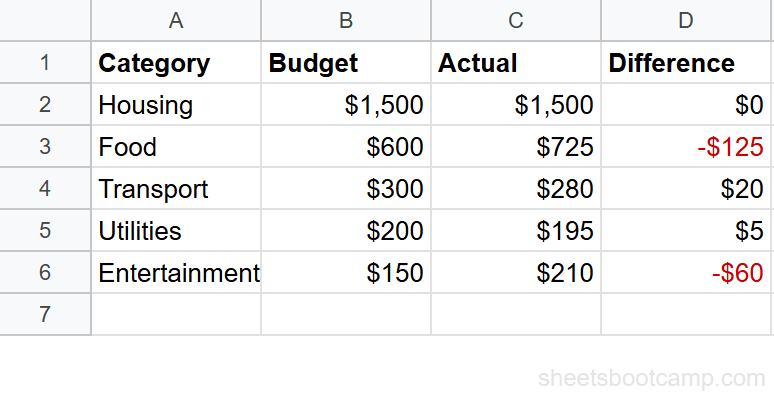
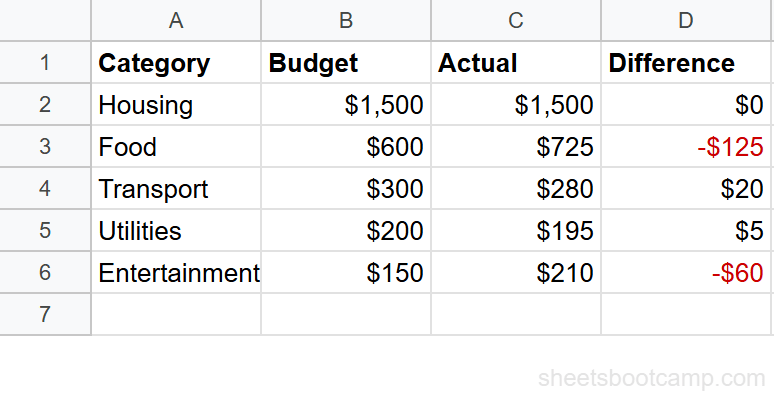
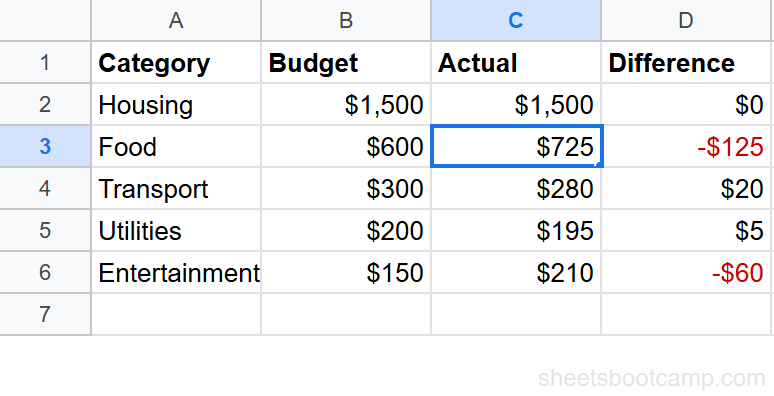
Replace the placeholder data with your own. The template’s formulas, conditional formatting, and charts update automatically as you enter data.
Adjust column widths, add or remove rows, and modify formulas as needed. The structure is a starting point, not a constraint.
Tip
Before editing, go to File > Make a copy and save a clean version. That way you always have the original template to start from again.
Best Templates by Category
Personal Finance
| Template | What It Does | Key Features |
|---|---|---|
| Annual Budget | Track income and expenses by month | Monthly columns, category totals, summary dashboard, over-budget highlighting |
| Monthly Budget | Detailed single-month budget | Transaction log, category summaries, running balance |
| Expense Report | Log and categorize expenses | Date, description, amount, category columns with auto-totals |
The Annual Budget is the most popular starting point. It includes 12 monthly columns with pre-built SUM formulas and conditional formatting that highlights categories where spending exceeds the budget.
Want more than the built-in options? Our free Google Sheets budget template keeps a full year in one file, with a month picker, rollover, and annual bills spread across 12 months. No email needed.
Project Management
| Template | What It Does | Key Features |
|---|---|---|
| Gantt Chart | Visual project timeline | Task rows, start/end dates, color-coded bars, milestone markers |
| Project Timeline | High-level project overview | Phase tracking, status dropdowns, progress percentages |
| To-Do List | Task tracking with priorities | Status checkboxes, priority levels, due dates, completion tracking |
The Gantt Chart template uses conditional formatting to paint timeline bars based on start and end dates. Enter your dates, and the visual timeline updates.
Business
| Template | What It Does | Key Features |
|---|---|---|
| Invoice | Bill clients with line items | Company info, line items, quantity, rate, tax calculation, total |
| Purchase Order | Track orders to suppliers | Vendor details, item list, shipping info, totals |
| Employee Shift Schedule | Plan work shifts | Weekly grid, employee names, shift times, hours calculation |
Administration
| Template | What It Does | Key Features |
|---|---|---|
| Gradebook | Track student grades | Student rows, assignment columns, weighted averages, letter grades |
| Class Schedule | Weekly class timetable | Time slots, color-coded subjects, room numbers |
| Attendance Tracker | Record daily attendance | Date columns, present/absent markers, attendance percentage |
How to Customize a Template
Modify Structure
- Add rows: Right-click a row number and select Insert row above/below. Formulas in summary rows (like SUM and AVERAGE) automatically expand to include new rows if the new row is within the existing range.
- Add columns: Right-click a column header and select Insert column left/right. Check that formulas reference the new column if needed.
- Delete unused sections: Select rows or columns you don’t need and delete them. Verify formulas still work after deleting.
Adjust Formulas
Templates use standard Google Sheets functions. Common formulas you’ll find:
=SUM(B2:B31)for totals, extend the range if you add rows=IF(B2>C2, "Over Budget", "On Track")for status labels- SUMIF for category totals
- Conditional formatting rules for color-coded status
Important
When adding rows inside a SUM range (between the first and last row), the SUM auto-expands. Adding rows below the last row of the range does not update the formula. Check your totals after adding rows at the bottom of a table.
Change Visual Design
- Colors: Select cells, click the fill color button, and choose your palette. Keep it consistent.
- Fonts: Select text, change the font and size in the toolbar. Stick to 1-2 fonts for readability.
- Borders: Select ranges and apply borders from the border tool. Templates often use borders for table structure.
Creating Your Own Template
Google Sheets doesn’t have a “Save as template” button for personal accounts. Here’s how to create a reusable template:
- Build the spreadsheet with all structure, formulas, formatting, and sample data
- Clear the data but keep headers, formulas, data validation rules, and formatting
- Name it clearly: “Budget Template - [Your Name]” or “Project Tracker Template”
- Share a “Make a copy” link: change the URL ending from
/editto/copy. When someone opens the link, Google prompts them to make their own copy
For example, if your sheet URL is:
https://docs.google.com/spreadsheets/d/abc123/edit
Change it to:
https://docs.google.com/spreadsheets/d/abc123/copy
Note
Google Workspace (business/education) accounts can submit templates to the organization’s template gallery through the admin console. This makes templates available to all users in the organization.
Tips and Best Practices
-
Start with a built-in template, then customize. It’s faster to modify an existing template than to build from scratch. Even if you change 80% of it, the starting structure saves time.
-
Check formulas before trusting totals. Templates are generic. Verify that SUM ranges, conditional formatting rules, and data validation match your actual data layout after customization.
-
Use named ranges for clarity. If you customize a template heavily, name your ranges so formulas like
=SUM(Revenue)are readable instead of=SUM(B2:B365). -
Lock structural cells. After customizing a template, protect formula cells and headers so collaborators don’t accidentally overwrite them.
-
Keep a clean master copy. Always maintain an unmodified version of your customized template. Make copies from it for each new use (monthly budget, new project, etc.).
Related Google Sheets Tutorials
- Charts in Google Sheets - Visualize data from your templates with charts and graphs
- Conditional Formatting in Google Sheets - Customize the color-coding in templates
- Drop-Down Lists in Google Sheets - Add dropdowns for status fields and categories
- Custom Number Formats in Google Sheets - Format currency, percentages, and dates in templates
FAQ
Where do I find Google Sheets templates?
Go to sheets.google.com. The homepage shows a strip of common template cards, Blank spreadsheet, To-do list, Annual budget, Monthly budget, Google Finance Investment Tracker, and Annual Calendar, with a Template gallery toggle to show or hide them. For the full set organized by category, open File > New > From template gallery from inside any spreadsheet.
Are Google Sheets templates free?
Yes. All templates in the Google Sheets template gallery are free. They are included with every Google account. When you select a template, Google creates a copy in your Drive that you own and can modify.
Can I create my own template in Google Sheets?
Yes, but not through the template gallery for personal accounts. Build your spreadsheet, then share the link and tell users to make a copy (File > Make a copy). Google Workspace organizations can submit templates to their organization’s template gallery.
What is the best budget template in Google Sheets?
The built-in Annual Budget template is a solid starting point. It includes monthly columns, category rows, a summary dashboard, and conditional formatting for over-budget items. Customize the categories to match your actual income and expenses.
How do I use a template for project management?
The Gantt Chart and Project Timeline templates in the Work category provide a starting framework. They include task lists, date columns, status dropdowns, and visual timelines. Add your tasks, adjust dates, and the formatting updates automatically.
Can I convert an existing spreadsheet into a template?
There is no official template format for personal Google accounts. The workaround is to clear your data from the spreadsheet (keep structure and formulas), save it, and share a “Make a copy” link. Recipients get their own editable copy.
Frequently Asked Questions
Where do I find Google Sheets templates?
Go to sheets.google.com. The homepage shows a strip of common template cards, Blank spreadsheet, To-do list, Annual budget, Monthly budget, Google Finance Investment Tracker, and Annual Calendar, with a Template gallery toggle to show or hide them. For the full set organized by category, open File > New > From template gallery from inside any spreadsheet.
Are Google Sheets templates free?
Yes. All templates in the Google Sheets template gallery are free. They are included with every Google account. When you select a template, Google creates a copy in your Drive that you own and can modify.
Can I create my own template in Google Sheets?
Yes, but not through the template gallery for personal accounts. Build your spreadsheet, then share the link and tell users to make a copy (File > Make a copy). Google Workspace organizations can submit templates to their organization's template gallery.
What is the best budget template in Google Sheets?
The built-in Annual Budget template is a solid starting point. It includes monthly columns, category rows, a summary dashboard, and conditional formatting for over-budget items. Customize the categories to match your actual income and expenses.
How do I use a template for project management?
The Gantt Chart and Project Timeline templates in the Work category provide a starting framework. They include task lists, date columns, status dropdowns, and visual timelines. Add your tasks, adjust dates, and the formatting updates automatically.
Can I convert an existing spreadsheet into a template?
There is no official template format for personal Google accounts. The workaround is to clear your data from the spreadsheet (keep structure and formulas), save it, and share a Make a copy link. Recipients get their own editable copy.
You've googled this formula before. Probably more than once.
The Bootcamp is a real Google Sheet that grades every formula the moment you press Enter. 193 exercises across 9 modules, the 10% of Sheets that does 90% of the work. One payment of $29.
Get It for $29 Get the Bootcamp for $2930-day refund. Reply to any email and you get your money back.
Not ready to pay? Try Basic Training free →