
This free Google Sheets budget template tracks a full year in one file: 30 categories, 500 transactions, 12 months, and a dashboard that recalculates for whichever month you pick. Make a copy, set your categories once on the Setup tab, then log each purchase as one row on the Transactions tab.
beginner 4 min read
Free Google Sheets Budget Template (Monthly Budget Tracker)
A free Google Sheets budget template with 30 categories, 12 months in one file, rollover, annual bills, and a dashboard for any month. No email needed.
SB
Sheets Bootcamp
September 30, 2026
Table of Contents
Quick Answer
Free Budget Tracker for Google Sheets
4 tabs, 30 categories, 12 months in one file. Formulas only, no add-ons.
Make a copy of the Budget TrackerFree. No email, no sign-up. Google asks you to press "Make a copy", and the copy lives in your own Drive.
Want to build files like this yourself? The Sheets Bootcamp teaches every formula in it. Get the Bootcamp for $29
What’s Inside the Budget Template
The file has four tabs. You set up one of them once, you type into one of them day to day, and the other two do the work.
| Tab | What it’s for | How often you touch it |
|---|---|---|
| Setup | Your categories, planned amounts, start month and starting balance | Once, then when a plan changes |
| Transactions | One row per paycheck or purchase | Every time you spend |
| Dashboard | Income, spending and every category’s status for the month you pick | Whenever you want to check in |
| How it works | The four formulas that run the file, in plain language | Only if you’re curious |
Gold cells are yours to type in. Everything else is a formula, so leave it alone and the file keeps working.
How to Set Up Your Budget
1
Make a copy
Press the button above, then Make a copy on the Google page that opens. The copy lands in your Drive and nobody else can see it.
2
List your categories
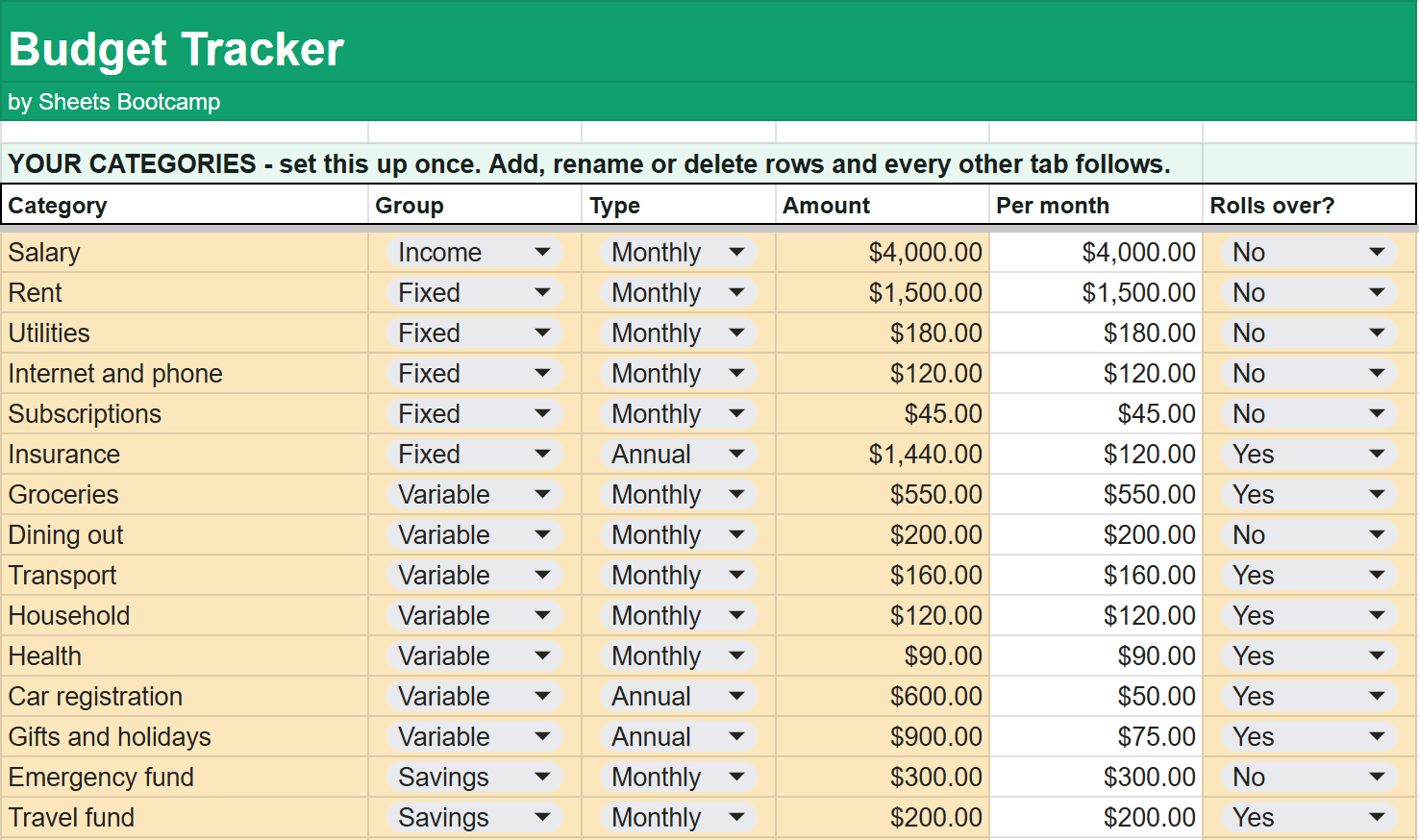
Open the Setup tab. Each row is one category with four choices:
- Group: Income, Fixed, Variable or Savings. The group decides whether money counts as coming in or going out.
- Type: Monthly, or Annual for bills that come once a year.
- Amount: the monthly amount, or the yearly amount for an Annual category.
- Rolls over? Yes carries unspent money into next month. No starts fresh every month.
The template ships with 15 starter categories, from Rent and Groceries to an Emergency fund. Rename them, delete the ones you don’t need, and add your own. There are 30 slots, and every other tab reads all of them, so a new category appears everywhere on its own.
3
Set your start month and balance
At the bottom of the Setup tab, enter the first day of the month your budget starts (for example, 9/1/2026) and what was in your account on that date. The template builds its 12 months from that start date.
4
Log every transaction
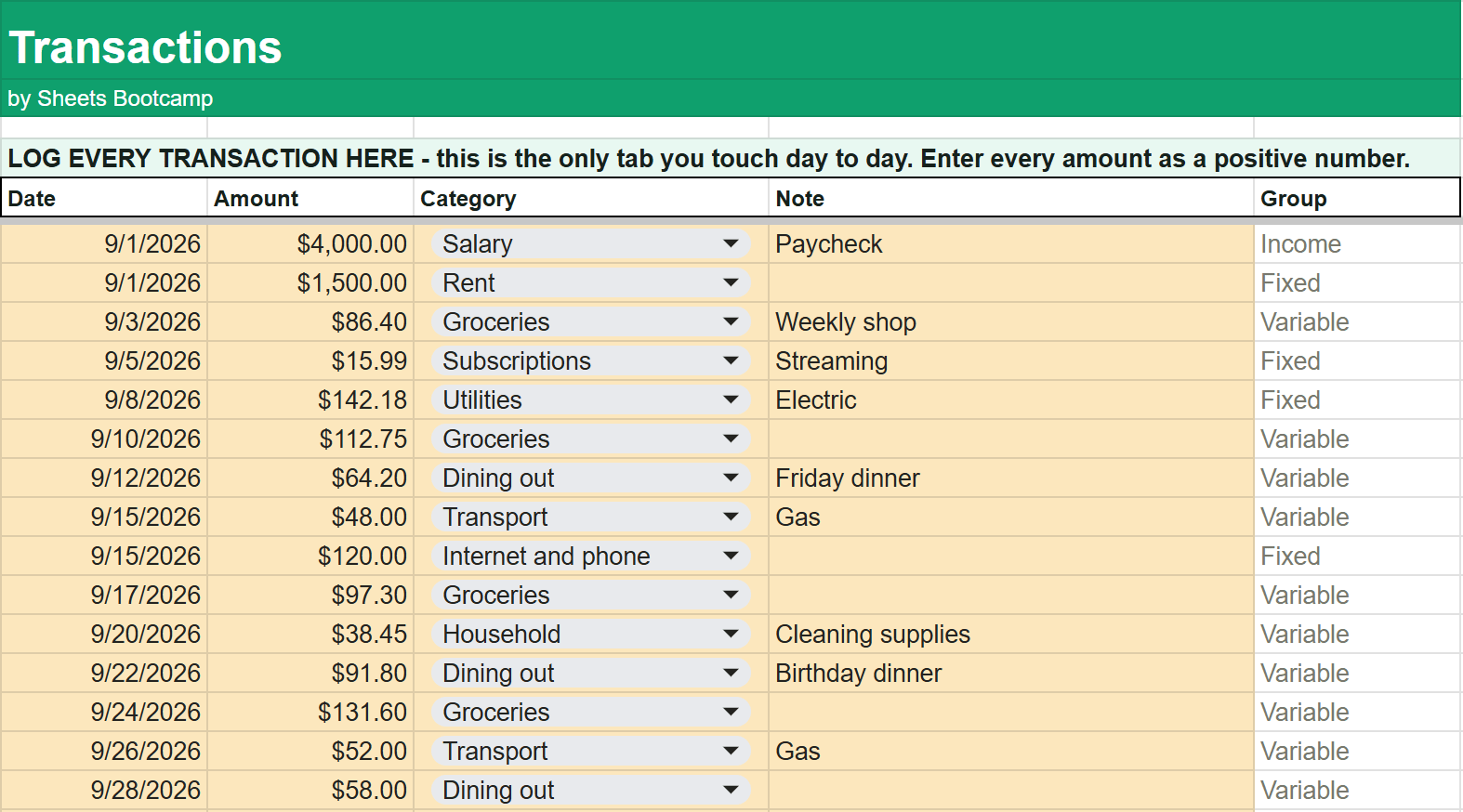
Open the Transactions tab. Each row takes a date, an amount, a category from the dropdown, and an optional note. Enter every amount as a positive number, including paychecks. The Group column fills in by itself, and that’s what tells the file a $4,000 paycheck is income and a $86.40 grocery run is spending.
Tip
The category is a dropdown fed straight from your Setup list. That’s deliberate: a typo like “grocery” instead of “Groceries” is the most common way a homemade budget silently stops adding up, and a dropdown makes it impossible.
5
Pick a month on the dashboard
Open the Dashboard and choose a month from the dropdown at the top. Every number on the tab recalculates for that month.
How to Read the Dashboard
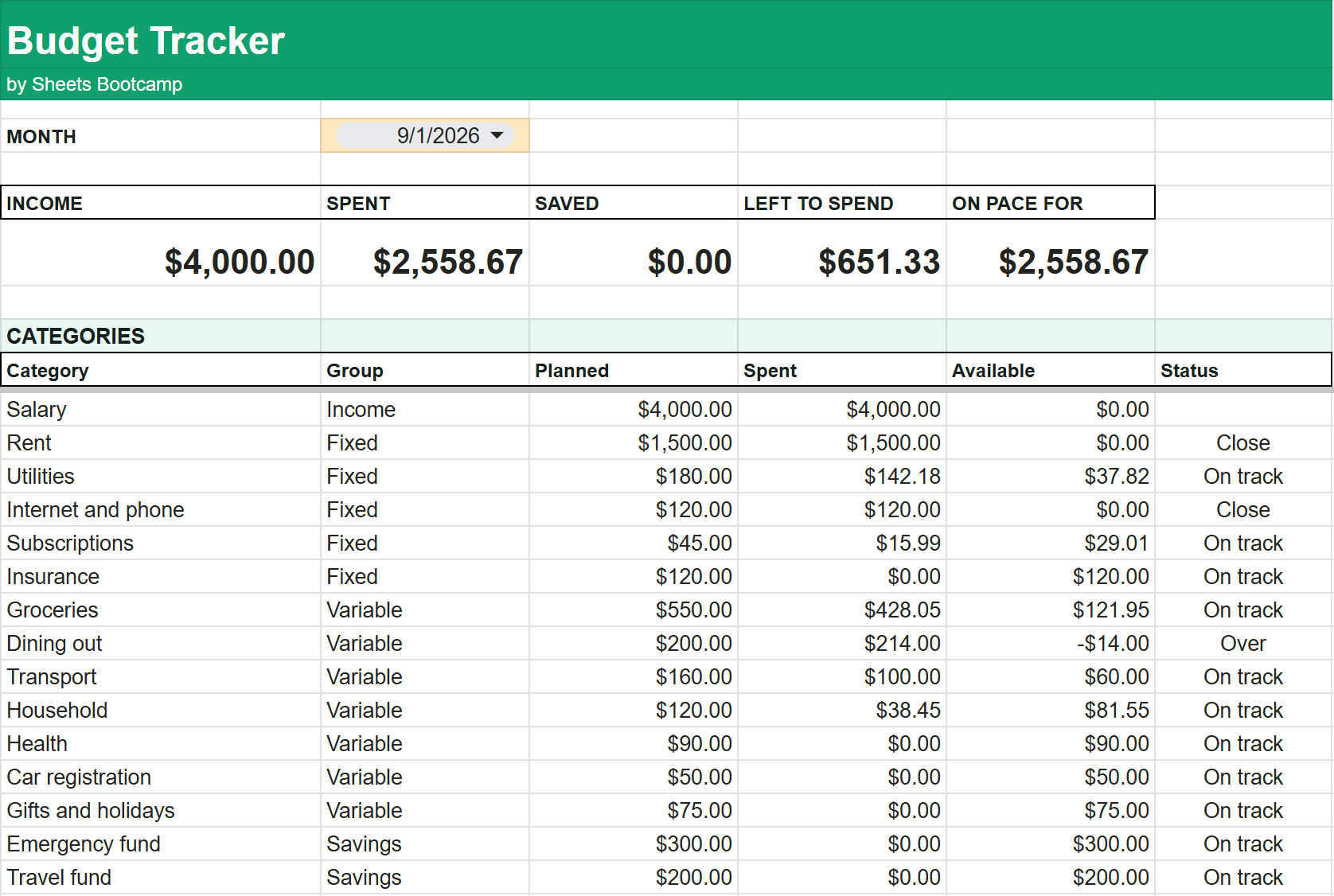
The top row gives you five numbers for the month you picked:
| Number | What it means |
|---|---|
| Income | Everything logged to an Income category |
| Spent | Everything logged to Fixed and Variable categories |
| Saved | Everything logged to Savings categories. Savings is not counted as spending |
| Left to spend | Planned Fixed and Variable spending minus what you’ve spent |
| On pace for | For the current month, your spending so far projected to month end. For past months, what you actually spent |
In the example above, the plan for Fixed and Variable spending is $3,210. After $2,558.67 of spending, $651.33 is left.
Below that, every category gets a Status:
- On track: 90% or less of the plan is used.
- Close: more than 90% is used. Rent shows Close as soon as it’s paid, which is exactly right.
- Over: spending has passed the plan. Dining out in the example had a $200 plan and $214 of spending, so it shows Over at -$14.
When anything is over, a line under the table names it and tells you the two ways to fix it.
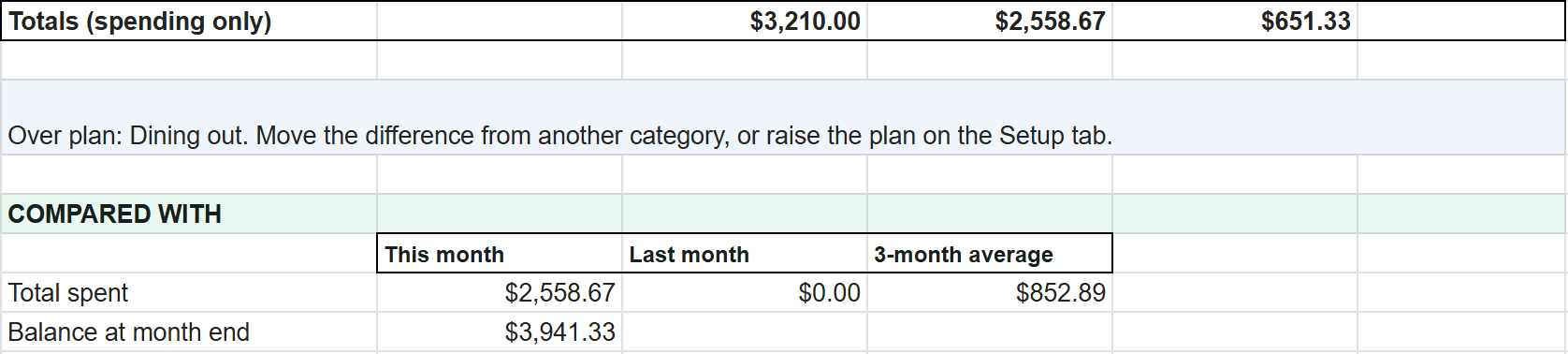
The Compared With section puts this month’s total spending next to last month’s and the 3-month average, and shows your balance at the end of the month. In the example, a $2,500 starting balance plus $4,000 of income minus $2,558.67 of spending leaves $3,941.33.
Annual Bills and Rollover
Two settings handle the expenses that wreck most monthly budgets.
Annual bills (sinking funds). Set a category’s type to Annual and enter the yearly amount. The Per month column divides it by 12. A $1,440 insurance bill becomes a $120 monthly plan, a $600 car registration becomes $50. When the bill arrives, a year of planning has already covered it.
Rollover. For a category set to roll over, the Available column is everything the category has ever been given minus everything it has ever spent, counted from your start month. Spend $400 of a $550 grocery plan and next month starts with $700 available. Overspend and next month starts lower. Use it for groceries and anything annual. Leave it off for categories like dining out, where you want a clean slate each month.
The Four Formulas Behind It
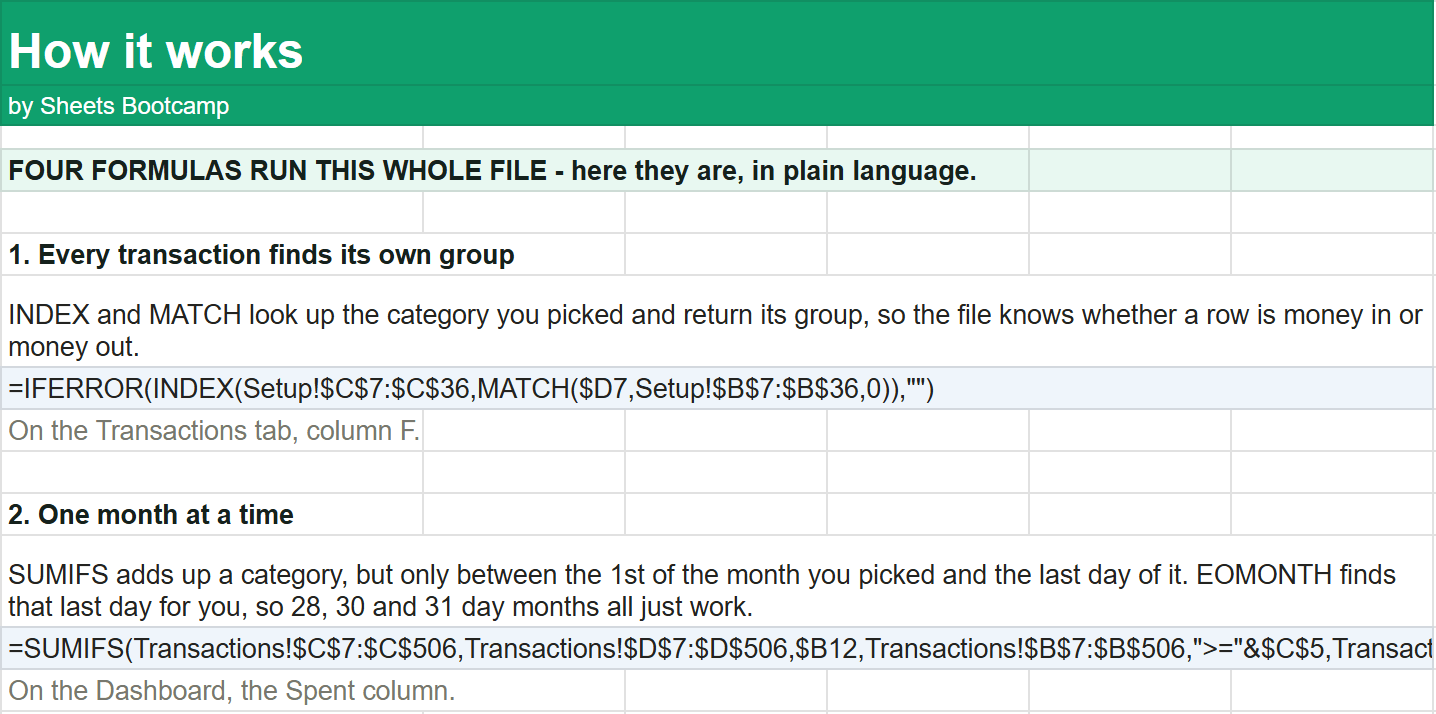
The How it works tab shows the four formulas that run the whole file, each with a plain-language explanation:
- INDEX and MATCH look up each transaction’s category and return its group. See INDEX MATCH in Google Sheets.
- SUMIFS adds up a category between the 1st and the last day of the month you picked, and EOMONTH finds that last day. See SUMIF and SUMIFS and EDATE and EOMONTH.
- IF divides an Annual amount by 12. See IF statements.
- A running total gives rollover categories their Available amount, with no month needing to remember the one before it.
The category dropdowns come from data validation, with the list pulled from a range so new categories show up on their own.
Why Use This Instead of Google’s Built-In Budget Template
Google Sheets ships its own Monthly budget template, and it’s a fine place to start. This one is built for the problems people hit after a few weeks:
- A whole year in one file. The month dropdown means no copying the file every month to compare two of them.
- Annual bills spread across the year, so a once-a-year expense doesn’t blow up the month it lands in.
- Rollover per category, so unspent grocery money isn’t lost.
- Categories you can change safely. Every formula reads all 30 slots, so adding or renaming a category never breaks a total.
- No scripts. It’s formulas only, so opening a copy never triggers a permissions prompt.
Frequently Asked Questions
Is this Google Sheets budget template free?
Yes. The Budget Tracker is free, with no email or sign-up. Press Make a copy and the file goes into your own Google Drive.
How many categories and transactions does it hold?
The template has 30 category slots and 500 transaction rows, and it covers 12 months in one file. It ships with 15 starter categories you can rename or delete.
Can I compare one month with another?
Yes. The Dashboard has a month dropdown, and every number recalculates for the month you pick. A Compared With section shows this month's spending next to last month's and the 3-month average.
How does it handle annual bills like insurance?
Set the category's type to Annual and enter the yearly amount. The template divides it by 12, so a $1,440 insurance bill becomes a $120 monthly plan, and the money is already set aside when the bill arrives.
What does Close mean on the dashboard?
Close means a category has used more than 90% of its planned amount for the month. Over means it has gone past the plan, and On track means it has used 90% or less.
Does the template ask for permissions?
No. The file runs on formulas only, with no scripts or add-ons, so Google never asks you to authorize anything when you open it.
You've googled this formula before. Probably more than once.
The Bootcamp is a real Google Sheet that grades every formula the moment you press Enter. 193 exercises across 9 modules, the 10% of Sheets that does 90% of the work. One payment of $29.
Get It for $29 Get the Bootcamp for $2930-day refund. Reply to any email and you get your money back.
Not ready to pay? Try Basic Training free →