
XLOOKUP’s match_mode argument takes four values: 0 exact (default), -1 exact or next smaller, 1 exact or next larger, 2 wildcard. Example: =XLOOKUP(750, A2:A6, B2:B6, , -1) finds the commission tier for a $750 sale by falling back to the $500 bracket. Unlike VLOOKUP’s TRUE mode, none of these require sorted data.
intermediate 3 min read
XLOOKUP Match Modes in Google Sheets Explained
Master XLOOKUP match_mode in Google Sheets: exact match, next smaller, next larger, and wildcards. Includes tier lookups and why sorting is not required.
SB
Sheets Bootcamp
July 28, 2026
Table of Contents
Quick Answer
Match_mode is the fifth argument of XLOOKUP and answers one question: what counts as a match? The default demands the exact value. The other three modes relax that rule in controlled ways, and they replace both VLOOKUP’s approximate match and its wildcard tricks with something more predictable.
In This Guide
- The Four Match Modes
- Exact Match: The Default
- Next Smaller: Tier and Bracket Lookups
- Next Larger: Rounding Up
- Wildcards: Partial Matching
- No Sorting Required
- Related Google Sheets Tutorials
The Four Match Modes
Formula
=XLOOKUP(search_key, lookup_range, result_range, [missing_value], [match_mode], [search_mode]) | match_mode | Behavior | Typical use |
|---|---|---|
| 0 (default) | Exact match only, #N/A if absent | IDs, SKUs, emails, names |
| -1 | Exact match, else next smaller value | Tax brackets, commission tiers, grade floors |
| 1 | Exact match, else next larger value | Minimum quantities, shipping weight bands |
| 2 | Wildcards: * and ? in the search key | Partial text, “starts with”, “contains” |
Exact Match: The Default
With no fifth argument, XLOOKUP only accepts the exact value:
Formula
=XLOOKUP("SKU-103", A2:A6, D2:D6) If SKU-103 is not in the range, the formula returns #N/A (or your missing_value if you set one). This default is XLOOKUP’s biggest safety upgrade over VLOOKUP, which defaults to approximate matching and silently returns a neighbor row when the value is missing.
Next Smaller: Tier and Bracket Lookups
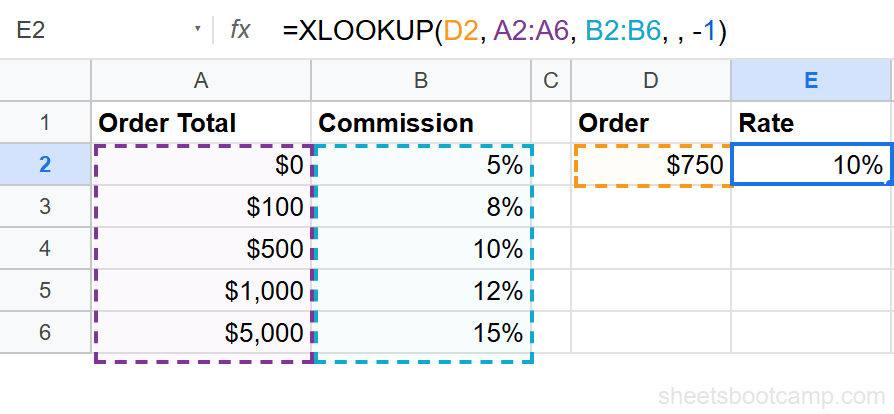
Match_mode -1 returns the exact match when it exists, and otherwise the largest value that is still below the search key. That is precisely how brackets work: a $750 sale belongs to the tier that starts at $500.
| Order minimum | Commission |
|---|---|
| $0 | 5% |
| $500 | 10% |
| $1,000 | 12% |
| $2,500 | 15% |
| $5,000 | 20% |
Formula
=XLOOKUP(750, A2:A6, B2:B6, , -1) The search key 750 has no exact match. The next smaller value is 500, so the formula returns 10%.
Note
The two commas in a row are not a typo. They skip the missing_value argument so that -1 lands in the match_mode position. You can also write a value there: =XLOOKUP(750, A2:A6, B2:B6, "no tier", -1).
Next Larger: Rounding Up
Match_mode 1 is the mirror image: exact match if it exists, otherwise the smallest value above the search key. Use it when the business rule rounds up. A parcel weighing 1.2 kg ships at the 2 kg rate:
| Weight up to | Shipping cost |
|---|---|
| 0.5 kg | $4.00 |
| 1 kg | $6.50 |
| 2 kg | $9.00 |
| 5 kg | $14.00 |
Formula
=XLOOKUP(1.2, A2:A5, B2:B5, , 1) There is no exact 1.2 in the weight column. The next larger value is 2, so the formula returns $9.00.
Wildcards: Partial Matching
Match_mode 2 turns on wildcard matching. Two characters get special meaning inside the search key:
*matches any sequence of characters, including none?matches exactly one character
Find the first product whose name contains “Ext”:
Formula
=XLOOKUP("*Ext*", B2:B9, A2:A9, "Not found", 2) 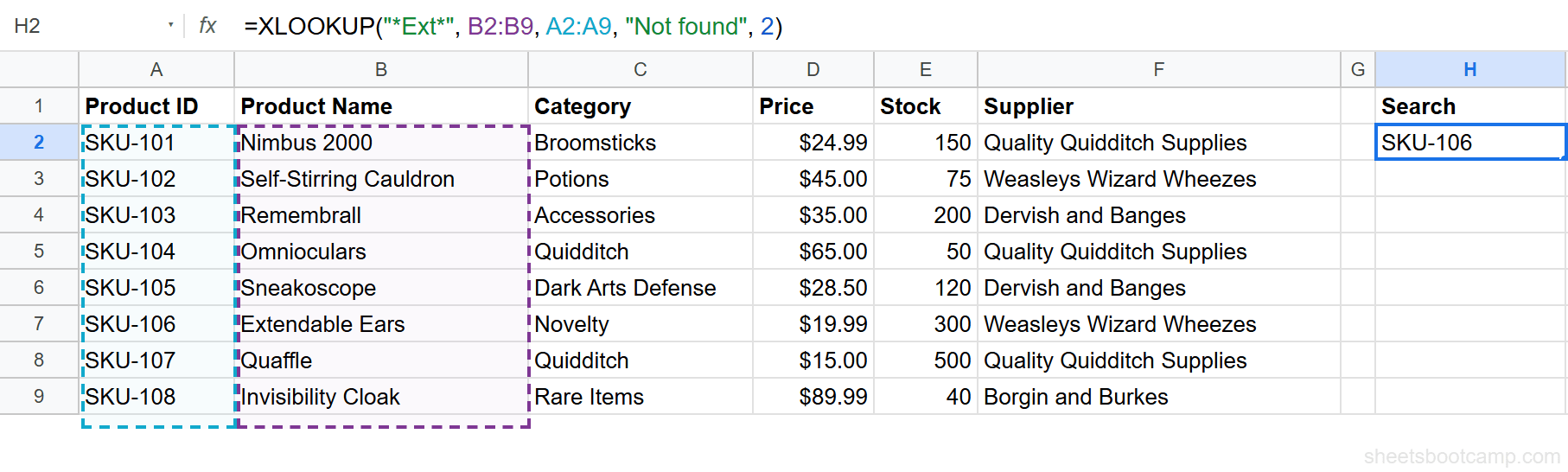
"Ext*" would require the name to start with Ext, and "SKU-1?5" matches SKU-105 but also SKU-125. Wildcard matching is case-insensitive, so "*ext*" behaves the same.
Tip
To search for a literal asterisk or question mark, escape it with a tilde: "~*" matches an actual * character.
Wildcards only work when match_mode is 2. In exact match mode, a * in the search key is treated as a plain character, which is a deliberate improvement over VLOOKUP, where wildcards are always live and a stray asterisk can quietly change what matches.
No Sorting Required
VLOOKUP’s TRUE mode requires the first column sorted ascending, and unsorted data produces wrong answers with no warning. XLOOKUP’s -1 and 1 do not share that rule: they scan the whole range and return the correct neighbor no matter the order. We verified this directly: an unsorted list of 40, 10, 99, 20, 30 with a search key of 25 and match_mode -1 correctly returns the row for 20.
Sorting starts to matter only when you combine a match mode with binary search (search_mode 2 or -2), which trades that safety for speed on large ranges. That combination is covered in search modes.
Important
If you migrate a VLOOKUP TRUE formula to XLOOKUP with match_mode -1, you can stop maintaining the sort order that VLOOKUP forced on the table. Nothing breaks if someone re-sorts the sheet.
Related Google Sheets Tutorials
- XLOOKUP: The Complete Guide: All six parameters in one place
- XLOOKUP Search Modes: Direction and binary search
- XLOOKUP If Not Found: Pairing match modes with missing_value
- XLOOKUP vs VLOOKUP: Why exact-by-default matters
- VLOOKUP Approximate Match: The old way, for comparison
Frequently Asked Questions
What is match_mode in XLOOKUP?
Match_mode is XLOOKUP's fifth argument and controls how the search key is compared: 0 is exact match (the default), -1 accepts the next smaller value, 1 accepts the next larger value, and 2 enables wildcard matching with * and ?.
Does XLOOKUP approximate match require sorted data?
No. Match_mode -1 and 1 scan the entire range and return the correct answer on unsorted data. Sorting is only required when you also enable binary search with search_mode 2 or -2.
How do I do a wildcard lookup with XLOOKUP?
Set match_mode to 2 and use * for any sequence of characters or ? for a single character. For example, =XLOOKUP("*watch*", B2:B6, D2:D6, "none", 2) finds the first product name containing "watch".
What is the XLOOKUP equivalent of VLOOKUP TRUE?
Match_mode -1, which finds the exact match or the next smaller value. =VLOOKUP(A2, D2:E50, 2, TRUE) becomes =XLOOKUP(A2, D2:D50, E2:E50, , -1). Unlike VLOOKUP TRUE, the data does not need to be sorted.
When should I use match_mode 1 instead of -1?
Use 1 when rounding up is the correct business rule: minimum order quantities, shipping weight brackets that charge for the next band up, or finding the first available slot at or after a time. Use -1 when brackets are defined by their floor, like tax brackets and commission tiers.
You've googled this formula before. Probably more than once.
The Bootcamp is a real Google Sheet that grades every formula the moment you press Enter. 193 exercises across 9 modules, the 10% of Sheets that does 90% of the work. One payment of $29.
Get It for $29 Get the Bootcamp for $2930-day refund. Reply to any email and you get your money back.
Not ready to pay? Try Basic Training free →