
To calculate a percentage in Google Sheets, divide the part by the whole and format the result as a percent: =C2/B2. With $100 paid on a $250 order, =C2/B2 returns 0.4, which shows as 40% once you click the % button. Percent change is =(new-old)/old.
beginner 3 min read
How to Calculate Percentages in Google Sheets
Calculate percentages in Google Sheets: percent of a total, percent change, add or subtract a percent, and format results. Plus PERCENTIF and TO_PERCENT.
SB
Sheets Bootcamp
September 30, 2026
Table of Contents
Quick Answer
A percentage in Google Sheets is a division with percent formatting on top. Get the division right, then change how it’s displayed. This page covers the handful of percentage formulas people actually need, in the order they come up.
The examples use a small order sheet with each customer’s order Total and the amount they’ve Paid.
Percent of a Total
Divide the part by the whole:
Formula
=C2/B2 Ava has paid $100 of a $250 order, so the formula returns 0.4. That’s the right answer, just not in percent form yet. Select the cell and click the % button on the toolbar (Format as percent). It now reads 40.00%.
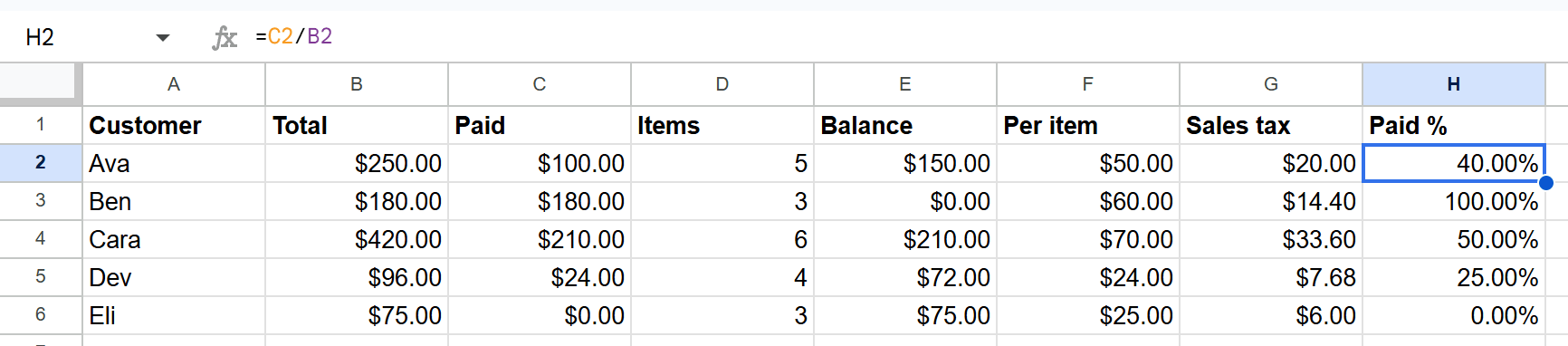
The % button shows two decimal places. Click Decrease decimal places on the toolbar twice to get 40%.
Tip
If you search for “percentage function with C2 and D2”, this is the formula you want: =C2/D2, then the % button. The order matters: the part goes first and the whole goes second.
Each row as a share of the column total
To see what share of all sales each row represents, divide by the column total and lock it with dollar signs:
Formula
=B2/SUM($B$2:$B$6) Fill it down and every row divides by the same total. The dollar signs are what stop the SUM range from sliding down as you fill. See absolute and relative references.
TO_PERCENT: format inside the formula
TO_PERCENT returns the result already formatted as a percent, which is handy inside longer formulas:
Formula
=TO_PERCENT(C2/B2) With 35 and 100, that returns 35%.
Percent Change
To measure growth or decline from an old value to a new one:
Formula
=(new-old)/old In cells, with last month in B2 and this month in C2, that’s =(C2-B2)/B2. Going from 100 to 120 returns 20%. A drop returns a negative percent, for example -35%, which is correct, not an error.
Add or Subtract a Percentage
To increase a number by a percentage, multiply by 1 plus the percent:
Formula
=B2*(1+15%) A price of 100 becomes 115. To take a percentage off, multiply by 1 minus the percent:
Formula
=B2*(1-15%) That returns 85. Don’t write =B2-15%. That subtracts 0.15 from the number, not 15% of it. Subtracting in Google Sheets covers this in more detail.
Percentage Points vs. Percent Change
When both values are already percentages, there are two honest answers. Going from 25% to 30%:
| Question | Formula | Result |
|---|---|---|
| How many points did it rise? | =30%-25% | 5% (5 percentage points) |
| By what percent did it rise? | =(30%-25%)/25% | 20% |
Neither is wrong. Label which one you’re reporting, because “up 5%” and “up 20%” describe the same change.
Percentage Functions
Google Sheets has three functions with percent in the name:
| Function | What it does | Example |
|---|---|---|
| TO_PERCENT | Formats a number as a percent | =TO_PERCENT(0.35) shows 35% |
| UNARY_PERCENT | Divides a number by 100 | =UNARY_PERCENT(15) returns 0.15 |
| PERCENTIF | Share of cells in a range that meet a condition | =PERCENTIF(D2:D6,">2") |
PERCENTIF has a detail worth knowing. It divides by every cell in the range, text included. On quantities of 2, 3, 4, “n/a” and 0, =PERCENTIF(D2:D6,“>2”) returns 40%: two of five cells. Counting only the numbers, with =COUNTIF(D2:D6,“>2”)/COUNT(D2:D6), returns 50%: two of four. Pick the one that matches the question you’re asking.
Typing Percentages into Cells
Typing 50% into a cell stores 0.5 and displays 50%. So a cell showing 50% multiplied by 2 returns 1, not 100. If you type ‘50% with an apostrophe in front, Sheets stores it as text, and it won’t work in math at all.
Related Google Sheets Tutorials
- Multiply and Divide in Google Sheets - The division behind every percentage
- Custom Number Formats - Control exactly how percentages display
- COUNTIF - Count the cells that meet a condition
- Conditional Formatting - Highlight percentages above or below a target
Frequently Asked Questions
What is the percentage formula in Google Sheets?
Divide the part by the whole, then format the cell as a percent. =C2/D2 with 35 in C2 and 100 in D2 returns 0.35, which displays as 35% once formatted. =TO_PERCENT(C2/D2) does both in one step.
How do I calculate percent change in Google Sheets?
Use =(new-old)/old and format as a percent. Going from 100 to 120 gives =(120-100)/100, which is 20%.
How do I add a percentage to a number?
Multiply by 1 plus the percentage: =B2*(1+15%). A value of 100 becomes 115. To subtract 15%, use =B2*(1-15%), which returns 85.
Is there a percentage function in Google Sheets?
Yes, a few. TO_PERCENT formats a number as a percent, UNARY_PERCENT divides by 100 (=UNARY_PERCENT(15) returns 0.15), and PERCENTIF returns the share of cells in a range that meet a condition.
What's the difference between percentage points and percent change?
Going from 25% to 30% is 5 percentage points (30%-25%) but a 20% increase ((30%-25%)/25%). Both are correct; they answer different questions, so say which one you mean.
You've googled this formula before. Probably more than once.
The Bootcamp is a real Google Sheet that grades every formula the moment you press Enter. 193 exercises across 9 modules, the 10% of Sheets that does 90% of the work. One payment of $29.
Get It for $29 Get the Bootcamp for $2930-day refund. Reply to any email and you get your money back.
Not ready to pay? Try Basic Training free →