
This free Google Sheets expense tracker logs each purchase as one row and totals it by category for any month you pick: this month, last month, the change, budget left, and year to date. Make a copy, set your categories, and add a row every time you spend.
beginner 2 min read
Free Google Sheets Expense Tracker Template
A free Google Sheets expense tracker: log each purchase in one row and see spending by category, this month vs last month, budget left, and year to date.
SB
Sheets Bootcamp
September 30, 2026
Table of Contents
Quick Answer
Free Expense Tracker for Google Sheets
500 expenses, 20 categories, any month on demand. Formulas only, no add-ons.
Make a copy of the Expense TrackerFree. No email, no sign-up. Google asks you to press "Make a copy", and the copy lives in your own Drive.
Want to build files like this yourself? The Sheets Bootcamp teaches every formula in it. Get the Bootcamp for $29
What’s Inside
The file has three working tabs and a fourth that explains the formulas.
| Tab | What it’s for |
|---|---|
| Summary | Pick a month and see every category’s totals |
| Expenses | One row per purchase, the only tab you touch day to day |
| Categories | Your category list and optional monthly budgets |
| How it works | The formulas behind it, in plain language |
The Summary
Type any date in the month you want into the gold cell at the top. Every number on the tab recalculates for that month:
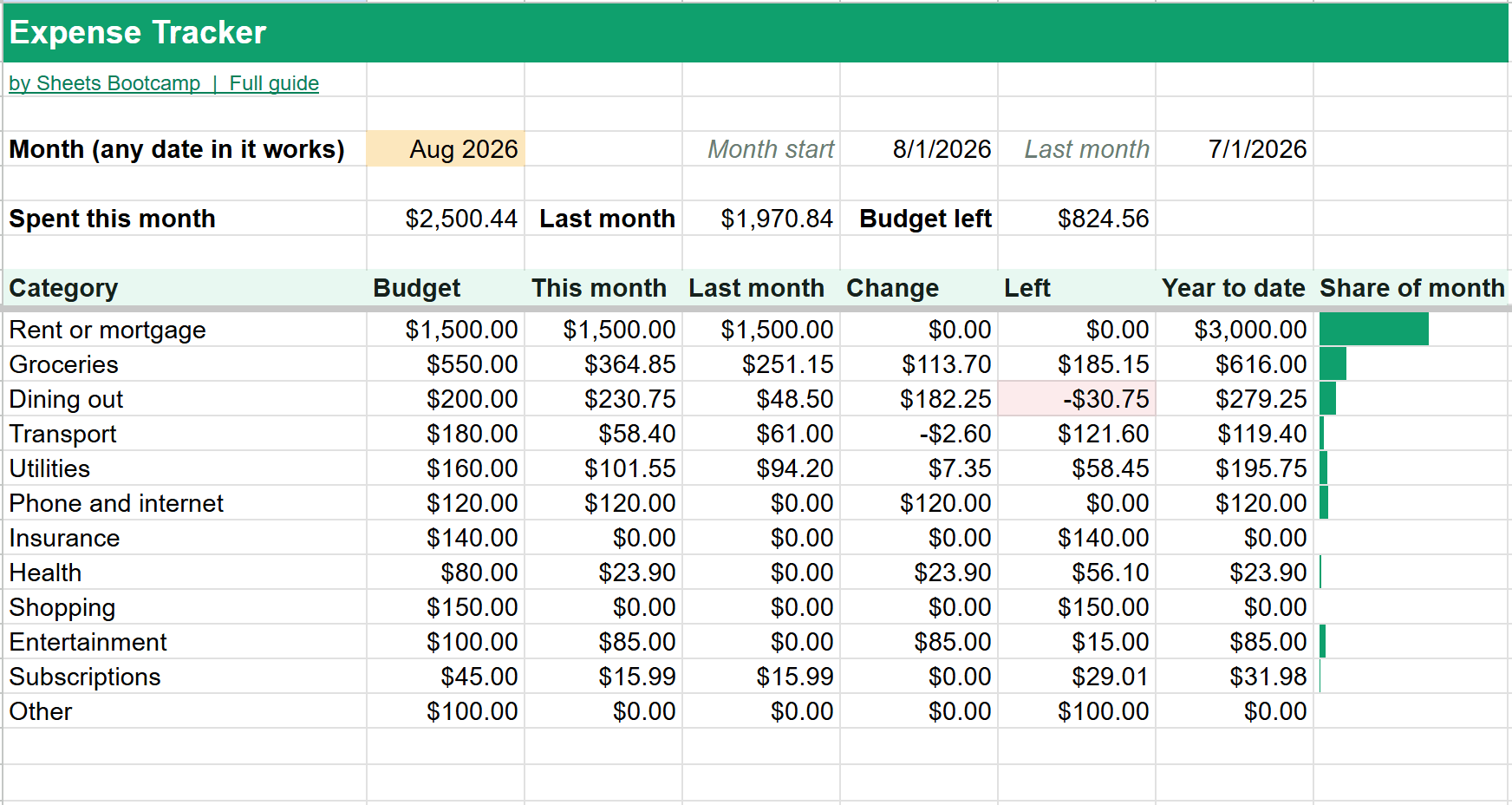
For each category you get:
- This month and Last month, side by side
- Change between the two
- Left, your budget minus this month’s spending. It’s highlighted when it goes negative. In the example, Dining out had a $200 budget and $230.75 of spending, so it shows $30.75 over.
- Year to date, from January 1 to the end of the month you picked
- Share of month, a bar showing how much of the month’s spending went to that category
The three totals at the top show what you spent, what you spent the month before, and how much budget is left across every category.
Logging Expenses
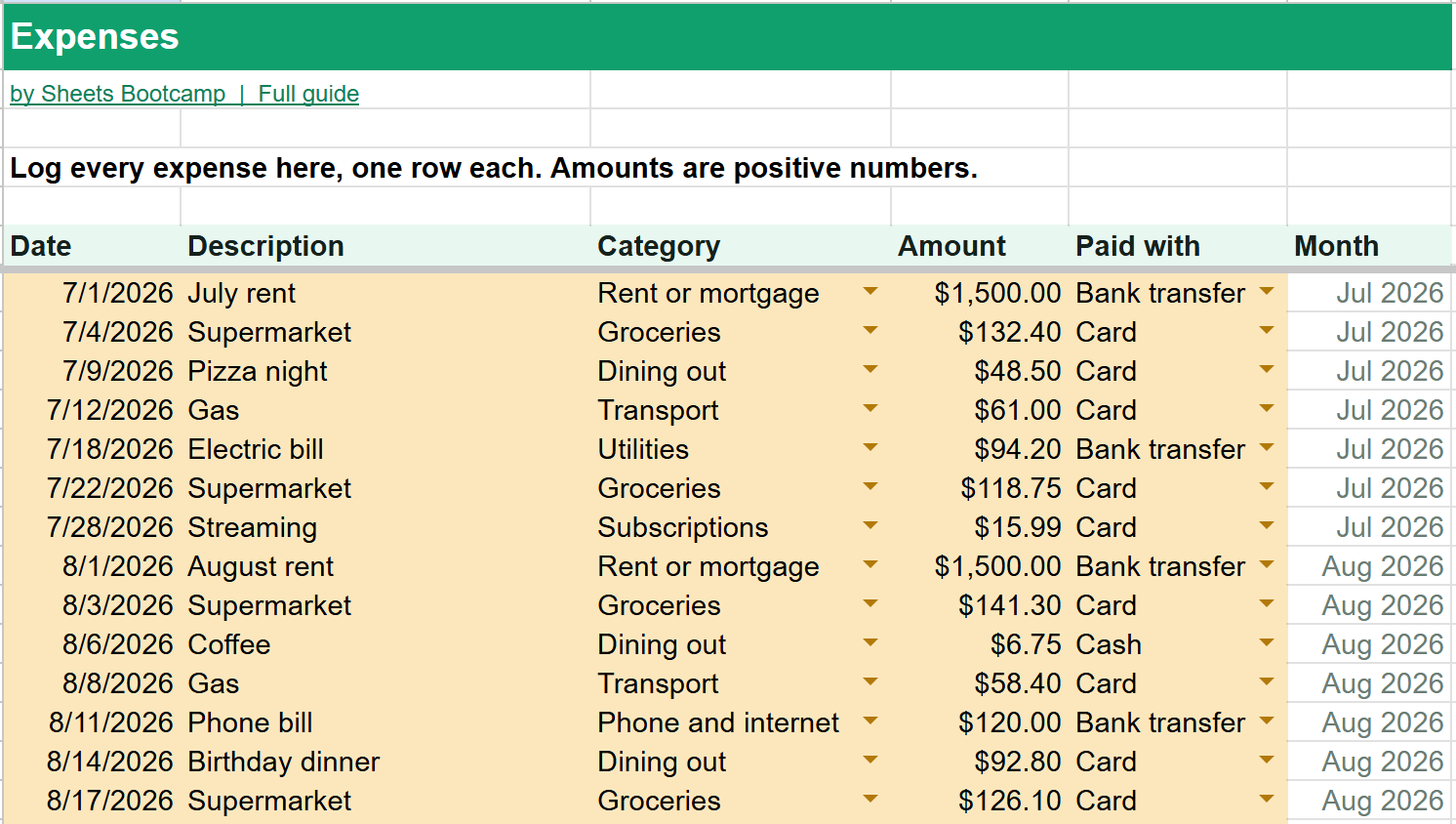
Each expense takes one row:
- Date of the purchase
- Description, anything that helps you remember it
- Category, picked from a dropdown
- Amount, as a positive number
- Paid with: card, cash, bank transfer or other
The Month column fills itself in. It’s what the Summary matches on, so leave it alone.
Tip
The category is a dropdown on purpose. A typo like “grocery” instead of “Groceries” would quietly drop that expense out of the Groceries total. The dropdown makes that impossible.
Customizing Categories
The template starts with 12 common categories, from rent to subscriptions. On the Categories tab you can rename them, delete the ones you don’t use, and add up to 20. New categories show up in the Expenses dropdown and on the Summary with no other change.
Budgets are optional. Fill one in and the Summary shows how much is left. Leave it blank and that category just shows its spending.
The Formulas Inside
The How it works tab explains each formula. The one doing most of the work is SUMIFS, which adds up the Amount column only for rows that match a category and a month:
Formula
=SUMIFS(Expenses!$D$7:$D$506, Expenses!$C$7:$C$506, A9, Expenses!$F$7:$F$506, $E$4) To learn how it works, see SUMIF and SUMIFS. The category dropdown uses data validation fed from a range, and the month matching uses EOMONTH.
Frequently Asked Questions
Is this Google Sheets expense tracker free?
Yes. It's free with no email or sign-up. Press Make a copy and it goes into your own Google Drive.
How many expenses can it hold?
500 expense rows and 20 categories in one file. The Summary works for any month you pick, so you can keep a full year in the same copy.
Can I compare this month to last month?
Yes. The Summary shows each category's spending for the month you pick next to the month before, plus the change between them.
Do I have to set a budget?
No. Budgets are optional. Leave a category's budget blank and its Left column stays empty. Fill it in and Left shows what's remaining, highlighted when you go over.
How do I add a new category?
Type it into an empty row on the Categories tab. It appears in the Expenses dropdown and on the Summary automatically.
You've googled this formula before. Probably more than once.
The Bootcamp is a real Google Sheet that grades every formula the moment you press Enter. 193 exercises across 9 modules, the 10% of Sheets that does 90% of the work. One payment of $29.
Get It for $29 Get the Bootcamp for $2930-day refund. Reply to any email and you get your money back.
Not ready to pay? Try Basic Training free →